Showing posts with label audio. Show all posts

Wednesday, December 4, 2013

What can we do with a blank slate?

Many of our students need visuals. For these visual supports we often go to paper, whiteboards (I love to have some small ones handy), and now, apps. All of these methods work well for a quick sketch that supports an idea, a concept, a vocabulary word, a relationship. Technology can provide us access to more detailed visuals in the form of saved images, and can take this blank slate and add features such as dynamic annotation and voiceover.

One such tech-based blank slate is Educreations Interactive Whiteboard. I have been working with a small private school on integrating iPads in their curriculum, and we chose this app as one to start with. Teachers are often tempted to use only apps that are filled with content; these engage students, for sure, but I am a big fan of working with students in a process to create, using the classroom content as a context. This process tends involves more planning, collaboration, and of course, language than does the use of content-based apps (which of course can be leveraged in their own way). Recently I made a short(ish) tutorial on Educreations that I thought I would share here:


Educreations is one in a genre that includes the free ShowMe and Screenchomp, and also paid apps such as Explain Everything and Doodlecast Pro. The tutorial above also includes a view of Flickr Creative Commons and how to save photos from that resource, which is important to consider in using Educreations. Though you CAN just save Google Images and use them in an Educreations project, because this app saves to the web, you SHOUD NOT due to copyright issues (that process is OK to use if the saved photo will stay on your iPad for instructional purposes and not be republished to the web). If you save photos from Flickr Creative Commons, a process that just involves a few extra taps and a statement of where the images came from (see this link for a step-by-step), you are following copyright guidelines. Of course you can skirt all that by using your own drawings and images, or using one of the paid apps in this genre, such as Explain Everything or Doodlecast Pro, that allow you to save to the Camera Roll rather than the web.

So, what can you do with this kind of app?

What other ways have you used Educreations? Let us know in the comments.

Disclosure: Author contracts to Mindwing Concepts to contribute to their blog, and Mindwing Concepts provides professional development through a partnership with Ely Center, LLC, where this author is employed.

Thursday, October 17, 2013

Working around the App

It's important to emphasize that apps and the iPad itself are simply tools we can use in our work to address student objectives. Apps can provide or extend a context in which we are targeting particular skills, and I love talking about the activities that can be going on "around the app."  A few resources related to this recently came to my attention.

I have long been a fan of Toontastic, and whole-heartedly recommend the All-Access version to elementary SLPs. This stellar app is so engaging to students, and the full version allows access not only to a huge array of settings, characters and props, but also the ability to use photos of real-world or saved Google Image backgrounds (but be careful of copyright if sending to their website, ToonTube), or to integrate photos of students into character figures. With creation tools such as Toontastic, I often think of the product created as beside the point, as the students get so much language practice from the process. Using graphic organizers or story maps to plan the animation are valuable activities that can be going on around the app, but Launchpad also provides terrific "Paper Puppets" for you to use for practice and scaffolding. These full-color printouts can be cut, laminated and used as tools to immerse kids in the context of the app, before you even open the app! You can use them for storyboarding and role-play, or all sorts of creative extensions of the context.


In another example, Flummox and Friends is a resource I wrote about last year- it is the pilot episode of a children's TV series about social cognition. I was thrilled to hear that plans are moving forward to produce more episodes. Flummox and Friends, while not an app (yet) is a resource that fosters much activity around it- discussions, role play, etc. Just released also: an extension activity within the terrific Kid in Story app. This book-making app comes with the twist of allowing you to "cut out" a photo and insert it in a story. A template using the context of Flummox and Friends is now available in the community library. Just edit your stories and download the template from there, and you will be able to put students in photos with the Flummox gang and record language in response to prompts on the page. The story is a great context to build feelings vocabulary, an area lacking in many students.


What other ways do you work "around the app?" Let us know in the comments!


Thursday, October 10, 2013

Game Show Sound Board

Often pretty simple stimuli can add quite a bit of engagement. Free Game Show Soundboard (found at this link or in App Store under iPhone apps) is just a screen of buttons that, when tapped, play sounds such as a bell ding, applause, audience laughter and cheers, etc. The app also has countdown timers and scorekeepers for two players.

I try to avoid too much competition in my sessions, however, this app can be used to add engagement and reinforcement when students are involved in tasks of earning points or naming items in teams, or just as a fun way to let students know what they are doing well...or with a twinge of humor, maybe not quite as well. In conversational activities, the "applause" serves to alert students when they have made a good comment that supports others, and I especially like to use the "crickets" to humorously point out a silence that students need to try and fill with a "thought!"


If you like the idea of using sounds in your sessions, there are a wealth of other soundboard apps that can be used in similar ways, to build listening skills, in units about the five senses, or to relate to narratives- this developer also has soundboards related to Halloween or farm sounds- relevant to this time of year!

Friday, June 14, 2013

Interactive Books and More with Collins' Big Cat Series

Harper Collins' "Big Cat" Series of apps for iPad is not to be missed- you should be sure to download all 8 of the apps while they are free! These interactive books are great for your early learners or those working on developmentally lower skills. Each book consists of a short, simple story which can be read to students via audio, or students can read themselves, activating small interactive elements (animations) which boost engagement along the way. The books contain rich illustrations without many words, so that clinicians will have the opportunity to stop and elicit language, which can also be recorded and played back to the student for engagement and auditory feedback.


An illustration from "Playing"- a contextual means to elicit pronouns, verbs, causals, or other targets.

Each book smartly has a contextual language theme or category woven into a story- weather, directionality, etc. The stories themselves have an action sequence narrative structure, and could be used with tools such as Story Grammar Marker® to target narrative elements and retelling of characters, settings and actions.

The BEST part of the "Big Cat" apps is that each is also a creation tool in which you can make your own "books" within the app. Students can arrange backgrounds and visual elements from the story, adding text and audio for a retelling or their own creations. This is truly an awesome feature for a free app! Although these creations cannot be shared outside of the app, this is where screenshots come in handy.

Grab 'em and spread the word!

Note: author has a contractual relationship with Mindwing Concepts, creator of Story Grammar Marker, for creation of blog content.


Tuesday, May 28, 2013

"We Do Listen"-Animated Books about Social Cognition and Skills

The We Do Listen Foundation has produced some great books that are available both as hardcovers and free animated versions on their website.  The stories feature Harold B. Wigglebottom, who often commits a series of social errors and learns through them- thus providing a good context for teaching story grammar. In particular, "Harold B. Wigglebottom Learns to Listen" is a helpful additional context for teaching Whole Body Listening (a term originally created by Suzanne Truesdale and also discussed in Nita Everly's Can You Listen With Your Eyes and Kristen Wilson and Elizabeth Sautter's Whole Body Listening Larry books), and I like that the story provides an opportunity to discuss perspective taking as others notice and are affected by Harold's difficulties in listening. To further explore these concepts, see the work of Michelle Garcia Winner at Social Thinking®. The site's playable animated books and displayable/printable posters are also iPad-friendly.


Thursday, March 8, 2012

Animonths: Art Maker

Though we in the states will have no idea what the context is about, since the app is based on Australian children's television show Play School, the new app Art Maker (currently FREE, iPad only) provides a great tool to harness animation for speech and language development. The app allows you to choose from  6 settings (beach, farm, etc), use a plain colored paper background, or a photo from your camera roll "to bring Play School into your world." After you add characters and other props, you record as you speak and move items around the screen in order to create an animated movie that is saved within the app.

The doggie built a sandcastle, but it is about to be destroyed by a wave!
Art Maker is essentially a simplified version of Toontastic, in that it allows you to just create one scene, but its look and feel (kind of a paper-and-fabric craftsy motif) are well worth checking out. I like that the app also allows you to take a snapshot of your scene. Also, when you click on any of the characters and props with a puzzle piece icon, you'll be able to assemble that element as a "puzzle" before using it in the scene (a good opportunity to work on describing by parts).


This app will definitely appeal to preschool and primary school students in order to target vocabulary, concepts, sentence formulation, cause and effect relationships, sequencing, narrative, social skills, and articulation, voice or fluency (with recorded feedback).

Wednesday, March 7, 2012

Animonths: Go! Animate's Full Featured Video Maker

In my last several posts, I discussed Domo Animate, a video maker geared to both younger and older students, and Go! Animate's Quick Video Maker , used to generate simple animated dialogues. Another tool to point out is Go! Animate's Full Featured Video Maker (flash-based, not iPad friendly). This tool does everything that Domo Animate's video maker does, but also allows you to utilize text-to-voice (so, what you type, it speaks) and recorded voice.  See below:

You make your character talk by selecting the character on the "stage," using the voice tab, and either typing in the dialogue or selecting "Mic Recording" (click on drop-down and change Text-to-Voice to Mic Recording)
This expands the usefulness of Domo Animate, as kids love to hear their own voices and you can target articulation or fluency skills with this tool.  Again, Go! Animate has limitations on what you can do for free (I was able to add a number of characters with the points I had with a free account), and be aware of how much you "explore" videos not of your own creation- they are not moderated. Nevertheless, it's a fun, nicely designed tool with great instructional potential.

Wednesday, December 7, 2011

Blog Awareness Month: Night Light Stories

We often hear the question from parents: What can I do to help my child at home?

I try to keep a list of resources I can tell parents about, and here's one for you: Chris and Melissa Bugaj's Night Light Stories.  Chris, an Assistive Technology Specialist and SLP, and his wife Melissa, a classroom teacher, have created this blog and podcast featuring original stories "that light up the imagination of kids of all ages." Each story is relatable to children's lives and begins with a question that promotes "making connections," a strategy our students often have to employ in the classroom.  In addition to the stories (which can be heard on the blog itself, downloaded for free from iTunes or streamed though Instacast), the blog offers entries related to each story, with a review of Tier 2 (as in Isabel Beck's work, not RTI) vocabulary and fun activities for children and parents to complete together related to the context of the story.  The audio (particularly the shorter "Flashlight Stories"), vocab and activities would also be great for SLPs to use directly during sessions!  Check it out and please recommend it to your families.


Monday, September 5, 2011

New York Philharmonic Kidzone

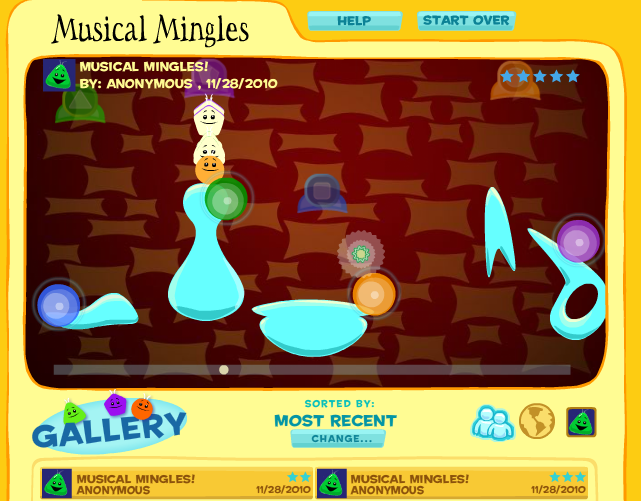
Cultural and educational institutions often produce websites that are wonderful language-eliciting experiences for kids.  Explore the New York Philharmonic Kidzone website and see if you can design some lessons about music and language. The Instrument Storage Room and Music Match Instruments (in games section) are good explorations of subcategories and specific instruments (aligning with the music curriculum). Musical Mingles is a good place to explore complex cause-effect and spatial relationships.  The Composers Gallery has biographies and musical samples of famous composers from different periods. MusicQuest is a more extensive activity in which the student chooses an instrument and mentor, and works through solving some backstage problems, exposing them to the schema of a life in the Philharmonic.  All of this is packaged in an interface that would be very appealing visually to kids.


For a greater context, you could try exploring this site after reading The Remarkable Farkle McBride by John Lithgow, which is itself a good context to explore story grammar and the Unthinkable Glass Man character from Michelle Garcia Winner and Stephanie Madrigal's Superflex for Social Thinking book.

Monday, August 29, 2011

Games for Children with Autism

Whiz Kid Games is a British resource of repetitive, well-paced and language-based games designed for kids with autism, but adaptable to other populations of students.  Games such as "A Day at the Market" teach about scripting, sequencing, and schema, as well as being a context for vocabulary and sentence development.


I have often found resources such as Whiz Kid Games to be great pairings with activities designed to build play scripts and interaction.  For example, A Day at the Market could be a great precursor to playing "store," and "Eric Goes to the Airport" would be a great activity before playing with the Fisher-Price Little People Airport or similar toy set.

Monday, August 22, 2011

Planet Orange

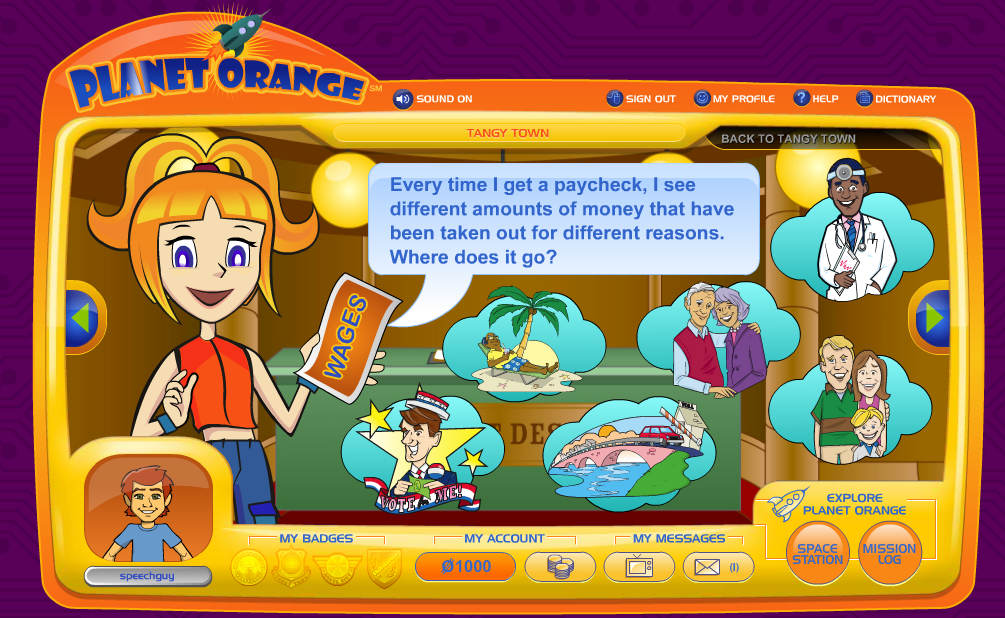
Planet Orange is a robust interactive site from ING investing company that teaches kids about money.  After a quick free registration, you can guide kids to complete missions on 4 different "continents" in order to earn  "OBucks." Because you have registered, you can save your progress within a group session and return to continue the activities. The site is fun, simple, and practical, and besides all of that, I really like orange.

Planet Orange offers highly visual stopping points and audio narration.

What could be more practical and real-world than teaching kids to budget?
Language Lens:
-The site would align well with math and social studies units around money and economics (perhaps those economics standards that teachers never have the time to really get to?) and help kids develop world knowledge.
-The categorical and sequential nature of the missions provides much opportunity to develop semantic and organizational skills, and causality and conditional forms could be emphasized throughout each activity.
-As an extension, you could devise missions of your own around the school to earn further Obucks and practice communication skills in a fun context.

Thank you to Free Tech for Teachers for featuring this site.

Sunday, August 14, 2011

The Write-N-Ator!

The Write-n-ator is a site from New Hampshire Public Television based on the PBS Series Word Girl!  The site presents 20 different short clips from the TV show, followed by a writing challenge. What I love about the site is that it presents writing prompts in a fun context, and the prompts are all prime targets for S/L or literacy interventions.  They ask kids to work within basic text structures- list, sequence, or descriptive paragraphs- and could be completed in a relatively short period of time.  This would be a great resource to use when teaching kids to use graphic organizers, write basic paragraphs, elaborate and expand sentences in their speaking or writing, use main idea and details, or a variety of other IEP goals.


This would be a good resource to take some time with this summer and consider which videos you might like to use with a particular grade level(s).

Wednesday, August 10, 2011

B-Movie TV

B-Movie TV is a fun site that features clips from old, silly American commercials and films that are overdubbed in another language.  You can type in subtitles narrating or dialoging the scene, and can also choose to use text-to-speech or record over the clip. For more fun, you can switch to Bombay TV (see "switch channels") and do the same with Bollywood movies, which, not to be culturally insensitive, are notoriously over-the-top in terms of costumes, plotlines, and even frequent choreography.


Language Lens:
-B-Movie TV is an engaging way to explore inferential thinking, story grammar and exposition (for the ads), humor and interpretation of body language when you are choosing a clip with your students and mapping out the "plot."
-The opportunity to write or record the language for the track can target vocabulary, sentence formulation or speech production strategies.

This site is Flash-based and therefore is NOT iPad-friendly.

Thank you to Larry Ferlazzo for featuring this website.

Monday, August 1, 2011

The Lion Roars! An SLP-friendly summary of Mac's New Operating System

The big buzz in the Appleverse lately has centered around the recent release of Mac's new operating system OSX 10.7, better known as Lion.  I thought it might be a good topic to post about, to let you know why you should care about this if you are a Mac or iDevice user.  Chiefly, if you have a newer Mac, you might want to consider upgrading- Lion's features are way cool!  Secondly, you may be encountering computers that have Lion installed- yours or your school's- and it will be helpful to know the differences if you are working solo or with students using these Macs.

First of all, it's important to clarify what an operating system is- it's basically the nervous system of your device, controlling the look and feel of what it is like to use the device and how applications (or apps) interact with each other. Mac laptops and desktops for the last 10 years have run versions of OSX named after cats: Cheetah, Puma, Jaguar, Panther, Tiger, Leopard, Snow Leopard and now Lion. I am guessing the next release will be called "Mangy Stray!" Apple tends to update its operating system more incrementally and frequently than PC/Windows updates occur.  The hallmarks of OSX are its ease of use, the "Aqua" theme that uses a lot of softness and translucency in the look of windows and such, and, important for us to know about and worthy of a post of their own, built-in accessibility options that make it easier for those with disabilities to use the computer. If you have an iDevice (iPad, iPod Touch, iPhone, and even Apple TV), these have a different operating system known as iOS. Your iDevices are not affected by this recent release of OSX, but will be affected when iOS5 comes out this fall, with its own set of cool enhancements.

One of the key things to know about Lion is that it is being seen as a significant step in Apple bringing its two operating systems closer together.  This similarity is present in at least 4 enhancements in Lion. "Multitouch Gestures" similar to how one interacts with an iPad are more extensively available in Lion, therefore basically killing the mouse and the "click" (though you can customize which gestures you want turned on). This video from Apple gives a great overview of the gestures available. You'll really only be able to access these if you have a newer Mac with the multitouch trackpad (i.e. it does not have a button) or you buy a separate accessory such as a Magic Mouse.  Note also in this video the demo of two other new features similar to iOS, the availability of "Full Screen Apps" and "Launchpad," which brings up a screen of your installed apps that looks just like your iDevice app arrays on your home screen.

Launchpad!
Additionally, OS Lion represents a stronger integration of the Mac App Store introduced in a later version of Snow Leopard.  For the first time, if you have the Mac App Store available (meaning, you have Snow Leopard), you can install the new operating system as a download right from the store (running you $29, not all that expensive at all)!  Traditionally, operating systems were distributed by CD-ROM. If you'd like to buy OS Lion and your Mac is more than 2 years old, you may want to check with or call the Apple Store first, to ensure your machine can support it.

I'd like to recommend that you take a look at the features of Lion, and this link shows you how to use some of these, but I want to also quickly list some of interest (or concern) to SLPs.

  • Resume and Versions- Mac apps will now re-open exactly as you left them.  Meaning, if you quit Pages or Keynote, when you re-open, the file you were using will be there.  Similarly, Safari will re-open with the last tabs you had open.  This is handy should kids accidentally quit, or forget to save their work!  Versions allows us to autosave and go back to all previous versions of the document, similar to the way that Google Docs keeps revision histories.
  • Safari enhancements- Mac's main web browser is now viewable full screen like all other apps made by Apple (which helps to remove desktop distractions).  It also has an autocorrect feature that helps avoid misspellings, or perhaps just result in annoyance and hilarity.  Additionally, you can now save any webpage in a "Reading List" (just click the eyeglasses in your bookmarks bar) to read later- handy for your professional development.
  • Multitouch gestures- I'll mention these again as a possible concern; I find them very useful as a user, but many of our kids with fine motor issues may have trouble keeping track of and/or executing the gestures.  It's important to note that you can set up a separate login on your computer for students to use and go into System Preferences>Trackpad to customize which gestures are active. It is also helpful that all the traditional mouse gestures- click, double-click, and drag- still work when you have the multitouch gestures active.
  • Accessibility- these improvements allow you to customize the voice on VoiceOver and text to speech, and perhaps my favorite, you can look up a word in the dictionary by double-tapping with 3 fingers on a word! Handy for vocab-challenged kids!


If you do not have admin rights on your computer (and I know many school-based SLPs do not), please know that I don't mean to frustrate you by dangling a carrot you cannot yet obtain. If you do install Lion and you are annoyed by any of the new features, here's a nice guide to how to selectively shut features off! It's impossible to provide a comprehensive overview of Lion, and this has become a lengthy Roar, but I hope it gave you enough of a taste so that you might want to look into how this OS can be useful to you as an SLP. 


Saturday, July 30, 2011

Building Learning Communities (BLC11)- Last Day!

I'm leaving this year's BLC conference with a lot of gratitude towards those who helped make it happen, a head full of ideas, and apparently, a cold.  Something about that many people jammed into conference rooms and contagion, I guess, plus the fatigue.  In any case, it was a wonderful experience and I hope it has been helpful sharing my tweet-as-notes experiment, which I think definitely worked for me!


Friday, July 29, 2011

Building Learning Communities (BLC11)- Day 2!

Another great day of sharing and learning at BLC11! One thing (that I love) about going to a conference geared more towards general educators than SLPs or even special education teachers is that you constantly are reframing everything you are hearing so that it applies to our specific population. I try to do that as much as possible in these tweets and am hoping that you are finding them helpful.  The day started off with an absolutely INSPIRING keynote by Marco Torres, who actually wasn't supposed to deliver a keynote at all and was a last-minute sub! I hope to link to his full keynote when it is available- I strongly recommend giving it a look.  If you like TED talks, it is in that vein and at that level of amazingness.  One more day! Looking forward to it, but sheesh, I am tired.

As always, I know that tweets are telegraphic, so if you don't know what the heck I am talking about and want more info about a tweet or two, please leave a comment.

Thursday, July 28, 2011

Building Learning Communities (BLC11)-Day 1

Hey Folks-

The BLC conference sponsored by November Learning is quite an experience! Some of the brightest minds in education and technology come together for this 3-day conference right in my good old town.  Seems people come from all over, and I am so lucky to just be able to hop on the T the next couple of days to have this experience.  My colleague Brian Hammel and I were discussing how it seems to be much more fun to tweet than to take notes in a Google Doc, so we are trying that! When doing so, you first of all need to apply your learning toward whomever might read.  Additionally, it is sometimes better to share and be social (especially when attending a conference such as this) than keeping notes hidden away in a document that might never be viewed again.  I have to do some serious Google Docs organization.  So, hope these notes might offer some kernel of inspiration to you, and I plan to tweet out more the next few days! Note that the last video was offered as an example of teacher leadership- offering guidance and letting the students shine!


Thursday, March 31, 2011

GlogsterEDU Week: Make your Glog Interactive with Links, Audio and Video!

For part 4 of Glogster EDU week (a.k.a. Thursday) here is a screencast covering some of the interactive features of Glogging: adding audio, video, and links to other web pages.  The audio/video aspects are ones that are very applicable to SLPs, as they allow us to work on listening skills and/or speech and language production in a manner that will be engaging to students!  Check out the screencast below, and learn why not all Schoolhouse Rock videos have stood the test of time.

Thursday, July 1, 2010

Happy 4th! And Canada Day...

We all have trouble describing what fireworks do, and are limited to comments like:

"OOOOOOOOOOOOOh" or

"I like how that one did the squiggly thingie"

The Firework Display Designer from i-Board Interactive (I have no idea why it is under the category of Religious Education) gives us (and our students, of course) a way to simply customize and describe a fireworks display to celebrate the holiday.  You can make choices of color, "bang," speed, timing and tilt, thus working on important concepts and descriptive skills along the way.  Check it out and have a blast this 4th! Computers are certainly safer than real fireworks...


Thanks to InTec InSights for pointing out this resource.

Wednesday, June 30, 2010

Directions with Goggs

This week I posted about the importance of directional concepts for understanding curriculum, and presented a complex website for older students. I thought this would be well-accompanied by a younger cousin of that website (again from the UK), the BBC's Landscapes, hosted by their friendly alien (I think) Goggs. The Landscapes website reviews compass directions with animations, a mnemonic, and practice using NSEW to move Goggs around a campsite and then a maze. If you really want to delve into the language of maps, there are further lessons on topics such as symbols/keys and scales.


Also featuring some fun dialectal substitutions such as "torch."
 
.