Showing posts with label iBooks. Show all posts

Thursday, March 1, 2018

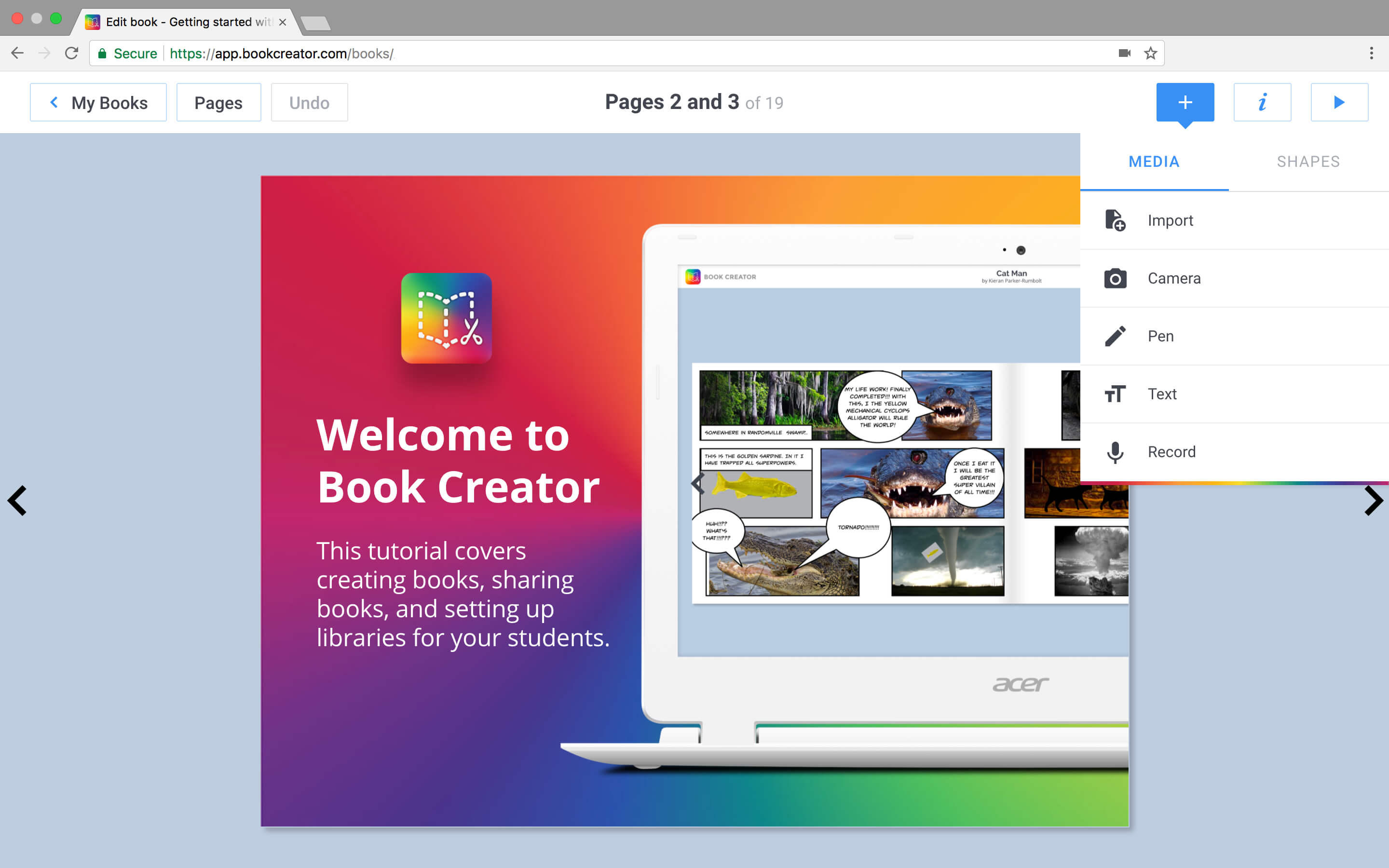
Book Creator in Chrome

I've long sung the praises of the Book Creator app. It's definitely the best way to create an e-book due to it's elegant simplicity, ability to add any kind of content (text, photos, drawings, audio, video) and share in both PDF and ePub format. In our work, creating books can be used for narrative and expository language development, social cognitive strategies, metacognitive language strategies, speech practice, repetitive line books to develop microstructure, and so much more.


I recently had the opportunity to get to know Book Creator in Chrome (so, usable on Chromebooks or in any device running the Chrome browser (on iPad, still use the terrific app). It's a lovely port and works exactly the same as the app. One improvement, in the Chrome version you can search for images on Google, which is handy for quick co-creations with students. Sign up as a teacher and you can create 40 books for free (this account also allows you to delete books in your library). Learn about Book Creator here and sign up for your account here. If you are in a Google Apps (G-Suite) environment you can create books FOR your students and have them join your library (where they can read or create).

In my next post I'll talk about one of my favorite recent uses of Book Creator. Check out this great resource giving 50 ways to use Book Creator.

Tuesday, December 12, 2017

Scene But Not Heard

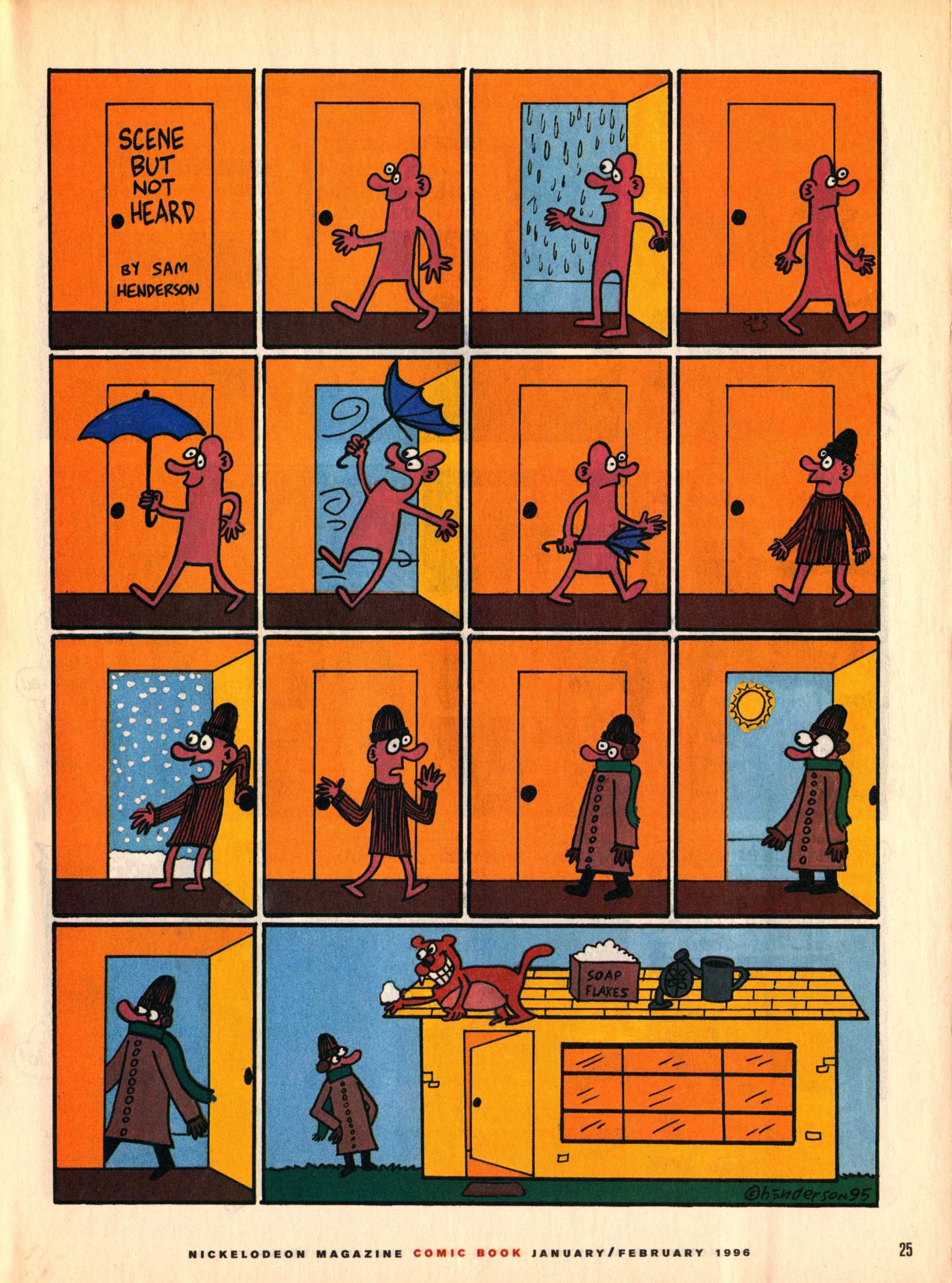
Back in the day, I used to subscribe to Nick Jr. Magazine for its ads (great expository text contexts) and visual content. This included a comics section with a series called "Scene But Not Heard" by comic artist Sam Henderson. The adventures of Pink Guy and Bear are humorous, exaggerated, and related without words. Like wordless picture books, wordless videos and comics are helpful materials for students to work on interpreting nonverbal cues, "thinking with the eyes," and constructing narrative language and the microstructure (vocab, verbs, complex sentences) within it. In those days I used to collect the series and use laminated versions in classrooms for push-in services along with graphic organizers from Story Grammar Marker®. The content is engaging for mid-elementary through high school students.


Nick Jr. is no more, but I recently discovered that much of "Scene But Not Heard" is available digitally. Just Google it and then click Images, and you have a treasure trove. This feature about the series also contains a gallery. In either case you can:

-save the comic materials to your device (tap and hold on full size image on iPad, or ctrl/right click on a laptop).
-make a collection- you can use Adobe Acrobat Reader, Mac Preview, tap the share button on your iPad and then save as PDF to iBooks, or simply make a folder in your laptop or Google Drive.
-Use the zooming features contained by these technologies to zoom in on the action and limit the visual array (I like to use these to teach students to verbally mediate and "talk out" the nonverbal content).
-Consider integrating with Google Docs- insert a comic into a Doc and have students write a summary.

Monday, April 6, 2015

Autism Awareness Month: Keynote and Displaying Visuals (and The Incredible 5-Point Scale)

I have always been a fan of using presentation tools like PowerPoint and Keynote in un-PowerPointy ways (i.e. no reading of bullet points). Presentation tools offer a flexible space to position and interact with text, images, and visual elements such as tables for a wide range of uses in therapy activities. Creating a weather journal, for example, is much easier in a presentation app because you can place the text and pictures (i.e. of the clouds) anyplace you want on the "slide"- thereby bypassing many formatting difficulties in the moment of working with the student. In our recent App-titude column, Nathan Curtis and I discussed how the desktop versions of Keynote or PowerPoint can be used similarly in telepractice activities to arrange and sequence personalized photos for targeting objectives such as verb and concept use, vocabulary and storytelling. You can add backgrounds, animation of slide elements, video and even audio to make activities even more engaging.

In another recent App-titude column, I discussed ways that apps can serve as visual tools to facilitate conversation and play, and tie in with approaches such as Social Thinking® and The Incredible 5-Point Scale. I had the pleasure of hearing Kari Dunn Buron speak last year, and she described how the 5-Point Scale was designed to tap into the "systematizing" strengths of students with social learning challenges, leading them to better perspective taking and empathizing (see the work of Simon Baron-Cohen). 5-Point Scales are an extremely helpful and versatile tool. They can be used in systematic, focused ways much like the implementation of an individualized social story for a student with more intense needs. For our students with more moderate or nuance-based challenges, instruction can include a repertoire of scales to be referenced in naturalistic activities.

Here's where I love the Keynote app for iPad ($9.99, free for any Apple ID linked to a device purchased after September 2013). A 5-Point Scale can be created simply within a Keynote Slide by using a table and colored fonts. Once the concept is established using a scale related to a target for your group, expand your students' thinking by creating other scales illustrating the range of social behaviors in other situations. The key idea is that the 5 represents extremely unexpected behavior or situations. Depending on the scale, the target can be a 1 (as in calmness) or a 3, as in moderation on a spectrum from too much to too little (as in talk time). Developing the language with your students helps them feel ownership for the scale and also gives you a good window into their thinking. The power of the tool is that it can spark discussion and gentle cueing, "I know this problem feels like a 4 to you. Remember what other kinds of problems we labeled a 4?"

Try developing your own scales in Keynote. Once created, to save the loading time (and potential of accidentally moving stuff around with your finger) tap the "share square" and "open in another app" as PDF, whereupon you can choose iBooks. Your scales will then be saved in the "PDF" section of the app for use in future sessions. 5-Point Scales are also excellent tools to extend into the classroom, as all children can benefit from social-cognitive strategies, and of course are great to send home. You can send your materials to anyone as PDF files from the Keynote app.

A file with a number of scales I have developed with students (silliness, a prank scale based on a recent discussion about April Fool's day and social judgment, one on the social thinking of Hide and Seek which was useful for an egg hunt and playing the game Snipe, and a few others) are available to be downloaded from Dropbox by clicking the image below. This is a PowerPoint file downloadable without a Dropbox account, so from your iPad you can tap Download, then Open In... and choose Keynote (once you have installed it) or use in PowerPoint or Keynote on a computer.

Click on the scale to download a template

Some resources to learn more about The Incredible 5-Point Scale are available at the website. Also check Pinterest for some innovative ideas about using 5-Point Scales. The Should I or Shouldn't I? games from Social Thinking are also good ways to start with Five Point Scales.

Sunday, March 1, 2015

Twitter Book Club

Over the coming weeks, some colleagues and I will be reading and discussing the book Hyperbole and a Half by Allie Brosh. Stemming from her popular blog of the same name, this book is a funny exploration of childhood, dog ownership, and other experiences through the author's writings and drawings. SLPs and educators might be interested in the unique and amusing narrative style and view of the psyche. Brosh's posts about her own journey through depression were noted to be extremely insightful when originally published on her blog, and are featured in this book. Despite this more serious content, the book is hysterical (this will be my second read--the first had me looking weird on a plane while shaking with laughter). Many of us could use a lotta laughs after this dismal winter.


In the words of the author:

This is a book I wrote. Because I wrote it, I had to figure out what to put on the back cover to explain what it is. I tried to write a long, third-person summary that would imply how great the book is and also sound vaguely authoritative—like maybe someone who isn’t me wrote it—but I soon discovered that I’m not sneaky enough to pull it off convincingly. So I decided to just make a list of things that are in the book:
Pictures
Words
Stories about things that happened to me
Stories about things that happened to other people because of me
Eight billion dollars*
Stories about dogs
The secret to eternal happiness*

*These are lies. Perhaps I have underestimated my sneakiness!

How to join in:
-Buy the book. Using the iBooks or Kindle app is an attractive option as this is somewhat of an impromptu "club"  session and we'll be starting today, covering about 2 chapters a week. 
-Join in the discussion on Twitter by searching for and following the hashtag #slpbks. Yes, you need to be on Twitter. But of course it's ok to just "lurk."  I hope to see some of you there. 

For a preview of the first chapter, I'd recommend watching Allie herself reading "Warning Signs"-- a look back at her own development and "unexpected behaviors" as a child. Such as eating face cream.


Tuesday, September 3, 2013

Develop Descriptive Schema with Trading Cards

ReadWriteThink, a longtime online presence developed with the participation of the International Reading Association, has amassed an impressive amount of interactives (flash-based, so not accessible on iPad) that can be used to build language skills. My issue with the more complex ones that could be used with older students was that your work could not be saved, and you had to finish your work in one sitting.  This problem has been addressed both on their site, which I am glad to see that they have continued to develop, and with their Trading Cards (Free!) app.

Trading Cards has for years existed as a great activity on the ReadWriteThink site, and came out as an app last year. With this app, you can create a descriptive "trading card" about any of the following:


Each type of card has a different schema to it, and it actually would be a good pre-activity to have students predict what attributes would be on a card about a Real Place vs. say, an Object.

The website has a few extra choices of the type of card you can create, and also lets you create your own schema.

The app allows you to set up user profiles so that collections of cards are stored in the app. When creating a card, you can add a picture saved to the camera roll, access guiding questions and type text (limited to certain defined lengths), flip the card and finish your work, and save/print/email your card. As this is a task that may take several sessions, it's great that you can return to the app and continue work. On the Trading Cards activity on ReadWriteThink's website, you can download a partially completed card and re-open it later for continued work. 


Trading Cards would be a great way to develop more advanced descriptive language while working with geography, books that students are reading or that you have chosen for the session, the Social Thinking® concept of people files, or other contexts.

Friday, August 3, 2012

iPad Essentials- Displaying PDFs on iPad

In my last post, I talked about the potential benefits of using iBooks for displaying and interacting with ePub books in therapy.  iBooks is also useful as a collection spot for useful PDFs that you might want to display as visuals in a therapy session.

What is a PDF? A PDF is a Portable Document Format, and we have seen them more and more over the past few years.  People have various operating systems and productivity suites (e.g. MS Office, including Word, Power Point, etc, and iWork, including Keynote, Pages), so PDFs sent via email or downloaded from the web tend to solve a lot of compatibility problems so there are fewer "I can't open" incidents.  Pretty much everyone can open, view and print a PDF, regardless of what other programs you have on your computer. PCs benefit from installation of the free Adobe Reader program for reading PDFs, and Macs open them in the built-in Preview application.  PDFs are kind of like pictures of a document; you can't edit them unless they are interactive (like a form) or you use a special program or tools for annotating them.  That's the gist of PDFs on your computer.

PDFs seem to have a new life on iPad, however, because of the way they can be collected and displayed in eReading applications such as iBooks, and annotated (drawn or written on) in other apps, but again, more on that part in a later post.  For now, let's just look at the displaying PDFs part.

Once you have the free iBooks app installed on your iPad, it's very easy to save a PDF to the app.  Why would you want to do this?
-PDFs can help you form a bank of helpful visuals to display during therapy sessions, such as regularly used therapy schedules, strategy sheets, social stories, or other documents.
-Because they are saved in your iBooks, you will not have to scramble around your room to locate the visual or print it again.
-Though the PDF will not be at all interactive, I have found that the mere fact of displaying material on an iPad can engage students more than a paper version would.
-Commercial materials sometimes provide you with PDF files on CD which you can display to students using an iPad.

Let's take one of my favorite materials, Liz Delsandro's We Can Make it Better (buy it!) This past year I was working with a student and for various reasons had to keep my sessions with him, well, fluid.  Social problem solving and narrative were goals for us but I knew I wasn't always going to be able to get directly to those targets.  It helped to have materials from this book at the ready though, and so I added a bunch of the stories (from the accompanying CD of PDF files) to my iBooks.  How do you do this? Well, first of all you could use a file sharing app such as Dropbox, but it is also simple enough to just email them to your iPad:

1. Make sure you have an email account set up in the Mail app (not webmail).  Settings>Mail, Contacts Calendars lets you add email accounts.
2. Make sure you have the iBooks app installed.
3. From a computer, insert a CD or locate a PDF you would like to send to your iPad.  Attach it to an email and send to the email account you can access in the Mail app.
4. Check your email.  You should see it appear as an attachment.  It first will have a little down-arrow symbol which you should tap to download the attachment to the iPad (if it's a multipage PDF), after which your email will look like this:

Tap the PDF icon to open it.


5. Your PDF is now being viewed in the Mail app. Tap the little "Share" button in the upper right corner. If you have iBooks installed, "Open in iBooks" will be the option to tap. Note, if you have emailed a single-page PDF, often those are just displayed in the email window.  Tap and hold and you will see the menu you see above, and can open in iBooks.


Now your PDF is in iBooks and will be saved there.  Swipe to change pages.  Good idea to consider going into portrait orientation when viewing with a student, so that the PDF page takes up the whole screen.


Because PDFs are kept in the app, you might want to consider organizing them into collections. Tap Collections, then New.


Tap Edit when viewing any collection and you can select documents and move them to the appropriate collection. You can also delete them this way...

Saving PDFs to iBooks works a little differently when the PDF lives on the web as a link. Take this brochure for the upcoming ASHA Convention accessed from this page on the ASHA site. Try looking at it on your iPad.  Note that you'll know you are looking at a PDF when the web address ends with .pdf.  Tap the screen and this menu bar will appear (briefly, so tap again if you miss it!) that allows you to save that PDF to iBooks:


You may also be interested in transferring documents you have created for use with students to iBooks.  Here's how you save a document (from Word, PowerPoint, or pretty much anything) as a PDF on a Mac and on a PC.

Here's to portable data!

Monday, November 14, 2011

Viewing or Annotating ASHA Handouts on your iDevice

Personally, I welcome the demise of the traditional "Handout." All that wasted paper!

When attending ASHA, you can still (pretty) easily view presenter handouts, take notes on sessions, and even annotate (write over) the handout files on your iDevice!

Here are the steps:
1. Get acquainted with the Personal Scheduler.  I am noticing this process does not work well on mobile devices, so you'll need to use a computer to transfer handouts to your iDevice.
2. If a presenter has uploaded his or her files, they will be in the "View" info with the session, like this:


(and tsk, tsk if he/she hasn't, cause we were supposed to by 11/11, haha)
3. Control-click (Mac) or right-click (PC) on the link and select Save Link As.
4. Take note of where you saved the PDF, and email it to an email you have access to on your iDevice.
5. Check your email on your iDevice, and tap on the PDF file to download it.
6. Tap again on the file to open it.


7. Tap on the screen to view the "Action" Button (arrow pointing right).  This gives you the option to:
a. Open in iBooks.  The PDF file will save in your iBooks collection and you can read it while at the session.  If you want to take notes, the Notes app that comes with your device is a good option.
b. If you have installed a PDF annotation app, you will be able to open the document in that app by tapping "Open In..." My favorite is iAnnotate PDF ($9.99) but many like GoodReader ($4.99) or the free option, Neu.Annotate PDF.

Happy learning!

 
.