Showing posts with label UDL. Show all posts

Wednesday, August 24, 2016

Free Webinar: Options for eText: Facilitating Access and Comprehension Through Electronic Text

edWeb recently hosted a Webinar in which I discussed resources related to electronic text, sponsored by Mobile Education Store, creator of great apps such as Conversation Builder and Crack the Books. This webinar and many others are available to you for free on the edWeb site. If you join their community, you'll also be able to download handouts and receive other resources. 

Options for eText: Facilitating Access and Comprehension Through Electronic Text
Presented by Sean Sweeney, Speech-Language Pathologist/Instructional Tech Specialist
Sponsored by MES Publishing


If you view the recording and would like a CE certificate, join the Everyone CAN! community and go to the Webinar Archives folder to take the CE quiz.

With the advent and proliferation of mobile devices available to students and teachers has come a wide range of options for accessing text. Electronic Texts and accompanying accessibility features such as text to speech can facilitate organization of materials, richer arrays of contexts available, and comprehension of classroom content for those with reading, language learning and other disabilities. This recorded webinar will familiarize educators with a variety of options at various price points and platforms, with demonstration of apps and features that put eTexts at your and students’ fingertips in no time. These include: iOS and Mac built-in accessibility features, Read and Write for Google and iPad, eText Platforms such as EPIC! Books for Kids, the Crack the Books series of accessible textbooks, and options for creating eTexts such as the renowned Book Creator App.

This webinar will be especially relevant for general and special education teachers, related service providers (SLP, OT), technology specialists, and administrators.

Saturday, January 23, 2016

Read and Write for iPad

Last year I outlined the helpful features obtained by signing up for Read and Write for Google, a toolbar accessible in Chrome that brings to webpages and documents (particularly Google Docs) text to speech (always free) and text prediction, dictionary, and other features (via premium account or teacher subscription after 30 days).

With Read and Write for iPad, these features become accessible...on iPad. After going through the steps to activate your account and then teacher account (see the link in the first sentence of this post), install the app Read and Write, which is essentially a keyboard. The app will bring you through the steps of activating the keyboard in your Settings app, and it will then be available for you to toggle and bring it up (installed keyboards are displayed if you tap the globe icon in your keyboard on iPad, or tap and hold to choose from all your available keyboards--I also like Keedogo).

As with Read and Write for Google, the keyboard will be usable for all its features for 30 days; after that you will need to have signed up for a teacher account or purchased the features for students. Text to speech remains free "forever."

Although iOS has text to speech built in through the "Speak Screen" accessibility feature, having the keyboard available will make the option of having text read aloud more visual and "at your fingertips."


Read and Write was naturally designed for reading and language disabilities (and the developer touts benefits for English Language Learners as well), but text to speech is valuable for all students. The path to getting assistive technology accommodations in the hands of students that need it is not always clear, so it is helpful for as many educators as possible to know about available (and free) tools such as this!

You can use the toolbar when doing web research, to automatically make any webpage a listening comprehension activity, or just to give students an engaging break from the dulcet tones of our yammering voices. Text to speech is also a huge help (even for me) when proofreading; students tend not to catch their mistakes when reading their own writing, and also often hate to proofread! To learn more about emerging research on the benefits of text to speech technologies, see this helpful article.

Texthelp's guide to using the keyboard is available at this link.

Monday, September 19, 2011

Book Review: The Ultimate Guide to Assistive Technology in Special Education

If I were to make an FAQ page--I can't think of questions that I get asked frequently enough to form a critical mass--one that would be there would go something like: "We just got an iPad. What do you recommend?" This is an understandable but unfortunately sort of prohibitively broad question. I usually point people in the direction of the collaborative SLP Apps List (top of my blog), but from now on I am also going to be recommending Joan Green's The Ultimate Guide to Assistive Technology in Special Education as a great resource book for those starting out with iPads (or other technology) for clinical use.


The Ultimate Guide begins with a consideration of UDL (don't miss the discussion of this topic in the recent ASHA Leader, and in my post) but quickly gets down to its main purpose, which is to provide a wide-ranging list of technologies (free and for cost, mobile and desktop) within specific categories.  Green's resources span the domains of communication-verbal expression, auditory comprehension, reading and comprehension, written expression- as well as cognition and memory, and provide something for every platform (web-based, PC/Mac, and an impressive array of specific iPod and iPad apps).  I have generally felt that books about technology are bound to be as up to date and relevant as a newscast about that breeze you just felt, but I was really pleasantly surprised at the currency of information in this volume, published in March 2011.  SLPs who work with adults with aphasia, TBI or other diagnoses will also find many great suggestions of software, apps, websites and uses of technology that you already have at your fingertips (e.g. accessibility features available within MS Office or iWork).  There is really something here that can help all clients on your caseload, as the resources span age ranges and levels of ability, from those who require switches to those who would benefit from high-level interactive websites.

Joan Green is an SLP herself, so she brings a key perspective to her descriptions of these myriad tools.  I am sure to be mining the resources in this book for some time to come.  Check out her site and newsletter for a preview of what you will find in this great book!

Note: author was provided with a review copy of this book.

Wednesday, September 14, 2011

UDL in the ASHA Leader!!!

The concept of Universal Design for Learning (UDL) is one that many SLPs and teachers don't yet know about (or think they don't, when they really do), and it is critically useful for helping us take on a consultative role that maximizes our students' learning.  I was absolutely thrilled to see UDL highlighted in an article in the most recent (nicely schools-themed) ASHA Leader, the publication that probably reaches the most SLPs as it is still mailed to our homes.  Patricia Kelly Ralabate does an excellent job at defining UDL in both a historical and real-life context, and pointing readers in the direction of some terrific tools to apply UDL in the form of goal setting and evaluating curriculum barriers.

To that end, I want to emphasize the connection between UDL and many of my posts here.  Ralabate describes two case studies (must see the full printed article for those- they are not in the web version) and how several specific websites could be used in consultation with the SLP (or directly, for that matter) to support students' need for a more interactive learning context.  Similarly, My Garden could serve as an alternate representation of science curriculum around seeds and plants, while Landform Detectives would be a great site to put on a the computer of a classroom studying geology after consulting with the teacher or assistant.

To learn more about UDL, I highly recommend Karen Janowski's UDL Tech Toolkit (and all the resources contained within), Chris Bugaj's A.T.Tipscast, and the EdCeptional podcast.

Kudos again to ASHA for seeking to inform our membership about this important topic.

Monday, January 3, 2011

CAST UDL Book Builder

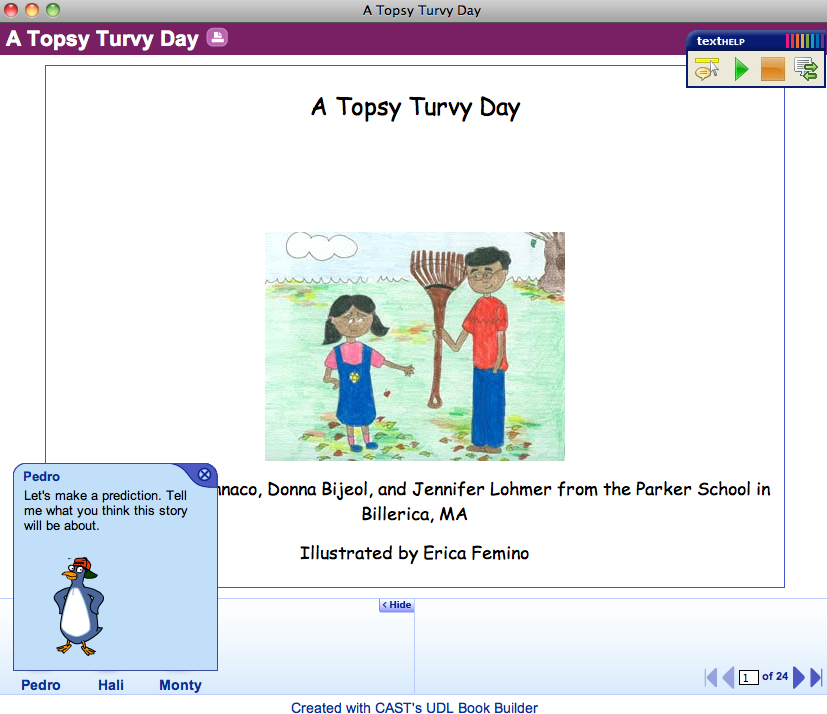
CAST is a Massachusetts-based organization promoting UDL, or Universal Design for Learning. I first saw their Book Builder presented at a conference a few years ago, and must say it has improved greatly in selection and ease of use. The UDL Book Builder is designed to present books created by educators in a way that is accessible to all, with a screen-reader and skill-building helpers built into the site. There are now hundreds of books available on the site, ranging from early to advanced grade levels and aligned with curriculum topics. For each book, and on many pages throughout each book, three characters can be clicked on to pose skill-based questions around predictions, interpreting illustrations, etc. It's a great resource within therapy sessions and also one to bookmark in classrooms as part of your consultation activities.

Pedro, Hall and Monty can be clicked on during the book to pose strategy-based questions related to the text and pictures. Generally, each character provides a more explicit cue, leading to a model of the skill by Monty, the 3rd character.

Friday, December 3, 2010

UDL Explained

Not every consultation between an SLP and a student’s teachers is about technology, of course, but on some level, every consultation is about Universal Design for Learning (UDL). Check out Chris Bugaj’s terrific video UDL Explained and please give him a vote over at the People’s Choice Awards for UDL!  On my Mac, the video opened in Windows Media Player, so you may need to make sure you have that (good application to have on your computer anyway).

Wednesday, June 9, 2010

Reduce Reading Distractions

Apple web browser (also available for PC) Safari 5 was released yesterday, and has a nice new feature that reduces ads and other distractions on pages that contain articles. Though images related to an article are clearly helpful to our students, having one's brain pulled in a million different directions definitely is not. This feature only works on article-based pages, though I have no idea how it determines when to work (probably RSS linked)- you will know you have the option when the page fully loads and you see the Reader button at the far right in the address bar.

So, looking at an article in the Boston Globe from this morning, here's the webpage view:


And here is the view after activating Reader:


Very cool. If you are not at all a Safari person, a similar effect can be created with a simple install of the bookmarklet available at Readability.


.