Thursday, October 4, 2012

Appy-Picking Month: Buildo Museum

We clearly love to use Halloween as a topic in October, and so do our kids.  Last year I got into the Buildo "sticker book" types of apps (geared toward adding characters and objects to a scene, like Colorforms) and was a bit confused when they released Buildo Museum in the spring. Museum, huh? Does it involve docents, audio guides, and bored children? Ohhhhh, it turns out it was a haunted museum.  OK.

Buildo Museum ($1.99) has an edge on other sticker book apps (see Clickysticky series, which I also like) because of its panoramic scenes, allowing you to sweep left or right to add more stuff, and also wacky sound effects.

Also see the other Buildo apps- Rescue is a favorite of mine.

Language Lens:
-Sticker book apps are a form of digital storytelling and can therefore be used to target all kinds of story structure, from simple action sequences to more cause-effect chains. At the micro level, you can also develop vocabulary, description, verb and pronoun use.  
-Kids can follow directions to create a scene, or direct each other in a barrier task.
-Screenshot the scene to extend to a writing activity.

Common Core Connection:
CCSS.ELA-Literacy.SL.1.5 Add drawings or other visual displays to descriptions when appropriate to clarify ideas, thoughts, and feelings.

Be sure to read Jeremy Legaspi's great post on app-dapting a multitude of Halloween-themed apps toward speech and language interventions.

Wednesday, October 3, 2012

Appy-Picking: Jasmine YouTube Client

If you have updated your iPad to the newest operating system, iOS6 (sorry, iPad 1 peeps, you can't), you may have noticed a few effects of the Apple-Google rivalry.  First of all, the Google-powered Maps app has been replaced with a controversial new app that sorta stinks, and which has prompted Apple to issue a near-unprecedented apology. Perhaps more on this later.  Another change is that the iOS-native YouTube app was removed from the new operating system. Oh, well. That TV icon was getting a little old, and poor Google will be crying all the way to the bank now that they don't have to give Apple a cut of ad revenue.

I have written a few times about the intervention possibilities of YouTube, though I know some cannot access it within your schools (see that link for workarounds).  Google is surely in the process of making their own YouTube app for iPad (there is already one for iPhone/iPod that you can install, but it will be small-sized/resolution-challenged). In the meantime, however, check out Jasmine, a nice, elegant, timely YouTube client that works exactly as you would expect it to work:


Keep in mind that when downloading Jasmine, you will receive an "age-restricted material" warning.  YouTube certainly can be racy, so don't ever allow kids to search for what they would like to watch, obviously. 

Common Core Connection: 
CCSS.ELA-Literacy.SL.5.2 Summarize a written text read aloud or information presented in diverse media and formats, including visually, quantitatively, and orally.

Tuesday, October 2, 2012

Appy-Picking Month: Kid's Journal

Whoo! I made it to day 2 of Appy-Picking Month!

Today's pick is Kid's Journal ($1.99), a wonderfully simple creation app from educator Scott Meech's App of Approval.

Kid's Journal was designed as an easy way for kids to "reflect on their day," but it can be re-purposed in many ways for speech-language and special education interventions.

Using Kid's Journal, kids can tap to select their feeling, location, and weather (think categories) for the day, then write (or dictate to you) a sentence or two and take/add a picture.  Journal entries can be easily exported and shared via email.  Journals can be organized by individual students or groups if you like.

Language Lens:
-Kid's Journal can be used for home-school connections with a visual support for students to describe something they did in a session or during the school day. I used it every day with a particular student to place in his home notebook.
-Clinicians can bypass the "What did I do today?" prompt and have students write a sentence or two about just about anything, targeting curriculum vocabulary, sentence structure, categories, or social skills.  
-In addition to using the iPad camera, consider adding a saved image to the journal to support these targets. 

Common Core Connection:
CCSS.ELA-Literacy.L.1.1e Use verbs to convey a sense of past, present, and future (e.g., Yesterday I walked home; Today I walk home; Tomorrow I will walk home).

Monday, October 1, 2012

October is Appy-Picking Month! (and LeafSnap)

Before I go any further, I must acknowledge that I stole the phrase "Appy-Picking" from the terrific EdCeptional podcast...imitation is the sincerest form of flattery.  Have you listened to EdCeptional lately?

I must confess that I am not a big fan of the fall. Many of us seasonal affective disorder (SAD) sufferers view haybales, pumpkins and mums as harbingers of death.  However, I don't want to snow on anyone's fall festival, and figured I should get with the autumnal spirit.

Therefore, I am declaring October "Appy-Picking Month" here on SpeechTechie, and will be featuring 31 (I hope) bite-size posts about apps you can use in your therapy or clinical work, with maybe a more rambly analytical post here and there (consider those the roads between apple fields)!

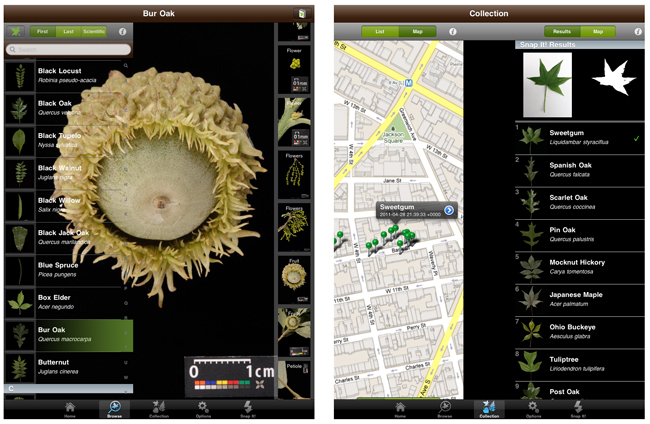
To start, let's look at Leafsnap, an innovative app developed by a number of educational giants such as Columbia University and the Smithsonian. Leafsnap is an "electronic field guide" to trees that is easily tied to curriculum around plants and seasons. I actually always use this one as an example of a curriculum-related interactive app, which I think are still few and far between. This free app uses technology similar to face recognition techniques to recognize and catalog plant species.  You can actually use this app to scan a leaf you pick up on a "walk" with your students, and the app will attempt to identify it! Leafsnap contains a lot of data about the Northeast U.S., and the plan is to expand that; I'd recommend you try out the app first before using it with students if you are not in the Northeast.

Image via FastCompany

Language Lens:
-Leafsnap can facilitate discussion of sequential differences between seasons, description, comparing/contrasting of leaves, and parts of trees (high-res pictures can be viewed for each species including individual parts- leaves, fruit, bark, etc), and the mapping interface can elicit all kinds of spatial language and relevant connections to students' own neighborhoods.

Common Core Connection:
CCSS.ELA-Literacy.SL.3.3 Ask and answer questions about information from a speaker, offering appropriate elaboration and detail.

Thursday, September 27, 2012

Social Thinking Provider's Conference Weblist

Hi,

I am presenting at the Social Thinking Provider's Conference today in Minneapolis and wanted to share this weblist of supporting resources with participants (and you).

Thanks.

Thursday, September 20, 2012

Flummox and Friends

If you follow my posts here, you know I have a strong interest in social learning, and I am always looking for ways to engage my students in developing social cognition.  Video is definitely an engaging medium to help students discuss social interactions in context. The problem with finding fun, engaging video is, well, finding it and knowing the timing of clips, etc.  The problem with many video modeling products on the market, although there is a good evidence base behind these products, is that they don't engage (especially high-functioning) students very much and....zzzzzzzz.

Enter Flummox and Friends! Flummox and Friends is a video (currently available for free, and hopefully a series, currently there is just the pilot) available on the web and EASILY playable on iPad or other devices, relating the adventures of a group of somewhat socially-challenged scientists and their neighbors, who aren't all that socially adept, either. Notably, the series was created by a parent of a child on the spectrum, Christa Dahlstrom, along with two SLPs, Jordan Sadler and Liesl Wenzke Hartmann, who developed the curriculum addressed in the videos.


The pilot episode involves a party that doesn't quite go as planned, based on various problematic social behaviors involving "Tuning In" to the group.  The episode is well-paced, funny, and subtle enough that you can use it with a group and have them identify exactly what is going wrong, but the episode also features the characters processing (and even singing and dancing about) the target skills and strategies that they will remember to use next time. In addition to the live-action segments, there are several animated components adding additional entertainment value and opportunities for discussion. Think of it as an Electric Company for social interaction. I especially liked the animated segment in which real kids discuss their own challenges with "tuning in" to others in a group.

The creators provide a nice professional guide to Flummox and Friends on their website. Also, as I am trying to coordinate the use of this resource among our staff, I made a quick-and-dirty map of the episode with good stopping points and discussion topics to use with kids. In addition to the suggestions in the guide, this episode presents a great opportunity to develop narrative language and social comprehension with tools such as Story Grammar Marker.

I hope you'll give this resource a look and spread the word, so that the creators will soon give us an episode 2! Check out their Facebook page, Twitter feed or mailing list for updates (links all on site).

Friday, September 14, 2012

Boston Area Peeps- Course in Tech Integration for SLPs and Language Teachers

Hi Folks,

Just want to spread the word that I am again teaching the course "Tech Links to Language Interventions" through EDCO Greater Boston Collaborative this October.  This is a hybrid class with one face-to-face workshop day on October 11 in Waltham and a month of follow up activities online (totaling 2 days time, all said). I taught it last spring and it was a lot of fun!  One graduate credit through Framingham State College is optional, though the online component is now required by EDCO.

The course description is as follows:

This workshop will review strategies and frameworks for integrating desktop and mobile technology into language interventions and language-based teaching. Participants will practice task analyses and other strategies for identifying, applying, and cataloguing relevant web, desktop, and mobile applications, as well as designing pre/post activities related to student learning goals. Special emphasis will be placed on using web and mobile apps for creation of multimedia content for improving expressive, receptive and social language skills. The online component will include analysis of additional resources and creation of a project plan. Participants will review professional articles and related to the use of technology and curriculum integration in language interventions, participate in discussion forums, and independently identify and analyze resources for use in instruction.

And all the information on how to register is here- Please be aware that the deadline is 10/1/12

If you are interested in what you would be doing in the course, here is one of the online assignments (and 2 pieces of A++++ work, thanks for the participants who allowed me to post)

Create an exemplar for your students demonstrating a targeted instructional objective through narrative form. This could include narrative structure, vocabulary, social skills, curriculum connection, or another language objective. Post a link to the project or, if it's on iPad, you can either give a description of what you created or post a screenshot from the iPad. Describe how you would use the resource (procedure and objectives) in a short (5-6 sentence) paragraph. Respond to one of your colleagues’ posts as part of this assignment.

Example 1:
I used Domo Animate to create a video relating to "reading a room". I work with many students with ASD at the middle school level, and many have an objective such as, "student will use nonverbal clues to read a person, situation and context, and respond appropriately..." Ih ave created many visual supports to facilitate success in this area, often using Boardmaker pictures to do so. Using an animated tool like this takes it to another level and (hopefully) lets the students see it in "action". We have also used video modeling extensively, which has been great, but I view using this tool as a companion piece and additional support for the complicated task of reading a room. I also imagine having the students help to create additional videos addressing the same skills but in varying contexts; this would allow them to be a part of the process, be motivating to hem, and help with generalization of these skills. Incidentally, I considered adding background music but decided it might be too distracting for my population of students.

Example 2: 
I decided to use go animate to address social skills at the high school level. The cartoon depicts two friends at a show. One of the girls is talking too much and is bothering her friend and others. Prior to showing the cartoon I would discuss with my students the fact that they need to monitor the "where" and "when" of having a conversation with a friend. Where is a good place to have a private conversation with a friend? When is a good time to have a private conversation with a friend? I would also address how a speaker needs to actively listen to the friend to pick up on tone of voice, facial expression and the actual message during a conversation. I would show the cartoon and then have a discussion as to why having a conversation in the middle of a performance is not appropriate. I would have the students comment upon if they think the speaker is actively listening to her friend or not. I would discuss how they think the friend feels as the speaker keeps talking.......

Too much talking.. by sarabeth1 on GoAnimate

Animation Software - Powered by GoAnimate.

Thursday, September 13, 2012

What to do with that SmartBoard?

As you start your new school year, you may find yourself having access to an interactive whiteboard (IWB), either a SMART or Promethean board, or perhaps even another brand such as an ENO. Maybe you have one in your treatment room, or are working in classrooms where these boards are available. "Available" may seem like a complicated word to use, because you may not know what to do with the board, and are prohibited from writing on it with whiteboard markers, leaving you with perhaps a lot less visual space with which you can support your students.  Well, there are a couple of simple ways you can reclaim that space and take your therapy activities to a new level if you have an interactive whiteboard available.

I always like making things visual, and of late have found a lot of nice uses for the app Paper by FiftyThree. Paper is basically a sketch-journal app, but the aspect it really like about it is that it makes it look like you can draw even if, like myself, you can't draw. So I made these sketches with Paper:

1. Use the IWB as a way to, well, interact with interactive websites.

The IWB-equipped classroom you are working in likely has a computer available, or else there isn't much point to having an IWB. The simplest thing you can do to take advantage of the IWB is to use available (free of course) interactive websites onscreen. When you or students touch the board, you will be able to complete the activities at sites such as PBS Kids or BBC Schools. Tools such as the Smart Pens can be used to highlight and annotate the screen, so even if you choose something non-interactive, like just displaying a giant picture you find on Google Images, you can interact with it, label it, and break it down in language-based ways. If you would like to do this on your own computer brought into the classroom, you'll just need to ask your IT specialist to install the free software that allows you to interact with the board.

Laptop connected to interactive whiteboard with interactive website Kerpoof.  You can use any interactive website or Web 2.0 creation site such as Kerpoof in language activities with a group or class. Note that the IWB connects to the laptop with 2 cords, VGA (blue) to show the display, and USB (black) to make the connection so that it is possible to interact with the website by touching the board.

2. Use the IWB to run activities designed for the IWB.

Each type of interactive whiteboard comes with software designed to make interactive presentations and lessons for use with the board (e.g. SMART Notebook, ActivInspire). These have a bit of a learning curve but there are tons of videos available on YouTube that will teach you to make activities targeting categorization, sequencing, concepts or other skills.  If you are going to be working in a room with an IWB, it would be a good idea to start getting familiar with these tools (again, free if you have the board), because you can make CUSTOM activities for your group.  Also, rather than reinvent the wheel, each kind of software has activity exchange sites you can use to download files that you can use with a class; Scholastic also has a nice set of activities available, particularly those targeting storytelling and narrative.

Laptop connected to interactive whiteboard running "Notebook" activity. Again, note the necessary USB and VGA connections.


3. Display your iPad on the IWB.

Note that I wrote "display."  You can display any app on an IWB after connecting it to the board's VGA (visual) cable using the necessary adapter.  However, to interact with the app, you will need to touch the iPad screen- NOT the board.  This is because your iPad does not have a USB port that is necessary to convey the touch connection from the board. Still, displaying iPad on an IWB can be really fun and useful with a class.  You just might want to make sure there is some way (iPads available to class, etc) to give the kids access to the app later, because they pretty much ALL will want it.

iPad displayed on IWB with the app Felt Board. Note that the USB cable has no place to go and dangles there sadly. You'd need to touch the iPad to make your scene.

There are a few other places I'd like to direct you for more information, if you are interested in using an IWB this school year:

Our Essential Tech for SLPs website has a great list of resources created by my pal Laura Goehner, an SLP with an IWB.

Alex Dunn's SMART Inclusion site has tons of resources about using SMART boards in Special Education.

My video on sharing your iPad screen with a group includes a piece on IWBs.

SMART now has an iPad app- I haven't even checked it out, but will soon.

Tuesday, September 11, 2012

Language Adventures updated with new content!

I am really proud to announce that one of the apps I have worked on, Language Adventures, was just updated with DOUBLE the content.  Language Adventures was first released this past spring, as a contextual board game for iPad with "flexible word use" targets across three categories: synonyms, antonyms, and multiple meanings. The app allows you to choose a level, roughly geared at early elementary/upper elementary-MS/MS-HS, for up to four players with fun use of their photographs during the game. Additionally, within those levels therapists can choose the Receptive activity, which provides multiple choice answers, or the more difficult Expressive activity, which uses the same questions but presents them as open-ended, without choices:

Level 2 (Cafeteria)- Receptive Categories

Level 2 (Cafeteria)- Expressive Categories

The authors of the app, Nichole Ontis and Danielle Sears, envisioned Language Adventures as a flexible therapy tool that SLPs could use with groups of kids that have diverse goals.  To that end, they developed three additional levels: wh-Questions, inferences, and categories. With this additional content, you can have one student developing vocabulary and word retrieval while others may be using comprehension strategies. The update contains a few additional fixes and features such as the ability to turn the intro background music off. If you already own Language Adventures, tap your App Store app and update it- the additional content is free. If you haven't bought it yet, I hope you will!  Here are a few reviews of the original version of Language Adventures for you:

The iMums
Speech Room News
Hanna B, Grad Student SLP

Disclosure: Author has a contractual relationship with Smarty Ears Apps and receives a portion of the profit of the sales of this app.


Thursday, September 6, 2012

This post sponsored by Starbucks

During the school year, my body is about 10% Starbucks or Dunkin's iced coffee, so I am an authority on these places. Did you know that Starbucks offers a "Pick of the Week" app, book, or song? You can find the cards up on the counter or near the chaotic milk bar where I spill things. On the back of the card is a code you can redeem to get the item for free. Naturally you have to get to the store and get the card, since they want you to buy something. This week the pick is:


Scribblenauts Remix! I have been meaning to feature this app for sometime, and if you can't get your card, it is well worth the $.99.

Scribblenauts Remix is an iVersion of a classic Nintendo DS game that some of your students may have played in the past. It is basically a problem-solving game in which the character, Maxwell, is placed in various settings and faces a challenge.  You need to decide which objects from the app's HUGE library of items to place in the setting to help him meet the challenge. Objects are animated and responsive to your modifiers, so for example, a "huge bunny" will be huge and an "angry bunny" will be aggressive.


"Rainbow" was probably not necessary for this challenge.

The puzzles will be challenging (in a good way, requiring your scaffolding) for children with language difficulties.  Timing does not become a factor until late in the game.  When using games such as this with students, it is helpful for you to have a walkthrough (basically, the answers), so here is a good resource for that. BUT, one of the great things about Scribblenauts is the way it promotes creative thinking and problem solving; there is not just one way to solve any of the levels.

The app also has an open-ended mode called the "Playground"- choose from various settings, including a classroom, and add objects and interact with them. So, on to the...

Language Lens:
Scribblenauts is a great resource to target-
Description: adding attributes changes items, all items serve a function that can be described as well.
Story Grammar: the character of Maxwell is in various settings and faces problems, etc. The playground can also be used to develop the concept of setting and items inherent to settings.
Causality, Conditionality, Prediction: use language around why objects should be added, what would happen if they were added.
Social Learning: when kids work together to play this game, many "teachable moments" ensue!
[EDIT From Hanna B] Articulation- gear additions of objects around a particular sound.

Common Core Connection:

L.3.1. Demonstrate command of the conventions of standard English grammar and usage when writing or speaking. (Use coordinating and subordinating conjunctions)

Relevant to use of and, or, but, because, so, if during use of this app
 
.