Sunday, March 1, 2015

Twitter Book Club

Over the coming weeks, some colleagues and I will be reading and discussing the book Hyperbole and a Half by Allie Brosh. Stemming from her popular blog of the same name, this book is a funny exploration of childhood, dog ownership, and other experiences through the author's writings and drawings. SLPs and educators might be interested in the unique and amusing narrative style and view of the psyche. Brosh's posts about her own journey through depression were noted to be extremely insightful when originally published on her blog, and are featured in this book. Despite this more serious content, the book is hysterical (this will be my second read--the first had me looking weird on a plane while shaking with laughter). Many of us could use a lotta laughs after this dismal winter.


In the words of the author:

This is a book I wrote. Because I wrote it, I had to figure out what to put on the back cover to explain what it is. I tried to write a long, third-person summary that would imply how great the book is and also sound vaguely authoritative—like maybe someone who isn’t me wrote it—but I soon discovered that I’m not sneaky enough to pull it off convincingly. So I decided to just make a list of things that are in the book:
Pictures
Words
Stories about things that happened to me
Stories about things that happened to other people because of me
Eight billion dollars*
Stories about dogs
The secret to eternal happiness*

*These are lies. Perhaps I have underestimated my sneakiness!

How to join in:
-Buy the book. Using the iBooks or Kindle app is an attractive option as this is somewhat of an impromptu "club"  session and we'll be starting today, covering about 2 chapters a week. 
-Join in the discussion on Twitter by searching for and following the hashtag #slpbks. Yes, you need to be on Twitter. But of course it's ok to just "lurk."  I hope to see some of you there. 

For a preview of the first chapter, I'd recommend watching Allie herself reading "Warning Signs"-- a look back at her own development and "unexpected behaviors" as a child. Such as eating face cream.


Monday, February 23, 2015

Sentopiary

Sentopiary ($4.99) is a new and very interesting app from one of the creators of Popplet (a favorite of mine) that has nice potential for use in targeting complex syntax. With Sentopiary, you can explore sentence building with students within two modes:
-The "create a sentence" mode lets you build leveled sentences (e.g. at level 1 with articles, nouns, pronouns and present-tense verbs whereas when you increase difficulty, tenses, adjectives, prepositional phrases and adverbs come into play)
-Similarly, the leveled "challenge" mode asks you to recreate a sentence using the above grammatical categories.


Check out this video to see how it works.


SENTOPIARY - Create - A Hungry Bull from eeiioo on Vimeo.

Sentopiary is fun and engaging, as well as aligning with research demonstrating the importance of phrase elaboration for development of literate language. Kahmi (2014) states "There are three basic ways to make sentences more complex: (a) noun phrase elaboration, (b) verb phrase elaboration, and (c) conjoined and embedded clauses." This app includes contexts for (a) and (b), but not (c)- so I wrote to the developer and requested that they consider this! They promised to do so for future updates.

Kahmi also writes "My general principle for targeting complex syntax in therapy is this: Target the meanings and/or functions conveyed by the syntactic structure rather than the structure itself"- i.e. to make the intervention pragmatically appropriate. This app would seem to contradict that principle with its emphasis on labeling the structures. However, the metalinguistic aspects do align with curriculum goals (e.g. identifying nouns and verbs) and clinicians can easily incorporate strategies to emphasize meaning as I often recommend "around the app" such as:
-incorporating sketching or visualization strategies about constructed sentences and at the same time increasing bombardment/elicitation of the structure.
-utilizing the app's potential for absurdity in constructing sentences.


So check out Sentopiary- looks like a great tool for a wide age range!

Boston area- EdCampAccessBoston 2015

Hi Folks,

I am happy to be helping out with a great, free event again this year- EdCampAccessBoston. Learn more about it below:

The Third Annual #EdCampAccessBoston
MARCH 21, 2015 (save the date and spread the word!)

WHAT is an EdCamp? An EdCamp is a FREE unconference for educators who love to further their learning.

“We do not learn from experience…we learn from reflecting on experience ― John Dewey

Watch the video below to get a better understanding:


EdCampAccess, in the tradition of EdCamps that have taken place around the world, is an unconference devoted to K -12 educators who work with struggling learners. It is not limited to special educators, but anyone who wants to reach students who struggle with reading, writing, organization, behaviors, executive function skills, etc. It will start with a student panel and then evolve into a "collaborative conference" where the conference attendees help to build and create the experience. As is the format for unconferences, we do not schedule any sessions; instead, we do so together as a group at the start of the day. Attendees may choose to facilitate a session, lead discussions or attend sessions of interest to further their professional learning.

Where: Marshall Simonds Middle School, 114 Winn Street Burlington, MA
When: March 21, 2015- Registration begins at 8:30, App Smackdown and prizes at 2:30, Closing remarks - 3:15
Cost: FREE
Organizers:
Patric Barbieri - @PatricBarbieri
Karen Janowski - @karenjan
Beth Lloyd - @lloydcrew
Sean Sweeney - @speechtechie

Interested in becoming an EdCampAccess SPONSOR? Learn more here.

REGISTRATION Ready to Register? Don't miss out on your opportunity to Register here!

Wednesday, February 18, 2015

SpeechTechie is Five Years Old...Looking Back!

Next week marks my 5th Blogoversary! This is always a great time to look back at how this blog has affected my life- putting me in touch with all you great people via these posts, and sometimes in person! Thanks for reading!

Again looking back, I often like to compare analogue or even "retro" tools to the tools that are available to us today. "Sticker book" apps- those that let us make a simple visual scene- provide a good example. I always ask groups, "Remember Colorforms?" I certainly do- those low-tech (and Farily Priced) visual scene sets were often given to me as a reward for enduring some kind of epic shopping trip as a kid. Apps that let you assemble characters and objects within a scene are often FIVES-Friendly- Fairly Priced, Interactive as a creation tool, Visually representative of language, Educationally Relevant to Curriculum Contexts, and useful towards speech and language objectives, or "Speechie"

I have pointed people in the direction of the Buildo or ClickySticky apps for these purposes but was recently pleased to stumble across the free, simple, but context-rich Colorforms Revolution app.


Check out the app and consider the following "Speechie" activities:
-Create scenes with visual contexts for language targets (pronouns, verbs, elaborated phrases, causals). 
-Structure action sequences within a setting or add an initiating event or "Kickoff" in Story Grammar Marker® parlance (perhaps an absurd element from another set, as these are accessible in the app) to develop narrative skills. 
-Analyze the scenes and objects for articulation targets.
-Screenshot your scene and then use the image (App-smashing) with an app that allows you to add text (Pic Collage) or audio (Book Creator, Screenchomp). 

Thursday, February 12, 2015

Jeopardy Labs

As we wander down this road of technology integration, it's nice to see the development of web-based educational tools that are mobile-friendly. Historically, due to iPads not supporting Flash, many great resources could not be used in your Safari web browser on iPad. Jeopardy Labs (navigate to https://jeopardylabs.com in Safari on your iPad or any web browser on your computer) stands as a step forward as a web tool that works anywhere!

Electronic versions of Jeopardy have been around for some years, but previously involved use of a rather complicated Power Point Template. Make one mistake--or download a template that has an error--and it could derail your whole activity.

In addition to being accessible from multiple devices, thankfully Jeopardy Labs is simple to use--and free! Create a game centering around:
-classroom vocabulary
-conjunctions- "make a sentence using..."
-morphological awareness aspects such as prefixes and suffixes
-social concepts, scripts or strategies


Your game will be saved under a password and you (or collaborating teachers, or students) will be able to access the game from any device. Consider also having students create the game with you--or for each other--which taps definition construction and other skills.


Thursday, February 5, 2015

Read and Write for Google

In honor of the just-concluded ATIA Conference in Florida, which I didn't make it to this year, I thought I'd feature a helpful tech tool for you as an educator- and one which you might be in the position to recommend for your students. Many school districts and professionals are now using Google Apps for Education- a suite of tools with amazing features for all students. Within Google Apps (aka Drive) are of course a word processor, presentation creator, drawing/diagramming tool, spreadsheet creator, and organization, sharing and collaboration tools that are found nowhere else! TextHelp has created Read and Write for Google, a terrific add-on to Google Apps that can be used in the Google Chrome browser on a computer (i.e. not on an iPad, though Text Help just released an iPad app that I will need to explore).

Once the Chrome extension has been added, within your Google Documents a toolbar is accessible that provides text-to-speech (so, for any document provided to students by the teacher, or as an editing tool), text prediction, picture and text dictionaries, highlighting and more. For SLPs, I especially like the vocabulary tool that will collect highlighted vocabulary words within a document and add them to a new document with definitions and pictures for each word.


Within intervention sessions, Read and Write would be useful for its web research component- the toolbar is also accessible on webpages so they can be read aloud and highlighted, as well as reviewing and highlighting documents, teaching editing skills, and the above mentioned vocabulary feature. For students who would benefit from long-term access from all the above tools, after 30 days a subscription ($99 annually) is required but the text-to-speech feature remains free. Educators, after adding the toolbar to their own Google account/Chrome browser, can apply for a free premium teacher subscription.


Friday, January 30, 2015

Talking about the Weather

Having just dealt with a tremendous blizzard, I am going to be a stereotypical New Englander and talk about the weather. Again. Weather is a topic that naturally lends itself to eliciting language in our students as well. Not only does this topic pop up repeatedly in science curricula across the grade levels, making it relevant to the Educationally Relevant "E" in The FIVES Criteria, but discussing it requires a number of language skills:

Sequencing-seasons, processes
Categorization-seasons, months, precipitation
Schematizing/"Main idea and details"-describing a particular day's weather involves attention to features such as temperature, wind, cloud cover, and precipitation
Stating Cause-Effect- within weather processes and explaining why certain clothing would be worn in certain weather conditions.

A great context for eliciting and working with language around weather was released recently in MarcoPolo Weather (Free). MarcoPolo Weather is a "sandbox" app allowing open-ended play by bringing characters, setting elements, clothing and weather conditions together and observing the effects. MarcoPolo has here continued their commitment to developing apps that address Science, Technology, Math and Engineering (STEM) skills (also found in the MarcoPolo Ocean app), including, according to the app description:

-Observe and describe different weather conditions including temperature, cloud cover, and precipitation
-Identify ways in which weather affects daily routines, such as dress and activities
-Determine how weather affects the natural landscape
-Learn about the water cycle and how clouds are formed

Check out the video below to see how MarcoPolo Weather works. It's a ton of fun!


MarcoPolo Weather would facilitate a natural language connection to
-a concept map or graphic organizer about weather conditions
-sentence strips or other print contexts to construct causal sentences about observations in the app
-picture books dealing with the weather
-creating a weather journal with Evernote by stepping outside, snapping pictures, and consulting the Weather app for data

Thursday, January 22, 2015

Add Custom Keyboards to your iPad in iOS 8

iOS 8, among other enhancements, brought the ability to add 3rd party keyboards to the operating system. Previously, though some modifications of the keyboard were possible, we had little choice in customizing keyboards for use with learners of different ages and styles.

With iOS 8, keyboards are searchable and downloadable from the App Store. With a few taps in the settings app, they are made available any time the keyboard is visible. Some of the most interesting educational keyboards are being made by AssistiveWare, creators of Proloquo2Go. Among these are Keeble ($14.99), a keyboard for adults with visual and physical impairments, and Keedogo (1.99/4.99), a child-friendly keyboard!

Keedogo has a look and feel that will make your young students want to type! In addition, the keyboard can be customized to offer more extensive word prediction choices and ABC or Querty layout.

After installing Keedogo from the App Store, open the Settings app and navigate to the General>Keyboard section. Tap Keyboards>Add New Keyboard and Keedogo will be available under Third-Party Keyboards. You will need to enable Full Access in order for the keyboard to work. To see this process on video, see this tutorial.

From any app that uses the keyboard (remember that the keyboard only appears when the context is one in which you would be typing), you can then tap the Globe symbol to switch between your available keyboards. In this way you can have Keedogo available when you want it, and switch to the grown-up keyboard when using the iPad yourself.


A view of the Keedogo app being used with the Pages word processor. Tapping the Globe icon allows you to switch between the keyboards. 


Tap the 123 button and then the Cog key to customize the Keedogo keyboard's theme, layout, word prediction and other features.

If at any time you decide you want to delete the Keedogo keyboard, navigate to Keyboards in the Settings app and sweep left to delete Keedogo. You can always reinstall and enable it later.

Friday, January 16, 2015

EPIC! App offers free picture books to educators

One of my favorite topics is using picture books and apps in contextual conjunction in language intervention, and in this post I want to let you know about an app that IS picture books (chapter books too).

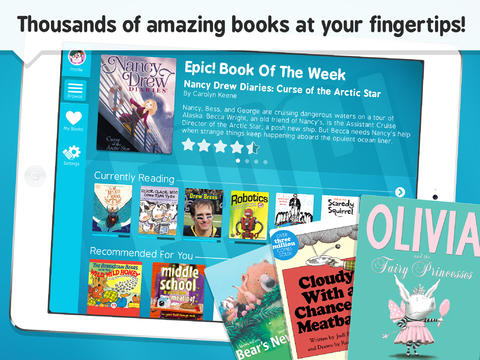
Check out Epic!- Books for Kids (FREE), an eBook library of picture and chapter books that can be used to present language-enhancing books in interactions with your students. Epic! offers thousands of narrative and expository books from major publishers such as HarperCollins, Scholastic and National Geographic. The app offers features facilitating an engaging presentation of a book to a group of students via an iPad, including zoom in/out to page and "read to me" audio available for some books.


After downloading the app, be sure to register for an educator account, which you can do through the app or on this page.

Epic! features a number of books I have used for language development over the years, and I have been finding other great options through the app. For example, the books Scaredy Squirrel and Scaredy Squirrel Makes a Friend by Melanie Watt offer the following "Speechie" book features:
-A narrative structure featuring problem, reaction (or attempts to solve) and conclusion
-Many expository elements presented in an engaging, fun way, e.g. animals Squirrel is afraid will bite him, sequences and connections between items and their functions.
-Text features such as diagrams and flowcharts that are helpful for scaffolding understanding (and seen in textbooks that students must grapple with in their classrooms)
-Contexts to explore social cognition strategies such as Zones of Regulation and the CBT paradigm of risk vs. opportunity (i.e. reframing anxiety-producing situations as opportunities to learn).
-Potential to screen-shot illustrations and pair with Strip Designer to make comic strip conversations about the character's thoughts and perspectives.

In my presentations on this topic I often include this reference that is very on point regarding the utility of this app:

The act of reading books aloud interactively and using scaffolding to support children’s use of more advanced syntax, vocabulary and critical thinking is itself an activity which addresses language development (Beed, Hawkins, & Roller, 1991).

So, for a source of books "at your fingertips," give Epic! a try. For tips on interactive reading aloud, see here or here, as well as Jim Trelease's Read Aloud Handbook and Jane Gebers' Books are for Talking, Too!


Beed, P.L., Hawkins, E.M., & Roller, C.M. (1991). Moving learners toward independence: The power of scaffolded instruction. The Reading Teacher, 44(9), 648-655.

Thursday, January 8, 2015

iPad Essentials: Speak Screen and Speech Options in iOS 8

Many people are not aware of the many assistive technology (and engagement-enhancing) features that are built into the brain of the iPad--iOS, its operating system. In talking to groups out and about, I am aware that many people have been afraid to update their iPad to iOS 8 for fear it will slow things down or perhaps explode. Yes, there are some hoops you need to jump through possibly to make space for the update, but I would really recommend it at this point, even for the iPad 2s (I assist with a fleet of them at a small school and have not noticed a difference in performance with the upgrade). The cost of continuing to wait is missing out on updated apps designed for the newest operating system, as well as the feature I will describe in this post.

iOS 8 has added a new iPad Essential- improved ease of use of text-to-speech tools. Text-to-speech, or the ability to have the device "read" text on screen, has been in the iOS for some time, but previously in a manner that required you to "select" the text, which requires some tricky tap-and-hold gesturing. iOS 8 has brought a new feature called Speak Screen, which is much more easily activated with a two-finger sweep.

First, you will need to turn on the feature:
1. Open the Settings app.
2. Tap General, then Accessibility, then Speech.
3. I like to keep my settings as follows, which allows me to access both Speak Selection and Speak Screen, at a slow speaking rate, along with Highlight Content (a feature that promotes literacy development).


iOS 8 also brought new choices under the Voices menu above, where you can now select the more natural sounding Alex voice (he takes breaths and uses more inflection). Be aware that the voice, if downloaded, takes up 869 MB on your device.


Speak Selection, and now Speak Screen, can be activated on any page that displays selectable text- so any webpage in Safari or other browsers, iBooks, Kindle, and some other apps. In Safari, it is helpful to use in conjunction with the Reader View. This view removes clutter (which could be "read" by the text-to-speech function and become auditory clutter) and displays only what is on the page. Note that this is not available for every webpage but only where the "lines" icon is displayed. 


So, tapping as shown above...


...transforms the page to a simpler view as shown above. Once Speak Screen is turned on in your settings, a two-finger sweep begins reading the page with your selected voice. Use the menu to decrease or increase the speed, rewind, go forward, or pause, and tap the X to dismiss it entirely. Note that if your iPad is Siri-enabled (iPad 3 or later, iPad Mini), you can also activate Siri and say "Speak Screen." 

These features are critical assistive technology for SLPs and teachers to know about, but also serve as therapy and engagement tools:
-Use text-to-speech within word processing apps or the Notes app to help students learn to edit their work more accurately. I know I am a better editor when I hear my text read aloud.
-When presenting text to students, use text-to-speech just to give them a break from your voice, or as an auditory comprehension activity. I know my students appreciate it when I shut my yap for a minute or 2!

Watch Luis Perez' quick video here for a step-by-step look, and see all of his great accessibility resources on his website. A quick view here also lets you see the gesture to activate Speak Screen.


.