The movie Here comes out this week, reuniting Tom Hanks and Robin Wright with their Forrest Gump director Robert Zemekis. The movie is said to be experimental, with the camera fixed on one area to show a nonlinear story/stories that happen in a particular space across a broad range of time. Here is based on a comic and then graphic novel by Richard McGuire; both would be useful for reviewing with teens but the original comic is located, well, here. I could see this as useful for an activity in story mapping, BrainFraming (or other sequence graphic organizer), or timelining the events shown.
This is a question I am often asking my groups that are interested in Pokémon!
My theme here of leveraging student interests (and Pokémon) is not new but I count as an alignment both with the client values prong of EBP and neurodiversity affirmation.
To that end, a quick techie find and a couple tips. This website has archived images of Pokémon cards over many years. It is searchable so you can look up a specific character but I have just been looking through random sets for the fine print description at the bottom (oh, my old eyes!). These descriptions are helpful not only for the terrific Tier 2 vocabulary but also for opening your students up to social analogies.
I screenshot the card, put it on a Google Slide like so (screenshotting again the description and enlarging it) and use the good old "we talk, I type" strategy (kids are strangely engaged by watching you type). This allows us to explore topics and tools that I link to strategies like Zones or Autism Level Up, or both. Indeed it does not serve Drampa to destroy his whole environment!
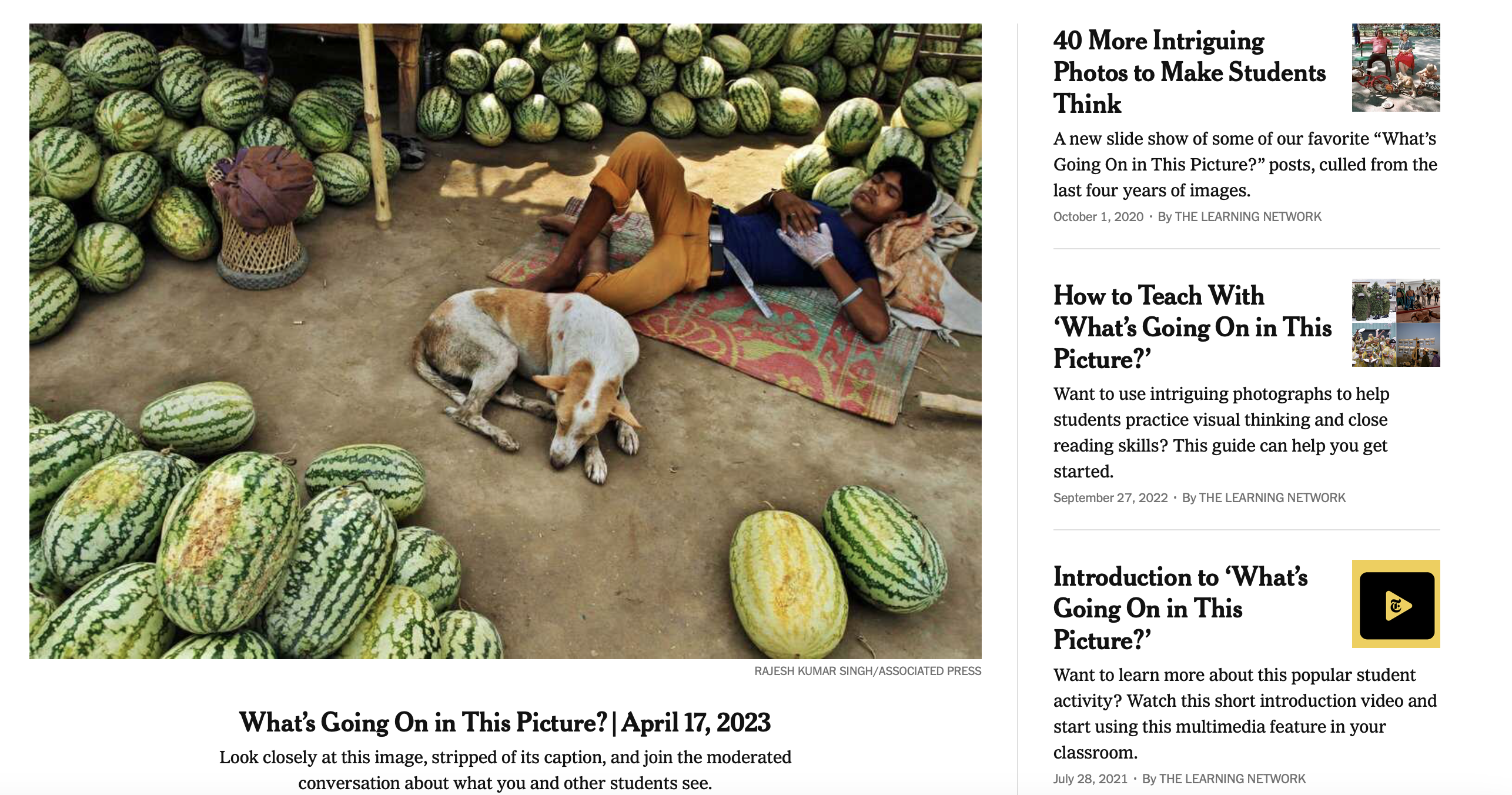
Any tech resource that is simple, reliable, with content worth more than one visit, and that will tie in with instructional strategies is one to save on your list. Such a thing is the New York Times' What's Going on in this Picture? The site provides a weekly Interesting Image and instructional tips.
You can consider using this content with:
-Instruction on story grammar, as each picture can be used to form a story
-Visualizing and Verbalizing® strategies
-tie-ins with forming inferences and Social Thinking® concepts such as Thinking with the Eyes
Having been certified in Visualizing and Verbalizing® years ago, I've always found it an essential tool in my toolkit. Scaffolding students toward creating a mental image gestalt, guided by a schema of structure words that aid in descriptive details, is a process that has been useful across reading comprehension to conversation and even executive function (i.e picturing oneself performing a task).
These skills will continue to be important, but imagine if you have a tool that can combine a few elements and create an image you can see. That's a powerful bridge to this process! Also, I recently learned of aphantasia, which affects the ability to form mental imagery. Supporting other means of learning through visuals affirms this element of neurodiversity.
Check out DALL-E, another tool from Open AI, which allows you to enter a descriptive term to generate a range of corresponding images. DALL-E provides many examples which favor modes of art, for example, line drawings, digital art or watercolor, but you can also use fairly specific descriptors and vocabulary. A client for whom I identify vocabulary targets from his Pokemon interests, for example, is perfect for this kind of search using the words dual and region:
I'm sure SLPs can think of many more creative ways to use DALL-E, such as a series of images demonstrating basic concept words. If you have one, please let us know in the comments.
Music is motivating, self-regulating and full of language. Recently I have used songs with individuals and groups in a couple of specific ways.
For an individual client I see, I have been working to incorporate many of his interests as part of a neurodiversity-affirming approach. When he mentioned liking the Beatles, I instantly knew this could be a great path to engagement. We started with "Here Comes the Sun" and using Wikipedia to look up some details about the song brought some great conversation. In addition, the famous album cover of "Abbey Road" brought some Visualizing and Verbalizing-style picture description into the session. Songs with lyrics are available on YouTube and through this we discussed figurative language with this song and "Yesterday."
Simple sketches helped with some back and forth- "Wait, 'Here Comes the Sun' is about the sun coming right at us and crashing into us, right?" "Is 'Yesterday' literally about yesterday?"
For a group activity focusing on different kinds of conversations, I was inspired by this TikTok, in which a teacher polled her students for opinions on the #1 song when she was their age. This made a good executive function activity- what would this look like if we did this? What do you need to know? What objects do we need? See Ward/Jacobsen's Get Ready, Do, Done model. All comments were welcome and I was pleased to learn some new slang when one of the kids reported that Heart's "Alone" (showing the music video in this case provided some extra visual engagement- such big hair!) was "mid," meaning "just OK."
Do you have other ways you like to incorporate music? Let us know in the comments!
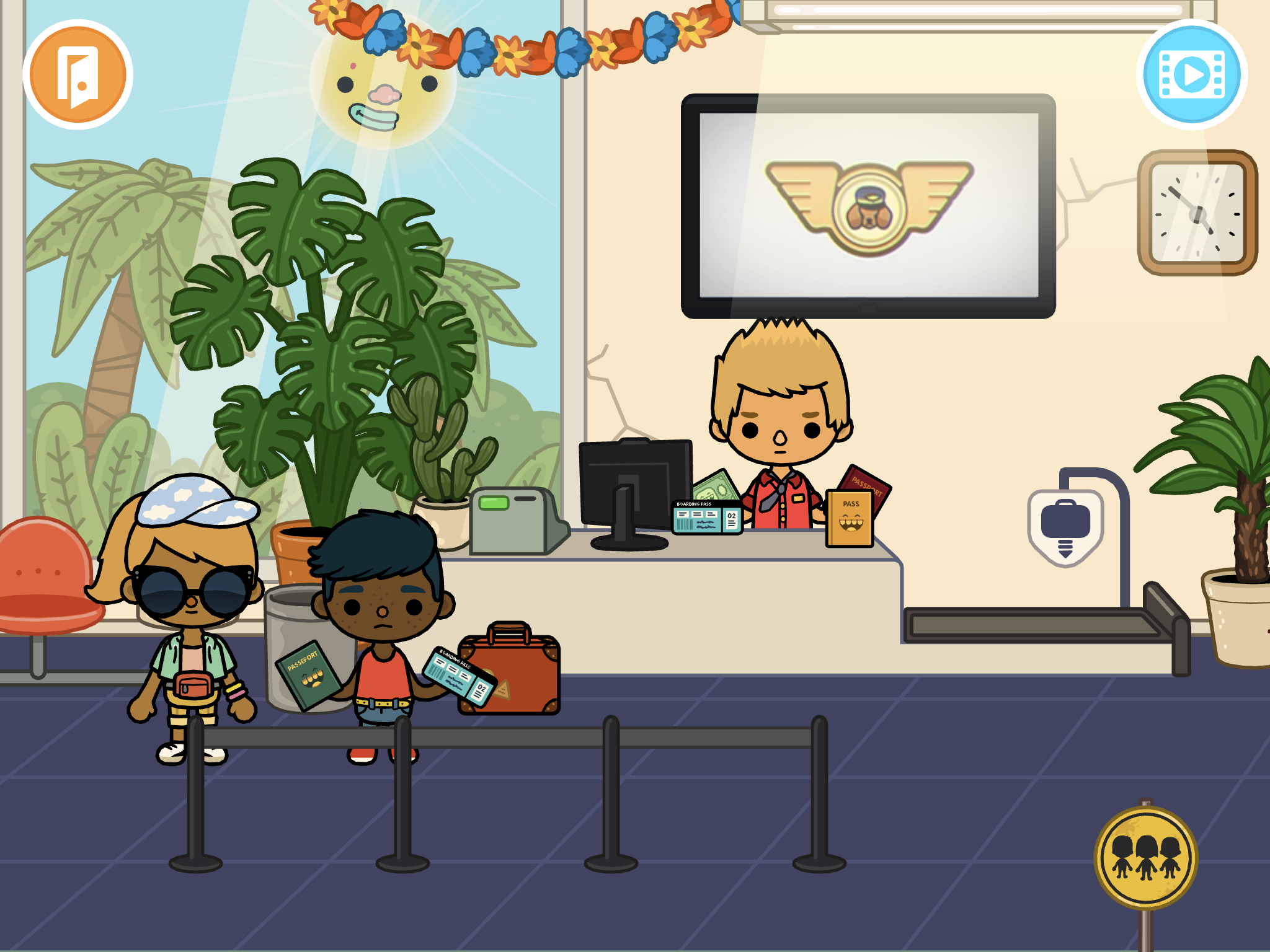
Continuing here to post some companion pieces to my session this week at the SLP Summit (available in its recorded form with others until August 15, register here). One of the app resources I discussed were those available through Toca Boca's Toca Life apps. These are available individually, for example, Toca Life: Vacation which I will discuss here, or the Toca Life: World (also playable on newer Macs w M1 chips) has a way of pulling together your previously purchased apps.
The Toca Life apps are just filled with real-world contexts and therefore can be used to model, co-create, and play out stories in very structured ways or loosely. Make a scene, involve lots of movement onscreen, or record whatever you do as a story through the screen recording feature. This can be done individually or with a group taking turns, or as explicitly or implicitly as you see fit (e.g. with story grammar cues or not). See my recent post on Mindwing's blog about models of learning and instruction.
Taking Toca Life: Vacation, let's consider how the context can lead us to scaffold a bunch of different stories with students.
Airport: Besides the process of arriving, checking in, going through security, waiting at the gate, and taking off in the plane, what if...
1. You need to buy a ticket (use the ATM etc)?
2. Your flight is not listed on the board of funny-sounding destinations and you need to ask for help?
3. You left something at home (if you have Vacation and City added in Toca World, you can move characters in and out of the panel at the bottom and change locations)?
4. A parent surprises you at school with a vacation (same, start at School and move the characters to the airport in Vacation)?
5. Your flight is delayed (good vocab word)?
6. A dog flies the plane and you don't end up where you planned?
This or other parts of the app could be used in conjunction with Google Earth to "fly" to a location and see some landmarks in 3D!
Hotel: Besides checking in, taking the elevator to your room and doing hotel stuff (bathing, sleeping, changing from your luggage, etc), what if...
7. You win a shopping spree at the gift shop?
8. You eat EVERYTHING at the buffet?
9. You make a mess of your room and need help or equipment from housekeeping?
Beach: Besides all sorts of watersports and maybe a wedding (?), what if...
10. Someone gets trapped on the island?
11. The fish get silly and decide to live on land?
And don't miss the treasure chest out on the island...
As I mentioned in the session, check out short videos like this that can show you lots of potential stories you wouldn't even know were there!
I had great experience presenting live for SLP Summit yesterday! The people and responses were wonderful. My session will be available in its recorded form as will the other excellent presenters' until August 15. Register here, the conference is presenting more live sessions practically as we speak; CEUs for live/recorded sessions are available for a small fee. To thank the many who attended and (I noticed!) subscribed to this blog as a result of the conference, I thought I'd elaborate on the content with some additional examples over the coming weeks.
In the session I started by describing how Google Slides and Jamboard can be used to create, interact with and retell stories through activities like making a scene or story mapping. I had previously posted a video on this you can check out. Another example is making a visually supported story retelling activity, in which you can think of Slides or Jamboard as sort of like the old Colorforms- images you insert can be like your stickers!
You can do this with most any context or story, but this past spring I really enjoyed reading We Found A Hat (Jon Klassen) with some groups. There are others in this series but they are a bit darker in ending. The author uses exaggerated eye illustrations (and not much else) to signal thoughts and intentions. Use the book or a video like this one!
For a playful way to work on retelling, make this book a scene. You can do this in either Slides or Jamboard. Slides would offer you more ways to play with formatting; Jamboard would allow easier collaboration (and if you wanted to sketch to change/highlight eye gaze you could do it more easily here). The basics as I show below would be the same.
Start with a blank slide- (either remove any text boxes and such or insert a new blank slide). If you have nothing selected on the slide you should see Background on the bottommost menu. Click that, Choose Image and the Google Image Search choice usually does a good job for any kind of background.
For your mobile (to click and drag about) turtles and hat you can try Insert>Image>Search the Web. This worked well for a hat. Remember to use the term PNG to try to get images without backgrounds.
Sometimes you may have trouble getting images that actually are PNGs. I just go over to Google Image Search (open a new tab and search on Google, again using PNG). From here you can right click and copy images to your creation.
A word about this- be aware of copyright, don't republish or attempt to sell something you have created using Google Images unless you have searched for images that are ok for reuse. This goes for all digital storytelling creations.
Here I copied and pasted the turtle and clicked on Format Options to flip one of them.
From here, use your imagination!
-move the elements to model a story retell and then have students do the same (a SmartBoard might be fun here)
-You can make Google Slides look less cluttered by collapsing menus or hiding elements under View.
-Add text boxes or shapes for dialogue.
-Make a "same but different story" where the turtles find something else besides a hat. Would they make a different decision? Why?
-Talk about cool things you've "found" (bridge to personal narrative)
I described in a recent post coming to find some good uses for Minecraft with interested clients and groups. This previous post was about using Education Edition which not all have access to, so I wanted to make sure I described some applications for regular Minecraft. I first of all recommend getting started with the iPad edition, previously called Pocket Edition (there is also an Android tablet edition, both around $7 but then giving you everything you need). There is a lot to Minecraft that I don't even yet fathom but when you think of it as a digital LEGO set, that is a great place to start. Additionally one might add that there is evidence that involving LEGO in therapy improves communication and play skills, and these ideas can translate to Minecraft (I like good old LEGOs too).
In this post I will briefly describe creating a world and getting started. This has been a great context in groups in the past weeks of simply deciding something to build, using visual supports to preview a "future picture" (see Sarah Ward/Kristen Jacobsen's work and just look up "make a simple ___ in Minecraft" on YouTube, e.g. a swimming pool). In the process group members work on fulfilling a group plan, adding thoughts and play moves in the app, and of course, flexibility and conversation. You can also use Minecraft in straightforward language stimulation activities as it could be used to foster description, concepts and following directions skills (you can even add signs in the world with text on them).
I keep it simple and do a play and pass situation with one iPad, but your kids could tell you there are ways to have people join a world from multiple devices. In our situation, mirroring the iPad to an Apple TV keeps everyone engaged when it isn't their turn.
To get started, open the app and tap Play, and in the Worlds tab tap Create New. Name the world and change the game mode to Creative. Your students may balk and ask for Survival but I don't want them killing each other or being killed in the game. I wouldn't worry about all the settings but definitely scroll down and turn on Always Day so the screen doesn't maddeningly dim on you when it becomes "night" in your world. I learned that one the hard way.
The arrows in the lower left allow you to move. Tap and drag your finger to "look around" and change your viewpoint. First step can be finding an open space to build something.
The diamond control on the right allows you to "fly" up or down as another navigation option. Note the bottom squares are your inventory of materials, and start out as empty. Tap the three dots to edit your inventory.
Items with a + are actually a category of materials. Tap to expand e.g. the blocks. Find something you would like to add to the inventory, tap it, then a square at the bottom to add it.
From here, build! Change your view so you can see a target spot, tap to place a block. Make a mistake, long tap and that breaks (removes the block). It just takes a little practice. Maybe make yourself a summer retreat to start!
I have previously written about using contexts like Minecraft without getting into the thing itself. I've come around on this a bit and next time I'll talk about some simple uses of Minecraft (creative mode, I am still not interested in having kids kill each other in a game), but recently I discovered I CAN USE MINECRAFT EDU!
I had heard about Minecraft EDU for years but, not having an .edu email address, couldn't access it. I have been supervising at Boston University this semester and discovered my email address (plus having a Microsoft account at BU, so you need this too) was the key, as it probably is for many school-based clinicians reading this blog. MC EDU has many created "worlds" that are structured and relate to school topics, so are a nice place to start.
So, if you have a .edu email, head first to MC EDU and sign in to create an account. From there, I find Minecraft most navigable on an iPad- simplified controls and such. For the EDU activities you'll need the free iPad app. Explore the worlds and see what you might like to use. They are not all amazing, but I highly recommend the very well-done world called The Mindful Knight. Through this activity I grabbed the attention of a student who I have struggled to help with practicing self-regulation strategies, and through several of the "quests" learned about the value of deep breaths and presence (e.g. Five Senses noting of things in the environment).
The deep breathing exercise is practiced by navigating the Knight to an elevator, with great visuals.
I apologize that this is still somewhat of a complicated resource to reach, with the necessity of the .edu address and MS account, but there's a work-around. Look on YouTube for "Mindful Knight Minecraft" and you'll find gameplay vids like this one that can make for good lessons, too!
Dino Tracker is a fictionalized interactive website that has been released as a promotion for Jurassic World Dominion, an upcoming film in the series. The premise of this film is that dinosaurs are no longer confined to Isla Nublar but living (and hunting) alongside humans. The purpose of the site is ostensibly to provide information to the public about "sightings" of various dinosaurs- the therapeutic potential in the site is scaffolding language around the locations (through a clickable Google-like map), the "descriptions" of the dinosaurs and cause-effect language of "Dos" and "Do Nots."
I was recently discussing with a colleague how high school students often have remaining difficulty with the geographic literacy aspects of continent-country-state or other division and how this connects to situational awareness and the ability to digest information about the world and current events. Browsing the world map provided could be an exciting (MS and HS students who can understand the artifice of the content) opportunity to review continents and some of the spatial strategies for recalling them, then moving down to more micro areas. The videos provided are a form of narrative and the "field report" expository text that can be mapped with graphic organizers, or used as a model to tell "same but different" creative item e.g. a report from another location. Overall Dino Tracker represents how interactive websites designed for very different purposes can provide access to academic language- one strategy I like is to search for "interactive websites" and under tools set the time limit to the past month or week, you can find some gems.
Tiny Tap was previously described here as a good mobile app resource for both making interactive activities and finding visual content for lessons. I recently noticed TinyTap has ported content online, so this would be playable on your laptop or in a classroom with projector or interactive whiteboard. This format for Tiny Tap makes it also a nice resource for telepractice. Sign in at TinyTap (click Connect) and you can favorite activities to create a resource list. The activities are geared toward language basics and topic exploration, many taking the form of an interactive book, and therefore are particularly good for developing vocabulary, categories, or foundational descriptive skills. This Desert-themed activity provides a good example, but see what else you can find on the site! I was able to access many activities for free, but TinyTap provides an educator sign-in.
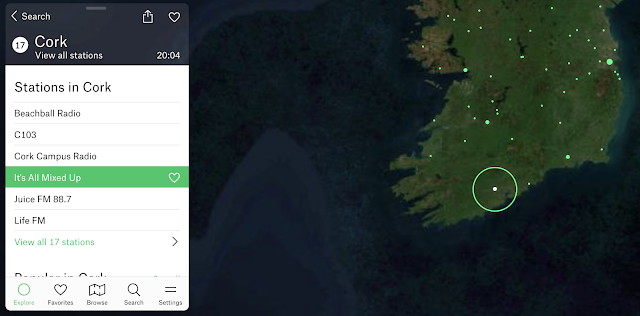
Flowing a bit from my last post (context is your friend), Google Experiment Radio Garden is worth a therapeutic visit. Your students will think it's just a chill moment, but secretly it can be a great way to practice having them call out:
-Continents and then countries -Responses (conversation/comments) to what they hear -Characterization of the language (nonverbal aspects such as tone etc) and type of music you may hear. Music genres are a category and can connect us with peers!
Why not pair this with looking up a current event from the country you "visit" for narrative/expository comprehension?
Now more than ever, it's important to foster global awareness.
Oh, and Happy St. Patrick's Day, here's my homeland:
I have been a longtime fan of maps as therapy tools. They promote spacial description skills, situational awareness and (literal) world knowledge, and can be used to link to narrative and expository language.
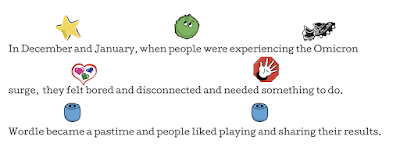
Let's start with Wordle though. A huge fad, one this Jeopadevotee has used to shore up his skills with the anagram category that didn't appear in his game...yeah, I am still in some kind of transitional phase. Anyway, I am not sure it is such a great therapy tool unless it is paired with a visual support such as searching for words with various forms (see same but different below), but it kind of has a story. Here related in Story Grammar Marker® icons:
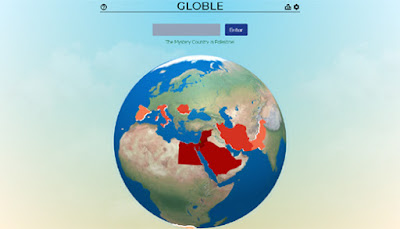
There have been many spin-offs of Wordle including one in IPA that SLPS would love, and Globle is one in which you guess the "country of the day." As mentioned above, for students working on building this knowledge, it's great to have a tab open for reference and research to help them make educated guesses. As I described to families of students I played with this week, "In a cooperative way we enjoyed an introduction to the game Globle, a variation on Wordle where we guess countries, get color coded clues back, and zero in on the day's target, therefore using thinking with the eyes, following the plan, and adding connected thoughts based on the info that we were receiving. The boys figured out Portugal quickly by building off each others' clues!"
It seems as though everyone is starting to exhale and feel a bit of optimism again after a disruptive turn in the pandemic this January 2022. It seems a good time to take stock and continue to use our tools to keep ourselves productive and feeling purposeful!
One of my tricks is around windows and tabs- it's important to be mindful of how many you have open. First of all, having a huge array of applications, windows, and tabs within your browser open is overwhelming and isn't conducive to focus. Here's a great post on Zen Habits about this issue. Additionally, having all this stuff open is taxing on your computer's memory and even power, so you may find it moving more slowly. Take a few minutes a few times each day to close those tabs that are making your brain go all over the place, pulling your focus and/or causing you some anxiety.
One strategy I like to do--it may sound counter to the above but is really an organizational/prep strategy, so, regulating-- is to set up upcoming sessions in a window or windows along with any resources I plan to use- whether it be a telepractice or in-person session, as I am currently doing both. For tele it is helpful to have the tab you will want to go to first be the active one, as in Zoom it will be the one visible for screen sharing.
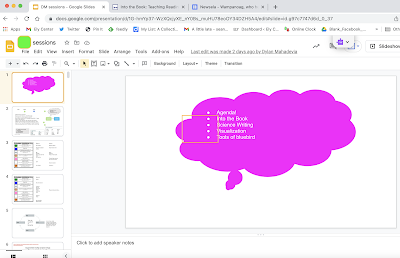
For this session you can see the (1-1) student's Google Slides deck, with agenda and other activities like practice with the EET, reading comprehension practice we are doing with Into the Book, and a Newsela article we would work through with Story Grammar Marker®. Student done, close the window!
Well, besides the Jeopardescapade, this has been quite a crappy month for everyone. In Massachusetts, a huge surge in COVID infections after the holidays forced a lot of us to make changes again in how we are working with students. Schools have stayed pretty much as "new normal" here, with the exception of more testing and quicker on the draw to cancel school days for weather. Working in a private practice, we have made a shift to move as many sessions as possible into a temporary telepractice format for individuals and groups, while keeping in-person services for those that struggle to engage online (or are just over it). Of course we are taking extensive precautions: vaccine requirements, temp checks, health screens, powerful air filtration, double masking, distancing...
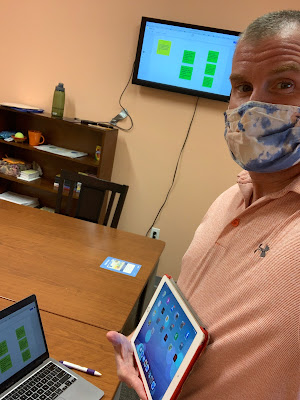
On that last one, I find technology to be a big help. We have an Apple TV (old ones work fine) with HDMI-ported TVs (just your basic TVs these days) in each clinic room. I have a Mac which can screen mirror to these, but if I didn't, an HDMI cable would do. The Mac just gives me more mobility. The use of a screen (like you would a board/projector in a classroom) can keep engagement up visually and can prompt session structure and communication from students in a variety of ways, while maintaining distance within the room. It can help also to reduce or eliminate shared "touched" materials, and though these really aren't the problem with an aerosol-spread virus, it's a step that can't hurt and can be reassuring to families. Here are a few examples:
-Activities students can participate in actively via their smartphones. You can make a worksheet/thinksheet into a google form and email to them, or shorten the link with bit.ly. Kahoot is almost always a draw, whether you choose from topics of interest or social/language based games. Jackbox Games are worth an investment, and often on sale- these are joined by phone.
-Have a discussion and document the language in a simple Google slide like a flipchart. I guarantee they'll want to correct your typing, which means they are paying attention. Insert images! SlidesCarnival has good templates for free if you want to jazz it up visually.
-Anything visual that prompts discussion- consider infographics on topics of interest or something related to holidays or current events. With Chinese New Year coming up there are a variety of websites and graphics that describe the personality traits of the various animals/years. Great to connect to and have students self-reflect on how they might be same or different.
-Books that are visual with limited text. This week I used Jon Klassen's darkly humorous I Want My Hat Back and This is Not My Hat on YouTube. You read 'em, sound muted, pause at will- there is plenty to discuss with some facial expression interpretation.
The V in the FIVES criteria is for Visual! Visual supports are a simple Evidence Based Practice- give students something to explore with their eyes and you can tap:
-description/main idea -vocabulary -narrative language and complex sentence formulation -social/situational awareness -their interests/humor!
Classtools.net is an oldie but goodie, and has been around forever. In addition to its classroom tools such as Random Name Picker, a simple Soundboard and such, there are many visual activities you can use to create an "opener" or have students create something themselves. This may be particularly useful for older students.
Consider These:
Twister: create a "tweet" from any character, tap main idea, perspective taking, sentence formulation
Image Labelling Tool: upload an image and create text "hotspots" for part/whole thinking, abstract or advanced categories, description
Tech-based scenes, in which story grammar settings are presented and we can add characters and objects, suggest the creation of stories and other language targets. One of the simplest series of tools for this is the apps from, well-titled, make a scene (inexpensively priced at $.99 for iOS, Amazon devices and Android Tablets). These include themes that can be used to build semantics such as Dinosaurs, Jungle, Polar Adventure and Transport. The apps are simple, promoting use for many grade levels ranging down to preschool. Additionally, each app contains related scenes to choose from for a variety of stories to create.
Make A Scene: Transport. Create a traffic jam for an "initiating event!"
Consider This: -Make A Scene apps and websites (fewer options) function like a stickerbook or (if you remember) Colorforms for very simple co-creation activities. -The iPad remains alive as a great tool for clinicians to have on hand for its portability, ease of use, and functions such as screenshotting which allow you to revisit previous creations and the language involved with them. The iPad can also be mirrored to computer screens for use in telepractice, or connected to a projector or interactive whiteboard in a classroom. -In addition to story creation, scene creators can be used to target microstructure aspects: vocabulary, elaborated noun and verb phrases, syntax and sentence formulation e.g. temporal and causal clauses. -Scene creation begs for pairing of apps with picture books of similar themes to set a larger context in therapy activities. See my free booklet on this topic on Teachers Pay Teachers. -Particularly for telepractice, to allow for interactivity it is easy to create your own scenes in Google Slides. Students can interact with the scene through remote cursor control or setting the sharing settings to allow the student to edit the Slides.
I'm sick of talking about COVID. Obvi it's still with us, but I thought I'd frame the path forward instead of backward, and 6 parts of "Lessons from COVID" was enough anyway. A new school year, so Consider This. In coming posts I will be encouraging flexible thinking, planning, and contextualizing of language interventions fostered by simple tech resources.
I'm still a working clinician of course but have the privilege of doing consulting as well. This week I was discussing with an amazing SLP colleague a "way forward" for social learning lessons for a group of moderate to high-support high-schoolers. With delivery in their dedicated classroom, use of the board and projector is really helpful for keeping up engagement. We had at our fingertips a book she had identified, 125 True Stories of Amazing Animal Friendships, a great visual resource from National Geographic.
Interactive read-alouds, though still effective, get tougher as students get older. They no longer gather around in a circle on the carpet, do they? We thought of digitizing through Slides (easy enough, and one option), but then I thought to check EPIC! It had the book! Hopefully you know this repository of digital books offers (still!) free accounts to educators. Consider also this entire publisher's library and other visual treasures, which help us see how a resource like this can be useful beyond the primary grades.
Yes, you can zoom in...
So Consider This, in brief, and comment with other thoughts, please!
-Each entry, and there are many, can be mapped as a narrative
-The book as a whole is also an expository example and graphic organizers can be used for list, sequence, cause-effect etc.
-Our primary interest here was social "same but different" thinking. Many of these episodes can be used to extract human friendship "hidden rules"
-Conversation building: what connections can you make in your experiences with pets?
-EPIC is very vocab-friendly. Click on a word and you get a definition.
What other ideas do you have when you Consider This?
In this series I have been discussing "lessons" from this difficult year: things that helped me get through but also will influence my work going forward back into "normal." One of these is the use of simple visual tools such as Google Slides. I had found Slides useful pre-pandemic as a way to lay out lesson and discussion visuals, but it became more so diving into telepractice. This "lesson" actually has some component parts, so I will letter those!
a. Keep a deck for each session or group: doing so helped with organization, review, and contextual flow. As I supervised graduate students throughout the pandemic, this also allowed for easy digital collaboration through Sharing.
b. Slide 1 is a good place for the agenda, which I always frame with the Social Thinking® concept of The Group Plan.
c) Like this overlaid Shapes>Callouts of thought balloons, Shapes are always your friend in Slides. Add any shape and it can be made colorful via the paint can, and is automatically typable (easier than text boxes) by double clicking in the shape.
d) Shapes can also be made interactive like I did here applying a great visual about problem solving from Kristin Wiens at northstarpaths.com:
I used the shapes to put a desequenced example (from January 2021) and Remote Control in Zoom to have the students in the group put it in order. You can see that we also linked it to Story Grammar Marker® and Zones of Regulation.
e. As in the agenda above, I'll say it again, no need to type everything out in advance. Often that can be visually overwhelming anyway. I often find a title or frame sets the topic and kids are quite happy to attend and comment as you type!
f. Images are easily insertable on the go in Slides, much like the venerable Pic Collage. Insert>Image>Search the web to work on vocabulary, add a quick visual support or engaging image. Let your students decide (with help) what images go best with the language!
Speaking of images, any slide can be quickly screenshot and shared with parents or others who should know what went on in your lessons.
g. Shapes (again) make great discussion webs or make language visible to foster conversations. Anna Vagin's Conversation Paths slides really saved my life and are modifiable for many contexts. In this case my students asked my graduate student a couple questions to get to know her and the path visuals provided schema, in this case a mnemonic I made up about "people files" (FILE).
h. Lastly, each deck provided me an organizational frame for a group. I'd open a window in Chrome for the group, open the group's Slides, and then use tabs for any resources (e.g. an interactive website) I might be planning to use in the session.
I am looking forward to in-person groups being much less digital, but I am sure Slides will remain an important visual tool for me going forward!
I'll be taking a few weeks off- see you back here in late July!
Having started as an elementary SLP, it's been one of my journeys to learn that with older populations, we need to keep it relevant. That whole Client Values prong of EBP can come into sharp focus when you are trying to keep students attending and engaged.
I recently had several clients who were learning to drive. Very exciting. I recalled some hilarious blog posts I had read on Cracked some years back here and here about "Types of Drivers Nobody Complains About." The text itself is funny to read but not instructionally appropriate, but the images are great. Here's where the social cognitive concept of Hidden Curriculum and the Social Thinking® concepts of thinking with the eyes converge as a context for students to interpret these photos. This is also a good example of how Google Slides can be used to create a kind of workbook. I used this with my clients to have them interpret the photo and write (or I would write) a main idea interpretation. You could also use this to have budding drivers build self-awareness and make "notes to self" about what they can change in their own driving. You can obtain the resource here. As always with Google resources, please do not request permission for the document. To use it yourself, simply sign into your Google account and under the File menu, select Make a Copy. You can then make this an ersatz workbook by inserting a text box on any slide.
SpeechTechie is my take on simple and interactive technologies you can use in language lessons and interventions. Enjoy!
Interested in learning more? I am available to conduct professional development sessions, including via webinar. If you'd like to work with me to design a presentation or consultation for your school or organization, please check out the "Work with Sean" page on this website.
Sean is a MedBridge instructor for several courses (avail. Feb 2018). Click to join MedBridge at a discounted rate for high-quality online PD and CEUs. A wide variety of courses are available for SLPs.
Visit and "Like" our Facebook Page
Follow SpeechTechie on Twitter for updates!
Thanks, Guys!
Click on the badge to explore a ton of great blogs!