Showing posts with label literacy. Show all posts

Friday, August 4, 2023

Sing!

The title of this post is both an encouragement and some specific features I wanted to let you know about!

You first of all probably know singing is a hobby for me and a self-regulation strategy. My husband and I have been back on our BS and adding to our playlist monthly.

There are good resources and research for using music in speech and language therapy, and we of course know that for many of our students it is supported by the client values prong of EBP (a natural motivator and therapeutic avenue for those of you working with older clients as well). I've written before about using music for figurative language and narrative

If you are an Apple Music subscriber, they have recently added features they call Sing, including synced displayed lyrics (think literacy as well) and volume control for the vocals within lyrics. Meaning you can have the student(s) sing along with the artist, or be the artist on their own. 

This video shows how:


For the karaoke singers like me or those working in professional voice, did you know it is also pretty easy to change the key of a song? Why would you do this? Let The Honest Voice Co demonstrate:
@thehonestvoiceco Replying to @willow ♬ original sound - The Honest Voice Co.

As to how, however, that's easy. I currently use the app Anytune to do this. If you have the song purchased from iTunes and downloaded to your phone, you can simply import the song to the app and change the pitch or tempo (which may help with processing or speech production):

Below the soundwave on the left are tempo controls and on right is pitch


Friday, March 26, 2021

A Google A Day and Search Literacy Lessons

I've always observed an overlap between tech literacy/digital citizenship and safety with language and social skills-- probably why I have pursued the instructional tech and SLP sides of my work. I recall materials like Google's Search Education existing at the dawn of its search engine (I also recall AltaVista), and am happy to see them again. 

Search essentially involves central coherence/main idea thinking, vocabulary selection and question formation, among other skills, and that's just the first part. What follows involves text comprehension and determining what is the best result to pursue, not to mention evaluating sources! All good language and social cognition work.

At Google's page above you can check out leveled lesson plans with wonderfully broken-down Google Slides visuals- perfect for teletherapy but also in-person learning, and also of course, modifyable- just make a copy, shorten or add and pick your path through these lessons. 


A Google A Day is available as a stand-alone activity with daily challenges but also from selectable categorical challenges on the above page. Great engaging activity for the end of sessions, perhaps. 

Monday, March 23, 2020

Into the Book/Into the Map

Into the Book is an interactive website from PBS Wisconsin targeting language-based literacy strategies. It has light but engaging interactivity allowing students to view portions of text and click on possible responses, making it more fun than a simple multiple-choice kind of thing. The website has modules including summarizing, visualizing, questioning, prior knowledge, inferring, evaluating, making connections, and synthesizing, with multiple opportunities to practice the strategy for each, allowing you to "get on a roll" (follow this link and click Newer Post for more like it) contextually and strategically. The website is free and also gives a "key" that saves your progress with a student or group. The features above make it a good candidate to use in telepractice or (hopefully, eventually) in-person sessions. Recall my tutorial on screenshare and remote control, the use of which would add engagement. Consider pairing each module with a text that lends itself to the strategy, perhaps from Epic! Books for Kids.


Also take a look at their complementary site, Into the Map. I love maps for visuals and eliciting language, talking about stories, setting and spatial concepts, and this site lets students make basic maps including ones that tell a story, and practice following directions.


Tuesday, December 12, 2017

Scene But Not Heard

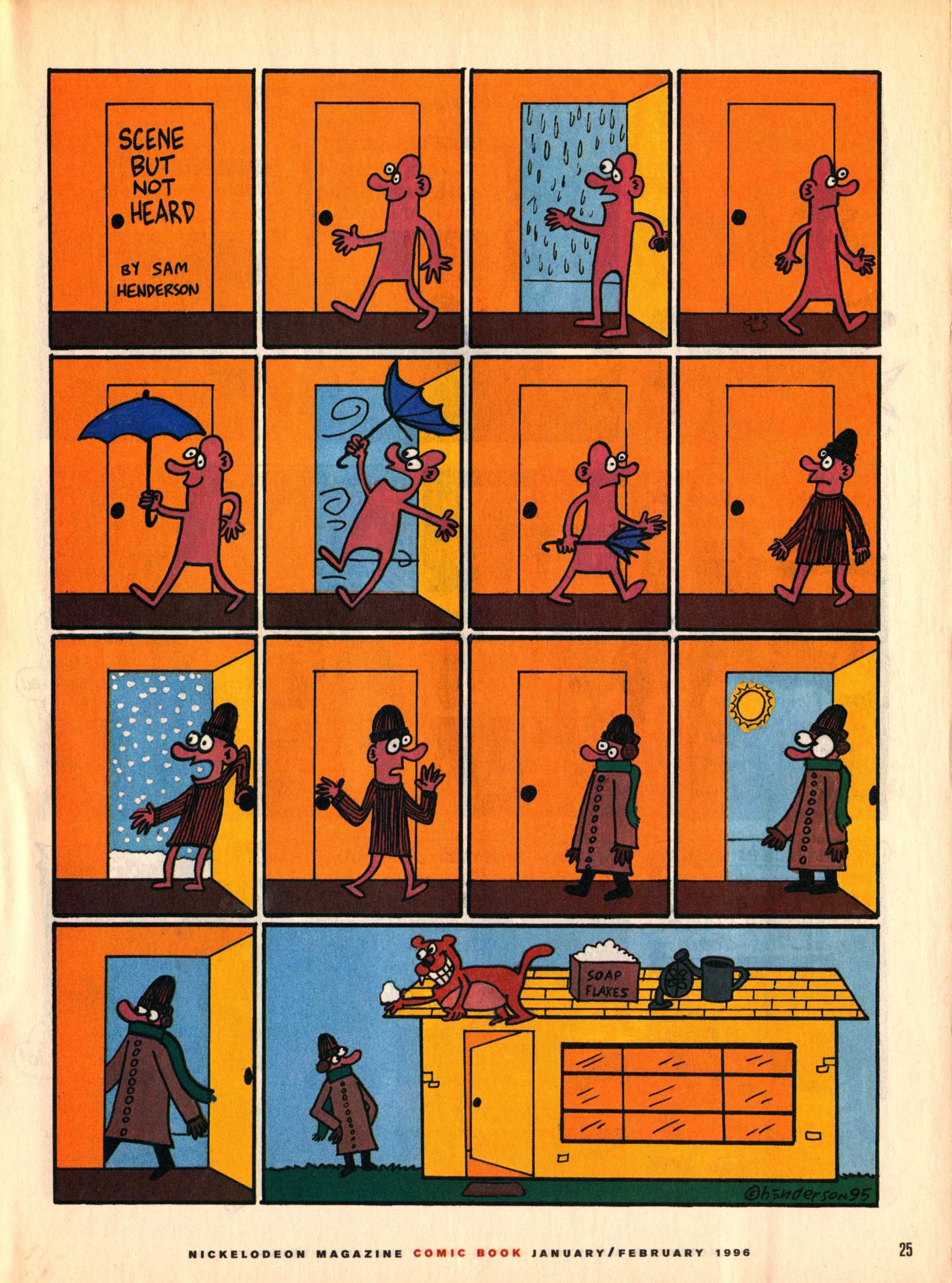
Back in the day, I used to subscribe to Nick Jr. Magazine for its ads (great expository text contexts) and visual content. This included a comics section with a series called "Scene But Not Heard" by comic artist Sam Henderson. The adventures of Pink Guy and Bear are humorous, exaggerated, and related without words. Like wordless picture books, wordless videos and comics are helpful materials for students to work on interpreting nonverbal cues, "thinking with the eyes," and constructing narrative language and the microstructure (vocab, verbs, complex sentences) within it. In those days I used to collect the series and use laminated versions in classrooms for push-in services along with graphic organizers from Story Grammar Marker®. The content is engaging for mid-elementary through high school students.


Nick Jr. is no more, but I recently discovered that much of "Scene But Not Heard" is available digitally. Just Google it and then click Images, and you have a treasure trove. This feature about the series also contains a gallery. In either case you can:

-save the comic materials to your device (tap and hold on full size image on iPad, or ctrl/right click on a laptop).
-make a collection- you can use Adobe Acrobat Reader, Mac Preview, tap the share button on your iPad and then save as PDF to iBooks, or simply make a folder in your laptop or Google Drive.
-Use the zooming features contained by these technologies to zoom in on the action and limit the visual array (I like to use these to teach students to verbally mediate and "talk out" the nonverbal content).
-Consider integrating with Google Docs- insert a comic into a Doc and have students write a summary.

Saturday, November 4, 2017

newsela

newsela is a very nice resource of electronic news articles designed with education in mind, another e-resource to have in your toolkit along with EPIC! Books and ReadWorks. The site offers quite a lot to educators for free, and a "pro" tier is available. You can access it through a web browser or free app for iPad.

News articles serve a number of purposes in speech and language interventions:
-context for use of graphic organizers teaching narrative or expository language structures
-opportunity to pose questions and elicit discussion with use of discussion webs (see Hoggan and Strong's mention of discussion webs as a narrative teaching strategy)
-newsela is geared around "text sets" and themes as well as daily news, and also allows you to change the reading level of each article
-within each article is scaled vocabulary known as "Power Words"- these are presented with student-friendly definitions that align with Isabel Beck et al's recommendations for building robust vocabulary.
-presenting this material digitally will add a level of engagement; newsela integrates nicely with Google Classroom.


Tuesday, June 20, 2017

Summer Reading, Part 1

I have a language therapy client I have been working with for a number of years, as he is a private school student. Our work around his summer reading books has given me a lot of therapy ideas. Recently I wanted to design a note-taking sheet for him for chapters that he reads independently, as well as ones we review together. Currently he is reading Steinbeck's The Pearl...such misery, but thankfully short (and available on YouTube for me to do my "reading" when I am driving around town anyway). The goal is for him to read more mindfully (he speeds!) and improve comprehension, and the note-taking sheet incorporates a number of strategies we have been working on- Visualizing and Verbalizing®, using story grammar to summarize each chapter (we transitioned from using Story Grammar Marker® to Westby/Noel's SPACE Acronym as he has moved into high school), using Brain Frames to organize big ideas, and generating questions, connections, and vocabulary. I hope it might be useful if you are doing this kind of work.


And a tech tip related to this is that I like using slide-creators (Google Slides, PowerPoint, Keynote) to make visual supports and graphic organizers. The availability of tools for shapes and shading, as well as the ease of moving elements around makes it a snap. An added bonus of using Google Slides is that you can share with a student easily and they can just double click in any shape to add text.

Thursday, October 27, 2016

More on mapping expository texts using tech, Part 2

In a recent ASHA Leader article I discussed intervention activities centered around social studies and expository text, and am continuing to discuss expository language in part one of this series and in this post.

One of the most useful apps for categorization and other expository language activities is Kidspiration Maps (free to try, $9.99 for full app). I truly believe this app should be in every SLP's and reading specialist's library as it has so many contextual uses. Pair this app with a picture book, textbook passage, video, discussion, information from another app or website...the list goes on. Kidspiration has been around for many years as a software resource and is still available also for Mac or PC, but at a higher pricepoint than the iPad version that shares almost all of its features.

I will talk about the diagramming features of Kidspiration (and its older brother Inspiration) and expository language in the next post, but in this post I would like to highlight Kidspiration's terrific Super Grouper feature. Super Groupers allow you to create an activity where you sort words and pictures into categories. Again, I find that these activities can be created to accompany any book or topic, and students enjoy taking your "wordsplash" or "picturesplash" and putting it in order. In the process, you can ask them to verbalize categories and descriptive attributes that serve as rationales for their sorting.

To offer a contextual example, students of mine were reading Iron Thunder by Avi- this is the story of the fateful battle of the ironclad ships Merrimack and Monitor during the Civil War. As we reviewed the first chapters it was clear my students were not so solid on the concepts and associations around the North and South at this time. I constructed a simple Super Grouper activity to address this:


The Super Groupers are the large blue and gray (color coded purposefully) rectangles in this case, with ovals containing information about perspectives, characters, synonyms, geographic information, actions, and so on, to sort. The student interacts with the activity by tapping and dragging the items (which can be pictures also, see below) into the Super Groupers. Once completed, you can also switch to Outline view (tap on outline icon in upper left) to see the information in a linear fashion:


One great feature of the Inspiration Software apps is that diagrams and outlines can be exported- from Outline View tap the share button and you can export as text to other apps such as Pages or even Google Docs, where students can expand on the language.


To create a Super Grouper activity, select the Super Grouper option from the home screen. The Super Grouper menu (highlighted at top) lets you tap and drag shapes into the work area. Double tap at the top of your shape to label it. Tap to select your shape, then tap the paintbrush at the bottom menu to change the background color.


The picture library is accessed from the "frame" icon. Browse the categories to tap/drag items to be sorted; you can also search the library or add photos, making even the visual contexts of Kidspiration limitless. You can add audio support to your activity or have students record sentences as they sort by tapping any picture, then the microphone button at the bottom, which allows you to record an audio note.


To make a more text-based sorting activity, use the Shapes menu. Double tap on any shape to type in it.


A very helpful feature of Kidspiration is that activities can be duplicated, so that in the event you complete the sort with multiple groups, you don't have to keep unsorting the items! From the Open Document menu, tap Edit, then tap to select an activity, and tap the Copy icon. This menu also allows you to share your created activities with colleagues who have Kidspiration. From the Open Document menu, tap Edit, then tap to select an activity, and tap the Share icon. From there you can mail the activity, send it to Dropbox, or tap More to send to Google Drive (where you can share the file with whomever). It's a great idea for a group of colleagues to work together creating and sharing activities that would be useful to all.

Thursday, February 11, 2016

My Valentine to Doodle Buddy- Part 1

A theme in recent presentations is repeat attendees (yay!) who report that their initial excitement about integrating apps in their work has waned a bit. Thankfully, following the presentation and collaboration with their colleagues, a number of people have reported to me that they have renewed excitement and additional contexts where they think these tools will be helpful for their work.

The fact is, kids' excitement and engagement in using technology has NOT generally waned, nor has the potential for its usefulness. I think as the years have passed and there are more options and possibilities, for us as clinicians it has resulted in a tendency to become overwhelmed or tune out for other reasons. For this reason, many of my trainings have included modules on overcoming "App Fatigue," which I believe should be included in the DSM 6. App Fatigue symptoms include an inability to keep up with all of the evolving information about technology (while feeling one needs to do so), and a change in mindset from "I can do that" to "Why bother?" While questions about how much technology to use and when to use it are positive, we want to avoid these debilitating effects. Treatment can include positive self-talk ("However much technology I use is just the right amount") and cutting down on the number of apps one uses, but looking to increase the number of ways you use them creatively and contextually.

I'd prescribe Doodle Buddy, which in a mixed-metaphor here I would like to celebrate in a kind of valentine over the next few days. Doodle Buddy is a simple drawing tablet app which has so many uses (it's free for iOS and not available for Android, but Drawing Desk has similar features). Doodle Buddy has the features you'd expect in this kind of app and more: tools such as a marker, chalk or pencil in all the colors you'd want, text, and addition of template, color or photo backgrounds.

Let me count the ways I often find Doodle Buddy more useful than paper in various intervention contexts:
-Markers dry out and annoy me, causing me to have to think about more objects to bring into an intervention session, including the colors I might need for a particular context.
-Paper is bad for the earth, can cut you, and is yet another object I have to think about.
-Students tend to be more engaged when this app is used as opposed to pencil and paper (though both mediums are important to work in at different times).
-Anything you make with Doodle Buddy is sharable and becomes an artifact of treatment activities (you can save your screen to the Photos app and from there to Google Drive or other places).

To end with a specific use (more to come), I long ago lost my "felts" from the Visualizing and Verbalizing® training I attended many years ago. V and V is a methodology that supports formation of "gestalt imagery" (basically mental pictures and "mind movies") to aid in comprehension. In addition to reading comprehension I have found it useful in listening both in academic and social contexts; it aligns with the Social Thinking® concept of "sharing an imagination." Students gradually learn to internalize "structure words" (e.g. what, color, size, shape, where, background, movement) to describe a visualization of language. The meat of the program is in the "sentence by sentence" level where paragraph-length information or stories are presented and students form images of the story as it progresses. The "felts" provide structure as each sentence is imaged and, later, a frame for retelling- "Here I saw a caterpillar who is black with red rings- he's moving slowly down a branch looking for a twig to crawl out on..." You can see some research citations- not all from Lindamood-Bell!- here.

Felts are fun, and you can make new ones (crafts!) or make them from paper, but lately I like to use Doodle Buddy for this purpose. I don't need four different colored felts, papers, or markers to make this, and I can make it appear gradually with each sentence or story part we review:


More on Doodle Buddy tomorrow!

Thursday, January 8, 2015

iPad Essentials: Speak Screen and Speech Options in iOS 8

Many people are not aware of the many assistive technology (and engagement-enhancing) features that are built into the brain of the iPad--iOS, its operating system. In talking to groups out and about, I am aware that many people have been afraid to update their iPad to iOS 8 for fear it will slow things down or perhaps explode. Yes, there are some hoops you need to jump through possibly to make space for the update, but I would really recommend it at this point, even for the iPad 2s (I assist with a fleet of them at a small school and have not noticed a difference in performance with the upgrade). The cost of continuing to wait is missing out on updated apps designed for the newest operating system, as well as the feature I will describe in this post.

iOS 8 has added a new iPad Essential- improved ease of use of text-to-speech tools. Text-to-speech, or the ability to have the device "read" text on screen, has been in the iOS for some time, but previously in a manner that required you to "select" the text, which requires some tricky tap-and-hold gesturing. iOS 8 has brought a new feature called Speak Screen, which is much more easily activated with a two-finger sweep.

First, you will need to turn on the feature:
1. Open the Settings app.
2. Tap General, then Accessibility, then Speech.
3. I like to keep my settings as follows, which allows me to access both Speak Selection and Speak Screen, at a slow speaking rate, along with Highlight Content (a feature that promotes literacy development).


iOS 8 also brought new choices under the Voices menu above, where you can now select the more natural sounding Alex voice (he takes breaths and uses more inflection). Be aware that the voice, if downloaded, takes up 869 MB on your device.


Speak Selection, and now Speak Screen, can be activated on any page that displays selectable text- so any webpage in Safari or other browsers, iBooks, Kindle, and some other apps. In Safari, it is helpful to use in conjunction with the Reader View. This view removes clutter (which could be "read" by the text-to-speech function and become auditory clutter) and displays only what is on the page. Note that this is not available for every webpage but only where the "lines" icon is displayed. 


So, tapping as shown above...


...transforms the page to a simpler view as shown above. Once Speak Screen is turned on in your settings, a two-finger sweep begins reading the page with your selected voice. Use the menu to decrease or increase the speed, rewind, go forward, or pause, and tap the X to dismiss it entirely. Note that if your iPad is Siri-enabled (iPad 3 or later, iPad Mini), you can also activate Siri and say "Speak Screen." 

These features are critical assistive technology for SLPs and teachers to know about, but also serve as therapy and engagement tools:
-Use text-to-speech within word processing apps or the Notes app to help students learn to edit their work more accurately. I know I am a better editor when I hear my text read aloud.
-When presenting text to students, use text-to-speech just to give them a break from your voice, or as an auditory comprehension activity. I know my students appreciate it when I shut my yap for a minute or 2!

Watch Luis Perez' quick video here for a step-by-step look, and see all of his great accessibility resources on his website. A quick view here also lets you see the gesture to activate Speak Screen.


Thursday, January 9, 2014

Cloudart

Wordle has long been hailed as a great visual way to work with language. Text or a web address (URL) can be pasted into this tool and then a word "cloud" is displayed, with emphasis on more frequently used words. In this way, the tool can be used with any digital text passage or content related website, and the visual that results can be used to develop vocabulary and skills of identifying main idea.

Worldle is not iPad-friendly due to its basis in Java, but Cloudart ($.99) is a great translation of this tool to the iPad platform.


Cloudart has a very simple interface, but with many features that make it useful! Simply copy a block of text via Safari or perhaps from an electronic book in iBooks (many samples of novels commonly used in educational settings are free), or a text-based URL (e.g. the Wikipedia article on any academic topic), and the app will generate your cloud. You can then customize it visually, and even tap to remove or change the emphasis of irrelevant/key words. The cloud can be saved as an image to the camera roll or emailed. 

Common Core Connection:
CCSS.ELA-Literacy.RL.5.2 Determine a theme of a story, drama, or poem from details in the text, including how characters in a story or drama respond to challenges or how the speaker in a poem reflects upon a topic; summarize the text.
CCSS.ELA-Literacy.RI.5.2 Determine two or more main ideas of a text and explain how they are supported by key details; summarize the text.
CCSS.ELA-Literacy.RI.5.4 Determine the meaning of general academic and domain-specific words and phrases in a text relevant to a grade 5 topic or subject area.

Friday, September 13, 2013

Create Photo Comics with Story Me

Utilizing comics in interventions has many applications, from social instruction (Comic Strip Conversation or Social Thinking®-style), to sentence and narrative formulation, to modifying curriculum topics into an engaging form. I have often covered these techniques in workshops and lamented that there wasn't a good free app allowing people to get their feet wet with comic-making. Until now.

Story Me (free for iPad) was named one of the best new apps by App Advice recently, and for good reason. Like many other comic-creators, Story Me allows you to snap photos or import those saved to the camera roll, add comic effects and most importantly: language in the form of word balloons and captions. While the text features in Story Me are not as customizable as paid apps, they offer a good start and are wrapped in a very easy-to-use interface. For more features including font choice, additional photo effects and stickers, and sharing options, take a look at the powerful apps Strip Designer and Comic Life.


Story Me uses "face detection" to help you add word balloons, but you can add a "face" anyplace you want a word balloon to appear. Unfortunately, the app does not allow addition of thought balloons important for perspective; for these you would need one of the apps mentioned above or to use captions creatively. Once created, comics can be shared via email as a JPEG or saved to the camera roll.

Try Story Me and make comics of:
-Characters from stories
-Science and Social Studies curriculum
-Activity or Play sequences
-Social scripts

How would you use photo comics with your students? Let us know in the comments.

Friday, June 14, 2013

Interactive Books and More with Collins' Big Cat Series

Harper Collins' "Big Cat" Series of apps for iPad is not to be missed- you should be sure to download all 8 of the apps while they are free! These interactive books are great for your early learners or those working on developmentally lower skills. Each book consists of a short, simple story which can be read to students via audio, or students can read themselves, activating small interactive elements (animations) which boost engagement along the way. The books contain rich illustrations without many words, so that clinicians will have the opportunity to stop and elicit language, which can also be recorded and played back to the student for engagement and auditory feedback.


An illustration from "Playing"- a contextual means to elicit pronouns, verbs, causals, or other targets.

Each book smartly has a contextual language theme or category woven into a story- weather, directionality, etc. The stories themselves have an action sequence narrative structure, and could be used with tools such as Story Grammar Marker® to target narrative elements and retelling of characters, settings and actions.

The BEST part of the "Big Cat" apps is that each is also a creation tool in which you can make your own "books" within the app. Students can arrange backgrounds and visual elements from the story, adding text and audio for a retelling or their own creations. This is truly an awesome feature for a free app! Although these creations cannot be shared outside of the app, this is where screenshots come in handy.

Grab 'em and spread the word!

Note: author has a contractual relationship with Mindwing Concepts, creator of Story Grammar Marker, for creation of blog content.


Thursday, January 5, 2012

InsideStory Flashcards, and Images for Vocabulary Development

InsideStory Flashcards pegs their site as "the world's most interesting way to learn words." It is indeed a nice repository of free printable flash cards with interesting images that illustrate vocabulary words.  About 1000 of these are available to us free through the site, and for a reasonable cost, the site sells boxed sets of vocab flashcards with "Cats & Dogs" and "Animals" themes for human (well, and certainly animal) vocabulary such as malodorous.


In terms of vocabulary, I am actually a big believer in the Isabel Beck school of thought that kids need Tier 2 Vocab (see all the words on the above page as examples) taught in context and repeatedly.  As a result, I think given our service delivery models that it's really tough for vocab to be our sole responsibility, and it is best targeted in consultation with teachers and paraprofessionals.  So really, I think that InsideStory Flashcards is more a great model of what you can do using images on the web than a resource in itself.  For example, look at how the site approaches the creative and contextual selection of an image for the word frolic, above (the rolling-around polar bear).  One could take any vocab word being targeted in the classroom and either pre-select or, even better if you can, have students pick and save images (click here to see how) for their vocabulary words (as this would involve the higher level skill of evaluation).


Think of trying a search like this for a vocab word like gregarious. See that SafeSearch Dropdown up there in the upper right?  Make sure if you are using Google Images with students to set SafeSearch to "Strict" in order to avoid any embarrassing moments.

Friday, December 23, 2011

Language Builder and Assessment Options

I recently had several evaluations in which the students had variable ability to engage in traditional standardized assessments. Specifically, the often quite useful CELF-4 Formulated Sentences subtest, in which the student is asked to produce a sentence to correspond with a presented picture using a target word, put these particular kids at a dead-end of silence and "I don't know"s. The subtest features a series of colorful pictures designed to serve as contexts for target words that increase in abstraction and complexity (e.g. always, because, until), and though I had never really analyzed it before, I realized that it involved even more advanced aspects: perspective taking and self-talk.  For example, the "practice" picture in which the examiner asks the child to use the word when depicts a cafeteria scene in which all sorts of things are going on: kids sitting at a table, a child ordering food, another throwing out the contents of a tray. On-target responses could include anything from:

When is lunch?

to the more complex

When I finish my lunch, I throw away my tray.

In either case, and in most of the items, the child is asked in some sense to put themselves in the scene to be a voice within the picture.  Some kids, of course, struggle to do that, and as my students exhibited a level of frustration and anxiety that prompted me to discontinue this subtest after a few items, I was left with the need to quantify their syntactic abilities (and, oh well, no Core Language Score).  Language sampling was on the agenda, of course, but both kids were very engaged by the iPad, so I found myself turning to Mobile Education Store's Language Builder ($7.99, iPad only).


Language Builder is an open-ended tool within this app studio's line of apps in which audio can be recorded to match picture and language prompts.  Or, in this case, I used the most open-ended option in the app, simply asking my students to "Make a sentence about the picture." In both cases, it was an enjoyable and engaging experience for the child, and gave me key information about their sentence formulation abilities, along with transcribable (or demonstrable for parents) audio samples in response to the pictures.  Language Builder has different levels of "hints" that prompt various language structures, and could of course be used for all those kids that complete Formulated Sentences and don't do so well with it. I actually have also been using it in conjunction with the excellent Conversations with Conjunctions program (Catherine Harkins May, Pro-Ed), which involves the use of ASL signs for conjunctions in order to provide a visual and kinesthetic cue. Overall, it's a great go-to app to address the difficult-to-assess (and treat) area of complex sentence development!

Sunday, August 14, 2011

The Write-N-Ator!

The Write-n-ator is a site from New Hampshire Public Television based on the PBS Series Word Girl!  The site presents 20 different short clips from the TV show, followed by a writing challenge. What I love about the site is that it presents writing prompts in a fun context, and the prompts are all prime targets for S/L or literacy interventions.  They ask kids to work within basic text structures- list, sequence, or descriptive paragraphs- and could be completed in a relatively short period of time.  This would be a great resource to use when teaching kids to use graphic organizers, write basic paragraphs, elaborate and expand sentences in their speaking or writing, use main idea and details, or a variety of other IEP goals.


This would be a good resource to take some time with this summer and consider which videos you might like to use with a particular grade level(s).

Monday, November 8, 2010

Bookster

Check out Bookster, a (for now) free app on the iTunes Store, compatible with iPad/iPhone/iPod Touch.  Bookster is an interactive book that reads text and allows you to record your voice, then play it back.  For now, Bookster consists of one free book, What If...


What a perfect context for generating and modeling complex conditional sentence structures!  The recording function would be great for speech practice or extending the contexts and ideas of the book to develop complex sentences.

Thank you to iPad Curriculum for featuring this resource.

Friday, February 26, 2010

Another Approach to Graphic Organizers-Google Docs

Both PowerPoint and Google Docs can be used to organize information graphically as a pre-writing activity, with students creating the writing spaces as they generate the ideas (rather than using a pre-made organizer). Previously I highlighted the use of PowerPoint to make defined graphic organizers for students. The as-you-write approach is recommended in expository writing programs such as EmPOWER.

Google Docs provides an entire free suite of tools similar to MS Office, and can be used in much the same way. With your Gmail account, you can access the document creation interface, which works quite intuitively. Several social studies teachers I am working with are implementing EmPOWER techniques in their classroom as their students use Google Docs to write out their positions on various ecological issues, eventually culminating in a "Rainforest Conference." For prewriting, the students can create the EmPOWER BrainFrames in a Google Document (Create New>Document>Insert>Drawing). The tool and some student work -a compare/contrast frame- are shown below. Students internalizing and generating a structure for organizing their language- what's better than that?


Thanks to 6th grade teachers Megan Flaherty, Peter Spiegel, and Susan Levy for showing me how you are incorporating EmPOWER in your classrooms.

Language Lens
  • Creation of graphic organizers helps students to break down lengthy language or text into chunks they can understand, and see connections between their own ideas in pre-writing/pre-speaking activities.
  • Alignment with expository text structures (e.g. sequencing, compare/contrast) promotes generalization and recognition/use of these structures in other contexts.

DIY Graphic Organizers with PowerPoint

Often times we require a graphic organizer to help our students with a particular task (comprehension, pre-writing, etc), and the perfect one just isn't in our library. Usually, actually. PowerPoint gives us the tools not only to create presentations, but also do some simple (or advanced) page designs to make customized graphic organizers. Just open a new presentation, orient your page (File>Page Setup) and go to work with the drawing toolbar (View>Toolbars>Drawing). The toolbar allows you to add all sorts of lines, boxes/shapes, text, arrows, and colors to create spaces for students to brainstorm or break down ideas. Your graphic organizer can then be printed or shared with the student on the computer. The possibilities are really limitless.

Here is an example of a set of graphic organizers I made with PowerPoint (click on Download). These are based on a presentation on language schema made by Sarah Ward, a Massachusetts-based expert in executive functioning. You should catch her at ASHA or elsewhere if you can- she is an excellent presenter.

Language Lens
  • Graphic organizers provide a visual representation and break down information. Using a graphic organizer can be a goal in itself, or a strategy for comprehension, pre-writing, problem solving or tracking steps.
 
.