Showing posts with label animation. Show all posts

Tuesday, June 23, 2020

GIFs- simple animations

In a terrific recent PD I watched, Rachel Madel made a great point: why use static photos or drawings to demonstrate verbs, when we have GIFs. GIFs (arguably pronounced with a soft "g" or like the peanut butter) are a format that shows photos or cartoons as a short looping video. Like this:


The weather today in Boston got me like...

As Rachel said, GIFs can be great for verbs but also:
-emotions
-basic narratives
-sentence formulation
-connection to curriculum
-concepts
-figurative language
-are simple stimuli that don't require much sustained attention
-and not least of all, are cool.

GIFs live best in Google Slides, which would give you a place to put them in a flow of context, and you can place them next to typeable space for formulating and visually supporting language.

GIPHY is a great place to get GIFs. To put one in Slides, search for what you would like, select it and click through to it. Click Copy Link and copy the FULL link. Back in Google Slides Insert>Image> By URL. Click to select the image and click INSERT.

Friday, November 2, 2018

Plotagon for Mac or PC

Plotagon Story is a very useful app for iPad and Android (free) that is now also available to download for Mac or PC. Plotagon represents the type of creative app that allows us to create models of concepts, skills or narratives, but also then to use as a co-creation tool so students can apply their understanding while having fun. With Plotagon, you choose a scene (many available for free) and create or use characters, then can type in a dialogue between them (2 characters only). You also can add emotional reactions; see my post walking through Plotagon in relation to the 6 Universal Feelings and Mindwing's Story Grammar Marker® (including a printable visual) here.

For another specific example of a clinical use of Plotagon, consider the Peers® Curriculum, which includes a breakdown of strategies in "trading information" in conversation. One of these includes the twofold moves of asking questions and then answering your own questions (basically topically commenting). In providing an overview of these moves week by week with a group of teens, Plotagon was useful in providing an engaging visual example before practicing the moves in conversation. Here's an example (this took me all of 5 minutes to make).

To download Plotagon Story, you can start from this page (scroll down for Mac and Windows downloads).

Saturday, October 13, 2018

Explain Everything in Chrome

Explain Everything has historically been a great "whiteboard"/"explanimation" app allowing us to create a series of slides so to speak, with recording capabilities making animations as we draw, move images and drawings around, and speak to record narration. However, I have found their rollouts and pricing very confusing; they have had a number of versions of their iPad app and it is currently $14.99, which I believe is overpriced for education markets (I'd accept $9.99 for an app this powerful).

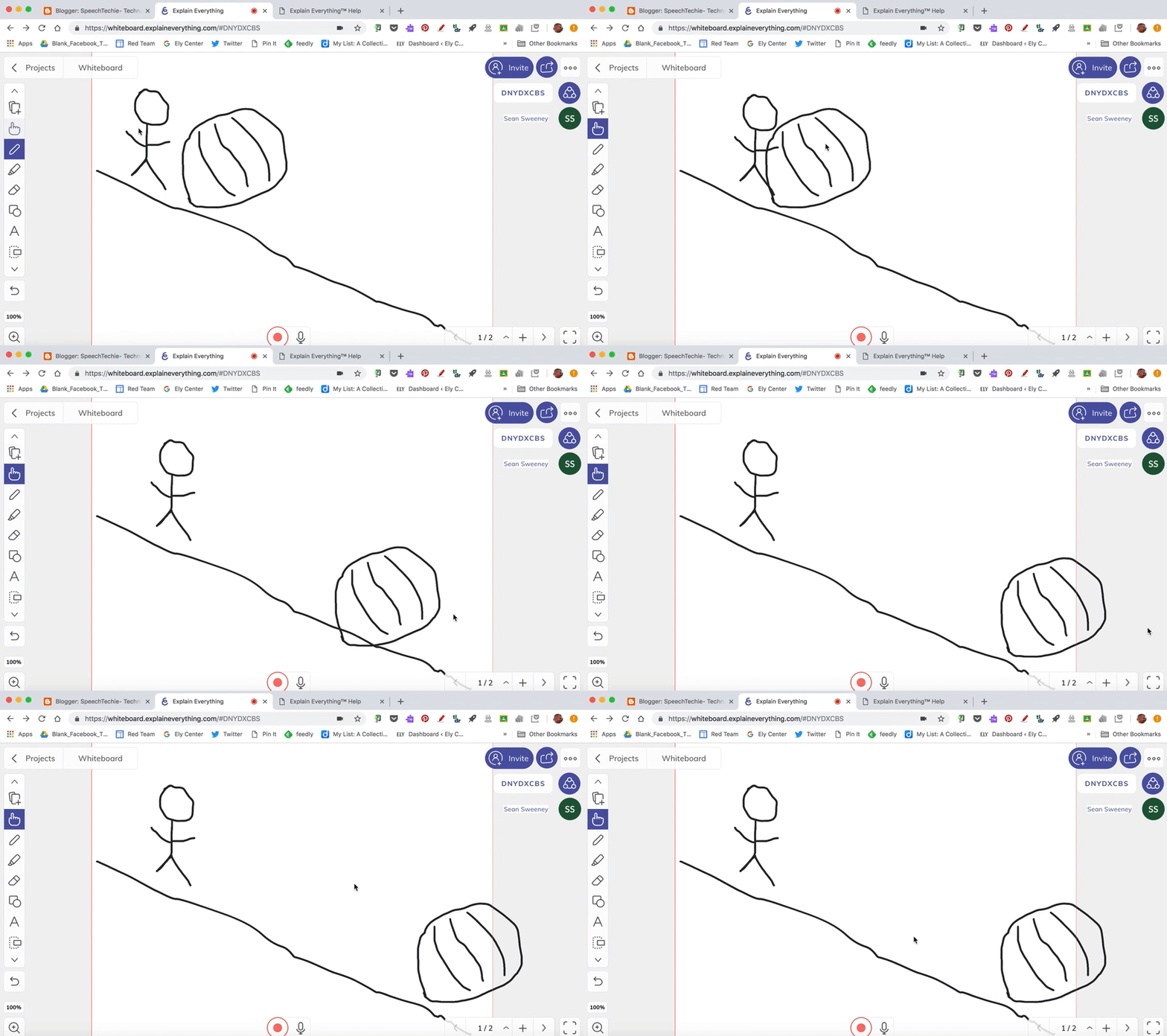
In any case, particularly in our school environments where Chromebooks are often available, you'll want to take a look at least at their free account now available through the Google Chrome browser. You can log in with a Google account and make 3 projects (delete-able and downloadable). Explain Everything is unique in allowing you to make stick figures and animate them- think a teched-up version of Comic Strip Conversations or Stickwriting (for social cognitive or narrative representation, respectively). One trick you need to know is to make drawings move independently, as shown below, go to the [i] inspector icon and select the items, then Ungroup.

There are many uses of a tool such as Explain Everything, and one is narrative retelling. I love books that unfold over one setting, such as The Runaway Pumpkin, in which a humongous pumpkin is pushed down a hill. Here you see an example of a recording you could make with students to retell this story:

Image from Gyazo

Saturday, June 2, 2018

Stop, Breathe & Think Kids

Stop, Breathe and Think Kids is a great free app that promotes age-appropriate mindfulness through video and play-based "missions." These can be a great way to start a session with youngsters and promote "portable" strategies/tools related to the Zones of Regulation®. The videos are also contextual, based in characters, settings and actions, so can be used in conjunction with narrative teaching strategies. The "Find a Mission" option in the app aligns a video with the students' current mood and emotion, thus allowing for teaching of feelings vocabulary. The app and its older brother Stop Breathe & Think, useful for older students, also offers a web app.


Saturday, January 9, 2016

Target conversational behaviors and scripts with Plotagon

Some technology tools that can provide an engaging model of conversational "moves" and skills have disappeared of late. The web tool xtranormal, which allowed you to type out dialogues that onscreen characters would speak, was wonderful for this, but is disappeared and is only reemerging as a complicated-looking software for Windows only. Likewise, Go Animate! was once school-friendly but has ported to a befuddling business-targeting subscription model. Toontastic of course is an excellent resource for making animations of social interactions, but an extra person or an affinity for making different voices really helps.

Enter Plotagon. This free app for iOS is simple to use and allows you to:
-sign in with Facebook or via an email account
-create (tap the Create tab, then characters) a base set of characters. I'd avoid the randomize button as it results in some folks with hair and clothing combos that would be a bit too distracting for your students- just tap the arrow and you'll be able to adjust face shape, skin color, accessories and such, and save and name your character.

Plotagon's character creator- you'll need to create at least two characters before you make an animated conversation

-create (tap the Create tab, then plots) an animation in a simple way. The plot creator works easily- just add a scene, tap to choose your location (a generous portion of free downloadable settings/places are available), and type in dialogue:


Note that all elements in the "script" interface on the left are editable. For example, tap the word "neutral" and you'll be able to give your character a different reaction or expression. It took me a bit to figure out that to delete a line of dialogue, you need to tap and sweep it to the left.

Once complete, you can view your movie as a preview by hitting the play button or viewing it full screen. Any work you do is saved in your account as a "draft," but you can finalize your creation by tapping Publish and Share and saving it to the Plotagon website. There is currently no way to download the video to your Photos app (so don't use students' real names in videos that are saved to the website), but once "published," you can share to others as a link.

Some ideas on using Plotagon in therapy and language interventions:
-I love using tools like this in conjunction with an internalizable strategy. In one group, we created a 5 Point Scale around Topic Management:

5-Off topic and Uncomfortable
4-Whopping Topic Change (a Social Thinking® Term)
3-Connected but confusing
2-Bridged Topic
1-Connected Comment

I created plot videos (see links above in the scale) to serve as examples- endlessly amusing to my students- and we discussed how they corresponded with the scale and character perspectives. We then worked to create other examples, particularly of 2s and 1s.

-Plotagon can serve as a context to model other strategies such as Story Grammar Marker's® 6 Second Story and Social Thinking's "Wondering Question" and "Add-A-Thought" expected behaviors in conversation.

-The app can also be used in conjunction with the Superflex® Curriculum by Social Thinking to model examples of Unthinkable and Thinkable moments.

-For students with more significant challenges, the app can be used to create and model scripts for various situations.

-Plotagon is also just a fun way to practice writing or create projects related to curriculum topics.

Friday, September 11, 2015

Toca Life: City Adds Screen Recording

Toca Boca, long one of my favorite developers of contextual digital toys, has added a powerful feature to one of their already very useful apps- Toca Life: City ($2.99 for iPad). The Toca "Life" apps allow you to move characters around interactive environments; in this app, that includes a loft apartment, theatre, food park, hair salon and mall. Characters can pick up and interact with objects in each setting and even move from place to place with objects as you act out dramatic play sequences. These features in Toca Life: City have been enhanced with the addition of screen recording-- this captures the movement and records audio as you and students speak in order to create an animation. The animation can be immediately replayed, but also saved to the camera roll for later review or even sharing!


After rehearsing or storyboarding a "scene" with your students (further emphasizing your language and social targets), just tap the film icon in the upper left corner and begin recording.

Though the Toca: Life apps (see also Toca Life: Town) provide great opportunities to target play skills, cooperation and social cognition, and language targets such as sentence formulation, microstructures such as verbs and pronouns, as well as overall narrative, the screen recording feature can make this work more salient, with auditory feedback on student performance.

That this feature was added recently again underscores the importance of running and reviewing the contents of your app updates, which can be done in the App Store app Updates tab which provides text descriptions of changes within apps.

Friday, August 28, 2015

Do we have a subscription to...? (Part 1)

I hope you have all had a great and restful summer! I had one for sure, with great trips to Cape Cod, England, Ireland, Scotland, and the Los Angeles area...hence the quietness of the blog.

An important question you can ask as you start your year pertains to the accessibility of certain education-based services that you may not have thought of as relevant to language instruction, but definitely are useful! Many school districts or schools invest in such subscriptions to bolster the resources of the schools, and you may have overlooked that email reminding you of their availability. I am speaking specifically of resources such as BrainPOP, Reading A-Z and ExploreLearning. So ask your librarian or IT Specialist!

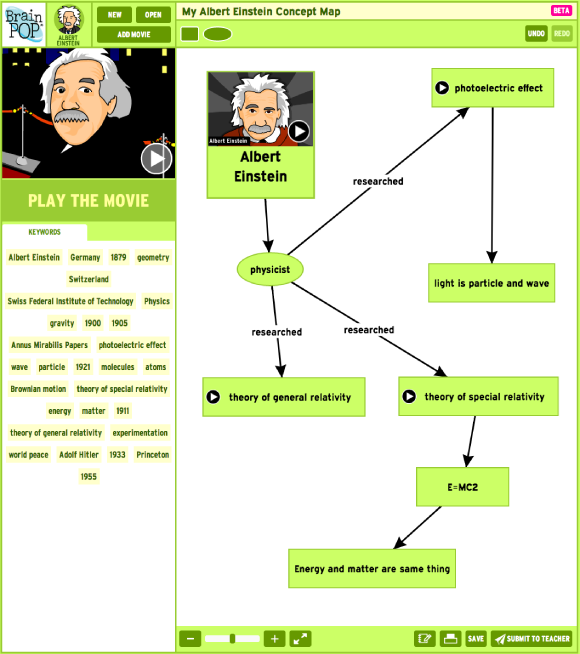
I have long discussed BrainPOP as a useful tool for SLPs and language teachers. BrainPOP (gr 3+) and BrainPOP Jr. (K-3) are catalogs of short curriculum-based animated videos, featuring Tim or younger Annie along with their robot companion, Moby. Both resources are accessible on the web (at BrainPOP and BrainPOP Jr.) and through free iPad apps: BrainPOP Featured Movie and BrainPOP Jr. Movie of the Week. Limited free content is available on the apps and website (which also features terrific links between movies and educational standards, as well as educational interactive games, many of them fodder for language activities). If you have a laptop available, the website has also added this terrific make-a-map activity allowing you to easily construct a semantic map to show the connections between the language and concepts in the specific film. Your experience will be vastly improved if you have a subscription as you will be able to use more films to "sync" with the classroom curriculum or review topics you know your students have been covering in class.

Image via brainpop.com

What exactly does BrainPOP have to do with language instruction? Thought leaders in our field such as Barbara Ehren encourage us to use curriculum touchpoints (no, not all the time, not necessarily at the same time as the classroom, and not as tutors or curriculum specialists) as a context for working on students' language goals. BrainPOP makes it easier to set that context, while engaging the student. You could follow up a BrainPOP movie with:
-creating sentences from a wordsplash you create as the movie is playing
-using graphic organizers that emphasize expository text structures
-vocabulary work with tools such as the Expanding Expression Tool
-making a collage with PicCollage emphasizing sentence formulation, abstract categories, and description of the topic.
-among many others...


BrainPop has an eye toward expository language, often presenting elements of the topic as visual lists, sequences, or cause-effect relationships.

Check out BrainPop, and you can always subscribe for a fairly low cost within either app. Make sure you know how to turn off recurring in-app-purchases.

Wednesday, July 8, 2015

Toons.Tv- a resource for visual contextual teaching

Toons.TV (on the web, accessible through Safari on iPad, free) is an engaging source of short animated videos useful for building narrative and social cognition skills. The website houses several seasons of the "Angry Birds Toons" series as well as spinoffs such as "Piggy Tales"--it also has selections from one of my favorites, "Shaun the Sheep." All of these series are wordless, and their language-neutral nature gives much opportunities to elicit storytelling from our students, as well as focusing on critical skills such as inference and identifying nonverbal cues, while in the context of topics of interest such as Angry Birds.

I have never floundered to find a quick "lesson" in an Angry Birds or Shawn the Sheep video; in addition to being a context for developing narrative skills such as setting description or retelling, a few I liked from Angry Birds specifically included (along with social cognition or specific Social Thinking® concepts):

Piggies from the Deep- use of humor, the 5-Point Silly Scale
Gate Crasher- flexible thinking, "thinking with the eyes" and "making a smart guess"
Gardening with Terence- talking about physical presence and what it means, making impressions
Do as I Say- "own plan vs. the group plan," humor, emotional vocabulary such as impressed, respectful
Just So- "important vs. unimportant," "Inner Coaching"
Hide and Seek- 5-Point Scales of Problems and the Social Thinking around hide and seek (perspective taking, cause and effect)
Treasure Hunt- "smart guess vs. wacky guess"


Videos such as the above can easily be followed with contextual play activities practicing the concepts or within the theme- for example, after the Treasure Hunt video we conducted an actual treasure hunt using verbal clues placed in different locations, which additionally allowed us to work on keeping our body in the group and other collaboration skills.

A resource I have found very useful in expanding my thinking about using video is SLP (and Ph.D) Anna Vagin's Movie Time Social Learning- she also has a book about using online videos called YouCue Feelings. Also see Tara Roehl's Pinterest boards around motivating contexts such as Angry Birds. I hope you find these resources helpful, too! If you discover other alignments between the videos on Toons.Tv and language or social concepts, please let us know in the comments.

I will be presenting in the Washington, DC area in September for the Center for Communication and Learning, LLC- hope to see some of you there! Click here for details.

Monday, April 27, 2015

Vine Kids

Vine hit the scene a few years back as a different way to shoot and share videos as six-second clips that loop or repeat. I played with it, shot silly things like a tired me landing at Logan at 3 am, and maybe too enthusiastically smashing a toilet that had sat in my garage for a year. I stuck with Facebook.

Vine Kids (Free, be sure to change the App Store search from iPad only to iPhone, as this is an iPhone app that will run on iPad) on the other hand, is a simple and limited app that gives you access to kid-friendly Vines, the looping videos that the site trades on. Kid-friendly subgenres include silly animations, animals and kids doing funny things, or even quick clips featuring kid-recognizable characters such as Grover or the Minions.

The app does not let you search, which I wish it did, but the repeating nature of the short videos makes it suited to a quick language activity-- you know, the kind where your students think they are getting a reward but actually are practicing skills? A good warm-up or wrap-up! Take a look at the videos themselves and see what is unstated, which is of course the kind of information that you can scaffold your students to state: story grammar elements such as character and setting, and description of these, verbs, situational aspects such as prediction of what came before and after the snippet, discussion of perspective, feelings, and who must have shot the video.


Above: Hampsters eating salad! To get started with Vine Kids, just tap the screen and swipe right and left to navigate through the available videos.

Also consider using Vine itself as a follow up, as it has some educational applications. Vine is public, like Twitter, so you wouldn't want to include kids in your videos. BUT it is easy to use and could be used to shoot quick language-based videos such as:
-how-tos- steps in a task
-items in a category
-a play script (e.g. your Fisher-Price mailman picking up the mail from the Little People town mailbox and delivering it.

DO NOT use Vine Kids if you are put off by a fart noise or even bird poop, or with kids who cannot come back from such a thing to be productive or regulated. I also could do without these videos being included but they are thankfully only occasional!

Have you ever used Vine in your work? Share a link in the comments!

Thursday, September 18, 2014

Welcome to Social Studies: Barefoot World Atlas

As a companion to my column for the ASHA Leader App-Titude series, "Welcome to Science Class," this series explores how technology can serve as a context for teaching "language underpinnings" related to the social studies curriculum.

Continents, countries, and cities provide a great context for developing language skills. The sequential/hierarchical nature of these arbitrary (well, except continents) regions can confuse many of our students and therefore provides good ground for concept development. Additionally, the spacial and semantic aspects are rich, with so many places to be explored. At many points in our students' academic careers they are confronted by these topics--my 2nd graders were expected to learn not only the continents and oceans but the content on units regarding China, Mexico, and Ghana--marking a key entry point to educational relevance.

Back in my early days dabbling with technology integration, I sorely lamented the lack of interactive materials regarding continents and countries. While taking an educational web design class, I actually completed my project by creating web pages (the hard way) with some interactive elements such as FANCY images that changed when you rolled over them with your mouse! Wow! *sarcasm*

How I would have loved to have Barefoot World Atlas ($4.99), a "magical, interactive 3D globe" featuring small animations that can be used to build schema about world countries and much more. Barefoot World Atlas can be explored with the fingers or via multiple directories (e.g. Regions, Countries, alphabetical elements).


Each animation can be viewed closely along with a kid-friendly text explanation. Tap the speaker icon and it can be read aloud, and a real image is also provided for each!


Regions and Countries also have text/audio content, schematically presented in a language-based manner corresponding with the "Five Themes of Geography"


The app is a great example of F- Fair Pricing (compare to the price of a book!), is clearly I-Interactive, provides great V-Visuals, and is E-Educationally Relevant as described above... So is it S- Speechie/Specific to your objectives, resulting in true FIVES-friendliness? Depends on how you use it!

-Construct a small (or large) "Scavenger Hunt" with language clues about where the different elements can be found.
-Identify elements that are the "same but different" from those in your city/community and have kids describe the similarities and differences.
-Use the audio for listening activities and to give kids a break from listening to you for a few minutes!
-The content is filled with expository text structures such as lists, sequences, and cause-effect relationships. For these, and all of the above, consider using this app in conjunction with graphic organizers to build connections in language. Don't miss the potential alignment with these Common Core Standards in Literacy in History/Social Studies:

CCSS.ELA-LITERACY.RH.6-8.3 Identify key steps in a text's description of a process related to history/social studies (e.g., how a bill becomes law, how interest rates are raised or lowered).
CCSS.ELA-LITERACY.RH.6-8.4 Determine the meaning of words and phrases as they are used in a text, including vocabulary specific to domains related to history/social studies.
CCSS.ELA-LITERACY.RH.6-8.5 Describe how a text presents information (e.g., sequentially, comparatively, causally).

Barefoot World Atlas is complete on its own but does have some nice expansion packs such as "Major Cities" and puzzle tasks, generally available for $.99.

Wednesday, January 22, 2014

Daisy the Dinosaur

Did you hear about the Hour of Code? This initiative in computer science education was featured in December 2013 in many schools where students were encouraged to work on programming projects. While programming might seem far removed from special education, it incorporates many skills our students need: language, sequencing, cause-effect, problem solving!

So it's nice to see some apps available that address these skills in very basic ways. Daisy the Dinosaur is an app that was actually designed to attract girls to programming, but it can be "repurposed" for speech and language activities:

The app has two modes: free-play and challenge. In "free-play," you can move the dinosaur using a number of verbs or modifiers. In challenge mode, you are given a set condition to achieve, such as making Daisy spin five times.

I do wish the app allowed you to select specific or leveled challenges instead of requiring you to proceed through them sequentially (though in doing so, you can note which programs you can instruct students to achieve). However, for a free app it offers a fun and engaging way to develop skills of following directions and sentence formulation (particularly sentences using the subordinating conjunction when). Additionally, as the app consists of selectable actions, it could be used to develop narrative action sequences.

Wednesday, December 4, 2013

What can we do with a blank slate?

Many of our students need visuals. For these visual supports we often go to paper, whiteboards (I love to have some small ones handy), and now, apps. All of these methods work well for a quick sketch that supports an idea, a concept, a vocabulary word, a relationship. Technology can provide us access to more detailed visuals in the form of saved images, and can take this blank slate and add features such as dynamic annotation and voiceover.

One such tech-based blank slate is Educreations Interactive Whiteboard. I have been working with a small private school on integrating iPads in their curriculum, and we chose this app as one to start with. Teachers are often tempted to use only apps that are filled with content; these engage students, for sure, but I am a big fan of working with students in a process to create, using the classroom content as a context. This process tends involves more planning, collaboration, and of course, language than does the use of content-based apps (which of course can be leveraged in their own way). Recently I made a short(ish) tutorial on Educreations that I thought I would share here:


Educreations is one in a genre that includes the free ShowMe and Screenchomp, and also paid apps such as Explain Everything and Doodlecast Pro. The tutorial above also includes a view of Flickr Creative Commons and how to save photos from that resource, which is important to consider in using Educreations. Though you CAN just save Google Images and use them in an Educreations project, because this app saves to the web, you SHOUD NOT due to copyright issues (that process is OK to use if the saved photo will stay on your iPad for instructional purposes and not be republished to the web). If you save photos from Flickr Creative Commons, a process that just involves a few extra taps and a statement of where the images came from (see this link for a step-by-step), you are following copyright guidelines. Of course you can skirt all that by using your own drawings and images, or using one of the paid apps in this genre, such as Explain Everything or Doodlecast Pro, that allow you to save to the Camera Roll rather than the web.

So, what can you do with this kind of app?

What other ways have you used Educreations? Let us know in the comments.

Disclosure: Author contracts to Mindwing Concepts to contribute to their blog, and Mindwing Concepts provides professional development through a partnership with Ely Center, LLC, where this author is employed.

Thursday, October 17, 2013

Working around the App

It's important to emphasize that apps and the iPad itself are simply tools we can use in our work to address student objectives. Apps can provide or extend a context in which we are targeting particular skills, and I love talking about the activities that can be going on "around the app."  A few resources related to this recently came to my attention.

I have long been a fan of Toontastic, and whole-heartedly recommend the All-Access version to elementary SLPs. This stellar app is so engaging to students, and the full version allows access not only to a huge array of settings, characters and props, but also the ability to use photos of real-world or saved Google Image backgrounds (but be careful of copyright if sending to their website, ToonTube), or to integrate photos of students into character figures. With creation tools such as Toontastic, I often think of the product created as beside the point, as the students get so much language practice from the process. Using graphic organizers or story maps to plan the animation are valuable activities that can be going on around the app, but Launchpad also provides terrific "Paper Puppets" for you to use for practice and scaffolding. These full-color printouts can be cut, laminated and used as tools to immerse kids in the context of the app, before you even open the app! You can use them for storyboarding and role-play, or all sorts of creative extensions of the context.


In another example, Flummox and Friends is a resource I wrote about last year- it is the pilot episode of a children's TV series about social cognition. I was thrilled to hear that plans are moving forward to produce more episodes. Flummox and Friends, while not an app (yet) is a resource that fosters much activity around it- discussions, role play, etc. Just released also: an extension activity within the terrific Kid in Story app. This book-making app comes with the twist of allowing you to "cut out" a photo and insert it in a story. A template using the context of Flummox and Friends is now available in the community library. Just edit your stories and download the template from there, and you will be able to put students in photos with the Flummox gang and record language in response to prompts on the page. The story is a great context to build feelings vocabulary, an area lacking in many students.


What other ways do you work "around the app?" Let us know in the comments!


Tuesday, July 23, 2013

Follow-Up on ASHA Schools: Tellagami

I had a terrific time attending and presenting at this past weekend's ASHA Schools Conference in Long Beach, CA. I have been to many ASHA Conventions (and will be presenting in Chicago, more info to come), but this was my first Schools Conference. It has a very different feel- more low-key and definitely user-friendly.  As presenters we were encouraged to engage our audiences and make our sessions as practical as possible, which I appreciated. I really enjoyed seeing the motivational, positive-psychology based opening session by Murray Banks, and sessions on executive functioning and instructional strategies for academic writing by Sylvia Diehl and Bonnie Singer, respectively. It was an honor to be invited and counted among the faculty of this great conference, and I would encourage you all to make it to this event at some point if you work in the schools.

I had the opportunity at the conference to present on one of my favorite topics: digital storytelling or content creation apps. For me, though not designed for speech and language, these apps serve as "blank slates" for us to simply create (for or with students) products that can target all manner of skills: academic language, concepts and vocabulary, narrative, expository text, sentence structure or social cognition. It all depends on what you ask the students to do.

A great example of these types of apps and always a favorite when I present it: Tellagami. This free app allows you to create a talking avatar (called a "Gami") and place it in context with any background image.


See Tellagami's YouTube channel for a few other ideas on how to use Tellagami.

Here's how to use Tellagami:

Photo Creative Commons Licensed for Remixing by HarshLight on Flickr
1. Save a background image using Safari. The app also has some pre-loaded contexts. Tap Background to load an image from the app or Camera Roll.
2. Customize your character's appearance (the app allows you to choose aspects such as skin color, hair, gender, clothes).
3. Choose an emotional state for the character.
4. Tap the Character button twice and you will be able to either type text for the character to speak, or record audio which the character will lip-sync.
5. When you are pleased with your creation, you can tap Share and save it to the Camera Roll as a video.

The app is super-simple to use and the results are often hysterical! Here are a few ways to think of Tellagami through the Language Lens:
-As the app allows you to place a single "speaker" in a context, it is a nice one to use to create "newscasts" or advertisements.
-In doing so, you can incorporate virtually any academic context by saving a picture and having a "reporter" avatar speak from that location.
-In turn, you can plan the creation using strategies to structure language such as story grammar or expository text structure, or use this opportunity to target areas of difficulty such as pronoun or tense use.
-Because audio can be recorded, the app can also be used as a motivating way to work with articulation, voice or fluency.
-From a social standpoint, you are limited to one character speaking at a time (though Tellagami kindly responded to me on Twitter that they are considering adding additional characters through an update). Nevertheless, the app could be used as another way to deliver a Social Story™ or perhaps an "advice column" on the expected and unexpected behaviors- based on the work of Social Thinking®- in a particular setting (which you of course would depict with a background photo).

I hope you enjoy Tellagami! The folks at ASHA Schools sure did!

What ideas do you have for using Tellagami? Let us know in the comments!

Thursday, January 10, 2013

Google on Apple: YouTube

A frequently touched upon theme here on this blog is the usefulness of YouTube as a visual teaching tool, and it keeps evolving as a resource.  For example, recently with the iOS6 update, Apple removed the native YouTube app.  I had previously recommended Jasmine as a replacement, and this is still a perfectly nice app, but Google then produced their own new (free) YouTube app for iPhone and then updated it to be universal for iPad. You can, as always, still see YouTube videos in the Safari app as well.

The iPad app works as you would expect it to, and has a very nice, clean interface as many of the new Google apps do. The nifty addition of voice search (using the microphone in the upper right corner) and sign-in capabilities allowing you to subscribe to "channels" or add videos to playlists, are nice touches.  One of the issues when the native app disappeared is that many people, including families of kids with autism who used the app extensively to provide entertainment to their children, lost the "favorite" lists that were saved in that app and only in that app. With sign-in, all favorites will be saved to your Google account.

Google's New YouTube App
If YouTube is blocked at your school, or you do not have wifi access in your building, you can also consider saving YouTube videos for later viewing using apps such as PlayTube-Offline Player for YouTube (free). Simply search for a video and tap Cache, and the video will be saved for playing within the app, regardless of where you are.  Do keep in mind that caching video consumes storage on your device.


Friday, October 12, 2012

Appy-Picking Month: Starring You Storybooks

Starring You Storybooks is a freemium app from Jib Jab, which has previously been known for some pretty cool personalized web animations and greeting cards.  Freemium means that it is free to download the app and access/create one storybook; other book creations in the app can be purchased (. I have previously said that sometimes a free app is not worth it, but I think in the case of Starring You Storybooks, there will be value in having just the free portion of this app, which currently allows you to make one storybook: "Dancin' Feet." The fun piece of Jib Jab is that you can quickly and easily place a face into a target, and then that face is incorporated throughout the animations of the story, which are really impressive:


If you find yourself loving "Dancin' Feet" and are tempted by the in-app purchases (which I realize you might not be able to access in schools, for about $12 (2 months of the $2.99 book-a-month plan plus 2 additional $1.99 purchases), you could have 4 additional books and a lot of therapy time to target...

Language Lens:
-Just within "Dancin' Feet" and a few other stories, the books could be used to target rhyming, categories (the Dancin' story is essentially a list of many different types of dances) and simple story structure.

Common Core Connection: 
CCSS.ELA-Literacy.RI.1.3 Describe the connection between two individuals, events, ideas, or pieces of information in a text.

Thank you to the participant at my presentation at Macomb Intermediate School District who pointed out this app to me!

Thursday, September 20, 2012

Flummox and Friends

If you follow my posts here, you know I have a strong interest in social learning, and I am always looking for ways to engage my students in developing social cognition.  Video is definitely an engaging medium to help students discuss social interactions in context. The problem with finding fun, engaging video is, well, finding it and knowing the timing of clips, etc.  The problem with many video modeling products on the market, although there is a good evidence base behind these products, is that they don't engage (especially high-functioning) students very much and....zzzzzzzz.

Enter Flummox and Friends! Flummox and Friends is a video (currently available for free, and hopefully a series, currently there is just the pilot) available on the web and EASILY playable on iPad or other devices, relating the adventures of a group of somewhat socially-challenged scientists and their neighbors, who aren't all that socially adept, either. Notably, the series was created by a parent of a child on the spectrum, Christa Dahlstrom, along with two SLPs, Jordan Sadler and Liesl Wenzke Hartmann, who developed the curriculum addressed in the videos.


The pilot episode involves a party that doesn't quite go as planned, based on various problematic social behaviors involving "Tuning In" to the group.  The episode is well-paced, funny, and subtle enough that you can use it with a group and have them identify exactly what is going wrong, but the episode also features the characters processing (and even singing and dancing about) the target skills and strategies that they will remember to use next time. In addition to the live-action segments, there are several animated components adding additional entertainment value and opportunities for discussion. Think of it as an Electric Company for social interaction. I especially liked the animated segment in which real kids discuss their own challenges with "tuning in" to others in a group.

The creators provide a nice professional guide to Flummox and Friends on their website. Also, as I am trying to coordinate the use of this resource among our staff, I made a quick-and-dirty map of the episode with good stopping points and discussion topics to use with kids. In addition to the suggestions in the guide, this episode presents a great opportunity to develop narrative language and social comprehension with tools such as Story Grammar Marker.

I hope you'll give this resource a look and spread the word, so that the creators will soon give us an episode 2! Check out their Facebook page, Twitter feed or mailing list for updates (links all on site).

Thursday, July 26, 2012

iPad Essentials: What can iBooks do for you?

iBooks is a free app from Apple (it doesn't come with your iPad but is the first app the App Store suggests when you open it) that is an increasingly interesting e-book app with implications for speech and language interventions.

Initially, I was myself skeptical about the potential of e-books, because I actually really appreciate the value of traditional paper, particularly picture books, in therapy activities. However, I think iBooks is worth SLPs' time for a few reasons:

  • Books published through the iTunes store (there are many free books there as well) are becoming  more interactive and therefore offer great opportunities for describing 3D pictures, completing tap-and-drag activities that can be used to target sorting, sequencing, and cause-effect, and narrating or discussing video clips.
  • iBooks can be used to access ePub books, the format of most downloadable books, which are themselves interactive in navigation via the use of tappable tables of contents. Additionally, when words are tapped/held in ePub books, the menu allows you to access a word definition, annotate via highlighting and notes, and activating text-to-speech, which has potential for targeting auditory comprehension as well as making material more accessible to struggling readers. You can see a good tutorial on the Speak Selection feature here from OTs with Apps.
  • iBooks can also be used to save and display PDF files such as those that come on the CD-ROMs accompanying some commercial materials, but more on this in the next post!
  • Presenting information through the glowy loveliness of the iPad can really grab students' attention and engage them even in less-than-fascinating material that is necessary for you to cover.
For a great example of a simpler iBook that could be used in speech-language sessions, check out Snapshot Picture Library's Baby Animals.  This book has adorable photographs of a variety of young animals and could be used to target descriptive skills, understanding of cause-effect relationships, and text structure.  For example, the book contains lists (enumeration-a key text structure, essentially abstract categorization you can teach through use of graphic organizers) of how different animals are born, how they protect themselves, and their native geographic habitats. This book would be a great choice for primary grades.


Thanks to a tweet today by Tony Vincent, I discovered another great series of iBooks that can be used to target language within the context of content material: ScienceWerkz. ScienceWerkz publishes fun, magazine-style eBooks with interactive features and video. Our World of Materials is free, and other books in the series such as Energy, Cells and Heat are currently on sale for $.99, a good buy if you work with upper elementary or middle school students.

Here's a nice video walkthrough of Our World of Materials. Check out that Clothing Materials interactive! I didn't know eBooks could function like interactive websites! In the embedded interactive, students can choose to clothe characters in different types of materials, including metal, and see the resulting effect, providing a great opportunity to elicit causal and descriptive language in context.


I will be discussing the connection between iBooks and PDFs in a future post.

How are you using the iBooks app in your work? Let us know in the comments!
Tuesday, March 27, 2012

Wrapping Up (Maybe) Animonths: Draw a Stickman, Episode 2

I feel like I have possibly a few more posts on animation in me, but maybe not.  I saw The Hunger Games movie this weekend and my head is so cloudy...I loved it (HUGE fan of the books) and am consumed with thinking about it! It's affecting my executive functioning...so we'll have to see.

Anyway, I was excited to recently receive an email from the folks at hitcents.com (I must have put myself on their mailing list) announcing the 2nd Episode of Draw a Stickman.  I had written about this website previously as a fun little exercise in cause and effect and narrative development.  Growing Kids Therapy also did a very good post on the activity recently with a number of language development suggestions.

Episode 2 takes your Stickman (and that's the fun, you get to draw the character and much of the relevant props) up a tree, and I don't want to give much more away!  Again, there are great story mapping, cause-effect and conditional discussions to be had while using this site.  I would recommend playing the episodes with kids in order, especially since Episode 2 actually interacts with Episode 1!  This kind of meta-awareness makes the site a possible pairing (for older kids who can get it) with books like The Three Pigs, The Character in the Book, or We are in a Book, all fun volumes in which characters become self-aware and interact with other stories.  Another way to place this website in a bigger context with extension activities is to use Domo Animate's Stickman theme and make some of your own Stickman Narratives, or do the same with DoInk! on your iPad.

From a technical perspective, the arrival of Episode 2 represents the continuation of the practice of developing great interactives on the web using HTML5 instead of Flash.  This is wonderful for iPad users as both Episode 1 and 2 can be accessed and played out right in your Safari browser.  There is an app available, but I am not sure why you would want to take up memory and icon space to access what you can use perfectly well in Safari.  Enjoy, and draw away!


Tuesday, March 20, 2012

Animonths: Use Splashtop Remote to Access Flash Animation

There are a lot of great interactive animated activities online that were created using Adobe Flash, the multimedia platform that was once the medium of choice to add interactivity to webpages. When iPhone and, subsequently, iPad came on the scene, there was quite a lot of hubbub about Apple's decision to not support Flash on these devices.  It turns out that inclusion of Flash really drained the devices' batteries, among other problems. Adobe eventually admitted to this when they stated they wouldn't be developing Flash for even Android devices anymore. In the future, web interactivity is likely to be fostered using web standards such as HTML5, which iDevices are all A-OK with (just try running this HTML5-based activity on your iPad in Safari).

Beyond this history of web drama, I have a point.  These Flash resources are still out there on the web and sure would be great to be able to access on your iPad.  Take the BBC's Science Clips.  This is one of my favorite resources ever, as it provides interactive animations and a context for categorization, cause-effect, and following directions, all in the context of key science concepts relating to what is being taught in the classroom:

The "Helping Plants Grow Well" activity, in which you add water and heat at the appropriate time to help the plant grow to its full height.
When used on a computer, these activities are pretty engaging, but for younger kids, it's really hard to do the click-and-drag necessary to complete it, especially if you are using a newer Mac with a multitouch trackpad (that doesn't have a button).  Note that Science Clips activities all come with language-based contextual worksheets, such as this one that goes with the above activity.

Enter Splashtop Remote Desktop ($4.99, iPad only).  This app allows you to control your computer screen from your iPad, thereby making previously inaccessible flash-based activities function as apps

Here it is in action, with a student of mine easily interacting with the Flash-based Crayola Create & Color website.
Here's how it works.  Purchase the app from the iTunes store (see link above). After installation, you will be given instructions on how to install a program called Splashtop Streamer on your computer- this will allow the app to control your computer. You will setup the app with a passcode that allows you to connect to your computer as well. After that, anytime you open the app, it will "find" your computer and let you connect and control the screen! To return your computer to its normal state, simply exit the app.

I have found this app very useful despite a few caveats I need to offer here, so proceed using your own judgment.
1. You need to have your iPad and computer on the same wireless network for the connection to function.  If this is not possible at your workplace, don't purchase the app.
2. I have found on large networks with lots of traffic (e.g. hotel conference centers) where I am trying to demonstrate this to people, it never works. It works well at my school and private practice.
3. Consistently, it takes me like 3 tries of putting in my password to connect successfully. I don't know why.

I realize that those caveats may turn you off this new-ish app, but just to show another use for Splashtop Remote Desktop:


That's Splashtop connected to my computer, which is running Intellitools Classroom Suite, effectively making the iPad into an Intellikeys keyboard! I don't know if they even make Intellikeys anymore (the website says "out of stock"), and I could never get the darn things to work, but I have always liked this software and the Intellitools Activity Exchange.  I have a few kiddos who can really benefit from activities such as this "Easy Writing" one, but wouldn't really engage as well with a computer as they would with the iPad.  Splashtop to the rescue!
 
.