Showing posts with label sequencing. Show all posts

Friday, November 1, 2024

"Here" and narrative interpretation opportunities

The movie Here comes out this week, reuniting Tom Hanks and Robin Wright with their Forrest Gump director Robert Zemekis. The movie is said to be experimental, with the camera fixed on one area to show a nonlinear story/stories that happen in a particular space across a broad range of time. Here is based on a comic and then graphic novel by Richard McGuire; both would be useful for reviewing with teens but the original comic is located, well, here. I could see this as useful for an activity in story mapping, BrainFraming (or other sequence graphic organizer), or timelining the events shown.


Thursday, November 17, 2022

You Are The Historian- First Thanksgiving

Museums appealing to children are often a great source of interactive websites. I liked this website years ago (see the blast from the past) and the now Plimoth-Pawtuxet Museum has redesigned it with a modern look and perspective. Pre-and a little post-Thanksgiving, you could bring some groups through this "adventure," the conceit being you are a teenage reporter investigating some Wampanoag and Pilgrim sites. I might be biased as a Massachusetts guy, but it's a nice site for students to practice discussing what they see in pictures, processing information, and there are some sequencing and word-fill interactives. There is a lot of content here and seemingly no way to save progress, but you could just visit a few of the sites or keep tabs open if you want to continue. 


Thursday, June 18, 2020

Juneteenth: a sequence and settings

Every context has language underpinnings. Why not use contexts that promote anti-racism?

Tomorrow is Juneteenth, the day that commemorates word of the Emancipation Proclamation reaching Texas, two and a half years after it was issued. It's history that isn't taught enough in schools.

So, sequence of events is critical to understand here. A number of books on EPIC! about Juneteenth are on point.

Using Google Street View is a great way to have students observe, describe, "think with their eyes," or complete a setting-based graphic organizer. A number of VA slave dwellings are rendered in Google Street View listed here and given more context here. Be sure to click through to View on Google Maps for the best visual/interactive experience.


Thursday, April 16, 2020

TinyBop Schools' Interactive Models

I have long been a fan of the TinyBop interactive apps for iPad. These smartly designed visualizations of "systems" are fun to use, linked to important curriculum topics, and language-neutral, so lots of talk can come out of them. They have ported them to web form as TinyBop Schools and made them free for the next several months, so I would highly recommend checking them out. In teletherapy these would provide for great interactions especially if you are sharing cursor (remote) control


Each model comes with a handbook. These are important to explore because the TinyBop models are so language-neutral that sometimes you don't know what they can do! The models also have journal and graphic organizer activities that are ideal for language therapy. 

Saturday, February 29, 2020

10 years and 10 uses of my favorite app

This past week I noticed that I started this website 10 years ago (2/24/10). Time flies! I am grateful to all who have read it over the years, and for the opportunities it has provided me: opening doors to many friendships, presenting around the country (and Canada), many trips to ASHA Conventions, and publications there and elsewhere. Thanks everyone!


Of that decade, by far the simple but eminently useful app Pic Collage (free for iOS, Android, Windows) has been my favorite. I recall the day the awesome Sarah Ward showed it to me. It is a great resource for SLPs to make quick visual supports and to co-create with students. Here are 10 things you can do with Pic Collage:


Make a vocabulary board. Note that the Web Image Search makes this a very quick process to do with students (they can choose pictures associated well with vocab words (BING Search is nicely restricted)


Play! Play is about adding thoughts and ideas (see Social Thinking®'s We Thinkers). Here we decorated a treasure chest. Hands-on is great too but sometimes you may be lacking in materials or time. Note that any picture added by Web Image can then be double tapped to "Cutout."


More related to We Thinkers and Story Grammar Marker®- explore what different characters think about, you are therefore relating story events.


Make "Colorforms" from photos to retell/act out a story with dramatic play. In this case Gilbert Goldfish Wants a Pet.


Visualize to scaffold students' personal narrative. In this case we talked about how setting linked to actions and events.


Set the stage for cooperative play with yet another cooperative activity. These students created a sign before playing Lemonade Stand on the Echo Dot.


Target emotional vocabulary based on the 6 universal feelings (happy, sad, mad, scared, disgusted, suprprised). These high school students passed Pic Collage and added to kinds of angry (relate to Zones of Regulation®) after watching a Star Wars clip.


Create any kind of story. Here, setting, initiating event and reaction are visualized.


Use dual-focus vocabulary strategies (semantic and structural per Diane German).


Make curriculum language and categories more salient and visual. In this case a consumer science class was covering "ways to pay."


Make comics showing triggers/initiating events and use of tools and strategies such as self-talk.


Show circular sequences. Think of doing the same for Numeroff's If you Give... series.

OK, that's 12 instead of 10 but I couldn't decide which to share!

Tuesday, August 27, 2019

Get on a roll this year!

Context helps us achieve flow in our work, both in our own and students' enjoyment of it, as well as ease of planning. A study by Gillam, Gillam and Reece (2012) also found context linked to EBP, with improvements in sentence and discourse formulation measures when "clinicians treated multiple linguistic targets using meaningful activities with high levels of topic continuity." What contexts you pick are up to you, but I have one suggestion to start: the playground and recess. A couple ideas in this flow:

Scratch Jr.
This free resource from MIT Media Lab is available as an iPad app or on Chromebooks. Coding is basically language teaching, a context for us to help students follow directions, work with characters and settings, and describe movements that result. It is also a big causal (because/so) and conditional (if/then) context. Scratch Jr. provides mini-curriculums including one allowing you to simulate playground games! The teaching guides here can be modified by taking a screenshot of the key directions, like so:


Tells you what to do...


Shows your students what to do
Not so complicated, and very fun!

Practice Playground Games
Make visual supports via Comic Strip Conversations (with marker and whiteboard or Doodle Buddy/Book Creator) and practice playing active games. This will give your students many language opportunities and also be skill-building activities for actual recess.

Pair with Picture Books about Recess
Try The Recess Queen (O'Neill) or Do Not Bring Your Dragon to Recess (Gassman), both providing context for social and narrative teaching opportunities.  Psst: find read-aloud video versions on YouTube.

Playground Physics
For upper elementary students, try this free app from the series of "Noticing Tools" from the New York Hall of Science. You can video students running or doing playground actions and measure speed and various scientific measures. Lots of narrative and expository language can ensue, as well as being a social context of moving to an outdoor space together and observing ("body in the group").


Also consider that a good chunk of the fun and instructive Zones of Regulation: Exploring Emotions app plays out in a playground setting, exploring how daily events change our zones and prompt us to use tools to regulate ourselves.

I'm sure you can think of many other activities going with this context, tech-related or not! Please let us know in the comments if you do.

Considering your professional development schedule this year? Check out Sean's offerings for training sessions.

Thursday, May 2, 2019

Toca World unites many Story Grammar Settings

The free app Toca Life: World (available for iOS, Android, Kindle) works some device magic by uniting any of the Toca Life apps you have on your device. I've long been a fan of these sandbox-play apps that present a variety of scenes mirroring real life for sociodramatic play. Each scene is interactive such that you can manipulate objects and perform actions with characters. Look at Toca Life's settings through a language lens and you'll see many contexts for syntax (verbs, causals), semantics (categories, vocabulary) and discourse (telling a story). This past week I used the Toca Life: Vacation app to model an airport story for my student, and was thrilled to see him tell a same-but-different story (note that there is also a screen/audio recording feature in each app for your to make a movie of your stories with narration). Toca Life: World, in addition to bringing your places together, provides additional settings for purchase. I had fun with the ski resort making this model for one of my groups! 


Considering your professional development schedule next year? Check out Sean's offerings for training sessions.

Friday, January 27, 2017

Practice Following Directions with Scratch Jr.

I've mentioned before that following directions (written or oral) is an oft-needed but not so engaging goal to address. Scratch Jr. is a free app that, like its senior (mentioned here and here) was created to teach coding and programming to youngsters. These applications use object-oriented codes that are simple to put together and work a lot like LEGOs.

A great way to start with Scratch Jr., and one in which you'll instantly see the potential for working on following directions and sequencing, is to use the intro activities. For example, students need to follow a few steps to make a car drive across the screen--a surprisingly thrilling activity for the class in which I conducted this lesson. The developers give you a great quick guide if you want to learn your way around the app first.

This simple program makes the car drive across the screen.

After using Scratch Jr., you'll likely find all sorts of contexts for it. A first grade teacher I worked with had her students program how baby polar bears "trail" their mothers, thus integrating work in following directions, coding, and science concepts. The variety of backgrounds and characters suggests potential for storytelling work as well, and these can be drawn, leading to limitless contexts. Students can also be encouraged to use strategies such as re-verbalizing directions and visualizing as I discussed in this post.

You can also create direction sheets of your own with or without text by screenshotting steps and then assembling them in Pic Collage, as I did below. In making a math "game," I encouraged the students to verbally mediate the pictured steps as is important when approaching picture sequencing tasks.


Working on skills in this context, you'll also know you are helping to address technology standards and perhaps starting to prepare your students for a career in programming!

Wednesday, July 6, 2016

Enter Vacation Mode with Toca Life: Vacation!

Toca Boca's "Life" series aims to reproduce real-world settings as a context for play with characters and the objects they encounter in indoor and outdoor places. As a result, the series provides a visual play space for us to work with students as they tell stories, make connections, and enact everyday sequences. The latest, Toca Life: Vacation, is another wonderful, visually rich, and highly interactive app you can use to take students on imaginary trips to this beach-y location.

The app contains a number of settings including an airport, hotel, beach, and boardwalk, the many spaces within each setting and interactive objects providing great opportunities to role-play, propose problems and solutions, and consider if-then scenarios (important for executive functioning!). The trailer is below:


Language Lens:
-Consider recommending Toca Life: Vacation to parents as an interactive way to preview an upcoming vacation, complete with the travails of navigating airport security, riding on a plane, checking into a hotel, and sharing a bed with a sibling.
-For your part, the record feature of this app lends potential planning and role-playing a bit more of a purpose: let's make a vacation movie together!
-I am just beginning to absorb the huge amount of ideas and resources for developing language and social interaction through play provided in Social Thinking®'s new We Thinkers: Volume 2 Social Problem Solvers Kit. The manual details a model for scaffolding play with fading adult involvement, and the "GPS- Group Collaboration, Play, and Problem Solving" framework can apply to the use of these open-ended sandbox apps as well as offline play. For example, the program's "Group Play Plan" form could be used for the adult to choose a scene and assign roles to form a story (Level 3) or for kids to collaborate in this process (Level 4). One good strategy is to screenshot a scene or two within Toca Life: Vacation to use as a visual support as you make a "Group Plan" for play.

I hope you have fun going on real or pretend vacations this summer. I'm going to take off for a few weeks myself, heading to Cape Cod and, later, Acadia National Park in Maine! See you in August!

Monday, June 27, 2016

Providing Summer Services? Try the FREE Fireworks Lab app for the 4th!

Interactive apps have long been one of my favorite topics because they replicate world schema, and every schema has language that goes with it. As the 4th approaches (or other holidays in the future), you may have fireworks on your mind.

An Aside: before you get me in any way wrong, I think fireworks are dangerous and should only be operated (? Is that the word? Whatever.) by professionals. One of my toughest cases early in my career as an SLP was working with a patient who had facial burns because of a fireworks accident. So, yes, firmly I believe we should enjoy the town- and city-sponsored fireworks displays, and leave it at that. I live across from a busy city park and though I enjoy the evening of the Fourth, I stop enjoying it after midnight when fireworks are still going off there and I fear that our house will burn down. Like your parents said, nothing good happens after midnight.

BUT, apps give us a window to simulate removed events, so along with your messages about safety that are delivered diplomatically so that you don't get called by parents, you might be interested in Fireworks Lab. This free app allows students to organize and operate a fireworks display. The app is gloriously language-neutral, so students can be encouraged to label their choices in elaborated noun phrases (e.g. "green sparkly rocket") and then set them off.


A few supplemental ideas:
-The app is perfect for pairing with a written language or reading activity. Write or sequence cards with the different attributes of the fireworks and use these as a "plan" for the display.
-The app does not multitask, so if you leave it to play a music app, it starts you from scratch. But students could make a music selection via a phone or other device to sync with their display, giving you more vocabulary to work on as well as causal constructions about their music choices.
-Have students research fireworks displays in your town, or for older students, pair with the story of this famous fireworks fail for a narrative activity. The article is safe to use with kids and has some good figurative language too!

Have a happy (and SAFE) 4th of July--and to my Canadian friends, Happy Canada Day!

Friday, May 27, 2016

Video Tutorial: Using Keynote for 5-Point Scales

In my recent ASHA Leader column, Apps that Help Teach Social Perspective, I discussed The Incredible 5-Point Scale by Kari Dunn Buron and how easy it is to create these tools with apps such as Keynote. Here's a video tutorial on how to do that!


Thursday, October 29, 2015

Haunt the House

Many games meet the FIVES criteria for being highly interactive, visually supportive of language formulation, and geared toward addressing "Speechie" objectives such as categorization, sequencing, and interpretation of body language. Some additional factors I take into consideration are language neutrality (does the app work like a wordless picture book as a context to elicit language) and pace/timing (can the action be stopped by pausing or taking the iPad away for a moment to discuss?).

Though this is almost too late to make it useful for Halloween use (you can of course continue the app into the following week for "Halloweeen season"), I wanted to feature the app Haunt the House ($1.99)! Sort of a stepped-up version of Toca Boo!, this app has you act the role of a ghost attempting to scare people out of various settings including a village, mansion and train. The ghost can "possess" items in each room, prompting predictions about object function.


Using apps such as these with students is a good opportunity to target executive function and Social Thinking® applications around monitoring time and turns. My students yesterday posed that a fair turn would be 6 minutes! We limited them to 1-minute turns (with a timer) and then asked "how long that felt" to play or wait for a turn--it's plenty. The timer or clock can then be faded or facilitated for independent use.

We used this app with several pre/post activities:
-A mini lesson about "thinking with the eyes" and physical proximity (body in the group). You know you are being successful at scaring residents when they "notice" the object's movement with their eyes, and the best strategy is to move to rooms where people are present.
-From memory, I asked my students to create a map of the house, thereby targeting the story grammar element of setting and the executive function skill of mapping a space one is to navigate (see the work of Sara Ward and Kristen Jacobsen). I scaffolded by placing a few "anchor" rooms on the map so the students had a model of how to sketch, as well as a place to start.


Saturday, June 27, 2015

Make customized interactive “apps” with Tiny Tap

I’m just returning from speaking at a two-day conference in Florida for the Center for Autism and Related Disabilities hosted at Nova Southeastern University. The topic was “Apps in Context: Aligning Technology with Methodologies and Clinical Objectives for Students with Autism,” one which Dr. Carole Zangari and I put together for the varied (and terrific!) group of SLPs, OTs and teachers.


It was great seeing and working with Carole! Carole and I also wanted to honor Dr. Robin Parker, also a professor at Nova—sadly, Robin passed away last year. To me, Robin was a wonderful friend and supporter and force of nature, really, who had a passion for putting resources in people’s hands, including technology. We thank the many app developers who donated codes for participants in Robin’s name, including all4mychild, Mindwing Concepts, Mobile Education Store, Tactus Therapy, Bump Software, Bee Visual, Smarty Ears, Irmgard Raubenheimer, and LessonPix.

One “module” in the conference that I really enjoyed developing was the use of “authoring” apps: apps for you to create interactive activities in any context. Participants really gravitated toward the versatile Tiny Tap (free for iOS and Android), which allows you to make “apps,” so to speak, following a very simple series of steps!

Use the visual tools in Tiny Tap to create a "slide" or array. We discussed that though the tools are fine, and include text, drawing, image addition, etc, that you can create a visual in Pic Collage or Keynote (and screenshot it) perhaps easier if you are doing something more complicated for your slide.


For the context of the demonstration I used a Five-Point Scale activity (aligning with The Zones of Regulation), adding a screenshot of a scale I made in Keynote.


You can then "add an activity" to your slide/image- these include:
-recording audio questions which are answered by tapping on an area of the slide
-recording audio/sounds that play when an area of the slide is tapped ("Sound Board")
-cutting a Shape Puzzle so that the image can be used for categorization or sequencing
-and more "presentation" elements such as playing a video or recording a message to be played over the slide.

These options, like everything else in the app, are nicely explained as you go:


An example of cutting a Shape Puzzle to be put back in order by the student:


After recording an audio question, e.g. "This type of problem may ruin your day, and you probably need to ask for help in solving it," you trace an answer area that the student must tap to get the item "correct."


Upon saving your work, your lesson can be played and also shared if you create an account. Tiny Tap also gives you access to a library of many activities, some of them created by SLPs (some at cost). Though you see it demonstrated in a particular context here, hopefully you can think of many ways to use Tiny Tap! Be sure to check out Tiny Tap enthusiast SLP Ellen Weber's column on the app for ASHA Leader. Let us know some other ideas in the comments!

I will be presenting in the Washington, DC area in September for the Center for Communication and Learning, LLC- hope to see some of you there! Click here for details.

Friday, May 22, 2015

Online Clock for Executive Function Skills

I had the privilege recently of co-writing a column with Super-Executive-Function-Specialist Sarah Ward for the ASHA Leader. As many of you know, I have been a fan of her approaches for many years, and find her language-based and practical concepts for teaching kids how to be aware of situations, plan, monitor time, and develop self-awareness within these process to be useful for many populations we serve: the academically challenged "LLD" kids, students with social learning issues, and the straight-up "disorganized" kids. In the article, Sarah and I describe resources for getting regulated, planning, and time tracking, and link these to models Sarah and her colleague Kristen Jacobsen describe in several recent SIG Perspectives articles. You can view the article here.

One strategy Sarah and Kristen developed is the use of an analog clock as a tool to assist in self-monitoring and task execution. Generally a glass-faced, tickless (to reduce distraction) analog clock works best. As Sarah and Kristen describe it:

Using a dry erase marker on a clock with a glass face, students sketch the total “pie” or amount of time they estimate they would need to achieve the future picture. This enables students to see the volume of time available. On the clock, students also use the dry erase marker to create time markers: a starting time, an ending time, and midpoint check in (Ward and Jacobsen, 2014).

Using this approach with small groups, classrooms, and individuals alike can help the student to:

  • Learn to make better guesses about time needed for tasks
  • Monitor himself within that time period for distracted behaviors and pacing
  • Reflect after a task on how he actually did, compared to his plan

One problem is that glass-faced, tickless analog clocks aren't as easy to find as one might think (and if you write on a plastic-faced clock with dry-erase marker, it doesn't completely come off. Sarah and Kristen's practice, Cognitive Connections, sells great clocks on their website, but I am always looking to have more around. Recently I was in a classroom where Online-stopwatch.com was being displayed on the interactive whiteboard to help kids monitor themselves within a time allotted for a task, and I realized that the website features an analog clock! This is a great tool if you are using an interactive whiteboard that has software associated (e.g. Smart Notebook) to allow you to "draw" on the clock. However, it can also be used in the same way described above with a laptop and the Google Chrome browser (sorry, I don't have an iPad solution for this yet, besides the resources described in the ASHA Leader, and Online-Stopwatch.com is based in Flash, so it does not work on an iPad). For me, at times the analog clocks we have in our practice are being used, but I always have my laptop with me!

So here's how you do it:

1. Using the Google Chrome browser, navigate to the Chrome Web Store and search for the free extension Page Marker. This allows you to draw on any webpage.
2. Navigate to the Online Clock and click on the link to view it full screen (this eliminates some of the ads).
3. I found it helpful to add the link to the full-screen analog clock to my Bookmarks Bar so it will always be available.
4. Once you have added the Page Marker extension it will appear as a small red "marker" button in the upper right of your Chrome window. Click on it and you will be able to draw on your clock, like so:


Page Marker does allow you to change colors, but not use different colors within the same annotation. But it's a start. Enjoy your long holiday weekend!

Ward, S, & Jacobsen, K. (2014). A clinical model for developing executive function skills. SIG 1 Perspectives on Language Learning and Education, 21, 72-84.

Thursday, September 25, 2014

Welcome to Social Studies: Use Infographics as Language Contexts

As a companion to my column for the ASHA Leader App-Titude series, "Welcome to Science Class," this series explores how technology can serve as a context for teaching "language underpinnings" related to the social studies curriculum.

Have you ever heard of infographics? Infographics are visual representations of data and information, and have become popular as teaching tools, both as a presentation tool and creative context. Infographics boil down a particular topic to its essential information points, but can also contain higher-level analysis or evaluative content.

From a speech/language perspective, infographics can serve as tools that already display information broken down into key "language underpinnings," such as the expository text structures of list, sequence, description, compare/contrast, cause/effect, problem/solution, and persuasion. Additionally, they are by nature visual tools providing images and icons to support vocabulary, concepts and the relationships between them.

From a "Techie" perspective, infographics are free tools that are not only searchable via your iPad or Computer, displayable and zoomable (to limit information overload) through these same tools. They also are products that you can create (solo or with students) pretty easily with tech tools, thus providing them opportunity to practice the use of expository structures. Infographics can be saved in different ways, so do experiment with saving a PDF infographic to the iBooks app, an image infographic to your Photos app, or using on-screen navigation tools where ever they are housed.

To go with our theme of resources related to social studies, check out this excellent Pinterest board, Social Studies Infographics by Susan Pojer. My favorite: If you had to, could you survive doomsday?

You can also search Google for infographics on specific topics. A few great examples:
Latitude and Longitude (with key vocabulary and visuals)
An Infographic about the Greatest State (MA)! (with some fun lists and sequences)
Eight Great Ways to Be Thankful (with a social skills spin)
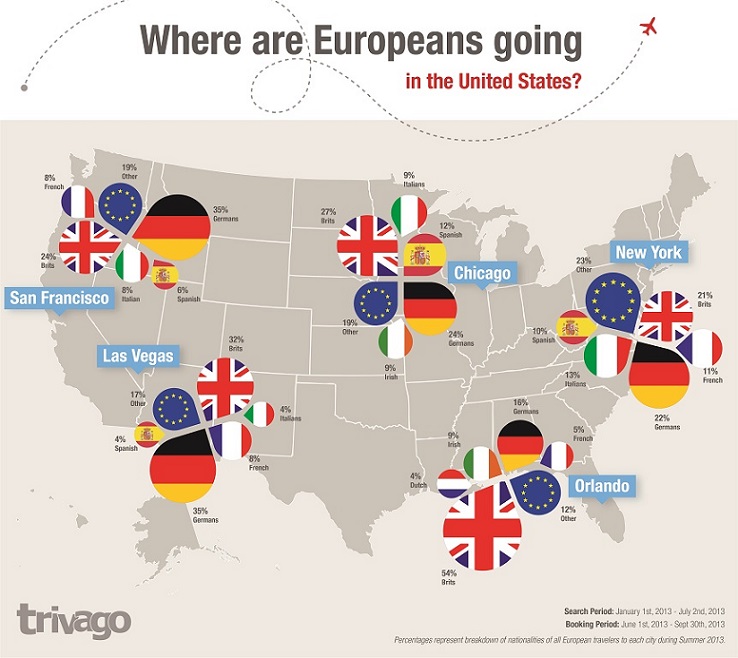
Where are Europeans going in the United States? (with context both around European flags and countries, and for making guesses about why these cities are so popular with tourists).

Also, check out my simple infographic I made with Piktochart!

Friday, May 2, 2014

Stick Around: The Spectrum of Repurposing

Much of my efforts in writing and conducting trainings is geared toward helping SLPs and other educators see the potential use of apps and tools they might not have recognized initially as language-based. That has been the focus of this blog since its inception- "looking through a language lens"- even back when we were talking about interactive flash-based websites and webtools, way before apps.

I found great validation of my advocacy for "repurposing" in an article by Jessica Gosnell in the ASHA Leader in 2011, and consistently use this quote in sessions:

“A search focused only on a specific profile of dedicated apps (speech production, targeted language goals, augmentative communication) could miss many well-designed apps that offer motivating and fun learning opportunities. Using creativity, clinicians can reach beyond an app's intended target audience and purpose and adapt it to support interventions.”
-Jessica Gosnell (Children’s Hospital, Boston), “Apps, an Emerging Tool for SLPs,” ASHA Leader Online, October, 2011

I think as we progress in incorporating technology into our work thoughtfully, we are getting better at seeing these connections and potential uses of a wider variety of apps. Recently, I was presenting on apps for pediatric populations at the ASHA Healthcare and Business Institute and included a great recent release called Stick Around. This educational app allows the creation of puzzles featuring "stickers" that can be dragged on top of an image or array in order to develop labeling, sequencing, or describing in just about any context. As I was showing it with other apps that could be repurposed for language therapy, a participant asked, "Is this really even a repurposed app? It seems like language heaven!"

I replied, "Good point!" But the fact is, many in our field might not think to look past the icon and description (or even stumble upon it in the education category of the App Store), and it wasn't designed specifically for speech and language pathologists. So, while on the spectrum of repurposing, it's not such a stretch as using Bobbleshop- Bobble Head Avatar Maker for developing descriptive language, we all could use a push to see what a valuable app Stick Around could be.

Tony Vincent, an amazing resource on technology integration and the author of Stick Around (in partnership with Explain Everything creators Morris Cooke), definitely sees these connections between language and learning, and has presented for our peeps at conferences such as those held by the Center for Autism and Related Disabilities in Florida. He designed Stick Around ($2.99, very Fairly Priced and meeting all other points of the FIVES Criteria) to be a blank slate where educators--and students--could create these self-checking puzzles for learning in all contexts. So let's take a look at it.

Stick Around may first look a bit daunting, but this is just because its interface allows for such a large array of options and customization. I figured the process out in about 10 min, but there are also great video tutorials available should you get stuck. Though it might seem strangely dairy-specific, in the shots below I am showing how to set up a puzzle that could be used for life skills and executive functioning ("feature teaching" ala Sarah Ward). You could think up all sorts of other contexts for puzzles (In Las Vegas, I modeled a puzzle labeling the casinos on the Vegas Strip from a screenshot using Google Earth- you need Stick Around on your iPad to access this file)!


Start with deciding the image you would like to use as a puzzle (the app also has templates such as Venn Diagrams and sequencing frames). In this case, on a community trip to the supermarket, we snapped this image of the dairy section. You can also save an image, but just be aware of copyright should you plan to share your puzzle (see my next post).


Using the Stick Around app (see above the array of sample projects to spur your imagination- try not to be intimidated by how beautiful their graphics look), begin a new project.


I created a blank project so that I could use a photo background. Tap the + to add this from your Photo Library or other source.


Your next step is the stickers. These can take various formats (Text, Image, or Drawing Sticker). Double tap the sticker to write the label, and you can also add a description via text or audio (a great feature for SLPs). Arrows can be added as well.


Create your Answer Key by drawing each of the "regions" where the sticker, if placed or pointed, will result in a correct answer when the puzzle is played. Make sure your regions don't overlap. While creating the Answer Key, you will want to place the sticker or its arrow head in the correct region to link the sticker and its region, as seen above.


Finally, you can tap Play and try out your project in puzzle form. As a great example of continuous improvement in apps, Stick Around recently added the faces indicating correct or incorrect answers when you tap "Check."

When you are done with your project, save it (when navigating back to My Projects, you will be prompted to give it a name and save, or you can give it a name in the Info tab). The Export button (arrow into box) allows you to send the project to the Puzzles section of the app (from Projects) so that it can be played but not edited.

One of the best features of Stick Around is that puzzles you create can be shared with others who have the app. From My Projects I simply exported this one to Dropbox, and if on an iPad with Stick Around installed, you can click this link to add it to your Projects and play it!

So, what are your thoughts? What can you imagine creating with Stick Around?

As always, Happy Repurposing!

Wednesday, January 22, 2014

Daisy the Dinosaur

Did you hear about the Hour of Code? This initiative in computer science education was featured in December 2013 in many schools where students were encouraged to work on programming projects. While programming might seem far removed from special education, it incorporates many skills our students need: language, sequencing, cause-effect, problem solving!

So it's nice to see some apps available that address these skills in very basic ways. Daisy the Dinosaur is an app that was actually designed to attract girls to programming, but it can be "repurposed" for speech and language activities:

The app has two modes: free-play and challenge. In "free-play," you can move the dinosaur using a number of verbs or modifiers. In challenge mode, you are given a set condition to achieve, such as making Daisy spin five times.

I do wish the app allowed you to select specific or leveled challenges instead of requiring you to proceed through them sequentially (though in doing so, you can note which programs you can instruct students to achieve). However, for a free app it offers a fun and engaging way to develop skills of following directions and sentence formulation (particularly sentences using the subordinating conjunction when). Additionally, as the app consists of selectable actions, it could be used to develop narrative action sequences.

Tuesday, January 14, 2014

Timeline

The folks at ReadWriteThink are doing a nice job turning a number of their language-based web tools into apps- that are free, to boot. Brought to us by the International Reading Association, these apps including Trading Cards and RWT Timeline make great use of some of the features the iPad has to offer. Namely, it's great when an app lets you set up profiles for students or groups for saving work, as we often don't complete activities with students in one session, and can focus more on the language opportunities inherent in creative processes if you can come back and complete work. These apps also allow you to add pictures from the camera roll (which, if saved from the internet, provide endless visual contexts) and share in various formats, facilitating consultation and collaboration. Additionally, the RWT apps have a mature look and feel that fills in some of the dearth of apps geared toward middle-high school students.

What can you do with a timeline, or more specifically the RWT Timeline app? Break down any sequence, a story line, or historical content. It's very simple to use, and again, FREE, so I hope you will check it out!


Common Core Connection:
-CCSS.ELA-Literacy.SL.6.2 Interpret information presented in diverse media and formats (e.g., visually, quantitatively, orally) and explain how it contributes to a topic, text, or issue under study. 
-CCSS.ELA-Literacy.SL.6.4 Present claims and findings, sequencing ideas logically and using pertinent descriptions, facts, and details to accentuate main ideas or themes; use appropriate eye contact, adequate volume, and clear pronunciation.

Friday, September 13, 2013

Create Photo Comics with Story Me

Utilizing comics in interventions has many applications, from social instruction (Comic Strip Conversation or Social Thinking®-style), to sentence and narrative formulation, to modifying curriculum topics into an engaging form. I have often covered these techniques in workshops and lamented that there wasn't a good free app allowing people to get their feet wet with comic-making. Until now.

Story Me (free for iPad) was named one of the best new apps by App Advice recently, and for good reason. Like many other comic-creators, Story Me allows you to snap photos or import those saved to the camera roll, add comic effects and most importantly: language in the form of word balloons and captions. While the text features in Story Me are not as customizable as paid apps, they offer a good start and are wrapped in a very easy-to-use interface. For more features including font choice, additional photo effects and stickers, and sharing options, take a look at the powerful apps Strip Designer and Comic Life.


Story Me uses "face detection" to help you add word balloons, but you can add a "face" anyplace you want a word balloon to appear. Unfortunately, the app does not allow addition of thought balloons important for perspective; for these you would need one of the apps mentioned above or to use captions creatively. Once created, comics can be shared via email as a JPEG or saved to the camera roll.

Try Story Me and make comics of:
-Characters from stories
-Science and Social Studies curriculum
-Activity or Play sequences
-Social scripts

How would you use photo comics with your students? Let us know in the comments.

Thursday, May 16, 2013

Explore Nature with Pepi Tree

Pepi Tree (free Lite version available, full version $1.99) is a fun little app presenting "mini-games" at different levels of a tree, all illustrating in some way the life and "work" of animals in the forest. Mini-games are an interesting concept for therapy, as they can be used as different contexts for concepts, language structure and vocabulary development within the same app. For example, within this app, the caterpillar mini-game can be used to target sequential words (the caterpillar eats a leaf, then goes into a cocoon, and finally becomes a butterfly) as well as some/all (he needs to eat all of the leaf before going into the cocoon). There is also a fox-feeding activity that can be used to address negative words (the foxes don't like all the food) and one emphasizing the curriculum concepts around what plants need to grow. It's definitely worth grabbing the Lite version for your young students and deciding if you'd like all the games in the full version.


.