Showing posts with label graphic organizers. Show all posts

Friday, February 12, 2021

i-Spy

i-Spy is a rich, simple interactive website that's like a Where's Waldo of New Zealand. You can play 5 different scenes and locate hidden animals, objects or people. I'd recommend the free play mode as the challenge mode is timed. A search icon will bring you to the general vicinity of the target with a visual cue. 

Activities like these are visually packed and not for all students, but for many can serve as "thinking with the eyes" collaborative "group plan" activities (both Social Thinking® terms) and also connect well to narrative elements of setting and action sequences. Consider researching or Google Earth-traveling to the places beforehand and filling out a setting map/graphic organizer

Thursday, June 18, 2020

Juneteenth: a sequence and settings

Every context has language underpinnings. Why not use contexts that promote anti-racism?

Tomorrow is Juneteenth, the day that commemorates word of the Emancipation Proclamation reaching Texas, two and a half years after it was issued. It's history that isn't taught enough in schools.

So, sequence of events is critical to understand here. A number of books on EPIC! about Juneteenth are on point.

Using Google Street View is a great way to have students observe, describe, "think with their eyes," or complete a setting-based graphic organizer. A number of VA slave dwellings are rendered in Google Street View listed here and given more context here. Be sure to click through to View on Google Maps for the best visual/interactive experience.


Thursday, April 23, 2020

Videos and Discussion Webs

(sorry email subscribers for that last incomplete email, I hit Publish too soon)

Discussion webs are described in one of my favorite articles, The Magic of Once Upon A Time: Narrative Teaching Strategies (Hoggan & Strong, 1994). How nerdy that I have favorite journal articles, but anyway it was very influential for me and helped me see all of the activities that could spring from (any) context.

Copy and pas- I mean, quoting the article liberally: The discussion web (Alverman, 1991; Duthie, 1986) is a graphic aid that is used to support ideas during conversation about the story. Through its use, speech-language pathologists can guide students to discuss more complex ideas and concepts. The speech-language pathologist begins the discussion by asking an inferential or abstract question—for example, “Does the elephant deserve to be kicked out of the jungle?” The students then discuss, either as a whole group or with a partner, the reasons the elephant should or should not be kicked out (Appendix E).

Using the discussion web, the students can discuss their own reasons and react to opposing views. The language used during the exchange of reasons provides meaningful oral language practice. The discussion web does not have to focus on an issue found in the story. The speech-language pathologist can center the web around a related topic, giving students an opportunity to discuss issues of personal relevance. Discussion-web practice often begins with students working in pairs; one student then acts as a spokesperson and presents responses to a larger group, eventually leading to a whole-class discussion. When each pair is allowed to present only one reason to the larger group, students learn to prioritize and prepare for the final discussion.

Appendix E:

This was a tough week. The outbreak is still surging in Boston. It was a vacation week for us, but that of course didn't happen. The marathon didn't happen. Tuesday, it was announced that school is canceled for the remainder of the school year (expected, but still a gut punch, and we cried). Among other things. But we are healthy and working here, and have a lot to be grateful for. 

I was inspired by a video released by the Boston Globe on Monday and shared by a friend on Facebook: Here's the link.


We discussed this video in my groups as it prompts a lot of inferential and main idea thinking, and also is essentially Bostonian self-talk that serves as an Inner Coach Green Zone tool.

This would be an example of a discussion web you could use to provide a visual support for questions and responses- often writing down language and ideas helps students revise themselves and add on to what others have said as well. In Google Slides, shapes are your typable friend.


As always with Google shares, please don't request editing access. You can grab this slide for yourself by going to File>Make a Copy or File>Download as PPT

As an additional challenge/conversation prompt, I asked my group members to show the video to someone in their family and talk about it, and notified families about this in a follow-up email.

I hope this serves as helpful in its content, in its potential for use as-is over the coming week, and as an example of discussion webbing in response to a video.

Friday, January 11, 2019

A Story of Shapes

Last year, I started using the new Navigating the Zones kit with some of my groups, an extension of the Zones of Regulation curriculum. This interactive tool focuses on matching situations to feelings/Zone changes and- what I have always felt was the whole point of the curriculum- tools to regulate oneself given a challenge during the day. This is framed as a "Zones Pathway." Around the same time I started working with a HSer I had previously had in a group, this time with more of an academic language focus. I like to think I am not extremely boring, so was somewhat flummoxed when he nodded off 3 sessions in a row. It turned out this was happening across the day, due to an exhausting transition to a new school and involvement in sports. Google Slides came to the rescue as a venue to work this out by interactively creating a visual support and transfer the Zones Pathway concept to a venue engaging to him. Particularly the Slides feature of shapes was useful. Use the toolbar at the top to choose a rectangle, drag it out, and color code it using the paint can. The cool thing about shapes in Slides and Drawings is that you can double-click in them and they become a text tool:


My student enjoyed taking the reins in this activity and quickly creating the shapes himself and added text as we discussed. The tools came from an article we quickly searched for: "strategies to stay awake in class." He evaluated each and decided which ones might work for him to try.

An additional tip: if you locate a graphic organizer you like to use, if there is an image of it, you can insert it in a Slide, place shapes over it and the image/graphic organizer becomes typable. Of course working in Google Suite offers all kinds of opportunities to create and share templates with students and groups.

Tuesday, December 12, 2017

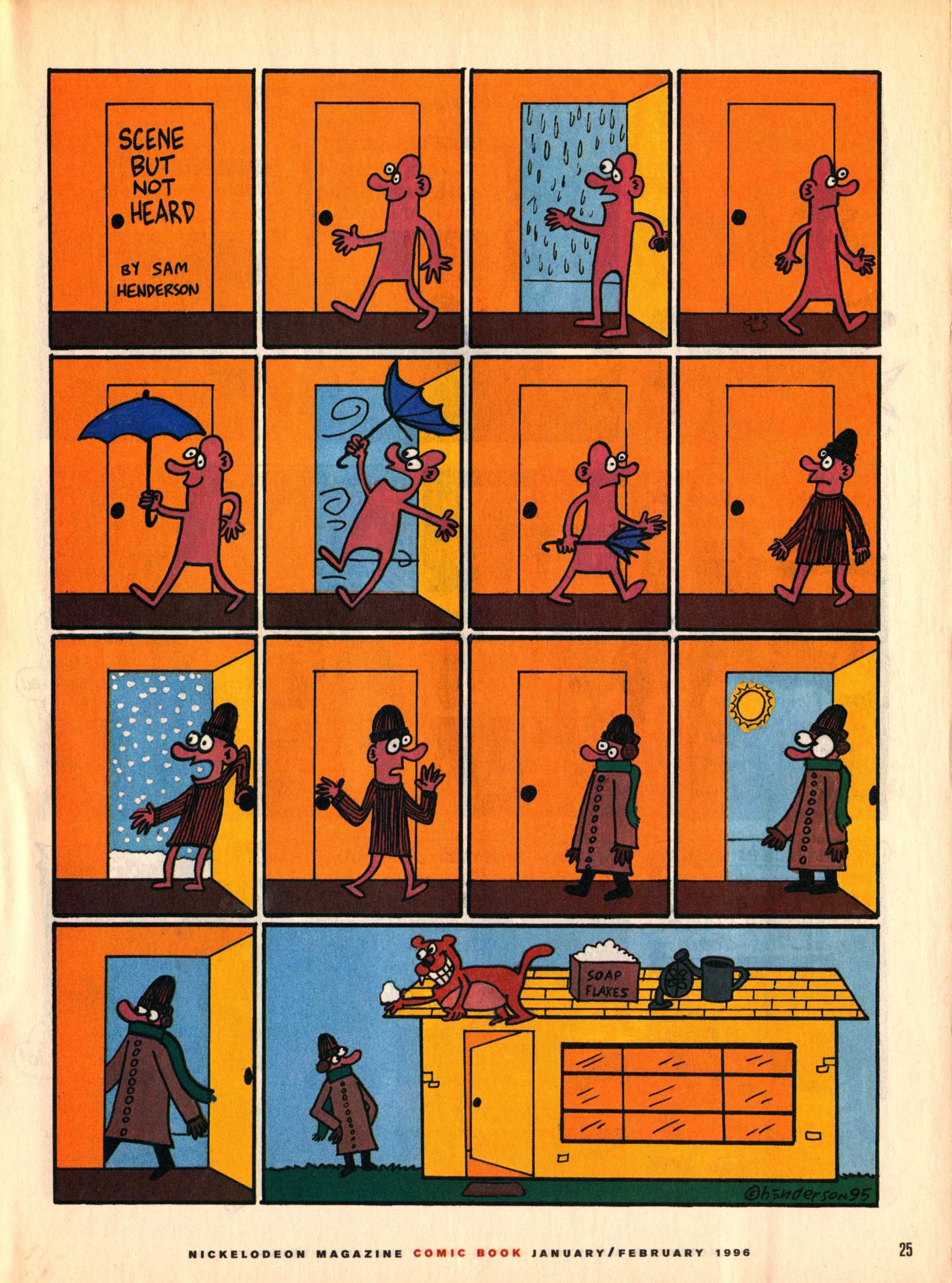
Scene But Not Heard

Back in the day, I used to subscribe to Nick Jr. Magazine for its ads (great expository text contexts) and visual content. This included a comics section with a series called "Scene But Not Heard" by comic artist Sam Henderson. The adventures of Pink Guy and Bear are humorous, exaggerated, and related without words. Like wordless picture books, wordless videos and comics are helpful materials for students to work on interpreting nonverbal cues, "thinking with the eyes," and constructing narrative language and the microstructure (vocab, verbs, complex sentences) within it. In those days I used to collect the series and use laminated versions in classrooms for push-in services along with graphic organizers from Story Grammar Marker®. The content is engaging for mid-elementary through high school students.


Nick Jr. is no more, but I recently discovered that much of "Scene But Not Heard" is available digitally. Just Google it and then click Images, and you have a treasure trove. This feature about the series also contains a gallery. In either case you can:

-save the comic materials to your device (tap and hold on full size image on iPad, or ctrl/right click on a laptop).
-make a collection- you can use Adobe Acrobat Reader, Mac Preview, tap the share button on your iPad and then save as PDF to iBooks, or simply make a folder in your laptop or Google Drive.
-Use the zooming features contained by these technologies to zoom in on the action and limit the visual array (I like to use these to teach students to verbally mediate and "talk out" the nonverbal content).
-Consider integrating with Google Docs- insert a comic into a Doc and have students write a summary.

Tuesday, November 14, 2017

Dispatches from ASHA, Part 1

ASHA Convention was quite a production in Los Angeles this past week. I wanted to share a few snippets from my own presentations as well as some tech tie-ins from others', so I will be posting those over the next week or so.

My session Setting up the Sequel: Pairing Picture Book Series & Apps to Contextually Address Language Objectives focused on using picture book series along with apps for pre- or post-book activities. One key idea is that we can use narrative teaching strategies and other language scaffolds in the process of using both books and apps.

I presented some ideas about working in context within interventions, including the following:
  • Context allows for easier planning and semantically/narratively deeper intervention.
  • Contextualized language intervention is supported by studies such as (Gillam et al, 2012): “signs of efficacy in an intervention approach in which clinicians treated multiple linguistic targets using meaningful activities with high levels of topic continuity.”
  • SLPs should maintain “therapeutic focus” (build skills and strategies) within meaningful context- book series are one way to approach this (Ukrainetz, 2007, Ehren, 2000).
  • We can analyze series for characteristics between books (or apps) that lend themselves to language interventions.
One series I reviewed was the Sally sequels (by Huneck, available with your free educator account in the app/website Epic! Books for Kids. The "Speechie" characteristics of this series include that they are simple narrative action sequences that can also be told at higher levels of narrative (see stage model in this article and this figure), they include many different settings, figurative language, and opportunities to scaffold cognitive verbs--Sally the dog "thinks about" many different things, decides, realizes, discovers and so on. Books like these that give many openings to language elicitation--where the illustration might prompt more verbalization to go beyond what the text states--are also good therapy tools. In the same way, apps that have language-neutral visuals without a lot of talking or noise are good candidates for our use. Take the Toca Life series (with a Farm, Vacation, School, Office, City and Town, Stable and Hospital) as one that has embedded language opportunities with categories in each scene, opportunities to demonstrate actions and create stories.

Toca Life: City pairs well with Sally Discovers New York (Huneck)
An additional main point of this session is that stories can be told in many different ways (see the developmental sequence link above) and found almost anywhere. Since we were in Hollywood and talking sequels I provided a tie-in to "bad" sequels and analyzed them with different narrative forms. Check out this "climactic" (strangely boring and seeming to affect only the 10 people they cast in the film) clip from Speed 2, and an analysis via Story Grammar Marker's 6 Second Story™, which we can use to scaffold a kernel of conversation:


Consider therefore how we can use different levels of narrative development to scaffold elaboration using fun and motivating contexts such as film clips as well.


Gillam, S. L., Gillam, R. B., Reece, K., Nippold, M., & Schneider, P. (2012). Language Outcomes of Contextualized and Decontextualized Language Intervention: Results of an Early Efficacy Study. Language, Speech & Hearing Services In Schools, 43(3), 276-291. doi:10.1044/0161-1461(2011/11-0022)

Ukrainetz, T. A. (2007). Contextualized language intervention: Scaffolding PreK-12 literacy achievement. Pro-ed.

Ehren, B. J. (2000). Maintaining a Therapeutic Focus and Sharing Responsibility for Student Success: Keys to In-Classroom Speech-Language Services. Language, Speech & Hearing Services In Schools, 31(3), 219-229. doi: 10.1044/0161-1461.3103.219.

Saturday, November 4, 2017

newsela

newsela is a very nice resource of electronic news articles designed with education in mind, another e-resource to have in your toolkit along with EPIC! Books and ReadWorks. The site offers quite a lot to educators for free, and a "pro" tier is available. You can access it through a web browser or free app for iPad.

News articles serve a number of purposes in speech and language interventions:
-context for use of graphic organizers teaching narrative or expository language structures
-opportunity to pose questions and elicit discussion with use of discussion webs (see Hoggan and Strong's mention of discussion webs as a narrative teaching strategy)
-newsela is geared around "text sets" and themes as well as daily news, and also allows you to change the reading level of each article
-within each article is scaled vocabulary known as "Power Words"- these are presented with student-friendly definitions that align with Isabel Beck et al's recommendations for building robust vocabulary.
-presenting this material digitally will add a level of engagement; newsela integrates nicely with Google Classroom.


Friday, November 4, 2016

More on mapping expository texts through tech, Part 3

In the past several posts I have been discussing resources for visually mapping expository (and by extension, narrative) topics. In the last post I outlined the use of Kidspiration's Super Grouper feature for sorting ideas into categories--it can also be used for sequencing. Kidspiration and its older brother Inspiration (again free to try, $9.99 for full app, also available for Mac or PC and even on the web) are better known for their mind-mapping or diagramming features. Like Popplet (described in this post), these apps can be used to create graphic organizers showing the connection between different ideas. Unlike Popplet, however, the text within the idea bubbles can be exported to other apps so students can see planning activities as being helpful toward actually getting their writing done.

In Kidspiration, create diagram activities by selecting Diagram from the home screen. It's fairly self explanatory to map connections between pictures and symbols using this feature. The diagram can be used to create a discussion web as displayed below. Discussion webs in language intervention are discussed in Hoggan & Strong's excellent article The Magic of Once Upon a Time: Narrative Teaching Strategies (and also this "how to"), which has served as an inspiration for my "Pairing Picture Books with Apps" presentations. A number of other narrative teaching visuals demonstrated in the article can also be created with Kidspiration and Inspiration.


Inspiration in all its versions is particularly appropriate for upper elementary through adult learners, and is often recommended as an Assistive Technology (AT) tool. Inspiration shares many of the features of Kidspiration including the picture library, ability to add photos, and helpful templates; Inspiration does not have the Super Grouper feature described in the last post.

Both Kidspiration and Inspiration allow you to create a graphic organizer with students and export the contents in outline form to a word processor, thus bringing the initial planning work to a place that it can be continued (e.g. a word processor such as Pages, Word, or Google Docs). The blank-slate nature of these apps as well as the availability of connecting bubbles and arrows make it ideal for instruction in the methodology of using expository text structures to plan writing and show the flow of ideas in a topic--making these both comprehension and expression tools. See Teresa Ukrainetz' Strategic Intervention for Expository Texts: Teaching Text Preview and Lookback (another good reason to have an ASHA SIG membership so you can access Perspectives journals) for another helpful discussion of expository text structure and other strategies.


Be sure when using Inspiration and Kidspiration to avoid creating webs unless your topic is a descriptive one. Create an organized structure by adding new detail bubbles to your topic heading shape (see above with List, tapping on the arrow button will create new connected bubbles you can drag into position). Naturally, you will want your detail bubbles to contain content related to the topic as opposed to just key words for organization. As below, switching to Outline view will then make your work result in a useful outline rather than too much hierarchy. See below, tapping the Share button will allow you to export.


Thursday, October 27, 2016

More on mapping expository texts using tech, Part 2

In a recent ASHA Leader article I discussed intervention activities centered around social studies and expository text, and am continuing to discuss expository language in part one of this series and in this post.

One of the most useful apps for categorization and other expository language activities is Kidspiration Maps (free to try, $9.99 for full app). I truly believe this app should be in every SLP's and reading specialist's library as it has so many contextual uses. Pair this app with a picture book, textbook passage, video, discussion, information from another app or website...the list goes on. Kidspiration has been around for many years as a software resource and is still available also for Mac or PC, but at a higher pricepoint than the iPad version that shares almost all of its features.

I will talk about the diagramming features of Kidspiration (and its older brother Inspiration) and expository language in the next post, but in this post I would like to highlight Kidspiration's terrific Super Grouper feature. Super Groupers allow you to create an activity where you sort words and pictures into categories. Again, I find that these activities can be created to accompany any book or topic, and students enjoy taking your "wordsplash" or "picturesplash" and putting it in order. In the process, you can ask them to verbalize categories and descriptive attributes that serve as rationales for their sorting.

To offer a contextual example, students of mine were reading Iron Thunder by Avi- this is the story of the fateful battle of the ironclad ships Merrimack and Monitor during the Civil War. As we reviewed the first chapters it was clear my students were not so solid on the concepts and associations around the North and South at this time. I constructed a simple Super Grouper activity to address this:


The Super Groupers are the large blue and gray (color coded purposefully) rectangles in this case, with ovals containing information about perspectives, characters, synonyms, geographic information, actions, and so on, to sort. The student interacts with the activity by tapping and dragging the items (which can be pictures also, see below) into the Super Groupers. Once completed, you can also switch to Outline view (tap on outline icon in upper left) to see the information in a linear fashion:


One great feature of the Inspiration Software apps is that diagrams and outlines can be exported- from Outline View tap the share button and you can export as text to other apps such as Pages or even Google Docs, where students can expand on the language.


To create a Super Grouper activity, select the Super Grouper option from the home screen. The Super Grouper menu (highlighted at top) lets you tap and drag shapes into the work area. Double tap at the top of your shape to label it. Tap to select your shape, then tap the paintbrush at the bottom menu to change the background color.


The picture library is accessed from the "frame" icon. Browse the categories to tap/drag items to be sorted; you can also search the library or add photos, making even the visual contexts of Kidspiration limitless. You can add audio support to your activity or have students record sentences as they sort by tapping any picture, then the microphone button at the bottom, which allows you to record an audio note.


To make a more text-based sorting activity, use the Shapes menu. Double tap on any shape to type in it.


A very helpful feature of Kidspiration is that activities can be duplicated, so that in the event you complete the sort with multiple groups, you don't have to keep unsorting the items! From the Open Document menu, tap Edit, then tap to select an activity, and tap the Copy icon. This menu also allows you to share your created activities with colleagues who have Kidspiration. From the Open Document menu, tap Edit, then tap to select an activity, and tap the Share icon. From there you can mail the activity, send it to Dropbox, or tap More to send to Google Drive (where you can share the file with whomever). It's a great idea for a group of colleagues to work together creating and sharing activities that would be useful to all.

Saturday, March 12, 2016

Read Works Provides Access to Handy Text Passages

Expository text passages are handy for language intervention. There's a lot you can teach with a passage as a context!

I attended (well, watched from an "overflow theater") a great presentation at ASHA Convention in Denver, Practical Strategies for Middle School and High School Language Learning Disorders (Wallach, Bartholomew & Charlton), that covered a number of strategies that can be practiced in the context of expository (or narrative) text:
-Recognizing and interpreting subordinate clauses
-Sentence Combining (see the work and resources of Killagon)
-Teaching Self-Monitoring and Metacognition (I've recently been putting the TWA Strategy on a Bookmark for students:


-Within the above, supporting comprehension and expression (summarizing) is analysis of text structure and use of graphic organizers; Mindwing's Thememaker® and the Thinking Maps programs are both approaches to understanding expository text structure.

So, where to get the contexts? I recently discovered ReadWorks- this website provides free access to reading passages and much more, with skill and strategy units on many topics in comprehension. The passages are searchable or organized by various categories--they are also Lexile-leveled. The website recently released a collection geared toward expository text structures as mentioned above.

Check out Readworks and sign up for a free account. The website is iPad-friendly, so you can activate Speak Screen while using a passage to have it read aloud, or download and "Open In..." an app such as Adobe Acrobat Reader in order to use highlighting and other annotation tools. 


Friday, January 30, 2015

Talking about the Weather

Having just dealt with a tremendous blizzard, I am going to be a stereotypical New Englander and talk about the weather. Again. Weather is a topic that naturally lends itself to eliciting language in our students as well. Not only does this topic pop up repeatedly in science curricula across the grade levels, making it relevant to the Educationally Relevant "E" in The FIVES Criteria, but discussing it requires a number of language skills:

Sequencing-seasons, processes
Categorization-seasons, months, precipitation
Schematizing/"Main idea and details"-describing a particular day's weather involves attention to features such as temperature, wind, cloud cover, and precipitation
Stating Cause-Effect- within weather processes and explaining why certain clothing would be worn in certain weather conditions.

A great context for eliciting and working with language around weather was released recently in MarcoPolo Weather (Free). MarcoPolo Weather is a "sandbox" app allowing open-ended play by bringing characters, setting elements, clothing and weather conditions together and observing the effects. MarcoPolo has here continued their commitment to developing apps that address Science, Technology, Math and Engineering (STEM) skills (also found in the MarcoPolo Ocean app), including, according to the app description:

-Observe and describe different weather conditions including temperature, cloud cover, and precipitation
-Identify ways in which weather affects daily routines, such as dress and activities
-Determine how weather affects the natural landscape
-Learn about the water cycle and how clouds are formed

Check out the video below to see how MarcoPolo Weather works. It's a ton of fun!


MarcoPolo Weather would facilitate a natural language connection to
-a concept map or graphic organizer about weather conditions
-sentence strips or other print contexts to construct causal sentences about observations in the app
-picture books dealing with the weather
-creating a weather journal with Evernote by stepping outside, snapping pictures, and consulting the Weather app for data

Tuesday, January 14, 2014

Timeline

The folks at ReadWriteThink are doing a nice job turning a number of their language-based web tools into apps- that are free, to boot. Brought to us by the International Reading Association, these apps including Trading Cards and RWT Timeline make great use of some of the features the iPad has to offer. Namely, it's great when an app lets you set up profiles for students or groups for saving work, as we often don't complete activities with students in one session, and can focus more on the language opportunities inherent in creative processes if you can come back and complete work. These apps also allow you to add pictures from the camera roll (which, if saved from the internet, provide endless visual contexts) and share in various formats, facilitating consultation and collaboration. Additionally, the RWT apps have a mature look and feel that fills in some of the dearth of apps geared toward middle-high school students.

What can you do with a timeline, or more specifically the RWT Timeline app? Break down any sequence, a story line, or historical content. It's very simple to use, and again, FREE, so I hope you will check it out!


Common Core Connection:
-CCSS.ELA-Literacy.SL.6.2 Interpret information presented in diverse media and formats (e.g., visually, quantitatively, orally) and explain how it contributes to a topic, text, or issue under study. 
-CCSS.ELA-Literacy.SL.6.4 Present claims and findings, sequencing ideas logically and using pertinent descriptions, facts, and details to accentuate main ideas or themes; use appropriate eye contact, adequate volume, and clear pronunciation.

Wednesday, October 23, 2013

Take Students on a Scientific Walk in the Woods

Thankfully the Smithsonian is now reopened after the government shutdown, but their Walk in the Forest interactive website never closed! This site (Flash-based, so iPad-unfriendly) allows you to take older elementary, middle or high school students on "walks" that serve as scientific investigations. In the process, you can connect the topics of trees and habitats (relevant at many grade levels) to language aspects such as causality and language schema. For example, the first walk has students testing soil texture and pH (schema for describing soil besides color) and linking this to the type of tree that could grow there. This is a perfect website for you to construct graphic organizers for students to use as tracking sheets during use, to help them visually connect the ideas involved. This website would be great to use in conjunction with the app Leafsnap, a visual field guide to trees that can serve as stimuli for descriptive language.


Happy walking!


Saturday, July 13, 2013

Create Narrated Slide or Video Shows with Videolicious

I am giving a session on Digital Storytelling in speech and language intervention at today's ASHA Schools conference in Long Beach, CA, and thought I would feature one of my favorite tools in this genre.

Videolicious is a simple video creator- it allows you select photos or videos from your photo library/camera roll and talk over them, effectively creating a narrated video. What a great language tool- and did I say it's free? It's freeness comes with two limitations- videos are limited to 10 minutes, and the saving process sends your video to the service's website (unless you follow the directions below).

Videolicious is really simple to use. You will first need to have photos or videos in your photos app- either shoot them or save images from the Internet (again, see the directions below to avoid violating copyright). Once they are there, select them by tapping them in sequence within the app:


You are then given the opportunity to record a "Selfie" introduction to the video (you talking to the camera). You can select the option of using "mic only" so that you or the student do not appear in the video. As you record your narration, you tap the selected images or videos in order to time when they will appear in your video. Thus, a narrated slideshow.


Language Lens:
-You can use Videolicious to have students (including adults) practice describing, sequential language, storytelling, persuading- whatever form of discourse you would like.
-Videolicious, as it records audio of one speaking, is also a nice tool to work on articulation, voice, and fluency.
-As your project in Videolicious can include video, it can also be used for video modeling, having kids narrative the steps to social or functional sequences.
-Many creation apps are more about the process than the product. Use the process to help students to plan their language using a graphic organizer or script.

BUT!
Videolicious, if used exactly as designed, saves the finished project both to your photos app AND the Videolicious website. This presents several issues:
a) You don't want to be sending video of your students to the Internet unless you have explicit permission.
b) If you saved images from Google Images, they were likely copyrighted. These are OK to use in any project that stays on your iPad in the app itself or if it is saved locally to the Camera Roll (this is Fair Use), but not to be republished to the Internet. You can use tools such as Flickr Creative Commons or other Creative Commons search websites to save the photos. You should still site them in some way, either orally within the video or by creating a text image (maybe with Doodle Buddy) attributing the image.

OR
...you can avoid publishing the project to the site by following these steps (given to me by a Videolicious support person):
1. Create your video. Don't tap Save.
2. Leave the Videolicious app and turn on Airplane Mode in the Settings app of your iPad. This disconnects your iPad from the Internet.
3. Return to Videolicious and complete the steps of saving the video. This will save it to the Camera Roll (Photos app) and NOT the site.
4. When saving is complete, tap the Share button (arrow coming out of the square) and Delete Video. It will remain in your photos app but then the app will not attempt to upload it when you turn off Airplane Mode.


5. Go back to the Settings app and turn Airplane Mode off.

This does seem like a lot of steps, I know. Nevertheless, this is one of the easiest and best apps I know of to make a narrated video, so I still highly recommend it.

Monday, April 29, 2013

Skitch it up!

Skitch has long been a favorite of mine from the Evernote suite of tools. A super-easy, cross-platform, free and powerful photo annotation tool, it was originally developed by the makers of Comic Life, and you'll see why this makes sense.

So much of language involves breaking a whole into its parts, labeling, or describing, and Skitch gives you an engaging and beautiful way to do this with students. Skitch allows you to build a diagram or graphic organizer from scratch (its tools include arrows, shapes, text, highlights or drawn lines) or apply all of these annotations to a snapped or saved photo.


Skitch also allows you to annotate a snap of a website or map, as I have done above, and recently added the ability to annotate PDFs, though this is a premium feature.
For another example, see how a client of mine (in his own way) analyzed a confusing-to-navigate Brugger's Bagel location using Sarah Ward's executive functioning concept of "zones" (as part of the Space/Time/Objects/People "STOP" strategy, and not to be confused with Leah Kuyper's equally awesome Zones of Regulation).


"Grabbage" being the self-serve area.
Skitch naturally integrates with Evernote to save your work, but you can use the app without an account and save to the Camera Roll, you just won't be able to edit it later.

Think of Skitch as a context for:
-Describing facial expressions on snapped pictures within a group or with role-play.
-Integrating with picture books and creating a diagram from concept-rich pages that you snapshot with the Camera.
-Saving and describing images related to the curriculum.
What else? Share your ideas in the comments!

Thursday, January 17, 2013

Google on Apple: Google Drive

While not the most fun-loving of Google's offerings, Google Drive is potentially hugely useful to all humans, including SLPs. This resource, formerly known as Google Docs and now confusingly renamed, allows you to upload documents, images and PDFs, and edit documents and spreadsheets (presentations and drawings too in the full web version) solo or collaboratively. The renaming of this whole shebang as Drive was timed with the addition of a downloadable app for Mac/PC that syncs to your account and keeps all the files on the computer as well. I ignore this feature and go on using Docs as I used to do. Dropbox is still the standard for the kind of file sharing this computer-lab-havoc-wreaking sync function Drive aspires to achieve.

"Docs," still of course a function of Drive, is a tool I have found myself utilizing as part of my direct and consultative services in all sorts of cases. It's a great way to share a graphic organizer with a student so he can access it electronically when getting down to writing. Additionally, it's a means to nudge a student toward some order in his organization of materials and workflow, as it allows you to access work from any computer or device, organize materials into electronic folders within one's (free or institutionally assigned) account, and share with other students, teachers or parents without the need for messy file attachments and emailing, all major pitfalls for our students.

Google Docs has historically not played well with iPad, but that situation is definitely improving with the Google Drive app released this past Fall. This free app gives you access to any Google Drive account, where you can upload/edit documents and spreadsheets (not presentations), organize by folders and manage sharing of files.

Google Drive app for iOS


Google Drive can be even more useful because, when installed, it will appear on the Open in menu. Here you see a graphic organizer I created on paper with a student to help map out his writing assignment. I used the DocScanner app to scan it, and sharing options include Open in (PDF) Google Drive.  This saved the visual support to his Drive account so he could access it when completing the writing assignment.  

How do you find Google Docs/Drive useful in your practice.  Let us know in the comments.


Thursday, July 26, 2012

iPad Essentials: What can iBooks do for you?

iBooks is a free app from Apple (it doesn't come with your iPad but is the first app the App Store suggests when you open it) that is an increasingly interesting e-book app with implications for speech and language interventions.

Initially, I was myself skeptical about the potential of e-books, because I actually really appreciate the value of traditional paper, particularly picture books, in therapy activities. However, I think iBooks is worth SLPs' time for a few reasons:

  • Books published through the iTunes store (there are many free books there as well) are becoming  more interactive and therefore offer great opportunities for describing 3D pictures, completing tap-and-drag activities that can be used to target sorting, sequencing, and cause-effect, and narrating or discussing video clips.
  • iBooks can be used to access ePub books, the format of most downloadable books, which are themselves interactive in navigation via the use of tappable tables of contents. Additionally, when words are tapped/held in ePub books, the menu allows you to access a word definition, annotate via highlighting and notes, and activating text-to-speech, which has potential for targeting auditory comprehension as well as making material more accessible to struggling readers. You can see a good tutorial on the Speak Selection feature here from OTs with Apps.
  • iBooks can also be used to save and display PDF files such as those that come on the CD-ROMs accompanying some commercial materials, but more on this in the next post!
  • Presenting information through the glowy loveliness of the iPad can really grab students' attention and engage them even in less-than-fascinating material that is necessary for you to cover.
For a great example of a simpler iBook that could be used in speech-language sessions, check out Snapshot Picture Library's Baby Animals.  This book has adorable photographs of a variety of young animals and could be used to target descriptive skills, understanding of cause-effect relationships, and text structure.  For example, the book contains lists (enumeration-a key text structure, essentially abstract categorization you can teach through use of graphic organizers) of how different animals are born, how they protect themselves, and their native geographic habitats. This book would be a great choice for primary grades.


Thanks to a tweet today by Tony Vincent, I discovered another great series of iBooks that can be used to target language within the context of content material: ScienceWerkz. ScienceWerkz publishes fun, magazine-style eBooks with interactive features and video. Our World of Materials is free, and other books in the series such as Energy, Cells and Heat are currently on sale for $.99, a good buy if you work with upper elementary or middle school students.

Here's a nice video walkthrough of Our World of Materials. Check out that Clothing Materials interactive! I didn't know eBooks could function like interactive websites! In the embedded interactive, students can choose to clothe characters in different types of materials, including metal, and see the resulting effect, providing a great opportunity to elicit causal and descriptive language in context.


I will be discussing the connection between iBooks and PDFs in a future post.

How are you using the iBooks app in your work? Let us know in the comments!

Tuesday, April 3, 2012

Painting with Time- Climate Change

I previously wrote about the Painting with Time app as a great way to target temporal concepts, causal relationships and sentence structures, and descriptive language. The folks at Red Hill Studios have recently released another FREE app (iPad only), providing a context for language intervention as we approach Earth Day.  Painting with Time- Climate Change "lets your fingers reveal the dramatic ways our world is changing from rising temperatures." Through the innovative (yet surprisingly simple) interface, you can explore 17 different picture sequences that reveal effects of glacier movement (and disappearance) and extreme weather.  Thanks to Jeremy Legaspi for pointing out this important app sequel to me.


The Mississippi River in 2010 (top) and 2011, with effects of flooding
Painting with Time- Climate Change would be appropriate to use with upper elementary, middle- and high school students who can understand the concepts involved.  It has a number of applications for language therapy:

Language Lens:
-Picture scenes can be used to target gaps in students' geographic understanding and the categories of continents, oceans, and geographic features.
-Each sequence is accompanied by an informational paragraph that describes the scene and its sequential and cause-effect relationships involved; these would be good to map with a graphic organizer.
-The varying ranges of time involved in each sequence are contexts to develop time-lining skills and general temporal understanding, with perhaps relation to other world events.

You can find some other tech-based activities to target language skills in relation to the values of Earth Day here and here.


Monday, February 6, 2012

Animonths: Speaking of Sheep...

Here's a great wordless narrative video for you! Have your students provide the words...Probably it would be best for older kids given the quick underwear scene, but use your best judgement. Happy story mapping!


Sheeped Away from Junaid Chundrigar on Vimeo.

Tuesday, October 25, 2011

Horror Film Fest Revisited!

Last year I posted about a project I do with upper elementary students to develop story grammar, expository language and understanding of genre: a horror film fest.  Being back in the elementary school setting, I was thrilled to be able to revisit this theme.  I did notice that some of the films had become unavailable or changed URL location, so I wanted to update you with new links!

Again, all the films are short and relatively tame, violence and gore wise, in fact, most are more funny than scary.  However, you will want to preview these of course and apply your own standards.

http://www.metacafe.com/watch/359051/hay_fever/
http://www.youtube.com/watch?v=sOnqjkJTMaA (Thriller- I just use the first 4 min as a story example)
http://www.amctv.com/videos/the-big-bed
http://www.amctv.com/videos/presence-attached (this is an error on the site- the movie is actually called Tears of a Clown)
http://www.amctv.com/videos/dial-m-for-monster
http://www.amctv.com/videos/the-party-2
http://www.youtube.com/watch?v=-bj13j1sZmY (Blood Syrup)
http://darkartsmedia.com/DevilsTrampingGround.com.html (the Maco Lights)

Additionally, my immensely talented Graduate Intern, Laura Kasparian, constructed this great BrainFrame that helped the students apply genre aspects and align with story grammar:


.