Showing posts with label iOS. Show all posts

Saturday, January 14, 2017

Annotating Photos in iOS 10

Annotating a photo, or marking it up with text, highlights or shapes has many uses in language, social and executive function therapy. I have previously written about this topic with regard to Skitch. So, Skitch is no more, and though its functions were incorporated in Evernote, getting to them is almost too complicated to talk about here. The good news is that you can now annotate photos without a specialized app, because these features have been added to the Photos app for iPad and iPhone.

But first, some bad news. These features are part of iOS 10, which came out this past fall and was where Apple finally drew the line on the iPad 2. The iPad 2, now a 5 year-old line, cannot be updated to the latest version of the operating system. So...if you want to continue to be able to ride the tech train and you have an iPad 2, you might want to consider an upgrade. Not only for features available on the newest operating system, but also because as your operating system falls behind, so will your apps, and you'll soon find yourself not being able to install certain apps as they come out. I recommend the Gazelle service, which provides you with cash for trade-ins of old devices. The iPad Air 2 is a good model for clinicians to consider.

How to find out what model iPad you have.

How to find out what operating system version you are running.

How to update your iPad operating system.

Once you are up to date with iOS 10, you'll be able to annotate photos right in the Photos app. This will apply to photos you take with the camera or photos you save from Safari. Searching and saving photos from Safari brings you endless contexts for therapy, including finding images that scaffold language about curriculum topics.

Once you take or find an image you would like to add words or annotation to, you might first want to duplicate it. This would allow you to save the original and annotate a duplicate--especially useful if you may want to complete the same activity with multiple groups.

To Duplicate a photo, view it in the Photos app and tap the "Share Square."

Then tap Duplicate.


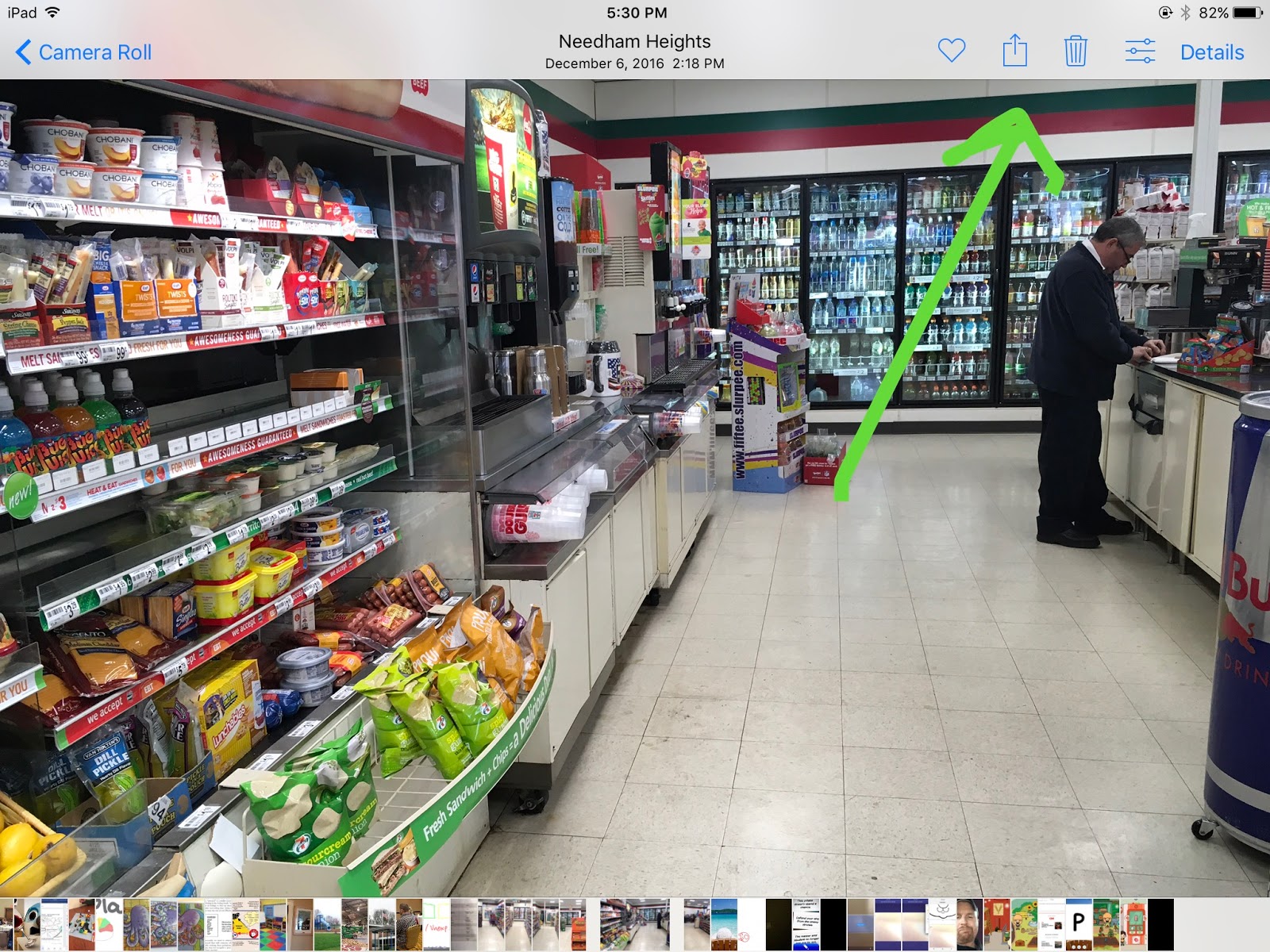
Now you will have two versions of the image, one of which you can annotate. To get started marking up the image, tap the "sliders" Edit icon in the upper right corner (next to Details). At the bottom of the menu on the left, tap the "..." icon, then Markup.


From there it is pretty self explanatory--you can familiarize yourself with the bottom menu, and how to add pen marks, change color and line thickness, add text and change its color, size and font.


In this case I was using this feature to make a visual activity with students before we took a community trip to 7-11 to get a snack. The activity aligned with Sarah Ward and Kristen Jacobsen's situational awareness "STOP" acronym-- Space, Time, Objects and People.

For more ideas on annotating photos, you can check out my linked article in the first paragraph of this post. Those ideas pertained to Skitch, but you can now do them right in the Photos app with iOS 10.

Tuesday, June 3, 2014

Everything You Need To Know About WWDC 2014

You may be thinking, "I don't even know what WWDC is," which is fine. However, the Worldwide Developer's Conference is one of Apple's (usually 2) opportunities each year to announce what's coming next (in this case, this fall). Yesterday's Keynote featured a number of announcements that are important for SLPs and other language teachers to know about. Here's a brief rundown.


iOS 8 coming this fall: iOS, of course, is the brain of the iPad. New releases of operating systems not only add features to the device or change the look and feel (as iOS 7 did substantially), but also affect the way all your apps work and update. After an iOS update, many developers update their apps and add features--so if you don't or can't update the operating system, you would miss out on app updates. Even more importantly, if you are running an outdated operating system, this makes you vulnerable to security issues when you surf the web (e.g. and buy something with a credit card). Some main points about iOS 8:

iPad 2 users, you're still in! Apple deals in an element of "planned obsolescence"- as their software advances, sometimes the hardware has to drop out for the software to run properly. This has happened with the 1st generation iPad, which though still usable became technically obsolete when iOS 7 came out, as it could not be installed on that device. The rumors ahead of WWDC were that the new operating software would not be able to be installed on the iPad 2 (which is no longer being sold by Apple), but it seems we have a reprieve here, and your iPad 2 will be able to be updated. This is important for all the reasons listed above. Because I help integrate a cart of 30 iPad 2s at a local school, I also breathed a sigh of relief about this one.

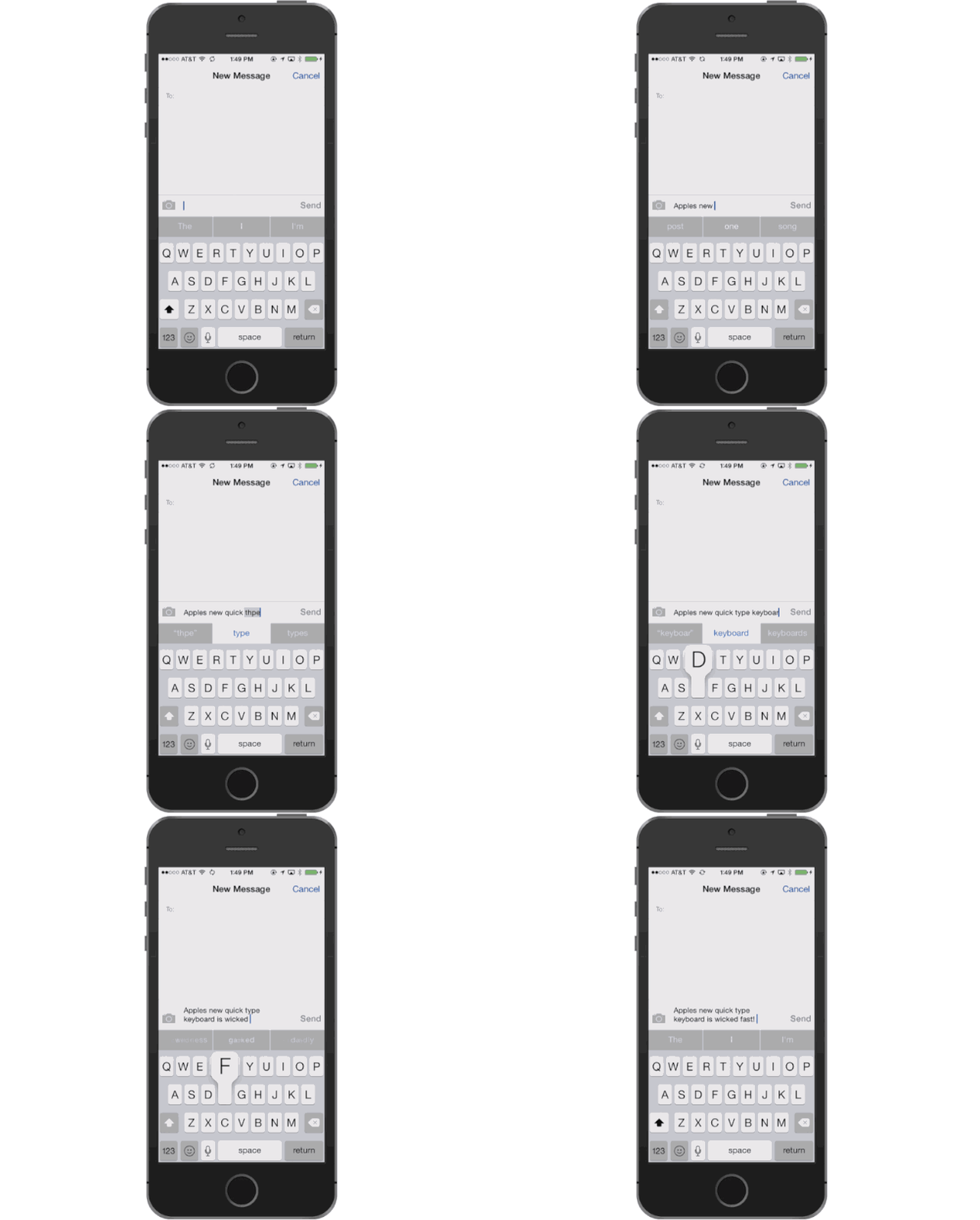
QuickType is an advanced word prediction technology that will be available in the Messages app. This feature actually responds to your previous messages with any given contact and suggests words as you are typing that correspond with your communication style with that person. This will be a boon to people with print or other disabilities- I hope it will also be available in word processing tools eventually. You can see how it works here. In Messages you will also be able to record and send short audio messages that expire after playing, SnapChat style, and this is also a nice feature for those with communication issues.

App Store will have a number of enhancements making it easier to get information about apps, including App Previews, videos that developers can upload so you know what you are getting before you buy. This is essential information before purchasing dedicated SLP and other apps and will help you evaluate your potential purchases. Bundles of apps will also be available for the first time at discounted prices.

Passcode protection on everything including third party apps. This was not demonstrated so I am not exactly sure how it will work, but it seems to mean that you can set a passcode to prevent students from opening certain apps.

Family Sharing is a set of features making iOS like a "virtual refrigerator door" for families- the demos of sharing calendar items and reminders between family members look great for those with autism or executive function issues.

Health will be fostered through iOS 8 with a new app that synchs with now popular simple body-monitoring devices to track everything from sleep to blood pressure.

iCloud Drive is a new aspect of iCloud allowing addition of files from compatible apps. This may end up being easier to use than Dropbox or Google Drive, especially if you are using creation apps and "app smashing" a product from one app to another.

Metal is a new technology for creating apps that looks like it has great potential for interactive experiences that foster language. The Apple team demonstrated an amazingly detailed and interactive Zen Garden app (that, incidentally, will be available for free when iOS 8 is released).

Photos as always continue to improve with shooting and editing features, as well as easier sharing between devices, which you will want to turn off because beverages.

iOS 8 will be released for free this fall for iPad 2 and above, iPhone 4S and above, and will be available through your Software Update in Settings at that time.

Mac users: a new version of OS X called Yosemite (these operating systems are now named after California locations) will be released in fall as well. Its features include a new look and feel, translucency ala iOS 7 that brings a sense of context on screen, and many aspects that link your Mac to iOS devices. I am particularly excited to be able to AirDrop rather than email photos to my Mac, as I need to do this a lot when writing email updates to parents about therapy sessions. You can see a rundown of new Yosemite features here.

Thursday, April 17, 2014

Video Demo of Apple TV in Clinical Setting

At last weekend's ASHA Healthcare and Business Institute in Las Vegas, I presented a session entitled "Tech Up," detailing a variety of simple technologies that can be infused for productivity and engagement in the private practice setting (though the ideas, including this one involving Apple TV, are applicable to other settings). Apple TV is a small device that allows you to display content on a TV, and is especially helpful when you need to engage a group. Because this technology is pretty impossible to demonstrate in a conference setting (one never knows what the wifi situation will be), I made a short video at the Ely Center where I work and where we have been using Apple TVs in order to show this to the attendees- and you!


A couple of key points I want to reiterate in case you missed them in my babbling:
-The Apple TV is only $99 and can be attached via HDMI cable to any HDTV (now cheap- the one shown here cost about $400).
-It can then be used to "mirror" an iPad or iPhone so that anything viewable on the small screen will show up on the big screen- apps, videos, webpages.
-This is useful for "dedicated" speech-language apps (such as Tactus' Conversation TherAppy, shown here) as well as creative application of any apps that provide a visual context for speech, language, or social communication, as well as overall client education.
-The Apple TV and your device need to be on the same wifi network in order for the AirPlay button to show up in Control Center, as shown in the video but also here.
-My point about turning on the actual TV after mirroring is just one I have learned from experience, and usually just prevents distraction. However, once, after this poster popped up, I had to explain to a parent that her son had inquired what a "virgin" is (I pretended I didn't hear the question)- luckily, she was totally cool with it. You can also quickly dismiss the iTunes preview by tapping "down" on the remote.

Hopefully the video is helpful to you.

Tuesday, April 15, 2014

ASHA Healthcare and Business Institute 2014

I had the great opportunity to present at and attend the ASHA Healthcare and Business Institute at Green Valley Ranch in Las Vegas this past weekend. It was a great learning experience, and as you know, Vegas is no fun at all.

I presented three sessions: Inside and Outside the Box Apps for Pediatrics/Adults (2 sessions) and Tech Up! (a sort of day-to-day incorporation of technology to increase productivity and engagement in private practice settings). All went well, and the audience was terrific!

On the first day, I attended several sessions before mine, and especially enjoyed Audrey Holland's presentation on new directions in aphasia therapy. She discussed the value of contextual, functional group therapy (including narrative, which I am all about) and applications of technology- here was my tweet from her session.


Oops, I said Skype twice. I guess I thought it was important.

Now, my background includes a clinical fellowship year working in adult neurogenic rehab, some work helping with the initial offerings of Boston University's Aphasia Resource Center (specifically, what was then known pre-iPad as the "Aphasia Computer Club), and development of presentations including apps for adults. I work extensively with adolescents in transition from high school and some adults with autism, but I am primarily working in pediatrics and with kid-related topics and interventions, so the "refresher" was certainly welcome.

I especially appreciated Dr. Holland's reference to a VERY recently published issue of Seminars in Speech and Language (February, 2014) dedicated to the use of mobile tech in aphasia treatment. As electronic access to journals is not so easy for those of us not-in-school, I immediately texted my graduate intern from BU and asked if she had time to download and send me the articles (she did- thanks, Lauren!). One in particular, delightfully co-written by Elizabeth Hoover, my graduate placement supervisor back in 1999, and classmate Anne Carney, ended up providing me with the following additional slide for my presentation:


What I loved about this new information was that it provided a powerful context to demonstrate some of these tools, particularly Keynote, Reader (which provides a clean, uncluttered view of many test-based webpages in Safari), and Speak Selection (which is one way to access text-to-speech) as tools for clients to access text.

On the matter of Keynote, it is really one of my go-to apps whenever I need a "blank slate" to work with when creating or displaying visuals, which is exactly how this article framed it. Keynote ($9.99, free on new iPads purchased after fall 2013) is in short Apple's version of PowerPoint, though in many ways I like it more. Look to Keynote as a way to create a slide or two to break down a concept, display pictures, or even create picture stories. How do you use Keynote? It's as simple as this image I created for a recent workshop:


So, the conference went well, and I hope this information is helpful for clinicians and educators working with clients of all ages and populations.

I may have a few more posts related to this trip, but for now, I will leave you with a #selfie of me waiting to see Olivia Newton-John! I did make it to the strip a couple times...


Friday, September 20, 2013

Overview of iOS7 for SLPs and Educators

You may have heard that a new version of iOS- iOS7- is available! This gives your iPad operating system a new look and feel and additional features. This new operating system is accessed (for free) in your Settings app under General>Software Update for iPad 2s and later, including the mini. I did my updates after a backup and "over the air" (i.e. through Settings), rather than connecting to iTunes via a computer, and it went smoothly, though it took about an hour, so be sure to allow that time.

You can of course delay updating for some time, and conservatively, this may be a good idea in order to allow developers time to make any necessary updates.

Here are some recommendations on steps to update.

I made a quick-and-dirty video to get this information out there, so forgive the length (there was a lot to show) and a little bit of choppy editing:


The video covers the following:

Look and Feel- the OS has a cleaner, minimalist look, with fewer references to real-world objects such as notepads, torn pages, and leather stitching (skeuomorphism). The icons reflect this, though with a wacky color palette. There are also differences in the animations and gestures used. I left out that iOS7-aligned apps now use a sweep to left to delete. MOST of your apps will behave the same way they did before the update, but look for apps to update to be aligned with iOS7. Not everyone loves the new look and feel, but it does represent steps forward in design and function. Particularly the reduction of skeuomorphism is an effort to advance users from the days of "push here" and "Hey, the app looks like a notebook." Megan Sutton and I were discussing iOS7 and noted that clients and students may need additional training to remember what to do with their fingers, particularly those with language and memory impairments!

Folders- the amount of apps you can now place in a folder is unlimited, rather than 20 only, so you can combine your categories that have multiple folders of apps.

Spotlight- the app searching feature is now available by sweeping down from about the center of any home page, so you can find apps when you need to, faster.

Control Center- many features can be turned on or off by sweeping up from the bottom of the screen, rather than going into Settings. The video shows how to turn off Control Center within apps so that students do not become confused by activating it within an app.

Multitasking Bar- now provides preview cards of what each app screen currently looks like, and apps are force-quit by a sweep up in the Multitasking Bar. Fun!

Safari- the web browser has been redesigned so that you can search and enter web addresses from the same unified bar, and Shared Links can be viewed if you sign into Twitter in your Settings app.

Siri- for 3rd gen iPads and above, Siri has improved voices including a guy!

Updates- app updates can now be run automatically, but I recommend keeping these manual (in Settings> iTunes and App Store) so you know what the new features are and can pick and choose.

Parallax- kind of a throwaway feature, the apps on your home screens now have a 3D feel when you move your iPad around. This can be turned off if causing students to stim or for those with visual impairments (under Accessibility>Reduce Motion).

Accessibility- see Interactive Accessibility and Luis Perez' YouTube channel for information on new switch access.

For the sake of time, I did not cover the new Camera interface or editing features for photos (filters!) but do check these out.

For more technical notes on iOS7 and education, including the AirDrop file-sharing feature handy for collecting student work in a classroom, click here.

Happy updating!


Saturday, February 16, 2013

Travels, Design and Gestures

February has been busy.  I traveled to the Illinois Speech-Language Hearing Association convention in Chicago last week, which was a great experience (nice meeting Jenna Rayburn!), except for the fact that I got stuck there because of the blizzard in Boston.  The ISHA staff were extremely helpful; I found out that my flight was canceled about 45 min before my Saturday presentation, and got on the phone immediately to start the rebooking process. Well, 45 min later, the airline was still working on it, and I had to hand my phone over to the organizers to finish the call so I could do my talk! About 90 min after that, we had confirmed my only option- to fly directly to Dallas where I was scheduled to present at the Social Thinking Provider's Conference on Tuesday. This turn of events was a little crappy, but at least I got some good steaks in Chicago while I killed time, and it was also excellent to be at the STPC, where Sarah Ward, Maryellen Moreau and of course Michelle Garcia Winner also presented!

So, I need to give this blog some love after being tired and on the road....after I get back from a vacation in LA, where I am headed right now! The wonders of slow Internet in the air!

But to share an idea for today, I recently wrapped up a series of posts on Google-based apps for iOS. In addition to providing access on iOS devices to Google's terrific tools for Search, Calendar, Mail, Documents and Maps, this series was partially about app design.  Google is doing a really nice job at designing minimalist, clean-looking apps that function smartly with gestures- a sweep here does this, a pinch here does that. It's a contrast to the tack Apple has taken in recent years with their apps, a design practice known as skeuomorphism. There's a vocab word for you! Skeuomorphism is basically the translation of analog (real) objects into a digital interface. In Apple's iOS apps, this is seen in the Camera app's display of a shutter on screen when you snap a photo, the leather bindings and torn pages of Calendar, the gears that actually have a turning animation when you update your OS in Settings, iMovie's theater front interface, page-turning animations in iBooks, etc. There was a big shakeup at Apple in the fall that was partially about skeuomorphism, and some bigwigs got fired.

Skeuomorphism in the Contacts App

In my recent column for ASHA Leader about app trends, I didn't get into this topic and the trend of more gesture-based design in apps. I am not saying I am against skeuomorphism. It's comforting to have something digital look like something we already understand. Many speech and language apps use skeuomorphism, with apps that look like books or board games or something else. Skeuomorphism is also a way to ground an app in a context or theme, which is helpful for learners. Kids dig this too. However, we should be aware of, comfortable with, and perhaps appreciative of other kinds of design.

Let's consider it "gesture literacy." It's important for us to be able to figure out what to do when there isn't a big button that says "Tap Here," and it's arguably important for us to be teaching kids how to navigate these digital spaces. And, in the process of feature-matching, we can avoid using apps that involve a lot of gestures when working with students who have fine or more significant motor difficulties.

Let's look at a couple more examples of this trend towards minimalist design, both of which are currently iPhone-only but will run on your big screen, and also relate to skills and concepts that can be targeted in language therapy.


Clear ($1.99) is an acclaimed to-do list app. You could consider trying it out if you are consulting with students who could benefit from this kind of color-coded reminders app. It also would be a fun way to work on sequencing, planning of tasks, or even connecting to curriculum and literature (make a to-do list for your favorite character). In using this app you'd also be teaching your students about the different kinds of gestures that can be used to interact with technology.


Solar ($1.99), also a recipient of rave reviews, is a gesture-based weather app. I have written frequently about how weather as a curriculum topic has a ton of language underpinnings for us to target: categories, description, temporal concepts such as seasons. This app's gestures also let you interact with time- and location-based information.

Just food for thought! Gesture on!


Thursday, August 23, 2012

Back to School Meditation, iOS-style

Many of you have already begun your school year, I can see from my social media channels.  This is a time of excitement, but also of some anxiety! I myself have some transition nervousness as I have cut out the public school piece of my job(s) and will be working in private practice (also consulting to schools on students with social learning and language challenges), continuing my app work with Smarty Ears, and running workshops on tech integration!

This is a great time to think about keeping ourselves healthy in body and mind (and through the connections between them) as we begin a new year.  Over the years, I have dabbled in meditation informally through audio guides, etc, but I have been thinking I want to step it up and make it more of a regular habit.  I am impressed by recent news I have read on the benefits of meditation, and how it not only relaxes us, but can improve performance on cognitive tasks and actually change the structure of the brain.  SLPs have other reasons to be interested in meditation besides our need for stress relief. First of all, it often involves a focus on the breath that we should be particularly good at, being educated in the anatomy and physiology of speech production.  Additionally, I for one am fascinated by the overlap between Zen principles and those of cognitive-behavioral therapy (CBT), with both espousing mindfulness, self-talk, and focus of thought on positive avenues.  These are tricks we can afford to learn a lot more about in order to coach our clients with anxiety and autism spectrum disorders.

Now to the iOS part. We are also hearing a lot about the negative influences of technology in terms of our always being "connected" and not really present in our daily lives and with people we should be attending to. I definitely struggle with this too. However, technology can be what we want it to be: an overwhelming presence, an assistant, or even absent. I do tend to consider apps as helping me solve problems these days, so I was happy when Lifehacker positively mentioned buddhify (iPhone/iPad, $2.99) and I wanted to share it with you. I naturally was thinking about meditation as being a small, new habit that would not require me to consult a professional or go to someplace with mats, and buddhify indeed lets you give this new practice a try from your device, on the go. Don't be scared by the title, the app does not aim to change your religion or anything.

Instead, buddhify is a kind, very mild and helpful way to explore meditation through short guided audio sessions and a simple interface that allows you to track your "practice."


First, you can pick your location. No, this is not to be done from your car as you don't want to get that relaxed or close your eyes, as is sometimes prompted, while driving. Different meditations are played for each location, and you can then choose what you would like to work on (stability, clarity, connection etc). In some cases, you are given a choice of short vs. longer meditations and even meditations for "one player" vs. "two player." I have been using the app for a few weeks and the sessions are of good quality (though not of unlimited variety, as they are meant to be repeated and practiced) and comparable to other audio products I spent more money to buy. I have definitely found myself feeling calm after a quick session, and skills you learn can transfer to other situations, such as that middle-of-the-night head-jog you'd rather avoid.  

The app has the additional benefit of allowing you to "check-in" and track how you are feeling, as well as keeping track of the regularity and continuity of your meditation through a "dashboard."


Buddhify is definitely worth checking out if you are interested in progressing through the new school year in a calmer, gentler fashion!

Author's note: Author is not actually a basket-case, as might appear from references to nervousness and head-jogs.

Tuesday, June 12, 2012

What's new with Apple and what does it mean for SLPs?

As you might have heard inklings of (I myself was glued to Engadget's live blog), Apple is having its Worldwide Developer's Conference in San Francisco this week. Traditionally, the keynote address from this conference brings important product development announcements, and today's conference was no different.  As many people come to this site for information about iPad, I thought it would be helpful to share some of the key points that can affect our work and use of Apple products.

First of all, you MUST MUST MUST click through to see the wonderful video that was shown as part of the keynote address, focusing on how Apple products change lives. It features not only an app that helps people with visual impairments navigate the world in new ways, but also a terrific segment on how Toca Boca apps on iPad (one of my favorite lines) can be used as a tool in speech-language pathology.  Isn't that AMAZING? So few people even know what we do, and to be highlighted in this broad way on an international stage...just wonderful.   It's even better that my colleague and fellow editor of TherapyApp411 Renena Joy is the SLP featured in the film.  Click here for the video, and the segment about speech and language is at 12:45. The video really embodies the exact message and mission of this blog- to paraphrase Renena, what many kids think of as a toy can be to us a powerful tool for shaping speech and language development.  Thank you so much, Renena, for spreading this important message.

OK, so (*wiping tears of verclemptness*), what do you need to know about:

Mountain Lion- the new operating system for Mac (not iPad) will allow you to stream your Mac directly to an Apple TV (opportunities to use a Mac at home and during presentations in new ways) and also integrates with iCloud in more automatic ways. For instance, if you create materials with applications such as Keynote and Pages (Apple's presentation creator and word processor) they will simply show up in the corresponding iPad apps. Mountain Lion will also have Voice Dictation built in, which can be a helpful productivity tool and will also be useful for kids with language and learning disabilities.  They will be able to dictate any text into a Mac running Mountain Lion.  These features will be available in July, when you will be able to purchase Mountain Lion from the Mac App Store for $19.99. A bargain for a new operating system!

iOS 6- iOS 6 is the new operating system for iPad, iPhone, and iPod Touch, and it will be available in the fall. Sadness at having to wait so long, but this is a free update that will be available through Settings if you are currently running iOS5, except...(here's a quick roundup of features):

1. These new features are not going to be available on iPad 1. Here's where you might want to start thinking about whether having this advanced operating system is important to you, and consider selling or handing down your iPad 1 and upgrading. 'Cause Apple is upgrading and leaving it behind, sorry.  I realize this is more than a little frustrating, but it goes with the territory.

2. Siri comes to iPad 3rd generation (only). Apple's voice assistant, Siri, will be coming to "New" iPads with iOS6.  This feature will allow you (and your students) to control the iPad in limited ways with your voice, for purposes of search, adding calendar items and reminders, launching apps, and all sorts of other things. Keep in mind that Siri and other dictation tools don't work well if the student has articulation difficulties.

3. Guided access. In iOS 6, you will be able to put your iPad in "single-app mode." This will allow you to prevent a child from exiting an app by tapping the home button. A great feature for those of us that work with children with special needs, who will benefit from this additional structuring of their iPad use. I imagine this will be very helpful for students running AAC apps on iPad.

4. New 3D Maps- As has long been rumored, Apple is ditching Google Maps and using their own data and programming within the Maps app.  This app will feature 3D buildings, which will be a great way to expose students to visuals about cities and elicit language related to the curriculum.  It will also feature turn-by-turn directions, which can be played as a "virtual field trip" and target sequential language.

5. Sharing- Facebook sharing will be integrated into the operating system for easy sharing of photos and other materials.  I think this is relevant to SLPs as many of us are using Facebook as a professional development and networking tool through our interaction with various speech and language related pages.  You'll also want to be careful about Photostream, itself a little dodgy because if you have it turned on under Settings>iCloud, your photos are automatically shared between devices.  i.e. That cocktail party picture of you on your iPhone would show up on your iPad as well, perhaps providing an unintentional language stimulus during a session.  Anyway, Photostream will now allow you to share photos to friends as you customize it (carefully)

There are a number of additional news-bits, so check out this post if you'd like to hear it all.


Tuesday, May 8, 2012

Bag Game

Bag Game is an interactive app for iPad and other iDevices (iPhone, iPod) that brings the game of "20 Questions" to the iPad format. Using Bag Game (the folks at all4mychild emphasize that it is a social game that can't be played alone) children can choose an object from various categories, hide it "in a bag" and engage in a clue-giving/guessing process with another child or you as the therapist. Question prompts are provided (e.g. "Is it in the ___ group?") that also function as a question/clue tally and gear the game toward the use of Yes/No questions. However, this activity can easily be modified to target use of key semantic attributes, with the "hider" providing clues about category, function, location, associations, and appearance to a communication partner. Guessing games of this type address a number of objectives, including semantics, listening, question formation, turn-taking and other social-pragmatic skills.


I really can't think of anything but positive things to say about this app! It's simple, yet addresses a complex and key skill that students need repeated practice with.  I have used it with kids at various grade levels and they love it, from the selection of the adorable illustrations to "bag," to the "pinching" effect that "opens the bag." The categories and category items are generous, such that the app could be used to target basic categories (included: animals and food, in various subcategories, sports equipment, appliances, instruments, tools, vehicles). Most of all, I am not a "stuff guy" and I would likely never endeavor to play a real "bag" game, with the exception of the activities that come with the Talkies program, so this app caters to my need for simplicity.  Speaking of Talkies, this app, with its hidden object  context, could also be used to target visualization as a language strategy.

Bag Game is also featured as part of all4mychild's terrific Social Adventures app, an e-guide to targeting social interactions through fun games, activities, catch phrases and visual cue cards, but as a stand-alone, the price is totally right at $1.99.

Friday, February 3, 2012

Animonths! Shaun the Sheep: Netflix and Home Sheep Home Apps

This post continues Animonths, a two-month focus on animation resources on SpeechTechie. Shaun the Sheep is a terrific series from Aardman Animation, the UK studio that brought us Wallace and Gromit, among other gems.  Their productions are great resources for targeting language because they are mostly wordless, providing an opportunity for kids to talk out the story.  In addition, the large eyes and faces of the characters, plus the fact that the stories are really told through nonverbal actions, let us target inferential, nonverbal and social reasoning in a context that is funny and motivating for kids (Michelle Garcia Winner of Social Thinking often recommends Wallace and Gromit for lessons on "thinking with your eyes" to search for nonverbal clues).

Shaun the Sheep, a series of animated shorts depicting the humorous events on a British farm, is pretty much entirely wordless. Each episode therefore is a wealth of inferential talking points about what the characters see, know, think, guess, plan, and on and on...  Shaun is available on DVD (and you can find some copyright-violating clips on YouTube but I didn't say so, and don't count on them being there when you go back to find them), but can also be accessed by your laptop or iPad if you have a worthwhile ($7.99 monthly in US) Netflix streaming account.  Each Shawn episode--they have 2 seasons in one collection on Netflix-- is broken up into three 6-minute stories, many of which would make a great language lesson.  If you watch a 6-minute clip with your group, kids can usually tolerate/benefit from 1 or 2 stopping points for discussion and summarization, and then you can complete a story map or other post-activity.


You'll have to explore for yourself, but two starting clips I can recommend:

Season 1, Episode 1: The Bull- Shaun inadvertently angers the local bull, and his issues with the herd are complicated when the pigs play a plank and add some bull-maddening red paint to the situation.

Season 2, Episode 2: In the Doghouse- A passing truck ejects a grossly messy sheep who, when bathed, turns out to be a love match for Shaun.  Shaun and his love interest attempt to evade the rest of the herd to get just a little time together, and finally all conspire to keep her from being returned home.

The context of Shaun can be extended toward a nice cooperative group problem solving and verbal reasoning activity with the use of the Home Sheep Home free animated webgame or iPhone/iPad app ($.99, there is also a Part 2). This game has 20 levels, though you may just want to try a few, across which your students can work together to figure out which objects, actions, and sequence therein are required to get the three sheep past a given obstacle.  The game is slow-paced, and though a timer is displayed on screen there is no time limit.  It is conducive to turn-taking as on each level, kids could play the role of a particular sheep or however you help them structure it.  Lots of great causal and conditional language can be elicited as you verbally plan and review strategies!


Friday, January 20, 2012

MadPad

MadPad is an app that has received a lot of press in 2011 and was available free for some weeks as the Starbucks App of the Month (I do occasionally wander into Starbucks); the app is a creative outlet for "remixing your life." Essentially, what you can do with MadPad is download or create "soundboards" for your iPad or smaller iDevice (there are different versions, MadPad HD is the iPad one, priced at $2.99, the iPhone/iPod version is currently $.99 and adequate even on the iPad for the purposes I describe below). I find myself struggling to describe what this app actually does, so check out the video demo of creating and playing a "set" below.


That car set actually comes with the app and inspired me to tell you about it.  The creation of sets is as simple as it looks within the demo (note, not so simple on the cameraless iPad 1), and there are also "hundreds" of sets you can download easily through the app, including sound/vid combos within a grocery store, arcade, train, coffee shop, and zoo.  How could you use MadPad in speech and language therapy?

Language Lens:

  • At its core, MadPad is a dynamic and multisensory way to present items in categories or break wholes into their parts.  Think of the car demo above and the parts demonstrated: hood, door, window, tire, handle, keys, ignition, emergency brake, glove compartment, horn, brakes. Use the available sets or make your own, which would be a...
  • Great functional and pragmatic project for a group.
  • MadPad aligns well with curriculum areas including science units on the 5 Senses.
  • The items in sets could also be easily mined for articulation targets.
If you end up creating a set, please let me know!

Tuesday, January 3, 2012

Essential Skill for SLPs: Saving Images from the Web on iPad (UPDATE)

I have previously emphasized here that being able to save images from the web is an incredibly useful skill.  Besides providing visual cues for our students, images serve as material to make all kinds of great projects using various webtools and apps.  It used to be that this looked a certain way on iPad, but then Google has been changing a lot of their apps' "look and feel," including installing a sort of "cover flow" interface with Google Images.  So it came to pass that I was recently in front of a whole crowd of people demonstrating how to save an image on iPad, and it all of a sudden didn't work at all like I thought it would! This is more than OK. It is great to model technology (and other) failures in front of other people (thanks Meg Wilson for that way of thinking).  It puts them at ease, lets them laugh at you a bit, and shows that tech problems can usually be solved with some deep breathing, tinkering, or a quick search.

[EDIT] In a way, this is a double-failure, because I thought the process of saving images worked in a whole new way post-"Cover Flow," but in reality it's pretty much the same and I just wasn't tapping-and-holding correctly, in front of an audience OR when I was writing this post.  I guess I am less a fan of double-failures, it seems a little too much, no?  I apologize to anyone who saw an earlier version of this post, was confused by my error, and wasted time as a result! Here are the steps- btw I made these in a jiffy using the great iPad app Skitch from Evernote.  I'll have to write about that later!

Note that this is the way to save images in Safari. I heard from reader Jeanne T, an AT Consultant and SLP, and also the very helpful reader who pointed out my earlier error, that this process does not work when using the Google Search app, and I just confirmed that. So when you need images, use Safari.  Thanks Jeanne!!


On this screen you can also sweep right or left to move to other images, as in "Cover Flow"


Friday, December 23, 2011

Language Builder and Assessment Options

I recently had several evaluations in which the students had variable ability to engage in traditional standardized assessments. Specifically, the often quite useful CELF-4 Formulated Sentences subtest, in which the student is asked to produce a sentence to correspond with a presented picture using a target word, put these particular kids at a dead-end of silence and "I don't know"s. The subtest features a series of colorful pictures designed to serve as contexts for target words that increase in abstraction and complexity (e.g. always, because, until), and though I had never really analyzed it before, I realized that it involved even more advanced aspects: perspective taking and self-talk.  For example, the "practice" picture in which the examiner asks the child to use the word when depicts a cafeteria scene in which all sorts of things are going on: kids sitting at a table, a child ordering food, another throwing out the contents of a tray. On-target responses could include anything from:

When is lunch?

to the more complex

When I finish my lunch, I throw away my tray.

In either case, and in most of the items, the child is asked in some sense to put themselves in the scene to be a voice within the picture.  Some kids, of course, struggle to do that, and as my students exhibited a level of frustration and anxiety that prompted me to discontinue this subtest after a few items, I was left with the need to quantify their syntactic abilities (and, oh well, no Core Language Score).  Language sampling was on the agenda, of course, but both kids were very engaged by the iPad, so I found myself turning to Mobile Education Store's Language Builder ($7.99, iPad only).


Language Builder is an open-ended tool within this app studio's line of apps in which audio can be recorded to match picture and language prompts.  Or, in this case, I used the most open-ended option in the app, simply asking my students to "Make a sentence about the picture." In both cases, it was an enjoyable and engaging experience for the child, and gave me key information about their sentence formulation abilities, along with transcribable (or demonstrable for parents) audio samples in response to the pictures.  Language Builder has different levels of "hints" that prompt various language structures, and could of course be used for all those kids that complete Formulated Sentences and don't do so well with it. I actually have also been using it in conjunction with the excellent Conversations with Conjunctions program (Catherine Harkins May, Pro-Ed), which involves the use of ASL signs for conjunctions in order to provide a visual and kinesthetic cue. Overall, it's a great go-to app to address the difficult-to-assess (and treat) area of complex sentence development!

Friday, November 18, 2011

Announcing the Essential Tech For SLPs Website!

Today we are launching a new website: Essential Tech for SLPs! This site was conceived and created by my colleagues Laura Goehner, Amy O'Neill and me as a way to fill in some self-reported gaps in techKnowledgey by SLPs who would like to become more savvy.


The content of the site (which is a static but updatable resource, not a blog- therefore don't try to subscribe) is our best effort to identify some skills that will lead to other skills, and provide written steps or video tutorials to support clinician's understanding and confidence in technology use.  We are presenting the site and content from it at our seminar TODAY at ASHA Convention in San Diego, so we hope it will serve as a resource for further learning not only for attendees but for anyone else who would like some instruction in technology that is geared toward SLPs.  The site is broken into 7 sections:

1. The Internet- managing/updating browsers and curating the content you find through bookmarking.
2. Professional Development through Technology- Accessing PD opportunities online and developing a Personal Learning/Sharing Network (PLN).
3. Picture This: Accessing, Downloading and Using Images- Using the key skill of finding and saving images from the internet on your computer or iDevice.
4. Create Your Own Materials: Repurposing programs you have on your computer to create customized worksheets and visuals.
5. Administrative Fun: Calendar and scheduling tools, and Google Docs for Productivity.
6. Got Interactive Whiteboards: Resources to get you started in using interactive whiteboards in your pull-out groups or within the classroom setting.
7. Managing your iDevice: a TON of tips to help you understand your iDevice better.

This site will be updated periodically and will "live" in the right sidebar here at SpeechTechie for your further reference.  We hope it is helpful!

Monday, October 17, 2011

A Quick Tour of iOS5 on iPad

Apple has been much in the news lately as, besides Steve Job's passing, they have released a new phone, the iPhone 4S, and a new operating system for existing iPads and iPhones (and newer iPod Touches).   I have not bought the iPhone 4S since I am happy with my 4, but I am tempted by its new artificially intelligent personal assistant, Siri.  Siri helps you accomplish many tasks with voice commands such as texting, emailing, Internet searching, and adding items to the calendar.  While this new feature is limited to those with the iPhone 4S, we all can give our iPads and iPhones a new brain and enhancements by upgrading to iOS5.  I did a little video review of iOS 5 which you can see below; it is a pretty significant step for the operating system and will usher us into the "Post-PC" era.  After upgrading to iOS5, you will no longer need to connect your device to a computer (or have one, for that matter) to sync and backup your data.  I continue to say that it is important to have a laptop at least for work production, accessing Google docs (which are not so iPad-friendly) etc.  Sorry the quality is not the best, it's still hard to make a recording where the hand gestures are important to see.


Note: I did read that the split keyboard is designed to help you when you are holding the iPad with 2 hands, so you can type with your thumbs.  That makes sense. Note also that the multitouch gestures I demo here only will work on iPad 2.

I definitely recommend this upgrade (allow your iPad about 2 hrs to complete it), but definitely read this guide first.  Some other good reads:

Top 10 iOS5 Features you should know about (App Advice)
Top 10 iCloud Features you should know about (App Advice)
How to set up Wi-Fi Sync for iOS5 (CNET)
 
.