Showing posts with label productivity. Show all posts

Friday, February 4, 2022

Be Zen with Your Tabs

It seems as though everyone is starting to exhale and feel a bit of optimism again after a disruptive turn in the pandemic this January 2022. It seems a good time to take stock and continue to use our tools to keep ourselves productive and feeling purposeful!

One of my tricks is around windows and tabs- it's important to be mindful of how many you have open. First of all, having a huge array of applications, windows, and tabs within your browser open is overwhelming and isn't conducive to focus. Here's a great post on Zen Habits about this issue. Additionally, having all this stuff open is taxing on your computer's memory and even power, so you may find it moving more slowly. Take a few minutes a few times each day to close those tabs that are making your brain go all over the place, pulling your focus and/or causing you some anxiety. 

One strategy I like to do--it may sound counter to the above but is really an organizational/prep strategy, so, regulating-- is to set up upcoming sessions in a window or windows along with any resources I plan to use- whether it be a telepractice or in-person session, as I am currently doing both. For tele it is helpful to have the tab you will want to go to first be the active one, as in Zoom it will be the one visible for screen sharing.


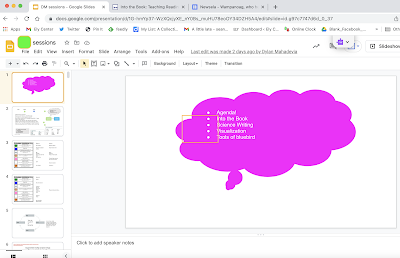
For this session you can see the (1-1) student's Google Slides deck, with agenda and other activities like practice with the EET, reading comprehension practice we are doing with Into the Book, and a Newsela article we would work through with Story Grammar Marker®. Student done, close the window!

Stay Zen, folks!

Friday, July 2, 2021

Lessons from COVID, Part 4: Slide It!

In this series I have been discussing "lessons" from this difficult year: things that helped me get through but also will influence my work going forward back into "normal." One of these is the use of simple visual tools such as Google Slides. I had found Slides useful pre-pandemic as a way to lay out lesson and discussion visuals, but it became more so diving into telepractice. This "lesson" actually has some component parts, so I will letter those!

a. Keep a deck for each session or group: doing so helped with organization, review, and contextual flow. As I supervised graduate students throughout the pandemic, this also allowed for easy digital collaboration through Sharing.


b. Slide 1 is a good place for the agenda, which I always frame with the Social Thinking® concept of The Group Plan.

c) Like this overlaid Shapes>Callouts of thought balloons, Shapes are always your friend in Slides. Add any shape and it can be made colorful via the paint can, and is automatically typable (easier than text boxes) by double clicking in the shape. 

d) Shapes can also be made interactive like I did here applying a great visual about problem solving from Kristin Wiens at northstarpaths.com:


I used the shapes to put a desequenced example (from January 2021) and Remote Control in Zoom to have the students in the group put it in order. You can see that we also linked it to Story Grammar Marker® and Zones of Regulation.

e. As in the agenda above, I'll say it again, no need to type everything out in advance. Often that can be visually overwhelming anyway. I often find a title or frame sets the topic and kids are quite happy to attend and comment as you type!

f. Images are easily insertable on the go in Slides, much like the venerable Pic Collage. Insert>Image>Search the web to work on vocabulary, add a quick visual support or engaging image. Let your students decide (with help) what images go best with the language!


Speaking of images, any slide can be quickly screenshot and shared with parents or others who should know what went on in your lessons.

g. Shapes (again) make great discussion webs or make language visible to foster conversations. Anna Vagin's Conversation Paths slides really saved my life and are modifiable for many contexts. In this case my students asked my graduate student a couple questions to get to know her and the path visuals provided schema, in this case a mnemonic I made up about "people files" (FILE).


h. Lastly, each deck provided me an organizational frame for a group. I'd open a window in Chrome for the group, open the group's Slides, and then use tabs for any resources (e.g. an interactive website) I might be planning to use in the session.

I am looking forward to in-person groups being much less digital, but I am sure Slides will remain an important visual tool for me going forward!

I'll be taking a few weeks off- see you back here in late July!

Saturday, February 1, 2020

Some Tricks to Ease Language Sample Transcription Pain...

I do a lot of language sampling and analysis as part of evaluations- whether a more straightforward speech/language or social cognitive evaluation, it's an essential part of showing current functional strengths and weaknesses. And you know how much I dig narrative.

Periodically, I try to do some searching to see if there is anything tech-wise that can ease what can be some pain within this process. Speech-to-Text (STT) technology, in which a device or some kind of software is used to transcribe spoken language, continues to evolve. Best I know, we still can't play a recording into STT tools (such as those built into a Mac or Google Docs) and have it accurately transcribe. However, I found this idea recently and gave it a try, with nice results. Paraphrasing Leah Fessler of Quartz at Work (thanks for this post!), the steps are:

1. Find a quiet space.
2. Plug yourself in (you may benefit from using headphones with a mic).
3. Open a blank Google Doc (Note: only in Google Chrome)
4. Open the Voice Typing tool (Tools>Voice Typing)
5. Ensure the Voice Typing button appears.
6. Ensure your microphone is turned on and your language is set.
7. Listen to a small portion of your language sample recording (e.g. a sentence)
8. Click the microphone button, and repeat what your client/student said. Remember that you can say "comma" for commas and similar for other punctuation.
9. Turn Voice Typing off as you listen to the next part of your recording (whatever you can hold in your short term memory), then continue, repeating steps 7-9.
10. Watch along as you transcribe and make corrections and additions.


A few tips may be of help:
-I like the Voice Memos app for iPad. If using the app of the same name (this one native to the operating system, so free) on iPad or iPhone, make sure you turn your device Auto-Lock (in Settings>Display and Brightness) to something longer, like 5 min. I notice after auto-locking, my phone's Voice Memos app moves the recording back 20 seconds or so, which is annoying.
-You can use either app's 15 sec forward/back buttons liberally to re-listen or go forward.
-Finally, I think the above steps saved me time and boredom in the transcription process, but I used step 10 extensively. If you have a student with a lot of revisions or repetitions, you'll find you are better off doing a combination of typing and dictating (using dictation with the student's more fluent sentences).

Let me know if you try this and what you think, or if you have other strategies!

Thursday, January 16, 2020

Making Posters (and Puzzles)

Did you know you can take any PDF you have and print it poster-size? And in associated news, anything you make in say, Google Slides, Keynote or PowerPoint can be saved as a PDF, so therefore you can design your own posters about language topics and strategies.

One way I used this recently was to do a post-book activity related to Social Thinking®'s We Thinkers Vol 2 book Size of the Problem. The We Thinkers curriculum volumes target 10 core concepts to think about social interaction in fun and engaging ways that in my experience all students can benefit from. In this book, the characters Evan, Ellie, Jessie and Molly host a birthday party and invite their dinosaur friends. The dinosaurs of small, medium, and big size cause problems corresponding to their size. The book describes how to think about problems according to factors such as how much time they take to solve and if you need help.

The poster creation activity was a natural followup. Using the PDFs that come with the We Thinkers Manual, I printed out the scale in poster size, along with pictures of the problems from the book. These served as attention-keeping manipulatives (in a crinkle-free class) handed out to the kids and then we "assembled the poster." Providing a class with a large visual support gives them ownership of the concept/strategy and reminds their teacher and them to use it!

To turn any PDF into a poster, you'll first want to open it in the free Adobe Reader software on a laptop or desktop. You can follow these directions or the screenshot below to print as a poster. Note that changing the percentage/size will give you a bigger poster or more "pieces." Once it prints, you will have to trim some white to make it all fit together.


Hope you like this strategy!

Considering your professional development schedule? Check out Sean's offerings for training sessions.

Thursday, January 2, 2020

A good app to take self-data

Streaks is an award-winning app (Apple Design Awards) that allows you to keep track of up to 12 good habits/intentions and simply mark on the calendar when you have completed the task (e.g. read for 15 min). The app is designed for the "don't break the chain" concept, but you can indicate how often you intend the habit to be completed so that you still construct a streak.


This type of app would be helpful for us as clinicians who need to practice self-care routines in the New Year (decade). It also would be a tool for use with older clients who may need to practice speech exercises or positive social/language activities.

The same principles could be enacted using Google Calendar as a (free) data-taking tool; the benefits here would include the ability to add more text/data for tracking.


Happy New Year!

Considering your professional development schedule? Check out Sean's offerings for training sessions.

Friday, November 15, 2019

Traveling to ASHA (or otherwise traveling)? Check out these two tools...

For me, planning + situational information = self-regulation + productivity + life is good.

When planning travel, I always TripIt. As you make any reservations and receive your confirmation emails about them, once you have opened a free TripIt account, you can forward them to plans@tripit.com. What results is a sequenced itinerary with flights, hotels, rental cars and other pieces you may have arranged. Simply a lifesaver. TripIt also generally lets you check into flights from your itinerary. You can access it via web or available mobile apps.


Another indispensable tool is FlightAware. Use FlightAware (via the website, which works perfectly well on mobile, but apps are also available for free) to track not only the status of your flight, but if you are super anxious like me, also the status of the INCOMING PLANE (click on Where is my plane now?) Often this information is just not provided to you by airlines, so it is very reassuring. Or sometimes not.


Hope you have a great trip if you are going, and I'd love to see you at sessions 1048, 1338, and or 1836!

Considering your professional development schedule this year? Check out Sean's offerings for training sessions.

Thursday, September 14, 2017

Organize yourself (and maybe others) via Google Keep

In the last few weeks, I started back to work after summer vacation and began my regular consults at several schools. I am focusing on taking better notes--and organizing them. Notes are of course a way we can keep data on students, but providing consultation through a private practice motivates me to provide the best services possible, which in turn means not forgetting nuggets of information that could/should turn into action items for me. Historically I have been a little scattered in this process, using a combo of Mac/iOS Notes, Evernote, Google Docs and, well, actual paper notes. Starting the year fresh, I am trying out Google Keep, and so far am loving it. Some reasons why:

-I am embracing efforts at minimalism, which in this case are satisfied by using one resource (Google Apps) in many different ways.
-Keep looks like Post-its. This is pleasing.
-Within Keep, quickly click or tap to start and title a note. Notes are displayed in an array before you, and as opportunities arise, you can tap out of one note and into another. This is particularly useful in consultation as student names come up and new info is shared, or when running groups.
-Keep allows you to color-code and label notes for organization. Like other Google items, you can share and collaborate a note. Students' work products can be photographed and placed in a note for additional data. You also can make notes contain reminders or checklists.
-I have been keeping one note on each student in my charge and I see options ahead- I could either make these a monthly note or each note can be copied to Google Docs.
-So far I have been using Keep via its web version on the Mac, but there are apps available for iPad and iPhone and other platforms.
-Keep is free with a Google Account and you can log in from anywhere (I got turned off of Evernote when it only allowed you two devices).
-Students may also have access to Keep (or you can request the administrator to "turn it on," and it therefore provides another assistive tech possibility within their existing Google Accounts.


As I am taking notes in the cloud so to speak, I always only put student initials as identifying info.

This video provides a great tutorial from an educational perspective. Enjoy Google Keep if you try it!


Wednesday, August 23, 2017

ASHA LALA Convention and a Tech Travel Point

I was very excited to have two 2-hr seminars accepted for the ASHA Convention in Los Angeles, this year being held November 9-11, 2017. Here are the details so you can add them to your planner if you are interested:

From Wikimedia 

Session Code: 1324
Title: Setting up the Sequel: Pairing Picture Book Series & Apps to Contextually Address Language Objectives
Day: Friday, November 10, 2017
Time: 8:00 AM - 10:00 AM
Location: Marriott Room: Diamond 5
Session Format: Seminar 2-hours PDH(s): 2 Hrs
Abstract: Another “sequel” to this popular presentation with installments at ASHA 2012-2016 describes pairings of book series and apps serving as intervention contexts. The presentation explores research-supported strategies for using picture books in intervention for language development, providing exemplars of contextual book and app pairings serving as visual, interactive post-reading activities.
Topic Area: Language and Learning in School-Age Children and Adolescents
Learner Outcomes:
Learner Outcome 1: Identify language structures and contexts within picture book text and illustrations
Learner Outcome 2: Evaluate apps for key features indicating applicability in language interventions Learner Outcome 3: Describe session plans pairing books and apps based on contextual correspondence

Session Code: 1621
Title: "U Ought 2B in Pictures:" Creating Visual Supports With Apps Across a Range of Interventions
Day: Saturday, November 11, 2017
Time: 8:00 AM - 10:00 AM
Location: Los Angeles Convention Center Room: Concourse 152 (Lvl 1)
Session Format: Seminar 2-hours PDH(s): 2 Hrs
Abstract: Creating visual supports is a process of co-engagement and co-creation that aligns easily with best practices and key methodologies in language intervention. This presentation will model resources for creating simple visual supports via apps, along with examples across a range of treatment areas and ages, including interventions for compliance and self-regulation, vocabulary, syntax, narrative and expository language and social cognition.
Topic Area: Language and Learning in School-Age Children and Adolescents
Learner Outcomes:
Learner Outcome 1: Describe 3 roles of visual supports in language interventions
Learner Outcome 2: Differentiate between co-engagement and co-creation while using apps in visual support activities
Learner Outcome 3: Identify 3 features of apps facilitating ease of use in creating visual supports

My "Tech Travel Point," besides the ones I outlined in this column for the Leader, is that WOW hotels in big cities like LA can be expensive. Even with the convention discounts, the ones in LA were a lot, and I don't care about fancy-shmancy or being in the hubbub of a conference. This summer I had a lot of success using AirBnB for travel in Maine and, finding myself more interested in the "sharing economy," I found lots of options in LA. I'll let you know how it goes with the one I chose!

Tuesday, August 16, 2016

Google Apps: Collaboration, Consultation, and Supervision

The productivity tools contained in Google Apps (Drive, Docs, Slides, etc) are available to many SLPs and students through your school district's likely Google Apps for Education setup, or if not, via a free Google account. I have of late found Google Apps very useful in several ways:

-Collaborating with other professionals in written products such as proposals, presentations and other documents

-Performing consultation activity by asking students to Share select pieces of their work or projects with me

-Supervising graduate students and giving them the opportunity to practice some of the important written aspects of our job (e.g. writing parts of reports or parent communication)

Part of what makes Google Apps so popular is the built-in communication tools that are available around a document or other file. First, of course, you need to click the Share button and make the document available to the other person (or ask him/her to do the same). This allows you to work on the same document in real time without dealing with the mess of emailing different attached versions back and forth.

Commenting is one key way to collaborate on Google Docs. To comment in a document, highlight some text and click the comment icon or Insert>Comment. Your collaborator can dismiss any comments once they have been seen, but the history of comments for that document can always be viewed under the Comments button in the upper right.


I discovered this year that you can change from co-editing a document into Suggesting mode. When working with grad students or clients on a document, this enables you to put more explicit feedback into the document. 


The other person will see this annotation in the document and via a corresponding comment, can accept or dismiss it. 


I hope this year you will find these features of Google Apps useful when working with other professionals, students, or graduate interns. Keep in mind that Google Apps does not offer guarantees of confidentiality, so it is best to avoid using full names when writing evaluation reports or other sensitive documents. They can always be downloaded (File>Download as>Word) and edited to add personal information such as full names, birthdates, etc.


Friday, May 20, 2016

ICYMI

...In Case You Missed It!

In the past months I have continued writing columns for ASHA Leader. A few that have been published for the web version of the magazine:

Tech Your Message Out: Private practitioners can tap easy-to-use tools to better communicate with staff, clients and families.

It’s All About Your Client: Harness the Book Creator app to make treatment relevant to your clients’ lives.

Apps That Help Teach Social Perspective: Illustrative apps can augment established approaches to helping children on the spectrum understand the social world.

I have been happy to receive a lot of good feedback on this last one. I plan to break it down with some video tutorials in the next few posts.

These column links have been added to my column archive on my FIVES Criteria and Other Free Resources Page.

I have also continued to write for the Mindwing Concepts, Inc Blog, and a few of my recent posts may be of interest:

Tech Tuesday: Chapter books and stick writing, A complementary visual strategy

Tech Tie-Ins to Autism Awareness Month

Tech Tuesday: Using emoji in narrative analysis

Opening a new chapter: Tech strategies for getting/using the context of chapter books

When the characters are a whole classroom of students: Some high and low tech tips

Aligning SGM® with Zones of Regulation®, and Tech Tie-Ins

Have a great weekend!

Note: Author is a paid consultant for Mindwing Concepts, Inc for provision of blog and training presentation content.

Friday, May 22, 2015

Online Clock for Executive Function Skills

I had the privilege recently of co-writing a column with Super-Executive-Function-Specialist Sarah Ward for the ASHA Leader. As many of you know, I have been a fan of her approaches for many years, and find her language-based and practical concepts for teaching kids how to be aware of situations, plan, monitor time, and develop self-awareness within these process to be useful for many populations we serve: the academically challenged "LLD" kids, students with social learning issues, and the straight-up "disorganized" kids. In the article, Sarah and I describe resources for getting regulated, planning, and time tracking, and link these to models Sarah and her colleague Kristen Jacobsen describe in several recent SIG Perspectives articles. You can view the article here.

One strategy Sarah and Kristen developed is the use of an analog clock as a tool to assist in self-monitoring and task execution. Generally a glass-faced, tickless (to reduce distraction) analog clock works best. As Sarah and Kristen describe it:

Using a dry erase marker on a clock with a glass face, students sketch the total “pie” or amount of time they estimate they would need to achieve the future picture. This enables students to see the volume of time available. On the clock, students also use the dry erase marker to create time markers: a starting time, an ending time, and midpoint check in (Ward and Jacobsen, 2014).

Using this approach with small groups, classrooms, and individuals alike can help the student to:

  • Learn to make better guesses about time needed for tasks
  • Monitor himself within that time period for distracted behaviors and pacing
  • Reflect after a task on how he actually did, compared to his plan

One problem is that glass-faced, tickless analog clocks aren't as easy to find as one might think (and if you write on a plastic-faced clock with dry-erase marker, it doesn't completely come off. Sarah and Kristen's practice, Cognitive Connections, sells great clocks on their website, but I am always looking to have more around. Recently I was in a classroom where Online-stopwatch.com was being displayed on the interactive whiteboard to help kids monitor themselves within a time allotted for a task, and I realized that the website features an analog clock! This is a great tool if you are using an interactive whiteboard that has software associated (e.g. Smart Notebook) to allow you to "draw" on the clock. However, it can also be used in the same way described above with a laptop and the Google Chrome browser (sorry, I don't have an iPad solution for this yet, besides the resources described in the ASHA Leader, and Online-Stopwatch.com is based in Flash, so it does not work on an iPad). For me, at times the analog clocks we have in our practice are being used, but I always have my laptop with me!

So here's how you do it:

1. Using the Google Chrome browser, navigate to the Chrome Web Store and search for the free extension Page Marker. This allows you to draw on any webpage.
2. Navigate to the Online Clock and click on the link to view it full screen (this eliminates some of the ads).
3. I found it helpful to add the link to the full-screen analog clock to my Bookmarks Bar so it will always be available.
4. Once you have added the Page Marker extension it will appear as a small red "marker" button in the upper right of your Chrome window. Click on it and you will be able to draw on your clock, like so:


Page Marker does allow you to change colors, but not use different colors within the same annotation. But it's a start. Enjoy your long holiday weekend!

Ward, S, & Jacobsen, K. (2014). A clinical model for developing executive function skills. SIG 1 Perspectives on Language Learning and Education, 21, 72-84.

Wednesday, October 22, 2014

Get CALM

October is tough for me. I live in the Northeast (in a location that is in a questionable time zone), and have a touch of seasonal affective disorder, so fall isn't the best time. Mums, hay bales, scarecrows, apples and pumpkins, while triggering joy for most in the area or those who travel here specifically to see those things, bring about the rather the opposite in me. I deal.

One of the strategies that has been of great use to me in recent years is incorporating mindfulness and cognitive-behavioral therapy techniques in my daily life. We all have the experience of encountering our email or a potentially stressful IEP meeting and being overcome by thoughts of RISK, rather than OPPORTUNITY. In my own life and work with clients, it has been helpful to channel my already brain-based inclinations and apply them to myself in simple ways. Though technology has been rightfully sited recently as a culprit in increasing anxiety and counteracting mindfulness, it can also give an assist by bringing us content that helps us work on being aware of our thoughts, relax and be more effective in our work. These tools can in turn provide a good context for "check-in" activities with clients and discussions of mindfulness that can be very language-based.

I have written about a variety of tools in this vein, but in this post I wanted to point out Calm. Navigate to calm.com and your browser turns into a serene scene with the option of simple timed or guided meditation. Even 2 minutes--which there is an option for--is helpful and is a good step for training your brain or just being calmer in the moment. Consider saving it to your bookmarks bar for a visual reminder to practice, putting your browser into full-screen mode and closing all tabs to eliminate any possible distractions for a few minutes.


Also check out the free Calm app for iOS, which offers a similar experience.


For another take on this practice, see SLP Kim Lewis' recent post at Activity Tailor. 

Thursday, May 29, 2014

Canva- a great resource for flyers, strategy cards or other therapy visuals!

A number of great webtools have become defunct in recent months (bye, xtranormal, and see ya, Kerpoof, sniff sniff), so it's great to see that useful websites are still being developed. Canva premiered in the past year as a tool to make design accessible to everyone.  Canva is free (some backgrounds or stock photo options available at cost) and a super-easy way to make a snazzy visual: a flyer for your services, event, or practice news, an appealing reminder to use a particular language strategy (concepts from Social Thinking® spring to mind) or a creation tool to make a poster emphasizing "language underpinnings" of a curriculum topic.


Note: Canva is NOT accessible on iPad currently. Messages on the website indicate this is coming in the future.

Canva promotes itself as "Amazingly Simple" and it is! Select a layout or background (or both), add and edit your text, and insert photos (many stock options cost $1, or add your own photos or digital drawings). Your product will be linkable or downloadable as an image or PDF.

Canva contains some specialized options: for your social media peeps, you can make blog images, Pinterest-friendly pics, Twitter or Facebook cover images, and more.


Our bulletin board- filled with Canva-produced announcements!


What visual do you have of using Canva? Let us know in the comments!

Wednesday, April 17, 2013

Elaborating on Evernote

In an April column for The ASHA Leader based on some recent consultations in the Boston area, I mentioned the tools offered by Evernote and their potential for helping a variety of students with learning difficulties. I have also mentioned Evernote in the past as a productivity tool and the wonderful Meghan Gallahan Graham of all4mychild wrote a guest post here about her use of Evernote some time back. Since the App-titude columns are meant to present a number of ideas in short format, I thought it would be worth talking about some of the free Evernote tools here with a little more elaboration.
We'll start with Evernote itself, a sort of catch-all note taking and idea capturing tool (free for pretty much every platform and on the web). I'm not as much of an early adopter as people think I am, and though Evernote is pretty entrenched and mature, I started REALLY integrating it into my work in the past year. The idea of Evernote is, naturally, a place to add notes. BUT, until an update sometime in the last 6 months or so, you could not organize those notes into Notebooks on the mobile versions- you had to make the notebooks in your web account. This limited my use of it somewhat, and I am really glad that feature is now in the iOS apps. This is yet another example of why it's important to know a little bit about what your Updates contain- they might transform an app from marginally useful for you to very useful.


Given this new(er) Add Notebook feature, here's what I have been doing with Evernote of late:

-I do a lot of classroom observations and I like to use Evernote so that my information is organized in notebooks for the location or student. I DO NOT put the student's name or any specific information into Evernote, as it is a web-based tool and its password-protection is not considered strong enough to ensure confidentiality. It is simply a tool to record my thoughts and observations using initials and vagaries, and when I need to put that information into a specific report, I can easily copy and paste from the Mac version of Evernote I have installed on my computer into a more secure tool such as a word processor.
-In a few tech-based consults for students, they have been very interested in using their device to start to take notes. They often start this by using the built-in iOS notes, and then it has been (usually) easy to help them see the value of Evernote, which of course has Notebooks and is searchable. Unlike Notes.
If your life were one giant legal pad, could you keep it organized? Plus, OH the skeuomorphism!

-Lastly, Evernote is super-useful for general meetings and professional development. I recently attended the Social Thinking Clinical Training in San Jose- great experience!- and, without extra paper, ALL my notes from those three days are in a notebook in my Evernote account.

In my next few posts, I will be talking about some other free tools that integrate with Evernote.

How about you? Are you using Evernote or something similar?

Friday, April 5, 2013

iPad Essentials: Accepting Folders

I like icons.

I think it is one of the things that we all like about the iPad. App icons have a visual appeal that tends to stick with us, and we sometimes even look more closely at an app and consider buying it because of the icon. At least I do. It's like app fashion.

So, for a long time I resisted any significant use of folders on my iPad screens, and as a result, my iPad(s) became a total hot mess.

The issue is that you have a maximum of 11 screens of icons that will be displayed on your iPad. As you may know, this does not mean that you can only install 220 apps on your device.  The number of apps you can install is completely dependent on the capacity of your iPad (16, 32*, 64 and now 128G), the size of the apps you install and whether you also have a lot of photos, video or music on the device.

So, as you fill up those screens and enjoy the bright icons, you can always rely on the Spotlight search to help you find an app, which is what I did for some time.  However, once the 11 screens are filled, it can get a bit dodgy. Apps will still install of course (if you have space), but you will maybe forget that they are there.  When you do what I do, you have a lot of apps on hand, but even for the less insane people, we should try not to forget about relevant clinical tools that can become hidden in the netherspace of our iPad's brain (but are still searchable in Spotlight and listed in your Usage/Storage area of Settings).

I finally had to embrace folders in order to feel I had a better sense of my catalogue. There is a way to arrange all of your app screens, including the netherspace apps, by connecting to iTunes and clicking and dragging them all around from these grayed-out netherspace screens, but I found that cumbersome. Which is probably why I avoided the task for so long.

So here's what you do if you have a hot mess iPad with 11 full screens:

1. Take a look at your screens and start to conceptualize what your schema for categorizing them will be. You are an SLP (probably, if you are reading this), so you should be good at this. Keep in mind you can always change it up.

2. Start putting apps in folders. Succinct naming of folders is important, as folder names can only be so long before they get truncated in their center. So, your attempt to name a folder "Apps I like to use during 4th block" will result in a folder that actually is labeled as such:


3. Move each folder to screen 1 or 2 of the iPad and organize the folders alphabetically. This really helped me begin to process the overwhelmingness of it all.

4. If you have pretty broad categories, remember that each folder only holds 20 app icons.  No biggie, just add a 2 for the next one, 3 if you need another, though if you go beyond that you might want to consider more specific subcategories!

5. Soon you will start having empty space on your screens, because you have categorized many apps. How do you get the apps from the netherspace to show up? RESTART your iPad and they will pop up in the empty spaces! I did not know this! It was a glorious revelation.

6. Repeat until your iPad is much less crazy-making.

I have come to accept folders and realize that they facilitate my Zen, going from 11 screens of this kind of nonsense:


To this:


...which probably could be improved, but is much better and more of an example to the groups of people I work with on iPadness. AND, when you tap on a folder, you can still admire the icons inside.

As a side note- since I have a backup iPad for presentations, once Alpha iPad was pretty much set, I backed it up to iTunes by plugging it in to my Mac. I then plugged Beta iPad in and restored it from the iTunes backup of Alpha iPad. Note: if you do this, you will lose data stored in apps and photos etc. on the iPad you are wiping and restoring, so don't do that if it matters to you. Also, all the apps didn't come over for some reason, but the folders did, so that was great.

For some great posts on foldering, see Consonantly Speaking.

*If you are tempted to ask me which size iPad to buy, fair question. I'd recommend at least a 32G at this point. You will fill your 16G rather quickly, and there is no way to add memory to an iPad. Megan Sutton wrote more about this recently.

Tuesday, January 29, 2013

Apple on Google: Gmail


Last week I posted about the valuable role of the iOS mail app. In more of a philosophical note on email, I like to compartmentalize my accounts. Particularly on my iPhone, I don't like to have my happiness disturbed by a work-related email while checking my personal Gmail for Facebook notifications or other enjoyable nonsense. The fact that the iOS Mail app automatically checks all of your added accounts, and can blend them into a All Mailboxes feed, makes it difficult to avoid such disturbances. So, instead of adding those work accounts, which in my case are also Gmail-based, to the Mail app, I prefer the Gmail app (free), which just got a very nice makeover from Google. In this way, I have to deliberately rather than accidentally check those email accounts. Not that my work is that stressful, I actually love it, it's just important to be present in the other aspects of life.


The new Gmail app has been praised for its minimalist design and light font choices, and it is indeed pretty pleasing! I also like that you can easily sign in from multiple accounts and switch between them.

The Gmail app. Facilitating my Zen. Except when I cave to an impulse to check it at the wrong time. 

Thursday, January 24, 2013

iPad Essentials: iOS Mail App

The iOS Mail app is one that some avoid- perhaps not knowing how to use it, having privacy concerns or not seeing the reason why it is useful. I do find it an essential app for the purpose of file transfer, and often recommend that people at least add one account to Mail, even if its an account you create just for file transfer to and from your iPad. There are many iPad apps that allow you to share what you have created with the app; you might be interested in doing so to share with parents or colleagues or to email an item to print it from an account on a laptop or desktop. You would not be able to share this way unless there were an account added to the Mail app:

The Share button in the Photos app leads to this menu, from which you can email the photo (in this case an annotation in Skitch)
Additionally, as I have discussed here before, sometimes it is useful to email files TO your iPad, such as PDFs.  The process of accessing and opening such files is MUCH easier from the Mail app as opposed to navigating to your webmail in the Safari app.


So, how do you add an account to the Mail app? Open Settings, then Mail, Contacts, Calendars:


This screen also allows you to delete any accounts you have added.  Simply tap the account in question and there is a Delete Account button on the following screen.

To add a new account, tap Add Account.  The app makes this simple for us by allowing us to access protocols for common email providers:


Simply put in your username, password, and other simple information requested (name on account, name on account, e.g. "My Gmail") and you are all set.  Next time you go to share an item from an app, it will come FROM that account. If you want to move a file TO your iPad, mail it to that account and check your email in the Mail app.

Tuesday, January 22, 2013

Google on Apple (sort of): Calendar via Calendars by Readdle

Over the years, I don't know how many years exactly, I have discovered that I have a bit of a temporal concept problem. When communicating with others about dates and times, I constantly make mistakes. Wrong date, wrong time, wrong amount of time. When making plane or hotel accommodations, I have to sloooooow wayyyyyy dowwwwwn to ensure that I have the right dates, so I don't arrive someplace and have no reservation until the following day. Which I have done. At least twice. Interestingly enough, I am never late and rarely miss an appointment, but I think this is cause I am so terrified of doing so that I check everything 768 times.

For this reason, among others including some syncing problems, the iOS calendar just doesn't do it for me.  On both iPhone and iPad, it doesn't give me enough visual information to keep track of what is going on in my life. Especially not on iPhone, where if you have an appointment on a particular day, this is indicated by a non-eye-catching dot.

Dots are lame.

The iPad version gives one a bit more information, but I can't get over the skeuomorphism. Leather binding and torn paper are kinda goofy in a digital interface:


When I switched to a more open schedule this year, keeping track of my calendar became even more critical.  At an IEP meeting on a case I was consulting for, I saw that the director was using a colorful, very visual calendar, and probably too eagerly asked him what it was. Calendars by Readdle (currently $6.99 and very worth it) syncs your Google Calendar and very much mirrors the interface of Google's pretty powerful scheduling tool.  I love not only the look and feel but also the ease of use- tap the plus sign to add an appointment and all details, tap and drag to move the appointment (which, by the way, iOS calendar does not let you do). The app also naturally lets you see any calendars that have been shared with you (great for knowing where my cohorts are going to be) and displays the tasks list you access in Google Calendar as well, so I have my to-do's there! Check it out if you like Google Calendar, or consult on students who could benefit from visual calendars.


Thursday, January 17, 2013

Google on Apple: Google Drive

While not the most fun-loving of Google's offerings, Google Drive is potentially hugely useful to all humans, including SLPs. This resource, formerly known as Google Docs and now confusingly renamed, allows you to upload documents, images and PDFs, and edit documents and spreadsheets (presentations and drawings too in the full web version) solo or collaboratively. The renaming of this whole shebang as Drive was timed with the addition of a downloadable app for Mac/PC that syncs to your account and keeps all the files on the computer as well. I ignore this feature and go on using Docs as I used to do. Dropbox is still the standard for the kind of file sharing this computer-lab-havoc-wreaking sync function Drive aspires to achieve.

"Docs," still of course a function of Drive, is a tool I have found myself utilizing as part of my direct and consultative services in all sorts of cases. It's a great way to share a graphic organizer with a student so he can access it electronically when getting down to writing. Additionally, it's a means to nudge a student toward some order in his organization of materials and workflow, as it allows you to access work from any computer or device, organize materials into electronic folders within one's (free or institutionally assigned) account, and share with other students, teachers or parents without the need for messy file attachments and emailing, all major pitfalls for our students.

Google Docs has historically not played well with iPad, but that situation is definitely improving with the Google Drive app released this past Fall. This free app gives you access to any Google Drive account, where you can upload/edit documents and spreadsheets (not presentations), organize by folders and manage sharing of files.

Google Drive app for iOS


Google Drive can be even more useful because, when installed, it will appear on the Open in menu. Here you see a graphic organizer I created on paper with a student to help map out his writing assignment. I used the DocScanner app to scan it, and sharing options include Open in (PDF) Google Drive.  This saved the visual support to his Drive account so he could access it when completing the writing assignment.  

How do you find Google Docs/Drive useful in your practice.  Let us know in the comments.


Saturday, December 8, 2012

Notice.

People may mistake my enthusiasm for the potential of technology with a desire to spread the message that our lives, both work and personal, should be tech-infused all the time.  Though I struggle myself with balancing high- and no-tech, and there's the whole "those who can't do..." thing at work here, I wanted to take a moment to acknowledge how important it is that we regularly Notice our analog friends, family, neighbors, and, of course, students. Erik Raj recently wrote a wonderful post on tuning in to the parts of our job that make us happy, and you should check it out.

On my part, this post may seem out of the blue, but I do have a Zen streak to me, and I was actually inspired by two TED talks I watched at the gym this morning.  If you don't know about TED (it stands for Technology, Entertainment, Design), it is a series of events in which people from all disciplines give short, inspiring talks.  It is also, naturally, an app and website. TED really gives us a LOT to think about, and certain talks could also serve as a therapy context given their real-world and multimodal nature (a good opportunity to use graphic organizers to break down information).

Don't think I don't recognize the irony and contradiction of writing a post that advocates for focusing on the present moment related to the use of an app, all prompted by my utilizing said app while working out (hey, it was a warmup). Also, as I was writing this post, and I am not kidding, my mother called me, I received a text from a friend, a Google Chat message from a different friend because I had that open in a tab, and both a Facebook and Twitter notification, all at the same time.  Couple solutions: don't have multiple tabs open in your browser, and minimize notifications so you can check services when you want to, and not be constantly interrupted by them (one example). Anyway, despite all those levels of concentration/distraction, the meaning got through to me, and I hope these two brief talks are meaningful to you as well.


(Google Reader or email peeps, please click through to the post to see the videos)
 
.