Following up on my last post on the "Toca Life" open-ended sandbox-style apps, I recently read a "Clinical Focus" article in American Journal of Speech-Language Pathology and thought it shed light on how these apps (and others) can be used in context in therapy. Fey, Long, & Feinstack (2003) sought to outline "Ten Principles of Grammar Facilitation for Children With Specific Language Impairments" with research tie-ins relevant to all ages, but particularly for ages 3-8. This is a great article for any SLP or language interventionist to read, but I wanted to present it with ideas related to the principles being used in context, in particular the features and content of the Toca Life Apps.
So, the principles and some ideas:
1. The basic goal of all grammatical interventions should be to help the child to achieve greater facility in the comprehension and use of syntax and morphology in the service of conversation, narration, exposition, and other textual genres in both written and oral modalities.
This principle asserts a general philosophy of intervention, but for me speaks to the kind of functional communication that can be elicited through conversation and play around an app such as Toca Life: City or Toca Life: Town, and the student's greater enjoyment of communication situations hopefully as a result of that intervention.
2. Grammatical form should rarely, if ever, be the only aspect of language and communication that is targeted in a language intervention program.
The authors assert that students with grammatical impairment rarely have this as their only communication problem, and that grammatical intervention alone does not always impact other areas of deficit. Toca Life apps allow for targeting of multiple goals including categorization (say, in the store or home), sentence formulation and storytelling in the context of the app.
Looking for a healthy meal, the man can lay out or collect different fruits and vegetables in the Toca Life: Town store.
3. Select intermediate goals in an effort to stimulate the child’s language acquisition processes rather than to teach specific language forms.
An example given in the article is the targeting of nominative case pronouns as a class rather than individually.
Have a party in the Toca Life: Town or City loft apartment to emphasize what I, you, we, and they are doing.
4. The specific goals of grammatical intervention must be based on the child’s “functional readiness” and need for the targeted forms.
i.e. Pick targets in the child's zone of proximal development that reflect a pragmatic need for their use in daily life.
5. Manipulate the social, physical, and linguistic context to create more frequent opportunities for grammatical targets.
6. Exploit different textual genres and the written modality to develop appropriate contexts for specific intervention targets.
This is where I think such apps provide a great tool. Of course we should manipulate low-tech contexts for language targets, but apps that have many open-ended contexts make this manipulation quite easy. AND they serve as a different "genre" to work from, along with picture books, one of my other favorite tools.
Toca Life: City has a world of contexts. Just think of all the action words that can come from a theatre!
More specifically regarding the manipulation of contexts, the authors indicate:
...making a peanut butter sandwich could be an excellent activity for a child working on negative forms. Instead of typical ingredients, however, the clinician might have on hand things like noodles, cheese, dog food, or even a pencil, as ingredients for the sandwich. Such unlikely choices will create opportunities for sentences like, “You can’t eat that,” “That wouldn’t taste good,” or “We don’t need noodles/cheese/hot dogs.” When the proper ingredients are used and the activity has been completed, recapping the entire process can create numerous obligatory contexts for the target forms in a very short time.
Clinician: “We used/ate/needed peanut butter. We also used cheese.”
Child: "No, we not use cheese.”
Clinician: “Right, we didn’t use cheese. What about dog food?”
Note that Toca Life: Town's cafe lets you complete "recipes" (see the wall or here). Silly items to prompt negative forms can be used from the cafe itself or brought in characters' hands from other locations.
7. Manipulate the discourse so that targeted features are rendered more salient in pragmatically felicitous contexts.
"The most straightforward way to increase the salience of grammatical intervention targets, especially grammatical morphemes, is to stress them by making them longer and louder and producing them with more dynamic pitch changes."
Don't put her IN the bed! She should be OUT of bed.
The kids are playing cars BECAUSE it is fun.
8. Systematically contrast forms used by the child with more mature forms from the adult grammar, using sentence recasts.
Re: the above scene-
Adult: What happened?
Child: The girl eat the cake.
Adult: Yes, the girl ate the green cake.
9. Avoid telegraphic speech, always presenting grammatical models in well-formed phrases and sentences.
10. Use elicited imitation to make target forms more salient and to give the child practice with phonological patterns that are difficult to access or produce.
#9 is a good reminder, and #10, noted as an "intrusive" practice for social interactionists, is described to be effective in situations where targeted forms are used pragmatically and contrastively, for example, prompting "Say, 'She will play the game,'" followed by "Say, 'She played the game,'" after the action is performed in the app.
As a context clinician (it's what makes it fun!), I really appreciated the authors' references and examples in this article. Check it out for more information.
Fey, M. E., Long, S. H., & Finestack, L. H. (2003). Ten Principles of Grammar Facilitation for Children With Specific Language Impairments. American Journal Of Speech-Language Pathology, 12(1), 3. http://doi.org/10.1044/1058-0360(2003/048)
Thursday, September 17, 2015
Friday, September 11, 2015
Toca Life: City Adds Screen Recording
Toca Boca, long one of my favorite developers of contextual digital toys, has added a powerful feature to one of their already very useful apps- Toca Life: City ($2.99 for iPad). The Toca "Life" apps allow you to move characters around interactive environments; in this app, that includes a loft apartment, theatre, food park, hair salon and mall. Characters can pick up and interact with objects in each setting and even move from place to place with objects as you act out dramatic play sequences. These features in Toca Life: City have been enhanced with the addition of screen recording-- this captures the movement and records audio as you and students speak in order to create an animation. The animation can be immediately replayed, but also saved to the camera roll for later review or even sharing!
After rehearsing or storyboarding a "scene" with your students (further emphasizing your language and social targets), just tap the film icon in the upper left corner and begin recording.
Though the Toca: Life apps (see also Toca Life: Town) provide great opportunities to target play skills, cooperation and social cognition, and language targets such as sentence formulation, microstructures such as verbs and pronouns, as well as overall narrative, the screen recording feature can make this work more salient, with auditory feedback on student performance.
That this feature was added recently again underscores the importance of running and reviewing the contents of your app updates, which can be done in the App Store app Updates tab which provides text descriptions of changes within apps.
After rehearsing or storyboarding a "scene" with your students (further emphasizing your language and social targets), just tap the film icon in the upper left corner and begin recording.
Though the Toca: Life apps (see also Toca Life: Town) provide great opportunities to target play skills, cooperation and social cognition, and language targets such as sentence formulation, microstructures such as verbs and pronouns, as well as overall narrative, the screen recording feature can make this work more salient, with auditory feedback on student performance.
That this feature was added recently again underscores the importance of running and reviewing the contents of your app updates, which can be done in the App Store app Updates tab which provides text descriptions of changes within apps.
Thursday, September 3, 2015
Do We Have a Subscription to...(Part 2)
In the last post, I discussed how the beginning of the school year is a good time to acquaint yourself with any technology resources offered by your school district, as many do not realize the benefits subscription-based services can provide.
While BrainPOP, described in the last post, is accessible by an affordable monthly subscription even if your school doesn't have it, ExploreLearning's Gizmos are more of a district investment. I would, however, encourage individuals to check it out via the free month trial, if only for exposure for how interactives connect with language. ExploreLearning (accessible also via a new iPad app once you obtain the trial login) provides interactive activities called "Gizmos" that show the sequential, cause-effect, and conditional relationships in science topics (e.g. tides, flower pollination, forces). The activities are open-ended and meant to be constructivist and inquiry-based, leading students to ask questions and draw conclusions, which is facilitated by printable "Student Exploration Guides" for each Gizmo. Again, I'd encourage you to check it out or take advantage of it if your school offers the service (my middle school did). If you save the guides, the language-based questions provide a good model for questions you can ask when using interactives such as the free ones available at BrainPOP GAME UP or learningscience.org, as well as for apps such as MarcoPolo Weather. Overall, this type of interactive provides a visual contextual support for you to target objectives around description, sequencing, and cause-effect, while providing students (particularly upper elementary, MS, and HS students) additional review of classroom topics.
ExploreLearning's Gizmo on Tides and its Exploration Guide prompts knowledge-activating questions, observation and cause-effect statements about the relationship between the moon and tides, and would be useful when students are studying topics such as Earth, Sun and Moon.
While BrainPOP, described in the last post, is accessible by an affordable monthly subscription even if your school doesn't have it, ExploreLearning's Gizmos are more of a district investment. I would, however, encourage individuals to check it out via the free month trial, if only for exposure for how interactives connect with language. ExploreLearning (accessible also via a new iPad app once you obtain the trial login) provides interactive activities called "Gizmos" that show the sequential, cause-effect, and conditional relationships in science topics (e.g. tides, flower pollination, forces). The activities are open-ended and meant to be constructivist and inquiry-based, leading students to ask questions and draw conclusions, which is facilitated by printable "Student Exploration Guides" for each Gizmo. Again, I'd encourage you to check it out or take advantage of it if your school offers the service (my middle school did). If you save the guides, the language-based questions provide a good model for questions you can ask when using interactives such as the free ones available at BrainPOP GAME UP or learningscience.org, as well as for apps such as MarcoPolo Weather. Overall, this type of interactive provides a visual contextual support for you to target objectives around description, sequencing, and cause-effect, while providing students (particularly upper elementary, MS, and HS students) additional review of classroom topics.
ExploreLearning's Gizmo on Tides and its Exploration Guide prompts knowledge-activating questions, observation and cause-effect statements about the relationship between the moon and tides, and would be useful when students are studying topics such as Earth, Sun and Moon.
Labels:
apps,
assistive technology,
categories,
cause-effect,
concepts,
context,
curriculum connections,
description,
HS,
MS,
science
Friday, August 28, 2015
Do we have a subscription to...? (Part 1)
I hope you have all had a great and restful summer! I had one for sure, with great trips to Cape Cod, England, Ireland, Scotland, and the Los Angeles area...hence the quietness of the blog.
An important question you can ask as you start your year pertains to the accessibility of certain education-based services that you may not have thought of as relevant to language instruction, but definitely are useful! Many school districts or schools invest in such subscriptions to bolster the resources of the schools, and you may have overlooked that email reminding you of their availability. I am speaking specifically of resources such as BrainPOP, Reading A-Z and ExploreLearning. So ask your librarian or IT Specialist!
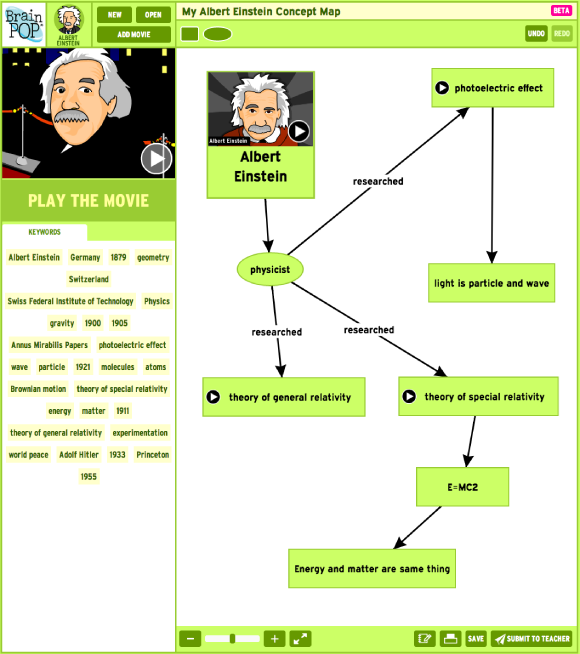
I have long discussed BrainPOP as a useful tool for SLPs and language teachers. BrainPOP (gr 3+) and BrainPOP Jr. (K-3) are catalogs of short curriculum-based animated videos, featuring Tim or younger Annie along with their robot companion, Moby. Both resources are accessible on the web (at BrainPOP and BrainPOP Jr.) and through free iPad apps: BrainPOP Featured Movie and BrainPOP Jr. Movie of the Week. Limited free content is available on the apps and website (which also features terrific links between movies and educational standards, as well as educational interactive games, many of them fodder for language activities). If you have a laptop available, the website has also added this terrific make-a-map activity allowing you to easily construct a semantic map to show the connections between the language and concepts in the specific film. Your experience will be vastly improved if you have a subscription as you will be able to use more films to "sync" with the classroom curriculum or review topics you know your students have been covering in class.
What exactly does BrainPOP have to do with language instruction? Thought leaders in our field such as Barbara Ehren encourage us to use curriculum touchpoints (no, not all the time, not necessarily at the same time as the classroom, and not as tutors or curriculum specialists) as a context for working on students' language goals. BrainPOP makes it easier to set that context, while engaging the student. You could follow up a BrainPOP movie with:
-creating sentences from a wordsplash you create as the movie is playing
-using graphic organizers that emphasize expository text structures
-vocabulary work with tools such as the Expanding Expression Tool
-making a collage with PicCollage emphasizing sentence formulation, abstract categories, and description of the topic.
-among many others...
Check out BrainPop, and you can always subscribe for a fairly low cost within either app. Make sure you know how to turn off recurring in-app-purchases.
An important question you can ask as you start your year pertains to the accessibility of certain education-based services that you may not have thought of as relevant to language instruction, but definitely are useful! Many school districts or schools invest in such subscriptions to bolster the resources of the schools, and you may have overlooked that email reminding you of their availability. I am speaking specifically of resources such as BrainPOP, Reading A-Z and ExploreLearning. So ask your librarian or IT Specialist!
I have long discussed BrainPOP as a useful tool for SLPs and language teachers. BrainPOP (gr 3+) and BrainPOP Jr. (K-3) are catalogs of short curriculum-based animated videos, featuring Tim or younger Annie along with their robot companion, Moby. Both resources are accessible on the web (at BrainPOP and BrainPOP Jr.) and through free iPad apps: BrainPOP Featured Movie and BrainPOP Jr. Movie of the Week. Limited free content is available on the apps and website (which also features terrific links between movies and educational standards, as well as educational interactive games, many of them fodder for language activities). If you have a laptop available, the website has also added this terrific make-a-map activity allowing you to easily construct a semantic map to show the connections between the language and concepts in the specific film. Your experience will be vastly improved if you have a subscription as you will be able to use more films to "sync" with the classroom curriculum or review topics you know your students have been covering in class.
![]() |
| Image via brainpop.com |
What exactly does BrainPOP have to do with language instruction? Thought leaders in our field such as Barbara Ehren encourage us to use curriculum touchpoints (no, not all the time, not necessarily at the same time as the classroom, and not as tutors or curriculum specialists) as a context for working on students' language goals. BrainPOP makes it easier to set that context, while engaging the student. You could follow up a BrainPOP movie with:
-creating sentences from a wordsplash you create as the movie is playing
-using graphic organizers that emphasize expository text structures
-vocabulary work with tools such as the Expanding Expression Tool
-making a collage with PicCollage emphasizing sentence formulation, abstract categories, and description of the topic.
-among many others...
![]() |
| BrainPop has an eye toward expository language, often presenting elements of the topic as visual lists, sequences, or cause-effect relationships. |
Wednesday, August 5, 2015
O*Net Online- Help Students to Look Forward
O*Net Online is a resource introduced to me by a vocational coach and I have found a number of uses of it since then. Sponsored by the U.S. Department of Labor, the site features career interest questionnaires and lists of skills, work activities, and equipment for different professions.
Skills needed for Video Game Designers:
The site is therefore a great tool for working with older students (MS, HS, young adult), for designing specific language activities that will facilitate buy-in, insight and development of their professional goals.
I recently shared with a colleague whose student was resisting "coming to speech" and she was able to discuss with him the communication skills needed to succeed in his desired occupation, which helped him build rationale around their work. She then included video clips from YouTube about the job, which provided further visual support and context to work on language.
The site is accessible at the link above and works nicely on computers and mobile devices.
I will be presenting in the Washington, DC area in September for the Center for Communication and Learning, LLC- hope to see some of you there! Click here for details.
Labels:
adults,
association,
behavior management,
categories,
cause-effect,
context,
executive function,
HS,
life skills,
MS,
planning
Tuesday, July 21, 2015
Video Modeling and iMovie (Part 2)
In my last post, I reviewed (briefly) a meta-analysis (Bellini & Akullian, 2007) supporting video modeling (VM) and video self-modeling (VSM, the difference being that the student or students are included in the video produced to promote the use of the target behavior). In the study, the authors recommended the therapeutic technique of storyboarding targeted interactions before videoing students, which is also supported in literature describing interventions for social and executive functioning (Ward & Jacobsen, 2014).
The authors also highlighted the technical skill that was needed to produce and edit personalized videos. In 2007.
In 2015 (and for a few years back), it is not at all as hard to produce and edit video clips, because we have iMovie for iOS. Now, I originally taught myself iMovie about 14 years ago on the Mac, and it was quite a chore. After shooting video or compiling photos somewhere else, often a comparatively small but still clunky DV camera, you had to import the video (in real time) and use a complicated interface to edit it. iMovie for iOS (Free if you have purchased an iDevice after Oct 2013, otherwise $4.99) still has a bit of a learning curve--but the fact that you can shoot and edit by touch all on the same device goes a long way toward making these techniques accessible to our profession. Note that you can do much of the below on an iPod or iPhone as well, though the small screen will make it a bit trickier.
I had a great time with a group at Nova Southeastern doing an interactive demo session on iMovie recently--I'd like to make this a habit! As a group, we discussed the study mentioned above and decided on a task that I could be "prompted through," as an organizer recorded me and another gave me some cues when I "forgot" a step. We decided on something simple--pushing in a chair after leaving a table!
When you open iMovie, you begin by adding a new project, as in many other apps with the + symbol. iMovie has this great interface where you can create a Movie Trailer, but in this case we select "Movie."
Once you have created a project, you can add video previously shot from your camera roll, or tap the camera to record directly into the timeline (the area used to build and edit the project). In this case we just added the recorded single clip of my being prompted to stand up and push in the chair!
Once the clip is added to the project, you'll want to navigate to any segment you want to edit, such that the play head (white line) is over the beginning or end of the segment. In this segment, the person to the side was giving me a verbal prompt we wanted to edit out. Be sure to tap the clip so it is highlighted in yellow, then tap Split. This creates two separate clips so you can simply edit the end of one or the beginning of the next, like so:
The authors also highlighted the technical skill that was needed to produce and edit personalized videos. In 2007.
In 2015 (and for a few years back), it is not at all as hard to produce and edit video clips, because we have iMovie for iOS. Now, I originally taught myself iMovie about 14 years ago on the Mac, and it was quite a chore. After shooting video or compiling photos somewhere else, often a comparatively small but still clunky DV camera, you had to import the video (in real time) and use a complicated interface to edit it. iMovie for iOS (Free if you have purchased an iDevice after Oct 2013, otherwise $4.99) still has a bit of a learning curve--but the fact that you can shoot and edit by touch all on the same device goes a long way toward making these techniques accessible to our profession. Note that you can do much of the below on an iPod or iPhone as well, though the small screen will make it a bit trickier.
I had a great time with a group at Nova Southeastern doing an interactive demo session on iMovie recently--I'd like to make this a habit! As a group, we discussed the study mentioned above and decided on a task that I could be "prompted through," as an organizer recorded me and another gave me some cues when I "forgot" a step. We decided on something simple--pushing in a chair after leaving a table!
When you open iMovie, you begin by adding a new project, as in many other apps with the + symbol. iMovie has this great interface where you can create a Movie Trailer, but in this case we select "Movie."
Once you have created a project, you can add video previously shot from your camera roll, or tap the camera to record directly into the timeline (the area used to build and edit the project). In this case we just added the recorded single clip of my being prompted to stand up and push in the chair!
Once the clip is added to the project, you'll want to navigate to any segment you want to edit, such that the play head (white line) is over the beginning or end of the segment. In this segment, the person to the side was giving me a verbal prompt we wanted to edit out. Be sure to tap the clip so it is highlighted in yellow, then tap Split. This creates two separate clips so you can simply edit the end of one or the beginning of the next, like so:
The beauty of editing in iMovie is that you can "trim" footage by moving the trim handle (yellow bar) to the left or right, which cuts or re-adds footage as you like. If you make a mistake, simply adjust--no need to start over. In this case, we moved the handle to the right until the video clip no longer contained the verbal prompt.
Proceed in this way to edit out any footage, including prompts or errors, so that students can see the situation going "as planned." iMovie allows you to do a lot more than this, and nice guides are here and here.
Like many iPad apps, your project saves automatically and you can return to edit it. Tapping on your project in the Projects area gives you many options for sharing: saving the edited video to the camera roll or publishing to YouTube, sending to Dropbox, etc.
I could spend a lot more time on iMovie, but hope this gives you a start!
Labels:
apps,
executive function,
social pragmatics,
video,
videos
Tuesday, July 14, 2015
Research Tuesday- Video Modeling and iMovie (Part 1)
At my recent presentation at Nova Southeastern University, we reviewed research around video modeling and how this speaks to use of the app iMovie (free for devices after Oct, 2013/$4.99). For this reason, I am happy to discuss this material today as part of Research Tuesday.
In researching this topic, I was happy to find a recent meta-analysis (Bellini & Akullian, 2007) that looked at a range of published studies on video modeling (VM). Here are some details of that study:
For some practical ways to apply video modeling with pre-made videos in your work, see my recent post for Mindwing Concepts, where I particularly focused on strategies of using situational analysis and story grammar during and after viewing activities.
In next week's post, I'll be looking to back up what I said above about the relative ease of recording videos and editing out prompts (feedforward), in a discussion of iMovie.
In researching this topic, I was happy to find a recent meta-analysis (Bellini & Akullian, 2007) that looked at a range of published studies on video modeling (VM). Here are some details of that study:
- The authors emphasize the importance of evidence-based practices in treating autism and the sense of urgency around helping these clients and students to make progress. Single-subject research is defined as EBP when it involved defined practices (methodology and context) that are "implemented with fidelity," resulting in "the practice...functionally related to change in dependent measures," and that the results around the practice be replicated in at least 5 peer-reviewed journals. The study also emphasizes the importance of social validity, meaning that the practice have "social importance and acceptability" from the point of view of the client.
- The study describes video modeling as grounded in Bandura's social learning theory and defines it as "demonstration of desired behaviors through video representation of the behavior." The intervention around VM typically involves watching the video demonstration and then assisting the student in imitating the behavior in context. In video self-modeling (VSM), the student observes himself in video successfully performing a behavior, related to Bandura's concept of the motivation factors around "self-efficacy."
- The meta-analysis examined 29 studies involving VM and VSM applying selection factors (publication in peer-reviewed journal, participants with ASD, focus on VM and VSM for functional behavioral outcomes alone or in combination with other interventions, other factors) and identified 23 studies meeting their criteria. Examining these 23 studies found moderate intervention, maintenance and generalization effects for the methodologies (less generalization found with VSM). Statistical analysis involved application of PND (percent of non-overlapping data), a statistic often used for analysis of single subject designs, for the purpose of establishing these effect sizes. Use of video modeling was also noted as promoting learning factors such as attention and motivation.
- The researchers go on to give specifics about each study, as well as categorized studies according to focus on social or functional (life) skills. For example, in one study, students were supported with prompts to use the skill of requesting items during play, and these prompts were edited out for the video used for repeated viewing by the children. Editing out "hidden supports" is a subcategory of VSM known as video feedforward, according to the article. In this study the 4 participants were found to have a substantial increase in spontaneous requests for toys and items after the intervention. Many other examples are given in the meta-analysis.
For some practical ways to apply video modeling with pre-made videos in your work, see my recent post for Mindwing Concepts, where I particularly focused on strategies of using situational analysis and story grammar during and after viewing activities.
In next week's post, I'll be looking to back up what I said above about the relative ease of recording videos and editing out prompts (feedforward), in a discussion of iMovie.
Bellini, S, & Akullian, J. (2007). A meta-analysis of video modeling and video self-modeling interventions. Exceptional Children, 73 (3), pp. 264-287
I will be presenting in the Washington, DC area in September for the Center for Communication and Learning, LLC- hope to see some of you there! Click here for details.
Note: author is a paid consultant for Mindwing Concepts, Inc, for the provision of blog content as relates to the link above.
I will be presenting in the Washington, DC area in September for the Center for Communication and Learning, LLC- hope to see some of you there! Click here for details.
Note: author is a paid consultant for Mindwing Concepts, Inc, for the provision of blog content as relates to the link above.
Wednesday, July 8, 2015
Toons.Tv- a resource for visual contextual teaching
Toons.TV (on the web, accessible through Safari on iPad, free) is an engaging source of short animated videos useful for building narrative and social cognition skills. The website houses several seasons of the "Angry Birds Toons" series as well as spinoffs such as "Piggy Tales"--it also has selections from one of my favorites, "Shaun the Sheep." All of these series are wordless, and their language-neutral nature gives much opportunities to elicit storytelling from our students, as well as focusing on critical skills such as inference and identifying nonverbal cues, while in the context of topics of interest such as Angry Birds.
I have never floundered to find a quick "lesson" in an Angry Birds or Shawn the Sheep video; in addition to being a context for developing narrative skills such as setting description or retelling, a few I liked from Angry Birds specifically included (along with social cognition or specific Social Thinking® concepts):
Piggies from the Deep- use of humor, the 5-Point Silly Scale
Gate Crasher- flexible thinking, "thinking with the eyes" and "making a smart guess"
Gardening with Terence- talking about physical presence and what it means, making impressions
Do as I Say- "own plan vs. the group plan," humor, emotional vocabulary such as impressed, respectful
Just So- "important vs. unimportant," "Inner Coaching"
Hide and Seek- 5-Point Scales of Problems and the Social Thinking around hide and seek (perspective taking, cause and effect)
Treasure Hunt- "smart guess vs. wacky guess"
Videos such as the above can easily be followed with contextual play activities practicing the concepts or within the theme- for example, after the Treasure Hunt video we conducted an actual treasure hunt using verbal clues placed in different locations, which additionally allowed us to work on keeping our body in the group and other collaboration skills.
A resource I have found very useful in expanding my thinking about using video is SLP (and Ph.D) Anna Vagin's Movie Time Social Learning- she also has a book about using online videos called YouCue Feelings. Also see Tara Roehl's Pinterest boards around motivating contexts such as Angry Birds. I hope you find these resources helpful, too! If you discover other alignments between the videos on Toons.Tv and language or social concepts, please let us know in the comments.
I will be presenting in the Washington, DC area in September for the Center for Communication and Learning, LLC- hope to see some of you there! Click here for details.
I have never floundered to find a quick "lesson" in an Angry Birds or Shawn the Sheep video; in addition to being a context for developing narrative skills such as setting description or retelling, a few I liked from Angry Birds specifically included (along with social cognition or specific Social Thinking® concepts):
Piggies from the Deep- use of humor, the 5-Point Silly Scale
Gate Crasher- flexible thinking, "thinking with the eyes" and "making a smart guess"
Gardening with Terence- talking about physical presence and what it means, making impressions
Do as I Say- "own plan vs. the group plan," humor, emotional vocabulary such as impressed, respectful
Just So- "important vs. unimportant," "Inner Coaching"
Hide and Seek- 5-Point Scales of Problems and the Social Thinking around hide and seek (perspective taking, cause and effect)
Treasure Hunt- "smart guess vs. wacky guess"
Videos such as the above can easily be followed with contextual play activities practicing the concepts or within the theme- for example, after the Treasure Hunt video we conducted an actual treasure hunt using verbal clues placed in different locations, which additionally allowed us to work on keeping our body in the group and other collaboration skills.
A resource I have found very useful in expanding my thinking about using video is SLP (and Ph.D) Anna Vagin's Movie Time Social Learning- she also has a book about using online videos called YouCue Feelings. Also see Tara Roehl's Pinterest boards around motivating contexts such as Angry Birds. I hope you find these resources helpful, too! If you discover other alignments between the videos on Toons.Tv and language or social concepts, please let us know in the comments.
I will be presenting in the Washington, DC area in September for the Center for Communication and Learning, LLC- hope to see some of you there! Click here for details.
Tuesday, June 30, 2015
Lists for Writers is also useful for SLPs
Lists for Writers ($2.99 for iOS/Android) is a resource of exactly that--lists of narrative elements that writers can use to jumpstart ideas. However, the same lists are useful as jumping off points for all kinds of language and social cognition lessons, or for exploring within a session themselves. I recently had fun with two budding writer clients (they are all over deviantart.com) exploring a list of phobias and how they could serve as a "kickoff" for a story, leading to much narrative and conversational practice within the session.
Some ideas for quick language lessons:
-Use the list of Modern Occupations and generate a list of equipment and actions relevant to a variety of occupations (think of Sarah Ward and Kristen Jacobsen's model of Situational Awareness as Space-Time-Objects-People).
-The list of Modern Locations provides fodder for constructing setting maps.
-Sort the list of Dialog verbs into positive and negative behavior categories, or align with the list of Emotions.
-Apply Personality lists to material students are tackling in ELA or Social Studies to build descriptive skills and comprehension.
I am sure you can think of many more- let us know what you think of in the comments!
I will be presenting in the Washington, DC area in September for the Center for Communication and Learning, LLC- hope to see some of you there! Click here for details.
Some ideas for quick language lessons:
-Use the list of Modern Occupations and generate a list of equipment and actions relevant to a variety of occupations (think of Sarah Ward and Kristen Jacobsen's model of Situational Awareness as Space-Time-Objects-People).
-The list of Modern Locations provides fodder for constructing setting maps.
-Sort the list of Dialog verbs into positive and negative behavior categories, or align with the list of Emotions.
-Apply Personality lists to material students are tackling in ELA or Social Studies to build descriptive skills and comprehension.
I am sure you can think of many more- let us know what you think of in the comments!
I will be presenting in the Washington, DC area in September for the Center for Communication and Learning, LLC- hope to see some of you there! Click here for details.
Saturday, June 27, 2015
Make customized interactive “apps” with Tiny Tap
I’m just returning from speaking at a two-day conference in Florida for the Center for Autism and Related Disabilities hosted at Nova Southeastern University. The topic was “Apps in Context: Aligning Technology with Methodologies and Clinical Objectives for Students with Autism,” one which Dr. Carole Zangari and I put together for the varied (and terrific!) group of SLPs, OTs and teachers.
It was great seeing and working with Carole! Carole and I also wanted to honor Dr. Robin Parker, also a professor at Nova—sadly, Robin passed away last year. To me, Robin was a wonderful friend and supporter and force of nature, really, who had a passion for putting resources in people’s hands, including technology. We thank the many app developers who donated codes for participants in Robin’s name, including all4mychild, Mindwing Concepts, Mobile Education Store, Tactus Therapy, Bump Software, Bee Visual, Smarty Ears, Irmgard Raubenheimer, and LessonPix.
One “module” in the conference that I really enjoyed developing was the use of “authoring” apps: apps for you to create interactive activities in any context. Participants really gravitated toward the versatile Tiny Tap (free for iOS and Android), which allows you to make “apps,” so to speak, following a very simple series of steps!
Use the visual tools in Tiny Tap to create a "slide" or array. We discussed that though the tools are fine, and include text, drawing, image addition, etc, that you can create a visual in Pic Collage or Keynote (and screenshot it) perhaps easier if you are doing something more complicated for your slide.

Upon saving your work, your lesson can be played and also shared if you create an account. Tiny Tap also gives you access to a library of many activities, some of them created by SLPs (some at cost). Though you see it demonstrated in a particular context here, hopefully you can think of many ways to use Tiny Tap! Be sure to check out Tiny Tap enthusiast SLP Ellen Weber's column on the app for ASHA Leader. Let us know some other ideas in the comments!
I will be presenting in the Washington, DC area in September for the Center for Communication and Learning, LLC- hope to see some of you there! Click here for details.
It was great seeing and working with Carole! Carole and I also wanted to honor Dr. Robin Parker, also a professor at Nova—sadly, Robin passed away last year. To me, Robin was a wonderful friend and supporter and force of nature, really, who had a passion for putting resources in people’s hands, including technology. We thank the many app developers who donated codes for participants in Robin’s name, including all4mychild, Mindwing Concepts, Mobile Education Store, Tactus Therapy, Bump Software, Bee Visual, Smarty Ears, Irmgard Raubenheimer, and LessonPix.
One “module” in the conference that I really enjoyed developing was the use of “authoring” apps: apps for you to create interactive activities in any context. Participants really gravitated toward the versatile Tiny Tap (free for iOS and Android), which allows you to make “apps,” so to speak, following a very simple series of steps!
Use the visual tools in Tiny Tap to create a "slide" or array. We discussed that though the tools are fine, and include text, drawing, image addition, etc, that you can create a visual in Pic Collage or Keynote (and screenshot it) perhaps easier if you are doing something more complicated for your slide.
For the context of the demonstration I used a Five-Point Scale activity (aligning with The Zones of Regulation), adding a screenshot of a scale I made in Keynote.
You can then "add an activity" to your slide/image- these include:
-recording audio questions which are answered by tapping on an area of the slide
-recording audio/sounds that play when an area of the slide is tapped ("Sound Board")
-cutting a Shape Puzzle so that the image can be used for categorization or sequencing
-and more "presentation" elements such as playing a video or recording a message to be played over the slide.
These options, like everything else in the app, are nicely explained as you go:
An example of cutting a Shape Puzzle to be put back in order by the student:
After recording an audio question, e.g. "This type of problem may ruin your day, and you probably need to ask for help in solving it," you trace an answer area that the student must tap to get the item "correct."
Upon saving your work, your lesson can be played and also shared if you create an account. Tiny Tap also gives you access to a library of many activities, some of them created by SLPs (some at cost). Though you see it demonstrated in a particular context here, hopefully you can think of many ways to use Tiny Tap! Be sure to check out Tiny Tap enthusiast SLP Ellen Weber's column on the app for ASHA Leader. Let us know some other ideas in the comments!
I will be presenting in the Washington, DC area in September for the Center for Communication and Learning, LLC- hope to see some of you there! Click here for details.
Subscribe to:
Posts (Atom)