
You may have heard that a new version of iOS- iOS7- is available! This gives your iPad operating system a new look and feel and additional features. This new operating system is accessed (for free) in your Settings app under General>Software Update for iPad 2s and later, including the mini. I did my updates after a backup and "over the air" (i.e. through Settings), rather than connecting to iTunes via a computer, and it went smoothly, though it took about an hour, so be sure to allow that time.
You can of course delay updating for some time, and conservatively, this may be a good idea in order to allow developers time to make any necessary updates.
Here are some recommendations on steps to update.
I made a quick-and-dirty video to get this information out there, so forgive the length (there was a lot to show) and a little bit of choppy editing:
The video covers the following:
Look and Feel- the OS has a cleaner, minimalist look, with fewer references to real-world objects such as notepads, torn pages, and leather stitching (skeuomorphism). The icons reflect this, though with a wacky color palette. There are also differences in the animations and gestures used. I left out that iOS7-aligned apps now use a sweep to left to delete. MOST of your apps will behave the same way they did before the update, but look for apps to update to be aligned with iOS7. Not everyone loves the new look and feel, but it does represent steps forward in design and function. Particularly the reduction of skeuomorphism is an effort to advance users from the days of "push here" and "Hey, the app looks like a notebook." Megan Sutton and I were discussing iOS7 and noted that clients and students may need additional training to remember what to do with their fingers, particularly those with language and memory impairments!
Folders- the amount of apps you can now place in a folder is unlimited, rather than 20 only, so you can combine your categories that have multiple folders of apps.
Spotlight- the app searching feature is now available by sweeping down from about the center of any home page, so you can find apps when you need to, faster.
Control Center- many features can be turned on or off by sweeping up from the bottom of the screen, rather than going into Settings. The video shows how to turn off Control Center within apps so that students do not become confused by activating it within an app.
Multitasking Bar- now provides preview cards of what each app screen currently looks like, and apps are force-quit by a sweep up in the Multitasking Bar. Fun!
Safari- the web browser has been redesigned so that you can search and enter web addresses from the same unified bar, and Shared Links can be viewed if you sign into Twitter in your Settings app.
Siri- for 3rd gen iPads and above, Siri has improved voices including a guy!
Updates- app updates can now be run automatically, but I recommend keeping these manual (in Settings> iTunes and App Store) so you know what the new features are and can pick and choose.
Parallax- kind of a throwaway feature, the apps on your home screens now have a 3D feel when you move your iPad around. This can be turned off if causing students to stim or for those with visual impairments (under Accessibility>Reduce Motion).
Accessibility- see Interactive Accessibility and Luis Perez' YouTube channel for information on new switch access.
For the sake of time, I did not cover the new Camera interface or editing features for photos (filters!) but do check these out.
For more technical notes on iOS7 and education, including the AirDrop file-sharing feature handy for collecting student work in a classroom, click here.
Happy updating!
Friday, September 20, 2013


Wednesday, September 18, 2013
Professional Development Opportunities from Mindwing at the Ely Center in Newton, MA
The Ely Center, LLC, where I work as an SLP and Program Coordinator, is thrilled to affiliate this fall with Mindwing Concepts, Inc, creators of some of my favorite tools for language intervention: Story Grammar Marker®, Braidy the StoryBraid® and ThemeMaker®! Mindwing will be providing seminar-style professional development workshops out of our NEW location here in Newton, MA.
Naturally, MaryEllen Rooney Moreau will be leading the workshops, and I wanted to let you know about their schedule; I will be helping out with a workshop on integrating technology with Mindwing's Tools. Here are the details- hope some of you can make it!

October 21, 2013, 9:00am-5:30pm at The Ely Center in Newton, MA
Integrating Technology Tools with Braidy, The Storybraid®, SGM® and ThemeMaker®
This intensive workshop will show you how to select and integrate apps for iPad with MindWing’s methodology. The presenters will provide in-depth work with the Narrative Developmental Sequence (Stages 1-5) from the descriptive level (stage 1) of character and setting all the way through to the complete episode (stage 5) of a story. Narrative discourse is complex, involving thinking, language and social communication simultaneously. Narrative intervention using picture books, Story Grammar Marker® maps and MindWing’s low-tech manipulatives have been very effective in improving student outcomes. Apps can also serve as part of a narrative intervention program, as they present visual, interactive and creative contexts through which students can understand and form stories. Participants will learn to examine app features to select apps that scaffold narrative language development through intervention using Apps, in conjunction with children’s literature, Story Grammar Marker® maps and manipulatives. Each Stage of Narrative Development will be discussed and Apps at each stage will be demonstrated using Apps such as: The SGM® App, Pic Collage, Buildo Rescue, Tellagami, Emotionary and Toontastic, and many more. The Narrative Developmental Sequence provides a framework for intervention in the areas of critical thinking, expression of stories and experiences, writing and social situations, and various apps can be utilized for each stage in context.
Along with the Stages of Narrative Development, corresponding expository text structures will also be examined. For example, Action Sequences involving character, setting and series of actions correspond with “Sequencing,” an expository text structure that can be explored in the context of curriculum content: a timeline in social studies, a series of steps in a science experiment or simply following directions. The 7 expository text structures of description, list, sequence, cause/effect, problem/solution, compare/contrast and persuasion/argument will be explored with Apps allowing students to interact with and visualize information, such as: Popplet, Educreations Interactive Whiteboard and Corkulous (and others!) in conjunction with ThemeMaker™ maps and manipulatives. Combining Apps, Story Grammar Marker® & ThemeMaker® tools, children’s literature, expository selections and manipulatives is an engaging way to improve students’ oral expression, social communication, writing and comprehension.
The full list of intensive workshops is available here.
Naturally, MaryEllen Rooney Moreau will be leading the workshops, and I wanted to let you know about their schedule; I will be helping out with a workshop on integrating technology with Mindwing's Tools. Here are the details- hope some of you can make it!

October 21, 2013, 9:00am-5:30pm at The Ely Center in Newton, MA
Integrating Technology Tools with Braidy, The Storybraid®, SGM® and ThemeMaker®
This intensive workshop will show you how to select and integrate apps for iPad with MindWing’s methodology. The presenters will provide in-depth work with the Narrative Developmental Sequence (Stages 1-5) from the descriptive level (stage 1) of character and setting all the way through to the complete episode (stage 5) of a story. Narrative discourse is complex, involving thinking, language and social communication simultaneously. Narrative intervention using picture books, Story Grammar Marker® maps and MindWing’s low-tech manipulatives have been very effective in improving student outcomes. Apps can also serve as part of a narrative intervention program, as they present visual, interactive and creative contexts through which students can understand and form stories. Participants will learn to examine app features to select apps that scaffold narrative language development through intervention using Apps, in conjunction with children’s literature, Story Grammar Marker® maps and manipulatives. Each Stage of Narrative Development will be discussed and Apps at each stage will be demonstrated using Apps such as: The SGM® App, Pic Collage, Buildo Rescue, Tellagami, Emotionary and Toontastic, and many more. The Narrative Developmental Sequence provides a framework for intervention in the areas of critical thinking, expression of stories and experiences, writing and social situations, and various apps can be utilized for each stage in context.
Along with the Stages of Narrative Development, corresponding expository text structures will also be examined. For example, Action Sequences involving character, setting and series of actions correspond with “Sequencing,” an expository text structure that can be explored in the context of curriculum content: a timeline in social studies, a series of steps in a science experiment or simply following directions. The 7 expository text structures of description, list, sequence, cause/effect, problem/solution, compare/contrast and persuasion/argument will be explored with Apps allowing students to interact with and visualize information, such as: Popplet, Educreations Interactive Whiteboard and Corkulous (and others!) in conjunction with ThemeMaker™ maps and manipulatives. Combining Apps, Story Grammar Marker® & ThemeMaker® tools, children’s literature, expository selections and manipulatives is an engaging way to improve students’ oral expression, social communication, writing and comprehension.
The full list of intensive workshops is available here.
Friday, September 13, 2013
Create Photo Comics with Story Me
Utilizing comics in interventions has many applications, from social instruction (Comic Strip Conversation or Social Thinking®-style), to sentence and narrative formulation, to modifying curriculum topics into an engaging form. I have often covered these techniques in workshops and lamented that there wasn't a good free app allowing people to get their feet wet with comic-making. Until now.
Story Me (free for iPad) was named one of the best new apps by App Advice recently, and for good reason. Like many other comic-creators, Story Me allows you to snap photos or import those saved to the camera roll, add comic effects and most importantly: language in the form of word balloons and captions. While the text features in Story Me are not as customizable as paid apps, they offer a good start and are wrapped in a very easy-to-use interface. For more features including font choice, additional photo effects and stickers, and sharing options, take a look at the powerful apps Strip Designer and Comic Life.
.PNG)
Story Me uses "face detection" to help you add word balloons, but you can add a "face" anyplace you want a word balloon to appear. Unfortunately, the app does not allow addition of thought balloons important for perspective; for these you would need one of the apps mentioned above or to use captions creatively. Once created, comics can be shared via email as a JPEG or saved to the camera roll.
Try Story Me and make comics of:
-Characters from stories
-Science and Social Studies curriculum
-Activity or Play sequences
-Social scripts
How would you use photo comics with your students? Let us know in the comments.
Story Me (free for iPad) was named one of the best new apps by App Advice recently, and for good reason. Like many other comic-creators, Story Me allows you to snap photos or import those saved to the camera roll, add comic effects and most importantly: language in the form of word balloons and captions. While the text features in Story Me are not as customizable as paid apps, they offer a good start and are wrapped in a very easy-to-use interface. For more features including font choice, additional photo effects and stickers, and sharing options, take a look at the powerful apps Strip Designer and Comic Life.
.PNG)
Story Me uses "face detection" to help you add word balloons, but you can add a "face" anyplace you want a word balloon to appear. Unfortunately, the app does not allow addition of thought balloons important for perspective; for these you would need one of the apps mentioned above or to use captions creatively. Once created, comics can be shared via email as a JPEG or saved to the camera roll.
Try Story Me and make comics of:
-Characters from stories
-Science and Social Studies curriculum
-Activity or Play sequences
-Social scripts
How would you use photo comics with your students? Let us know in the comments.
Tuesday, September 3, 2013
Develop Descriptive Schema with Trading Cards
ReadWriteThink, a longtime online presence developed with the participation of the International Reading Association, has amassed an impressive amount of interactives (flash-based, so not accessible on iPad) that can be used to build language skills. My issue with the more complex ones that could be used with older students was that your work could not be saved, and you had to finish your work in one sitting. This problem has been addressed both on their site, which I am glad to see that they have continued to develop, and with their Trading Cards (Free!) app.
.PNG)
Each type of card has a different schema to it, and it actually would be a good pre-activity to have students predict what attributes would be on a card about a Real Place vs. say, an Object.
The website has a few extra choices of the type of card you can create, and also lets you create your own schema.

Trading Cards has for years existed as a great activity on the ReadWriteThink site, and came out as an app last year. With this app, you can create a descriptive "trading card" about any of the following:
.PNG)
Each type of card has a different schema to it, and it actually would be a good pre-activity to have students predict what attributes would be on a card about a Real Place vs. say, an Object.
The website has a few extra choices of the type of card you can create, and also lets you create your own schema.
The app allows you to set up user profiles so that collections of cards are stored in the app. When creating a card, you can add a picture saved to the camera roll, access guiding questions and type text (limited to certain defined lengths), flip the card and finish your work, and save/print/email your card. As this is a task that may take several sessions, it's great that you can return to the app and continue work. On the Trading Cards activity on ReadWriteThink's website, you can download a partially completed card and re-open it later for continued work.

Trading Cards would be a great way to develop more advanced descriptive language while working with geography, books that students are reading or that you have chosen for the session, the Social Thinking® concept of people files, or other contexts.
Monday, August 26, 2013
CloudSpotter
Is it just me, or have the clouds been more noticeably pretty and dramatic this summer? Warmth probably brings more remarkable clouds, or at least one tends to pause and look at the sky more when it's not 2º out. In any case, it has been a wonderful summer in the Northeast and I have found myself doing quite a bit of cloud gazing.
To the point, clouds are a pretty great language context- they can be described, compared, associated with other shapes, and they are very educationally relevant to science units on weather and the water cycle. At EdCampBLC in mid-July, a participant shared the CloudSpotter app during the closing app-sharing session (these are called "Smackdowns"), and I was instantly intrigued. CloudSpotter ($1.99, found under iPhone apps but usable on iPad) is like a field guide to clouds; you can explore a cloud library of main cloud types as well as more exotic clouds and phenomena, in which each is clearly and even humorously explained, the text serving as a good context for mapping expository text. This section also has a short, engaging animated film on the water cycle. CloudSpotter is also interactive in a very fun way: snap a photo of a cloud, attempt to identify it, and submit it, and you will be able to contribute to your own cloud collection. The creators of the app review your submission and indicate if you have identified the cloud correctly (I identified several clouds and received a response within 24 hours)!
.PNG)
Language Lens:
-I have found taking pictures of clouds to be a fun task with kids, stretching back to the days when I would then connect the digital camera, insert the picture in a PowerPoint slide, and have them write about the weather for the day (good schema-building). With iPad, not surprisingly, it is so much easier! Screenshot your cloud pics from CloudSpotting and add them to any app that allows you to combine pictures and text, Popplet Lite, for example.
-This app could be used in conjunction with other resources that allow you to build descriptive language through the context of weather: viewing weather forecasts on TV station websites, EdHeads' Weather Activities, Swackett.
-Combine this app with the use of Tellagami and create weather forecasts!
-This app would pair well with a few picture books to build language: It Looked Like Spilt Milk and Cloudette (which has a great narrative structure for story mapping).
Hope you have all had a great summer and your transition back to school treats you well!
To the point, clouds are a pretty great language context- they can be described, compared, associated with other shapes, and they are very educationally relevant to science units on weather and the water cycle. At EdCampBLC in mid-July, a participant shared the CloudSpotter app during the closing app-sharing session (these are called "Smackdowns"), and I was instantly intrigued. CloudSpotter ($1.99, found under iPhone apps but usable on iPad) is like a field guide to clouds; you can explore a cloud library of main cloud types as well as more exotic clouds and phenomena, in which each is clearly and even humorously explained, the text serving as a good context for mapping expository text. This section also has a short, engaging animated film on the water cycle. CloudSpotter is also interactive in a very fun way: snap a photo of a cloud, attempt to identify it, and submit it, and you will be able to contribute to your own cloud collection. The creators of the app review your submission and indicate if you have identified the cloud correctly (I identified several clouds and received a response within 24 hours)!
.PNG)
Language Lens:
-I have found taking pictures of clouds to be a fun task with kids, stretching back to the days when I would then connect the digital camera, insert the picture in a PowerPoint slide, and have them write about the weather for the day (good schema-building). With iPad, not surprisingly, it is so much easier! Screenshot your cloud pics from CloudSpotting and add them to any app that allows you to combine pictures and text, Popplet Lite, for example.
-This app could be used in conjunction with other resources that allow you to build descriptive language through the context of weather: viewing weather forecasts on TV station websites, EdHeads' Weather Activities, Swackett.
-Combine this app with the use of Tellagami and create weather forecasts!
-This app would pair well with a few picture books to build language: It Looked Like Spilt Milk and Cloudette (which has a great narrative structure for story mapping).
Hope you have all had a great summer and your transition back to school treats you well!
Tuesday, July 23, 2013
Follow-Up on ASHA Schools: Tellagami
I had a terrific time attending and presenting at this past weekend's ASHA Schools Conference in Long Beach, CA. I have been to many ASHA Conventions (and will be presenting in Chicago, more info to come), but this was my first Schools Conference. It has a very different feel- more low-key and definitely user-friendly. As presenters we were encouraged to engage our audiences and make our sessions as practical as possible, which I appreciated. I really enjoyed seeing the motivational, positive-psychology based opening session by Murray Banks, and sessions on executive functioning and instructional strategies for academic writing by Sylvia Diehl and Bonnie Singer, respectively. It was an honor to be invited and counted among the faculty of this great conference, and I would encourage you all to make it to this event at some point if you work in the schools.
I had the opportunity at the conference to present on one of my favorite topics: digital storytelling or content creation apps. For me, though not designed for speech and language, these apps serve as "blank slates" for us to simply create (for or with students) products that can target all manner of skills: academic language, concepts and vocabulary, narrative, expository text, sentence structure or social cognition. It all depends on what you ask the students to do.
A great example of these types of apps and always a favorite when I present it: Tellagami. This free app allows you to create a talking avatar (called a "Gami") and place it in context with any background image.
See Tellagami's YouTube channel for a few other ideas on how to use Tellagami.
Here's how to use Tellagami:
1. Save a background image using Safari. The app also has some pre-loaded contexts. Tap Background to load an image from the app or Camera Roll.
2. Customize your character's appearance (the app allows you to choose aspects such as skin color, hair, gender, clothes).
3. Choose an emotional state for the character.
4. Tap the Character button twice and you will be able to either type text for the character to speak, or record audio which the character will lip-sync.
5. When you are pleased with your creation, you can tap Share and save it to the Camera Roll as a video.
The app is super-simple to use and the results are often hysterical! Here are a few ways to think of Tellagami through the Language Lens:
-As the app allows you to place a single "speaker" in a context, it is a nice one to use to create "newscasts" or advertisements.
-In doing so, you can incorporate virtually any academic context by saving a picture and having a "reporter" avatar speak from that location.
-In turn, you can plan the creation using strategies to structure language such as story grammar or expository text structure, or use this opportunity to target areas of difficulty such as pronoun or tense use.
-Because audio can be recorded, the app can also be used as a motivating way to work with articulation, voice or fluency.
-From a social standpoint, you are limited to one character speaking at a time (though Tellagami kindly responded to me on Twitter that they are considering adding additional characters through an update). Nevertheless, the app could be used as another way to deliver a Social Story™ or perhaps an "advice column" on the expected and unexpected behaviors- based on the work of Social Thinking®- in a particular setting (which you of course would depict with a background photo).
I hope you enjoy Tellagami! The folks at ASHA Schools sure did!
What ideas do you have for using Tellagami? Let us know in the comments!
I had the opportunity at the conference to present on one of my favorite topics: digital storytelling or content creation apps. For me, though not designed for speech and language, these apps serve as "blank slates" for us to simply create (for or with students) products that can target all manner of skills: academic language, concepts and vocabulary, narrative, expository text, sentence structure or social cognition. It all depends on what you ask the students to do.
A great example of these types of apps and always a favorite when I present it: Tellagami. This free app allows you to create a talking avatar (called a "Gami") and place it in context with any background image.
See Tellagami's YouTube channel for a few other ideas on how to use Tellagami.
Here's how to use Tellagami:
.PNG) |
| Photo Creative Commons Licensed for Remixing by HarshLight on Flickr |
2. Customize your character's appearance (the app allows you to choose aspects such as skin color, hair, gender, clothes).
3. Choose an emotional state for the character.
4. Tap the Character button twice and you will be able to either type text for the character to speak, or record audio which the character will lip-sync.
5. When you are pleased with your creation, you can tap Share and save it to the Camera Roll as a video.
The app is super-simple to use and the results are often hysterical! Here are a few ways to think of Tellagami through the Language Lens:
-As the app allows you to place a single "speaker" in a context, it is a nice one to use to create "newscasts" or advertisements.
-In doing so, you can incorporate virtually any academic context by saving a picture and having a "reporter" avatar speak from that location.
-In turn, you can plan the creation using strategies to structure language such as story grammar or expository text structure, or use this opportunity to target areas of difficulty such as pronoun or tense use.
-Because audio can be recorded, the app can also be used as a motivating way to work with articulation, voice or fluency.
-From a social standpoint, you are limited to one character speaking at a time (though Tellagami kindly responded to me on Twitter that they are considering adding additional characters through an update). Nevertheless, the app could be used as another way to deliver a Social Story™ or perhaps an "advice column" on the expected and unexpected behaviors- based on the work of Social Thinking®- in a particular setting (which you of course would depict with a background photo).
I hope you enjoy Tellagami! The folks at ASHA Schools sure did!
What ideas do you have for using Tellagami? Let us know in the comments!
Saturday, July 13, 2013
Create Narrated Slide or Video Shows with Videolicious
I am giving a session on Digital Storytelling in speech and language intervention at today's ASHA Schools conference in Long Beach, CA, and thought I would feature one of my favorite tools in this genre.
Videolicious is a simple video creator- it allows you select photos or videos from your photo library/camera roll and talk over them, effectively creating a narrated video. What a great language tool- and did I say it's free? It's freeness comes with two limitations- videos are limited to 10 minutes, and the saving process sends your video to the service's website (unless you follow the directions below).
Videolicious is really simple to use. You will first need to have photos or videos in your photos app- either shoot them or save images from the Internet (again, see the directions below to avoid violating copyright). Once they are there, select them by tapping them in sequence within the app:

You are then given the opportunity to record a "Selfie" introduction to the video (you talking to the camera). You can select the option of using "mic only" so that you or the student do not appear in the video. As you record your narration, you tap the selected images or videos in order to time when they will appear in your video. Thus, a narrated slideshow.
.PNG)
Language Lens:
-You can use Videolicious to have students (including adults) practice describing, sequential language, storytelling, persuading- whatever form of discourse you would like.
-Videolicious, as it records audio of one speaking, is also a nice tool to work on articulation, voice, and fluency.
-As your project in Videolicious can include video, it can also be used for video modeling, having kids narrative the steps to social or functional sequences.
-Many creation apps are more about the process than the product. Use the process to help students to plan their language using a graphic organizer or script.
BUT!
Videolicious, if used exactly as designed, saves the finished project both to your photos app AND the Videolicious website. This presents several issues:
a) You don't want to be sending video of your students to the Internet unless you have explicit permission.
b) If you saved images from Google Images, they were likely copyrighted. These are OK to use in any project that stays on your iPad in the app itself or if it is saved locally to the Camera Roll (this is Fair Use), but not to be republished to the Internet. You can use tools such as Flickr Creative Commons or other Creative Commons search websites to save the photos. You should still site them in some way, either orally within the video or by creating a text image (maybe with Doodle Buddy) attributing the image.
OR
...you can avoid publishing the project to the site by following these steps (given to me by a Videolicious support person):
1. Create your video. Don't tap Save.
2. Leave the Videolicious app and turn on Airplane Mode in the Settings app of your iPad. This disconnects your iPad from the Internet.
3. Return to Videolicious and complete the steps of saving the video. This will save it to the Camera Roll (Photos app) and NOT the site.
4. When saving is complete, tap the Share button (arrow coming out of the square) and Delete Video. It will remain in your photos app but then the app will not attempt to upload it when you turn off Airplane Mode.
.PNG)
5. Go back to the Settings app and turn Airplane Mode off.
This does seem like a lot of steps, I know. Nevertheless, this is one of the easiest and best apps I know of to make a narrated video, so I still highly recommend it.
Videolicious is a simple video creator- it allows you select photos or videos from your photo library/camera roll and talk over them, effectively creating a narrated video. What a great language tool- and did I say it's free? It's freeness comes with two limitations- videos are limited to 10 minutes, and the saving process sends your video to the service's website (unless you follow the directions below).
Videolicious is really simple to use. You will first need to have photos or videos in your photos app- either shoot them or save images from the Internet (again, see the directions below to avoid violating copyright). Once they are there, select them by tapping them in sequence within the app:

You are then given the opportunity to record a "Selfie" introduction to the video (you talking to the camera). You can select the option of using "mic only" so that you or the student do not appear in the video. As you record your narration, you tap the selected images or videos in order to time when they will appear in your video. Thus, a narrated slideshow.
.PNG)
Language Lens:
-You can use Videolicious to have students (including adults) practice describing, sequential language, storytelling, persuading- whatever form of discourse you would like.
-Videolicious, as it records audio of one speaking, is also a nice tool to work on articulation, voice, and fluency.
-As your project in Videolicious can include video, it can also be used for video modeling, having kids narrative the steps to social or functional sequences.
-Many creation apps are more about the process than the product. Use the process to help students to plan their language using a graphic organizer or script.
BUT!
Videolicious, if used exactly as designed, saves the finished project both to your photos app AND the Videolicious website. This presents several issues:
a) You don't want to be sending video of your students to the Internet unless you have explicit permission.
b) If you saved images from Google Images, they were likely copyrighted. These are OK to use in any project that stays on your iPad in the app itself or if it is saved locally to the Camera Roll (this is Fair Use), but not to be republished to the Internet. You can use tools such as Flickr Creative Commons or other Creative Commons search websites to save the photos. You should still site them in some way, either orally within the video or by creating a text image (maybe with Doodle Buddy) attributing the image.
OR
...you can avoid publishing the project to the site by following these steps (given to me by a Videolicious support person):
1. Create your video. Don't tap Save.
2. Leave the Videolicious app and turn on Airplane Mode in the Settings app of your iPad. This disconnects your iPad from the Internet.
3. Return to Videolicious and complete the steps of saving the video. This will save it to the Camera Roll (Photos app) and NOT the site.
4. When saving is complete, tap the Share button (arrow coming out of the square) and Delete Video. It will remain in your photos app but then the app will not attempt to upload it when you turn off Airplane Mode.
.PNG)
5. Go back to the Settings app and turn Airplane Mode off.
This does seem like a lot of steps, I know. Nevertheless, this is one of the easiest and best apps I know of to make a narrated video, so I still highly recommend it.
Monday, July 8, 2013
Thinking about Social Thinking®, and the iPad Essential of Album Creation
I am really happy to have been asked to be part of the Social Thinking® Blogging Team, a group of folks who will be writing about some of the products and conferences offered that are related to the Social Thinking approach, based on the work of Michelle Garcia Winner. We agreed that since this is a tech-infused place, I would be featuring some of the Social Thinking products over the coming months along with a technology tie-in. This aligns well with my experience in presenting at the Social Thinking Provider's Conferences about webtools and apps that, though not designed for supporting social cognition, can easily be leveraged to that end.
The folks at Social Thinking asked us to start with Thinking about YOU, Thinking about ME: Teaching perspective taking and Social Thinking to persons with Social Cognitive Learning Challenges, 2nd Edition. This is perfect, as this book is where I would recommend anyone starting when exploring implementation of Social Thinking in your practice. Summer is a great time to pursue new avenues in your practice, or take time to deepen your knowledge of strategies you have already started applying.
I first saw Michelle Garcia Winner speak over 10 years ago, when this book was published in its first edition. One can think of it as THE core book for Social Thinking, an essential approach in working with high-functioning students with social learning issues. Social Thinking is all about language and concepts that teach students the why of social interactions. The essential ideas and strategies can be taught and then practiced in individual or group sessions, and the vocabulary related to social behavior can then be conveyed to parents and teachers for carryover and reinforcement in situations across the day. Thinking about YOU, Thinking about ME gives you an overview of social cognition and levels of functioning, but also an entry point to some key intervention strategies, such as:
- The Four Steps of Communication: concrete, universally followed steps to approaching others and "hanging out" in a group.
-Developing cognitive vocabulary (what it means to think, know, or guess) through use of videos such as the Wallace and Gromit series (I have also recommended Shaun the Sheep for this).
-Using video both as a feedback technique and as a group project to develop social behaviors in a naturalistic context.
-Social Memory and creating "People Files" about others both as an expected behavior and strategy to aid in initiating interactions.
-Specific language, visuals and goal ideas on teaching physical presence and awareness of how our bodies (and eyes!) should look when "staying with the group."
-A focus on conversational interactions through various strategies- using the "Add-A-Thought" and conversation tree, or Conversation Street Vocabulary describing how conversational behavior can mirror moves on the road.
-Social Behavior Mapping- an essential therapy tool when students have "graduated" from Social Stories™, can be used to teach any situation's associated expected behaviors and consequences.
-Strategies for building the foundations of self advocacy in students, i.e. knowing about their own IEP.
Besides providing information to get you started on all of these intervention strategies, Thinking about YOU, Thinking about ME contains another essential tool: the Social Thinking Dynamic Assessment Protocol. This is a qualitative assessment procedure I have found invaluable in the last several years. I first started applying it in the school setting along with other colleagues, and the information provided as you work through it with students are essential to an informed assessment of social cognition (this book also provides analyses of norm-referenced assessments) and treatment planning. If you don't yet have the book, you can find some of this information (and many other free resources) on the Social Thinking website here.
That article linked above describes the Double Interview Task within the Protocol; in this task, the clinician interviews the student and makes observations of his or her conversational skills, then turns the table and asks the student to do an interview. This task is very telling! One aspect of the task involves asking the student to view and interpret personal pictures of the clinician. Can the student describe the context and the relationships between the people depicted? Does the student make "smart guesses" about you based on the pictures? Does the student recognize people shown in multiple pictures?
Here's where my tech spin on Thinking about YOU, Thinking about ME comes in. To do the Double Interview Task, you need pictures of yourself. Since many of these are exchanged electronically these days, and also to save the bother of collecting and having more materials around, you can keep your pictures in an album within the Photos app of your iPad. Here's how you do it:
1. "Collect" your Photos
You may have a built-in collection of usable photos for this task on Facebook. Just save some where you don't have a "beverage."

Navigate to a usable picture in the Facebook app on iPad, and you can tap on the 3 Dots to save the picture to the Photos app.
If you have photos saved elsewhere, or can scan them on a computer, you can then email them to an account accessible in the Mail app on your iPad (to add Mail accounts, open Settings>Mail, Contacts, Calendars). Open the mail and tap and hold on the photo file, then choose Save to Camera Roll.

2. Organize an Album
When doing the assessment, you don't want to have to sweep through all your photos to locate the pictures you plan to show the student. You can facilitate this by creating an Album in the Photos app.
There are several ways to do this but I will show you my favorite way.
a. Open the Photos app and ensure that in the top menu, Photos is selected.
b. Tap Edit. Notice that the menu has disappeared and the words Select Items are displayed.
c. Tap the photos you want to put in your album.
d. Tap Add To...

e. Add to a New Album and Name the Album.
f. You will then see your Album under the Albums section of your Photos app.
If you would like to see this as a video, here is a good representation of the process (after more comprehensive screenshots).
I have found having my photos on the iPad is very convenient as it helps me prepare for these assessments, and it also adds an engagement factor for the student when they are asked to view the photos on the iPad.
I hope you do explore this book when you have some time this summer!
Disclosure: Author was provided a copy of Thinking about YOU, Thinking about ME. However, I owned dog-eared copies of both the first and second editions of this book already! The opinions are all mine.
The folks at Social Thinking asked us to start with Thinking about YOU, Thinking about ME: Teaching perspective taking and Social Thinking to persons with Social Cognitive Learning Challenges, 2nd Edition. This is perfect, as this book is where I would recommend anyone starting when exploring implementation of Social Thinking in your practice. Summer is a great time to pursue new avenues in your practice, or take time to deepen your knowledge of strategies you have already started applying.
I first saw Michelle Garcia Winner speak over 10 years ago, when this book was published in its first edition. One can think of it as THE core book for Social Thinking, an essential approach in working with high-functioning students with social learning issues. Social Thinking is all about language and concepts that teach students the why of social interactions. The essential ideas and strategies can be taught and then practiced in individual or group sessions, and the vocabulary related to social behavior can then be conveyed to parents and teachers for carryover and reinforcement in situations across the day. Thinking about YOU, Thinking about ME gives you an overview of social cognition and levels of functioning, but also an entry point to some key intervention strategies, such as:
- The Four Steps of Communication: concrete, universally followed steps to approaching others and "hanging out" in a group.
-Developing cognitive vocabulary (what it means to think, know, or guess) through use of videos such as the Wallace and Gromit series (I have also recommended Shaun the Sheep for this).
-Using video both as a feedback technique and as a group project to develop social behaviors in a naturalistic context.
-Social Memory and creating "People Files" about others both as an expected behavior and strategy to aid in initiating interactions.
-Specific language, visuals and goal ideas on teaching physical presence and awareness of how our bodies (and eyes!) should look when "staying with the group."
-A focus on conversational interactions through various strategies- using the "Add-A-Thought" and conversation tree, or Conversation Street Vocabulary describing how conversational behavior can mirror moves on the road.
-Social Behavior Mapping- an essential therapy tool when students have "graduated" from Social Stories™, can be used to teach any situation's associated expected behaviors and consequences.
-Strategies for building the foundations of self advocacy in students, i.e. knowing about their own IEP.
Besides providing information to get you started on all of these intervention strategies, Thinking about YOU, Thinking about ME contains another essential tool: the Social Thinking Dynamic Assessment Protocol. This is a qualitative assessment procedure I have found invaluable in the last several years. I first started applying it in the school setting along with other colleagues, and the information provided as you work through it with students are essential to an informed assessment of social cognition (this book also provides analyses of norm-referenced assessments) and treatment planning. If you don't yet have the book, you can find some of this information (and many other free resources) on the Social Thinking website here.
That article linked above describes the Double Interview Task within the Protocol; in this task, the clinician interviews the student and makes observations of his or her conversational skills, then turns the table and asks the student to do an interview. This task is very telling! One aspect of the task involves asking the student to view and interpret personal pictures of the clinician. Can the student describe the context and the relationships between the people depicted? Does the student make "smart guesses" about you based on the pictures? Does the student recognize people shown in multiple pictures?
Here's where my tech spin on Thinking about YOU, Thinking about ME comes in. To do the Double Interview Task, you need pictures of yourself. Since many of these are exchanged electronically these days, and also to save the bother of collecting and having more materials around, you can keep your pictures in an album within the Photos app of your iPad. Here's how you do it:
1. "Collect" your Photos
You may have a built-in collection of usable photos for this task on Facebook. Just save some where you don't have a "beverage."

Navigate to a usable picture in the Facebook app on iPad, and you can tap on the 3 Dots to save the picture to the Photos app.
If you have photos saved elsewhere, or can scan them on a computer, you can then email them to an account accessible in the Mail app on your iPad (to add Mail accounts, open Settings>Mail, Contacts, Calendars). Open the mail and tap and hold on the photo file, then choose Save to Camera Roll.

2. Organize an Album
When doing the assessment, you don't want to have to sweep through all your photos to locate the pictures you plan to show the student. You can facilitate this by creating an Album in the Photos app.
There are several ways to do this but I will show you my favorite way.
a. Open the Photos app and ensure that in the top menu, Photos is selected.
b. Tap Edit. Notice that the menu has disappeared and the words Select Items are displayed.
c. Tap the photos you want to put in your album.
d. Tap Add To...
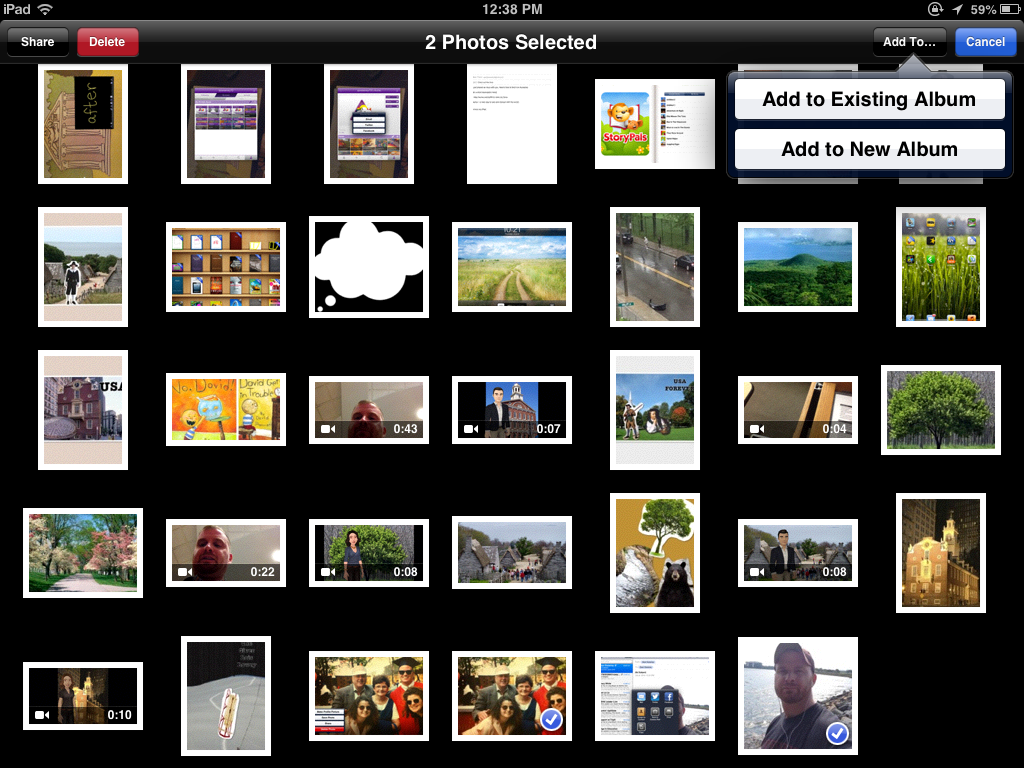
e. Add to a New Album and Name the Album.
f. You will then see your Album under the Albums section of your Photos app.
If you would like to see this as a video, here is a good representation of the process (after more comprehensive screenshots).
I have found having my photos on the iPad is very convenient as it helps me prepare for these assessments, and it also adds an engagement factor for the student when they are asked to view the photos on the iPad.
I hope you do explore this book when you have some time this summer!
Disclosure: Author was provided a copy of Thinking about YOU, Thinking about ME. However, I owned dog-eared copies of both the first and second editions of this book already! The opinions are all mine.
Thursday, June 27, 2013
Summer Watching: Body Language and Life Outcomes
It is rare that I watch a TED talk that it doesn't change my thinking in some way, at least temporarily. Isn't that what learning is about? I often intend to watch more of these talks and don't succeed, but I recently noticed that TED is available on Netflix. Not that it was hard to access the resources from the multidisciplinary Technology, Entertainment, Design (and much more) conferences, given the great (free) website and iPad app, but streaming it on my TV is even better.
Check out this talk from Amy Cuddy on body language and its consequences for communication and even "life outcomes" such as getting a job or making a date. There is some interesting science here and definitely some clinical implications for working with our students. Amy discusses the simple strategy of the "power pose" and how it shapes our thinking and behavior, and therefore consequences in our own life and our own feelings about ourselves. Sound familiar? There's a good connection here to Social Thinking's Social Behavior Mapping technique.
See Amy Cuddy's TED Talk here.
Check out this talk from Amy Cuddy on body language and its consequences for communication and even "life outcomes" such as getting a job or making a date. There is some interesting science here and definitely some clinical implications for working with our students. Amy discusses the simple strategy of the "power pose" and how it shapes our thinking and behavior, and therefore consequences in our own life and our own feelings about ourselves. Sound familiar? There's a good connection here to Social Thinking's Social Behavior Mapping technique.
See Amy Cuddy's TED Talk here.
Tuesday, June 18, 2013
Update on SLP Blogs Bundle: Now Follow Blogs Using Feedly!
For a few years, I have been a strong advocate of following blogs using an aggregator tool such as Google Reader. I even created a "bundle" of SLP blogs that anyone could subscribe to all at once using Reader. Unfortunately, several months ago, Google announced that it was retiring this product, causing much of the edtech world to spin into a panic (NOTE: If you subscribe to this or other blogs via email, none of this affects you, though I recommend reading on to learn about another way to receive blog content). Though Reader will not be accessible after July 1, 2013, and the SLP Blogs Bundle can therefore have no new subscribers after that time, a substitute has risen to the top: Feedly.
Feedly has been my go-to reading tool since the announcement of the demise of Reader, and I wanted to post about it in conjunction with SLP and fellow SpeechTechie Janelle Albrecht, who had a similar reaction to this bad news. Janelle supported me in those early, dark days after Google broke my heart. This post will give you some information and steps to follow whether or not you currently are a Reader/Feedly user.
Janelle and I conversed over a Google Hangout recently about the advantages of blog aggregators and how Feedly has become our savior:
Sorry that the video is a bit quiet on Janelle's end- you may need headphones to hear her side of the conversation. Key points:
-After July 1, 2013, Google Reader will be no more.
-If you log in to Feedly before July 1 with your Google Account, all your subscriptions and starred items will be migrated to Feedly seamlessly.
-Feedly is a free, clean and efficient tool that you can use to skim all blogs you subscribe to, share posts with others, and curate posts for later reading by "saving for later" or tagging posts in categories for your organization.
-Feedly became our top new tool (after a brief mourning period aligning with the stages of grief outlined by Elizabeth Kubler-Ross) because of its wide array of features, similarity to Reader, clean look and feel, and cross-platform nature (you can use Feedly for free via any web browser, iOS and Android)
-Feedly has developed a critical mass of converts following the Google Reader announcement and has made key steps to ensure users' easy transition to the tool, which bodes longevity.
-Blogs are a GREAT "receptive" way to engage in social media and professional development. No need to interact if you don't want to; just read!
-You can start using Feedly even if you have never used Google Reader, and you should! If you follow more than two or three blogs, it is better to use such a tool than to individually navigate to blogs via bookmarks in your browser, which is inefficient and does not support easy sharing or curation of posts.
-Folks also like Flipboard and Zite, news aggregators that provide different experiences and features.
-You can still give yourself a jumpstart with a collection of blogs by subscribing to the Google Reader SLP Blogs Bundle before July 1 (navigate to Reader while signed into a Google account, then click on this link to add the bundle). Sign into Feedly as well before that date to migrate these subscriptions.
-After July 1, the SLP Blogs bundle will be unavailable for new subscribers, but will stay in your Feedly.
-I will make it a summer project to replace this bundle with a list or resource links of blogs you can add to your Feedly related to speech-language pathology. Heidi Kay of Pediastaff and Jenna Rayburn of Speech Room News have done this here and here very well so I am not sure how much I will reinvent the skillfully constructed wheel. It's very easy to add individual blogs to Feedly, as you can see in the tutorial below.
Overall, Feedly is super easy to use! In addition to the video above, which is more of a discussion, I made a tutorial on using the web or iPad versions of Feedly:
This post may trigger a number of questions. Please feel free to leave any questions in the comments and I will be sure to respond! Thanks to the nearly 1,000 people who subscribed to the SLP Blogs Bundle over the past several years. I was very happy to promote all the good work of SLP Bloggers. Hopefully Feedly will come up with a similar bundling feature as it evolves. Thanks also again to Janelle Albrecht for your time, insights, and patience with my "technical difficulties" on the morning of our recording!
Last Tips: Be sure to add something to your Feedly that makes you laugh or think (or both). Lately, I am enjoying the guilty pleasure of BuzzFeed, and Lifehacker always gives me good ideas. Both of these blogs, and some others, can be very prolific. DO NOT feel like you need to read every post of anything. That is sure to short out your brain and make you want to stop following blogs. Liberate thyself whenever the number of unread posts stresses you our- you can remove the subscription or "Mark all as Read." No one will know. Be Zen. Whatever you read is just the right amount for you to read.
Feedly has been my go-to reading tool since the announcement of the demise of Reader, and I wanted to post about it in conjunction with SLP and fellow SpeechTechie Janelle Albrecht, who had a similar reaction to this bad news. Janelle supported me in those early, dark days after Google broke my heart. This post will give you some information and steps to follow whether or not you currently are a Reader/Feedly user.
Janelle and I conversed over a Google Hangout recently about the advantages of blog aggregators and how Feedly has become our savior:
Sorry that the video is a bit quiet on Janelle's end- you may need headphones to hear her side of the conversation. Key points:
-After July 1, 2013, Google Reader will be no more.
-If you log in to Feedly before July 1 with your Google Account, all your subscriptions and starred items will be migrated to Feedly seamlessly.
-Feedly is a free, clean and efficient tool that you can use to skim all blogs you subscribe to, share posts with others, and curate posts for later reading by "saving for later" or tagging posts in categories for your organization.
-Feedly became our top new tool (after a brief mourning period aligning with the stages of grief outlined by Elizabeth Kubler-Ross) because of its wide array of features, similarity to Reader, clean look and feel, and cross-platform nature (you can use Feedly for free via any web browser, iOS and Android)
-Feedly has developed a critical mass of converts following the Google Reader announcement and has made key steps to ensure users' easy transition to the tool, which bodes longevity.
-Blogs are a GREAT "receptive" way to engage in social media and professional development. No need to interact if you don't want to; just read!
-You can start using Feedly even if you have never used Google Reader, and you should! If you follow more than two or three blogs, it is better to use such a tool than to individually navigate to blogs via bookmarks in your browser, which is inefficient and does not support easy sharing or curation of posts.
-Folks also like Flipboard and Zite, news aggregators that provide different experiences and features.
-You can still give yourself a jumpstart with a collection of blogs by subscribing to the Google Reader SLP Blogs Bundle before July 1 (navigate to Reader while signed into a Google account, then click on this link to add the bundle). Sign into Feedly as well before that date to migrate these subscriptions.
-After July 1, the SLP Blogs bundle will be unavailable for new subscribers, but will stay in your Feedly.
-I will make it a summer project to replace this bundle with a list or resource links of blogs you can add to your Feedly related to speech-language pathology. Heidi Kay of Pediastaff and Jenna Rayburn of Speech Room News have done this here and here very well so I am not sure how much I will reinvent the skillfully constructed wheel. It's very easy to add individual blogs to Feedly, as you can see in the tutorial below.
Overall, Feedly is super easy to use! In addition to the video above, which is more of a discussion, I made a tutorial on using the web or iPad versions of Feedly:
This post may trigger a number of questions. Please feel free to leave any questions in the comments and I will be sure to respond! Thanks to the nearly 1,000 people who subscribed to the SLP Blogs Bundle over the past several years. I was very happy to promote all the good work of SLP Bloggers. Hopefully Feedly will come up with a similar bundling feature as it evolves. Thanks also again to Janelle Albrecht for your time, insights, and patience with my "technical difficulties" on the morning of our recording!
Last Tips: Be sure to add something to your Feedly that makes you laugh or think (or both). Lately, I am enjoying the guilty pleasure of BuzzFeed, and Lifehacker always gives me good ideas. Both of these blogs, and some others, can be very prolific. DO NOT feel like you need to read every post of anything. That is sure to short out your brain and make you want to stop following blogs. Liberate thyself whenever the number of unread posts stresses you our- you can remove the subscription or "Mark all as Read." No one will know. Be Zen. Whatever you read is just the right amount for you to read.
Subscribe to:
Posts (Atom)





