Tuesday, October 18, 2011

QR Codes Part 6: QR Code Treasure Hunt Generator

In previous posts, I showed how you can use Kaywa to generate individual QR codes for URLs, images, or text.  If you want to create an activity that involves students moving around and scanning many QRs (i.e. a scavenger/treasure hunt) with text questions, prompts or stimuli, ClassTools.net's QR Code Treasure Hunt Generator is a good resource to do this quickly.  You can use the website to enter in text questions and answers, and it instantly gives you many QRs to print:


The website gives you a specific format to enter in questions and answers, and allows you to go back and edit the hunt later if you enter a code.  It would be a good idea to save, cut and paste your hunts from Word or Google Docs so that you can keep an editable copy yourself!

Monday, October 17, 2011

A Quick Tour of iOS5 on iPad

Apple has been much in the news lately as, besides Steve Job's passing, they have released a new phone, the iPhone 4S, and a new operating system for existing iPads and iPhones (and newer iPod Touches).   I have not bought the iPhone 4S since I am happy with my 4, but I am tempted by its new artificially intelligent personal assistant, Siri.  Siri helps you accomplish many tasks with voice commands such as texting, emailing, Internet searching, and adding items to the calendar.  While this new feature is limited to those with the iPhone 4S, we all can give our iPads and iPhones a new brain and enhancements by upgrading to iOS5.  I did a little video review of iOS 5 which you can see below; it is a pretty significant step for the operating system and will usher us into the "Post-PC" era.  After upgrading to iOS5, you will no longer need to connect your device to a computer (or have one, for that matter) to sync and backup your data.  I continue to say that it is important to have a laptop at least for work production, accessing Google docs (which are not so iPad-friendly) etc.  Sorry the quality is not the best, it's still hard to make a recording where the hand gestures are important to see.


Note: I did read that the split keyboard is designed to help you when you are holding the iPad with 2 hands, so you can type with your thumbs.  That makes sense. Note also that the multitouch gestures I demo here only will work on iPad 2.

I definitely recommend this upgrade (allow your iPad about 2 hrs to complete it), but definitely read this guide first.  Some other good reads:

Top 10 iOS5 Features you should know about (App Advice)
Top 10 iCloud Features you should know about (App Advice)
How to set up Wi-Fi Sync for iOS5 (CNET)

Thursday, October 13, 2011

QR Codes Part 5: QR Reader for Desktops/Laptops

In recent posts I have discussed mobile apps for using QR Codes in speech-language sessions, but there is also at least one application that is an option if your desktop or laptop has a webcam.  I have had good success with QRreader, which is free and runs on both Mac and PC. Simply navigate to that link and install the application.  It is Adobe AIR-based, so don't be surprised when you get prompts for periodic Adobe updates.

Once installed, the QRreader works much like a mobile app.  Open the application and your webcam will be activated.  Hold up the printed QR code to the center of the targets (this takes a bit more finagling than with a mobile app, as you are holding a flimsy piece of paper).  QRreader will then display the text, website or image encoded in your QR!

Like this:


Next week, a QR Scavenger Hunt creator that lets you make and print a bunch of QRs at once!

Wednesday, October 12, 2011

QR Codes Part 4: A Lesson Plan incorporating QR

Last spring I had a social group of 2nd-3rd graders that was getting a little tired.  I wasn't getting tired, but they were getting tired of me.  I needed to change things up, and had recently learned about QR Codes at Edcamp Boston, so I thought I would give it a try.

One concept we had been working on was smart guesses vs. wacky guesses (a form of social inferencing, see Michelle Garcia Winner's Think Social), and I wanted to break from structured tabletop conversation activities to let the kids engage with each other through play.  So my plan was to have a themed session, and have them find QR codes around the therapy center in order to guess the theme.  The theme was camping, with an interactive website ("Thrill of the Catch"), play activity, and board game as part of the agenda.

The QR portion went like this:
1. I created four QR Codes that linked to images (pictures of a forest, boat, campfire, and tent) that served as clues about the theme. I printed the QR Codes and hid them around the center.
2.  The kids worked together to find the hidden codes, negotiate and take turns scanning them, and we discussed each one, doing some "negative practice" of what a wacky guess would be (i.e. "I found a boat!  I think the activity will be about clowns!"). It should be noted that QR hunts are great for kids who need some movement as part of their sessions.
3. We finally came to a smart guess about the theme, and proceeded to the non-QR activities for the rest of the session.

You create a QR of an image the same way you create one for a URL, but the process is a little different.  Check it out below:


Saturday, October 8, 2011

Check out Pediastaff and Pinterest for Halloween (and many other) ideas!

Pinterest is a site that is creating a lot of excitement.  It is basically a spin on social bookmarking and allows members to create "Pinboards" (like a cyber bulletin board) of resources you find on the web.  The site is very visual and facilitates sharing of ideas by searching other Pinboards and "repinning" items others have highlighted.  The site is starting to be popular with SLPs and other therapists who are sharing items, most notably PediaStaff.  PediaStaff has created an awesome board about Halloween Themed activities- you should definitely check it out.


Heidi Kay from Pinterest sent me a message asking me to share this resource, and I am very happy to do so.  From Heidi: "I am trying to get the word around that not only is it a great resource, but (like with our blog), therapists need have "no worries" associated with checking it out and sharing our content. PediaStaff gets no personal data whatsoever from Pinterest. Some people are hesitant to sign up for our newsletter because they think they will get "recruited" if they give us their email address. We are really wanting this to be a true gift to the profession with no strings attached."

Heidi has an important point that PediaStaff is making great efforts to share content with therapists of all disciplines, a unique and admirable mission that is separate from their staffing endeavors. Please consider following their blog and signing up for their weekly newsletter, which are two great ways to access their content.  Heidi has written a great overview about their Pinterest resources on the PediaStaff blog, which also has a link to sign up for the newsletter.  Below, you can also see a video on how to use Pinterest.  Happy Pinning!


Thursday, October 6, 2011

Steve Jobs, Visionary. 1955-2011

I distinctly remember my first computing experience.  My dad, the head of a public school "Library/Media" department, brought home an Apple ][ (2), and I was instantly hooked.  The Apple computer offered a relatively user-friendly experience for the early 80s, and I quickly learned how to switch out floppy discs, endure the machine's unforgiving "BRAAAAAP" sound that occurred when said discs caused an error, and enjoy games such as "Lemonade Stand" and "In Search of the Most Amazing Thing."

My Apple brand loyalty had been forged in silicon by the age of 8.  Through the years, I have loved the products conceived and nurtured by Steve Jobs, even in those years the company was expected to go under (Jobs himself got kicked out of the picture for a period of time). For me, the beauty and simplicity of Mac systems has always been the hook, just like Steve wanted it. Macs have shepherded me though high school, college and graduate degrees, countless evaluation reports, and so much learning. I learned to edit video on a Mac, collected and organized my wedding photos, and connected with friends and new and exciting sites in the "i" spaces the platform so easily accessed. My work has revolved around a succession of mid-word capital letters- PowerBooks, iBooks, iMacs, MacBooks, each new generation making it easier to access interactive programs and visuals, and thus to facilitate learning.

I was not an early adopter of the iPhone, but, once convinced to turn, have found my life revolutionized, energized, and simplified by the fact that "There's an App for That." Now look where we are, thanks to Steve. A new generation of SLPs is entering our field seeing how simple it is to engage kids in using language though the technology offered by the iPad.  Veteran SLPs who are computer-phobic are revisiting and trying to address their issues with tech, seeing the iPad as a bridge to cross their fears and foster student learning.  And parents are able to use relevant apps for everything from helping their kids engage in self-directed play to rewarding them for positive behaviors.

Steve Jobs once said, “It’s really hard to design products by focus groups. A lot of times, people don’t know what they want until you show it to them.” Steve really knew what I wanted and needed, before I even did, and has, at every step, pushed the technology and design to make it, well, "Magic." As much as I am sad that I was wrong about how long he would be with us, I am grateful for what he has created for us and our students.

Thanks, Steve.


QR Codes Part 3: Mobile Scanning Apps and Demo

So in this, Part 3 of my series on using QR codes to deliver engaging messages, stimuli and visuals to students during sessions, you'll get to see what it looks like when you scan a code with a mobile device.  Check out the video here:


So, that video pretty much sums it up.  The app I used there (for iOS, iPod Touch w/camera, iPad, iPhone) was Scan, and another I have used successfully is RedLaser (both are free).  Android peeps, I hear Barcode Scanner works well, but not having an Android device, I can't vouch for anything.

Next week I'll be sharing some more ideas about using QR codes in therapy, including sharing an image through QR, lessons using QR related to the Social Thinking® curriculum, and other tidbits.

Wednesday, October 5, 2011

QR Codes Part 2: Using Kaywa to Generate a QR Code

In part one of this series, I described what a QR Code is, where you might have seen them, and their potential for grabbing the attention of our students.

Today, I am going to talk about Kaywa, a free site that you can use to generate and print a QR code for use in a session.

Kaywa is simple to use.  You can type or cut/paste a website URL (address) and create a code that, when scanned, will open the web browser on the device (smartphone, iPod Touch, iPad) or you can enter a short piece of text (e.g. a word with a target sound, vocab word or definition, contextual info, or a strategy you want the student to use).


1. Choose the Content type (generally you will use URL or Text)
2. For URL, you may copy and paste the URL from another window or tab (just make sure to delete http:// from the URL field before pasting (so you don't end up with http://http:// at the beginning of your code, which would be an invalid URL.

3. Click Generate!

Here's your code! Click on it and you will see it by itself on a page in printable form.
Like This.  
Select File>Print from your browser and you will be able to print the code for scanning. You can also right-click(PC) or control-click(Mac) to copy or save the QR Code image.


Here's a short video showing these steps.  Have fun!!


Monday, October 3, 2011

QR Codes Part 1: What are QR Codes?

I am excited to do a few "theme" series on SpeechTechie that will explore topics and strategies in more depth, as I did with Glogster EDU.  To that end, over the next month we will be looking at QR Codes, a hot topic and emerging technology in education.

What are QR Codes, you ask? Well, you probably have seen them already and wondered, "What the heck are those things???"

qrcode
This is a QR Code

You have most likely seen QR Codes as some part of an advertisement.  QR stands for "Quick Response" and the code is offered to you basically as an eye-grabbing teaser.  You can use an app on your mobile device (smartphone, iPhone, iPod touch, Android phone, iPad) to scan the code, and it usually opens up your web browser and brings you to a site related to the topic of the ad.  In other words, you scan the code and get more information, or more ad! Which ultimately can be kind of lame (but not when used in education, so sit tight).

I wasn't really tempted to get too close to the 3rd rail on the MBTA to scan this QR code
QR Codes can lead to grossness.
So what about QR codes is applicable to us as SLPs and educators? First of all, they are extremely easy to create and print for use in sessions (though again, you need to have access to one of the devices I mentioned above, or a computer with a webcam). Secondly, they are an instant attention-grabber for kids, and constitute a kind of high-tech hide and seek. Rather than giving kids a piece of paper that serves as a stimulus (word or picture), you can present (or hide!) a QR Code they can scan in order to read a text message or see an image, website or video. Students from Kindergarten to High School are engaged by this little hook, which adds the process of discovery to any of your sessions.

Over the coming posts, I will be describing in detail how to create various kinds of QR codes, apps to use to scan them, and lesson ideas for you to try out right away! Each post must by necessity be a bit of a tease as I can't give all the info at once, but I will let you know where I am going in case you want to work ahead!  Next post (Weds): using Kaywa's free QR-Code Generator to make a code.

Part 2: Using Kaywa (Free site) to generate QR codes
Part 3: Apps for Scanning QR Codes and a video demo
Part 4: Lesson Plan incorporating QR and using QR to bring up an image
Part 5: A Desktop/Laptop App for scanning QR Codes
Part 6: Make a bunch of QRs at once with Scavenger Hunt Creator
Part 7: Cube Lesson Plan involving QR
Part 8: Wrapping up with More Ways for SLPs to use QRs
Part 9: Making QR Codes that Play Audio


Friday, September 30, 2011

Posts Elsewhere: Toontastic and Books!

Hi Folks,

Please check out a few posts I have elsewhere on the interwebs!

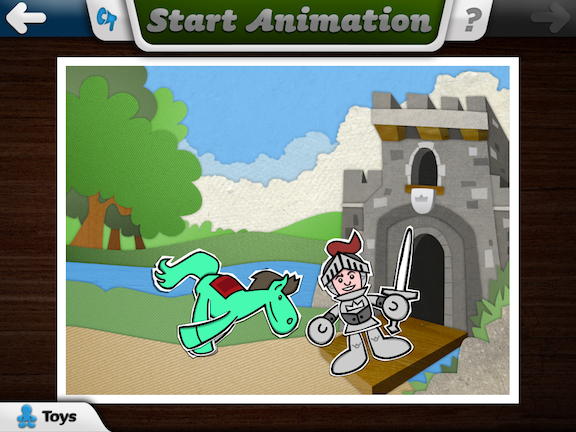
On the Mindwing Blog, I discuss how the iPad Toontastic can be used as a great way to link play, oral language and narrative development using Mindwing Tools. This post includes a podcast of an conversation I had with Andy Russell, one of the creators of Toontastic.  The folks at Launchpad Toys have a really sound understanding of cognitive and narrative development!


On another note, if you already have Toontastic, be sure to open your App Store app and update Toontastic.  They recently pushed out an update that allows you to add a free "toy set" and purchase others for $.99 each.  I was really pleased to see the offerings, which include a number of real-world locations in themes such as Town, Pets, and All-Stars!

On the Advance Speech in Schools blog, please check out my posts in the Book It! series on using picture books in therapy, including a discussion on books that help you scaffold "action sequences" and strategies on finding books related to curriculum topics.  Both posts have been added to the series list.
 
.