Friday, June 6, 2014
Summer Professional Development
Summer approaches! Here's what I will be up to:
I am happy to be presenting at the Social Thinking® Providers' Conference in San Francisco this month (June 20-22). The topic is Zooming in on App Integration: 3 Apps and Divergent Uses for Social Thinking Instruction.
The Ely Center is hosting two sections of Mindwing Concepts' terrific Story Grammar Marker certification course, followed by a 3rd day focused on technology integration with Mindwing's narrative and expository text comprehension and production tools (I facilitate the 3rd day). The two sections will be held July 21-23 and August 18-20. See Mindwing's website for more information and registration.
For MASSCue
Webinar for Administrators (please let your administrators, even beyond MA, know about this one)- Integrating the iPad for School Administrators, various dates.
Tell Me A Story: iPad Apps for Digital Storytelling and Explanimation (July 24, Waltham).
The iPad as a Social and Organizational Tool: Apps to Promote Social Cognition and Executive Functioning (August 21, Bedford)
Have a great summer!
Disclosure: Author is employed by The Ely Center, LLC and is a contractor with Mindwing Concepts, Inc. for provision of blog content and professional development.
Tuesday, June 3, 2014
Everything You Need To Know About WWDC 2014
You may be thinking, "I don't even know what WWDC is," which is fine. However, the Worldwide Developer's Conference is one of Apple's (usually 2) opportunities each year to announce what's coming next (in this case, this fall). Yesterday's Keynote featured a number of announcements that are important for SLPs and other language teachers to know about. Here's a brief rundown.
iOS 8 coming this fall: iOS, of course, is the brain of the iPad. New releases of operating systems not only add features to the device or change the look and feel (as iOS 7 did substantially), but also affect the way all your apps work and update. After an iOS update, many developers update their apps and add features--so if you don't or can't update the operating system, you would miss out on app updates. Even more importantly, if you are running an outdated operating system, this makes you vulnerable to security issues when you surf the web (e.g. and buy something with a credit card). Some main points about iOS 8:
iPad 2 users, you're still in! Apple deals in an element of "planned obsolescence"- as their software advances, sometimes the hardware has to drop out for the software to run properly. This has happened with the 1st generation iPad, which though still usable became technically obsolete when iOS 7 came out, as it could not be installed on that device. The rumors ahead of WWDC were that the new operating software would not be able to be installed on the iPad 2 (which is no longer being sold by Apple), but it seems we have a reprieve here, and your iPad 2 will be able to be updated. This is important for all the reasons listed above. Because I help integrate a cart of 30 iPad 2s at a local school, I also breathed a sigh of relief about this one.
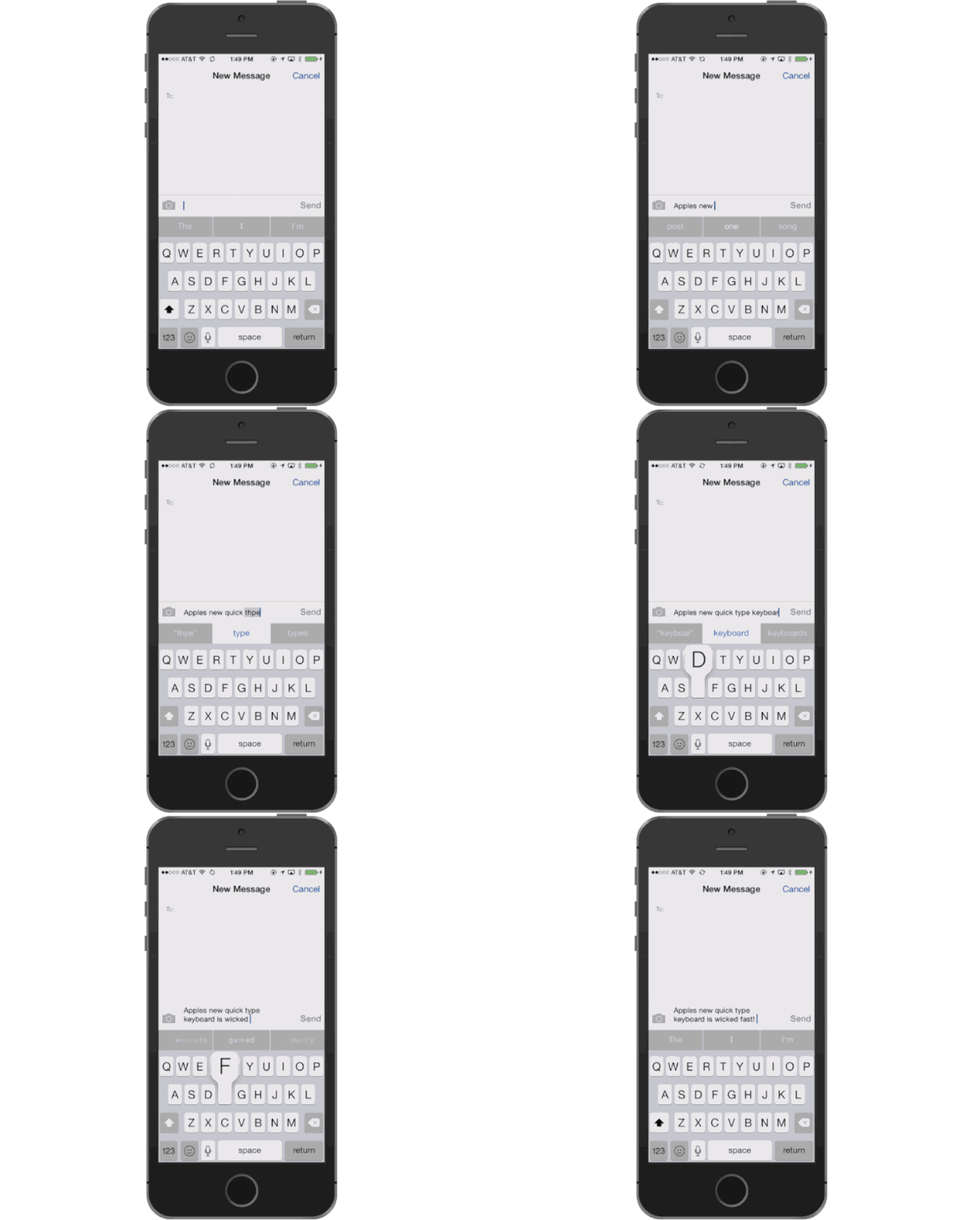
QuickType is an advanced word prediction technology that will be available in the Messages app. This feature actually responds to your previous messages with any given contact and suggests words as you are typing that correspond with your communication style with that person. This will be a boon to people with print or other disabilities- I hope it will also be available in word processing tools eventually. You can see how it works here. In Messages you will also be able to record and send short audio messages that expire after playing, SnapChat style, and this is also a nice feature for those with communication issues.
App Store will have a number of enhancements making it easier to get information about apps, including App Previews, videos that developers can upload so you know what you are getting before you buy. This is essential information before purchasing dedicated SLP and other apps and will help you evaluate your potential purchases. Bundles of apps will also be available for the first time at discounted prices.
Passcode protection on everything including third party apps. This was not demonstrated so I am not exactly sure how it will work, but it seems to mean that you can set a passcode to prevent students from opening certain apps.
Family Sharing is a set of features making iOS like a "virtual refrigerator door" for families- the demos of sharing calendar items and reminders between family members look great for those with autism or executive function issues.
Health will be fostered through iOS 8 with a new app that synchs with now popular simple body-monitoring devices to track everything from sleep to blood pressure.
iCloud Drive is a new aspect of iCloud allowing addition of files from compatible apps. This may end up being easier to use than Dropbox or Google Drive, especially if you are using creation apps and "app smashing" a product from one app to another.
Metal is a new technology for creating apps that looks like it has great potential for interactive experiences that foster language. The Apple team demonstrated an amazingly detailed and interactive Zen Garden app (that, incidentally, will be available for free when iOS 8 is released).
Photos as always continue to improve with shooting and editing features, as well as easier sharing between devices, which you will want to turn off because beverages.
iOS 8 will be released for free this fall for iPad 2 and above, iPhone 4S and above, and will be available through your Software Update in Settings at that time.
Mac users: a new version of OS X called Yosemite (these operating systems are now named after California locations) will be released in fall as well. Its features include a new look and feel, translucency ala iOS 7 that brings a sense of context on screen, and many aspects that link your Mac to iOS devices. I am particularly excited to be able to AirDrop rather than email photos to my Mac, as I need to do this a lot when writing email updates to parents about therapy sessions. You can see a rundown of new Yosemite features here.
Thursday, May 29, 2014
Canva- a great resource for flyers, strategy cards or other therapy visuals!
A number of great webtools have become defunct in recent months (bye, xtranormal, and see ya, Kerpoof, sniff sniff), so it's great to see that useful websites are still being developed. Canva premiered in the past year as a tool to make design accessible to everyone. Canva is free (some backgrounds or stock photo options available at cost) and a super-easy way to make a snazzy visual: a flyer for your services, event, or practice news, an appealing reminder to use a particular language strategy (concepts from Social Thinking® spring to mind) or a creation tool to make a poster emphasizing "language underpinnings" of a curriculum topic.
Note: Canva is NOT accessible on iPad currently. Messages on the website indicate this is coming in the future.
Canva promotes itself as "Amazingly Simple" and it is! Select a layout or background (or both), add and edit your text, and insert photos (many stock options cost $1, or add your own photos or digital drawings). Your product will be linkable or downloadable as an image or PDF.
Canva contains some specialized options: for your social media peeps, you can make blog images, Pinterest-friendly pics, Twitter or Facebook cover images, and more.
Our bulletin board- filled with Canva-produced announcements!
What visual do you have of using Canva? Let us know in the comments!
Labels:
productivity,
social thinking,
visual teaching
Tuesday, May 13, 2014
Link Updates and One "for the Girls"
Some updates on other writings- so far this year I have had several columns published in ASHA Leader, in case you missed them:
May 1, 2014. Tech-Supported Wellness
April 1, 2014. 'Skitch' Up your Visual Aids
January 1, 2014. Zooming in on One Multitalented App
Recently I also posted for Mindwing Concepts on infusing use of Braidy, The Storybraid™ with Social Thinking's® terrific Incredible Flexible You™ program
When Lego's® Friends line of toys came on the market, marketed as "Lego for Girls," it met with some controversy about gendered branding. After all, there already was a Lego for Girls. It was called Lego.
Despite this, it seems girls do respond to the look and feel of Friends, and I appreciate any toy that develops hands-on, narrative and cooperative play. I also applaud Lego for their creation of a number of free, language-useful apps, even if the goal of these apps is to get people to buy more Lego. Minor critique aside, Lego does make a great product.
I recently found Lego Friends Story Maker app very useful in working with a small group of girls- the app is a pretty simple and limited scene creator, but in some cases it can be helpful to present only small arrays of choices. The goal can always be, how do we make a story of what we see here?
The app allows you to select from a variety of backgrounds (beach, school, etc) add characters and setting elements, as well as smaller props. As an added bonus, you can record an audio narration for your created scene, always a good opportunity to practice applicable speech and language targets or strategies.
Scene creators provide a context to develop all sorts of language targets, from concepts to description to sentence formulation. The app is limited in its text features (i.e. I'd really want to make a comic with it), but here's a place you can "app-smash." Just screenshot your scene and then add the photo to Strip Designer and you're good to add word and thought balloons and captions, helpful for scripting and other aspects of social development.
As in other cases, if you have any Friends or other Lego toys on hand, the app can help you practice play scripts and plans to enact with real-world toys.
Thursday, May 8, 2014
Re-usable Images!
As SLPs and other educators delve into creative visual tools, it opens up a world of language opportunities for our students. Creating videos, animations, books, comics, and other products is always a language process, and we can scaffold the use of many strategies while using these tools. However, using visual creation apps often requires images, and there is more than privacy at stake in this matter. We also must consider copyright and fair use.
As a general rule, using pictures saved via a Google Image search is going to be fine if what you are creating is staying on your iPad and not being republished or widely disseminated. For some examples, you're OK if you have saved a Google Image for educational purposes and you:
-Mark it up with photo annotation tool Skitch, save it to the Camera Roll and/or print it for use with the student or display in a classroom.
-Add it to a visual made with Custom Boards (which also has a built in Google Image search).
-Use it in a social story of which there are one (or "few" according to the confusing guidelines) copies.
-Add it to an album in the Photos app and only use it there.
We have to consider where trouble with copyright could occur on somewhat of an app-by-app basis, or even via some "if/thens" within a given app. For example:
-Toontastic, a wonderful animation app, allows you to add backgrounds from the Camera Roll, making for unlimited contexts for storytelling. If you have saved a Google Image without attention to copyright and send your completed toon containing that image as a background to Toontube, the app's optional sharing site, this is an issue. However, the app also has the option to just save toons within the app or to the Camera Roll, which is OK.
-Tellagami, a great talking avatar app, has a similar background image capability. Save your creation to the Camera Roll, and you're good. Upload that video to YouTube, and you're not.
-Many e-Book creators such as Scribble Press and My Story allow you to share your books, but only by first uploading them to their websites. This is a problem if you (or students) have saved images indiscriminately. Unless using images licensed for reuse (see below) share the book only to iBooks on your device or use a different app such as Book Creator, which allows you more diverse sharing options.
The purpose of this post is ultimately to offer solutions, not just scary problems. So if you know your work is to be shared (emailed to many parents, tweeted, posted to a website, uploaded to an app's sharing "gallery" of any kind) when it is completed, simply start by obtaining images licensed for reuse, along with citation information. Two easy ways to do this:
Google Images
Wait, didn't we just say use of Google Images is potentially problematic? Not if you customize your search to find images labeled for reuse.
This option was recently added to Google Image Search. Click/Tap on Search Tools, then Usage Rights, and filter by "labeled for reuse"
Flickr Creative Commons
I like Flickr Creative Commons for its wide selection and ease of identifying the source of an image for citation. This resource requires a few extra steps to get to a downloadable/save-able/citable image:
-Click/tap See more on the license level you want to use- I generally use Attribution.
-Search for images, tap or click on one you like to see it in detail
-Tap the 3 Dots, then All sizes
-Tap and hold on (if on iPad) or right-click/ctrl-click image to save. Note creator at the top of the page (e.g. johnsmith on flickr) so you can provide attribution if republishing, and use a link if possible.
Above, an example of citing an image when republishing!
As a general rule, using pictures saved via a Google Image search is going to be fine if what you are creating is staying on your iPad and not being republished or widely disseminated. For some examples, you're OK if you have saved a Google Image for educational purposes and you:
-Mark it up with photo annotation tool Skitch, save it to the Camera Roll and/or print it for use with the student or display in a classroom.
-Add it to a visual made with Custom Boards (which also has a built in Google Image search).
-Use it in a social story of which there are one (or "few" according to the confusing guidelines) copies.
-Add it to an album in the Photos app and only use it there.
We have to consider where trouble with copyright could occur on somewhat of an app-by-app basis, or even via some "if/thens" within a given app. For example:
-Toontastic, a wonderful animation app, allows you to add backgrounds from the Camera Roll, making for unlimited contexts for storytelling. If you have saved a Google Image without attention to copyright and send your completed toon containing that image as a background to Toontube, the app's optional sharing site, this is an issue. However, the app also has the option to just save toons within the app or to the Camera Roll, which is OK.
-Tellagami, a great talking avatar app, has a similar background image capability. Save your creation to the Camera Roll, and you're good. Upload that video to YouTube, and you're not.
-Many e-Book creators such as Scribble Press and My Story allow you to share your books, but only by first uploading them to their websites. This is a problem if you (or students) have saved images indiscriminately. Unless using images licensed for reuse (see below) share the book only to iBooks on your device or use a different app such as Book Creator, which allows you more diverse sharing options.
The purpose of this post is ultimately to offer solutions, not just scary problems. So if you know your work is to be shared (emailed to many parents, tweeted, posted to a website, uploaded to an app's sharing "gallery" of any kind) when it is completed, simply start by obtaining images licensed for reuse, along with citation information. Two easy ways to do this:
Google Images
Wait, didn't we just say use of Google Images is potentially problematic? Not if you customize your search to find images labeled for reuse.
This option was recently added to Google Image Search. Click/Tap on Search Tools, then Usage Rights, and filter by "labeled for reuse"
When saving your image, also note the source so that you can site it in your work with an "Images From" section or some sort of credit.
I like Flickr Creative Commons for its wide selection and ease of identifying the source of an image for citation. This resource requires a few extra steps to get to a downloadable/save-able/citable image:
-Click/tap See more on the license level you want to use- I generally use Attribution.
-Search for images, tap or click on one you like to see it in detail
-Tap the 3 Dots, then All sizes
-Tap and hold on (if on iPad) or right-click/ctrl-click image to save. Note creator at the top of the page (e.g. johnsmith on flickr) so you can provide attribution if republishing, and use a link if possible.
![]() |
| image licensed for reuse by scott1346 on flickr |
For some more background on this issue and these strategies for obtaining images, check out Common Craft's great video on Copyright and Creative Commons.
Labels:
digital storytelling,
images,
ipad essentials,
visual teaching
Friday, May 2, 2014
Stick Around: The Spectrum of Repurposing
Much of my efforts in writing and conducting trainings is geared toward helping SLPs and other educators see the potential use of apps and tools they might not have recognized initially as language-based. That has been the focus of this blog since its inception- "looking through a language lens"- even back when we were talking about interactive flash-based websites and webtools, way before apps.
I found great validation of my advocacy for "repurposing" in an article by Jessica Gosnell in the ASHA Leader in 2011, and consistently use this quote in sessions:
“A search focused only on a specific profile of dedicated apps (speech production, targeted language goals, augmentative communication) could miss many well-designed apps that offer motivating and fun learning opportunities. Using creativity, clinicians can reach beyond an app's intended target audience and purpose and adapt it to support interventions.”
-Jessica Gosnell (Children’s Hospital, Boston), “Apps, an Emerging Tool for SLPs,” ASHA Leader Online, October, 2011
I think as we progress in incorporating technology into our work thoughtfully, we are getting better at seeing these connections and potential uses of a wider variety of apps. Recently, I was presenting on apps for pediatric populations at the ASHA Healthcare and Business Institute and included a great recent release called Stick Around. This educational app allows the creation of puzzles featuring "stickers" that can be dragged on top of an image or array in order to develop labeling, sequencing, or describing in just about any context. As I was showing it with other apps that could be repurposed for language therapy, a participant asked, "Is this really even a repurposed app? It seems like language heaven!"
I replied, "Good point!" But the fact is, many in our field might not think to look past the icon and description (or even stumble upon it in the education category of the App Store), and it wasn't designed specifically for speech and language pathologists. So, while on the spectrum of repurposing, it's not such a stretch as using Bobbleshop- Bobble Head Avatar Maker for developing descriptive language, we all could use a push to see what a valuable app Stick Around could be.
Tony Vincent, an amazing resource on technology integration and the author of Stick Around (in partnership with Explain Everything creators Morris Cooke), definitely sees these connections between language and learning, and has presented for our peeps at conferences such as those held by the Center for Autism and Related Disabilities in Florida. He designed Stick Around ($2.99, very Fairly Priced and meeting all other points of the FIVES Criteria) to be a blank slate where educators--and students--could create these self-checking puzzles for learning in all contexts. So let's take a look at it.
Stick Around may first look a bit daunting, but this is just because its interface allows for such a large array of options and customization. I figured the process out in about 10 min, but there are also great video tutorials available should you get stuck. Though it might seem strangely dairy-specific, in the shots below I am showing how to set up a puzzle that could be used for life skills and executive functioning ("feature teaching" ala Sarah Ward). You could think up all sorts of other contexts for puzzles (In Las Vegas, I modeled a puzzle labeling the casinos on the Vegas Strip from a screenshot using Google Earth- you need Stick Around on your iPad to access this file)!
Start with deciding the image you would like to use as a puzzle (the app also has templates such as Venn Diagrams and sequencing frames). In this case, on a community trip to the supermarket, we snapped this image of the dairy section. You can also save an image, but just be aware of copyright should you plan to share your puzzle (see my next post).
As always, Happy Repurposing!
I found great validation of my advocacy for "repurposing" in an article by Jessica Gosnell in the ASHA Leader in 2011, and consistently use this quote in sessions:
“A search focused only on a specific profile of dedicated apps (speech production, targeted language goals, augmentative communication) could miss many well-designed apps that offer motivating and fun learning opportunities. Using creativity, clinicians can reach beyond an app's intended target audience and purpose and adapt it to support interventions.”
-Jessica Gosnell (Children’s Hospital, Boston), “Apps, an Emerging Tool for SLPs,” ASHA Leader Online, October, 2011
I think as we progress in incorporating technology into our work thoughtfully, we are getting better at seeing these connections and potential uses of a wider variety of apps. Recently, I was presenting on apps for pediatric populations at the ASHA Healthcare and Business Institute and included a great recent release called Stick Around. This educational app allows the creation of puzzles featuring "stickers" that can be dragged on top of an image or array in order to develop labeling, sequencing, or describing in just about any context. As I was showing it with other apps that could be repurposed for language therapy, a participant asked, "Is this really even a repurposed app? It seems like language heaven!"
I replied, "Good point!" But the fact is, many in our field might not think to look past the icon and description (or even stumble upon it in the education category of the App Store), and it wasn't designed specifically for speech and language pathologists. So, while on the spectrum of repurposing, it's not such a stretch as using Bobbleshop- Bobble Head Avatar Maker for developing descriptive language, we all could use a push to see what a valuable app Stick Around could be.
Tony Vincent, an amazing resource on technology integration and the author of Stick Around (in partnership with Explain Everything creators Morris Cooke), definitely sees these connections between language and learning, and has presented for our peeps at conferences such as those held by the Center for Autism and Related Disabilities in Florida. He designed Stick Around ($2.99, very Fairly Priced and meeting all other points of the FIVES Criteria) to be a blank slate where educators--and students--could create these self-checking puzzles for learning in all contexts. So let's take a look at it.
Stick Around may first look a bit daunting, but this is just because its interface allows for such a large array of options and customization. I figured the process out in about 10 min, but there are also great video tutorials available should you get stuck. Though it might seem strangely dairy-specific, in the shots below I am showing how to set up a puzzle that could be used for life skills and executive functioning ("feature teaching" ala Sarah Ward). You could think up all sorts of other contexts for puzzles (In Las Vegas, I modeled a puzzle labeling the casinos on the Vegas Strip from a screenshot using Google Earth- you need Stick Around on your iPad to access this file)!
Start with deciding the image you would like to use as a puzzle (the app also has templates such as Venn Diagrams and sequencing frames). In this case, on a community trip to the supermarket, we snapped this image of the dairy section. You can also save an image, but just be aware of copyright should you plan to share your puzzle (see my next post).
Using the Stick Around app (see above the array of sample projects to spur your imagination- try not to be intimidated by how beautiful their graphics look), begin a new project.
I created a blank project so that I could use a photo background. Tap the + to add this from your Photo Library or other source.
Your next step is the stickers. These can take various formats (Text, Image, or Drawing Sticker). Double tap the sticker to write the label, and you can also add a description via text or audio (a great feature for SLPs). Arrows can be added as well.
Create your Answer Key by drawing each of the "regions" where the sticker, if placed or pointed, will result in a correct answer when the puzzle is played. Make sure your regions don't overlap. While creating the Answer Key, you will want to place the sticker or its arrow head in the correct region to link the sticker and its region, as seen above.
Finally, you can tap Play and try out your project in puzzle form. As a great example of continuous improvement in apps, Stick Around recently added the faces indicating correct or incorrect answers when you tap "Check."
When you are done with your project, save it (when navigating back to My Projects, you will be prompted to give it a name and save, or you can give it a name in the Info tab). The Export button (arrow into box) allows you to send the project to the Puzzles section of the app (from Projects) so that it can be played but not edited.
One of the best features of Stick Around is that puzzles you create can be shared with others who have the app. From My Projects I simply exported this one to Dropbox, and if on an iPad with Stick Around installed, you can click this link to add it to your Projects and play it!
So, what are your thoughts? What can you imagine creating with Stick Around?
As always, Happy Repurposing!
Thursday, April 17, 2014
Video Demo of Apple TV in Clinical Setting
At last weekend's ASHA Healthcare and Business Institute in Las Vegas, I presented a session entitled "Tech Up," detailing a variety of simple technologies that can be infused for productivity and engagement in the private practice setting (though the ideas, including this one involving Apple TV, are applicable to other settings). Apple TV is a small device that allows you to display content on a TV, and is especially helpful when you need to engage a group. Because this technology is pretty impossible to demonstrate in a conference setting (one never knows what the wifi situation will be), I made a short video at the Ely Center where I work and where we have been using Apple TVs in order to show this to the attendees- and you!
A couple of key points I want to reiterate in case you missed them in my babbling:
-The Apple TV is only $99 and can be attached via HDMI cable to any HDTV (now cheap- the one shown here cost about $400).
-It can then be used to "mirror" an iPad or iPhone so that anything viewable on the small screen will show up on the big screen- apps, videos, webpages.
-This is useful for "dedicated" speech-language apps (such as Tactus' Conversation TherAppy, shown here) as well as creative application of any apps that provide a visual context for speech, language, or social communication, as well as overall client education.
-The Apple TV and your device need to be on the same wifi network in order for the AirPlay button to show up in Control Center, as shown in the video but also here.
-My point about turning on the actual TV after mirroring is just one I have learned from experience, and usually just prevents distraction. However, once, after this poster popped up, I had to explain to a parent that her son had inquired what a "virgin" is (I pretended I didn't hear the question)- luckily, she was totally cool with it. You can also quickly dismiss the iTunes preview by tapping "down" on the remote.
Hopefully the video is helpful to you.
Tuesday, April 15, 2014
ASHA Healthcare and Business Institute 2014
I had the great opportunity to present at and attend the ASHA Healthcare and Business Institute at Green Valley Ranch in Las Vegas this past weekend. It was a great learning experience, and as you know, Vegas is no fun at all.
I presented three sessions: Inside and Outside the Box Apps for Pediatrics/Adults (2 sessions) and Tech Up! (a sort of day-to-day incorporation of technology to increase productivity and engagement in private practice settings). All went well, and the audience was terrific!
On the first day, I attended several sessions before mine, and especially enjoyed Audrey Holland's presentation on new directions in aphasia therapy. She discussed the value of contextual, functional group therapy (including narrative, which I am all about) and applications of technology- here was my tweet from her session.
Oops, I said Skype twice. I guess I thought it was important.
Now, my background includes a clinical fellowship year working in adult neurogenic rehab, some work helping with the initial offerings of Boston University's Aphasia Resource Center (specifically, what was then known pre-iPad as the "Aphasia Computer Club), and development of presentations including apps for adults. I work extensively with adolescents in transition from high school and some adults with autism, but I am primarily working in pediatrics and with kid-related topics and interventions, so the "refresher" was certainly welcome.
I especially appreciated Dr. Holland's reference to a VERY recently published issue of Seminars in Speech and Language (February, 2014) dedicated to the use of mobile tech in aphasia treatment. As electronic access to journals is not so easy for those of us not-in-school, I immediately texted my graduate intern from BU and asked if she had time to download and send me the articles (she did- thanks, Lauren!). One in particular, delightfully co-written by Elizabeth Hoover, my graduate placement supervisor back in 1999, and classmate Anne Carney, ended up providing me with the following additional slide for my presentation:
I presented three sessions: Inside and Outside the Box Apps for Pediatrics/Adults (2 sessions) and Tech Up! (a sort of day-to-day incorporation of technology to increase productivity and engagement in private practice settings). All went well, and the audience was terrific!
On the first day, I attended several sessions before mine, and especially enjoyed Audrey Holland's presentation on new directions in aphasia therapy. She discussed the value of contextual, functional group therapy (including narrative, which I am all about) and applications of technology- here was my tweet from her session.
#hcbi14 A. Holland: mobile tech is most important development in aphasia tx in past 10 years: apps, Skype, youtube, Skype, games #slpeeps
— Sean Sweeney (@SpeechTechie) April 11, 2014
Oops, I said Skype twice. I guess I thought it was important.
Now, my background includes a clinical fellowship year working in adult neurogenic rehab, some work helping with the initial offerings of Boston University's Aphasia Resource Center (specifically, what was then known pre-iPad as the "Aphasia Computer Club), and development of presentations including apps for adults. I work extensively with adolescents in transition from high school and some adults with autism, but I am primarily working in pediatrics and with kid-related topics and interventions, so the "refresher" was certainly welcome.
I especially appreciated Dr. Holland's reference to a VERY recently published issue of Seminars in Speech and Language (February, 2014) dedicated to the use of mobile tech in aphasia treatment. As electronic access to journals is not so easy for those of us not-in-school, I immediately texted my graduate intern from BU and asked if she had time to download and send me the articles (she did- thanks, Lauren!). One in particular, delightfully co-written by Elizabeth Hoover, my graduate placement supervisor back in 1999, and classmate Anne Carney, ended up providing me with the following additional slide for my presentation:
What I loved about this new information was that it provided a powerful context to demonstrate some of these tools, particularly Keynote, Reader (which provides a clean, uncluttered view of many test-based webpages in Safari), and Speak Selection (which is one way to access text-to-speech) as tools for clients to access text.
On the matter of Keynote, it is really one of my go-to apps whenever I need a "blank slate" to work with when creating or displaying visuals, which is exactly how this article framed it. Keynote ($9.99, free on new iPads purchased after fall 2013) is in short Apple's version of PowerPoint, though in many ways I like it more. Look to Keynote as a way to create a slide or two to break down a concept, display pictures, or even create picture stories. How do you use Keynote? It's as simple as this image I created for a recent workshop:
So, the conference went well, and I hope this information is helpful for clinicians and educators working with clients of all ages and populations.
I may have a few more posts related to this trip, but for now, I will leave you with a #selfie of me waiting to see Olivia Newton-John! I did make it to the strip a couple times...
Labels:
adults,
iOS,
professional development,
research,
visual teaching
Wednesday, April 2, 2014
iPad Essentials: Window Shopping in the App Store
While recently conducting a few "iPad 101"-style workshops for educators and clinicians, including a webinar for ASHA available on-demand, I have been talking a lot about finding and getting ideas about helpful apps. I discussed this in a post a bit back mentioning resources including Smart Apps for Kids, Yapp Guru and Apps Gone Free, but it's also worth noting the "window shopping" one can do in the App Store app itself.
Although the information the App Store provides is far from comprehensive (I always recommend looking at app demos on YouTube before purchasing) and reviews can be quite skewed or unhelpful, it gives you a good visual "first pass" to new ideas. The App Store has also recently improved in its organization, which primarily is what we'll focus on in this post.
I use the term "window shopping" because the App Store is essentially a storefront from Apple and an avenue to display things that look attractive together-- collections! Upon opening the App Store, the Featured tab is an area that is a good idea to check out about once a week, primarily because Apple's "App of the Week" is always free. If Apple has singled an app out in this way out of the zillions available, you can be assured it is pretty neat-o, and many of the Apps of the Week are kid- or education-related.
Note also that the menu at the top of the App Store leads you to some relevant areas for SLPs and language interventionists. Tap Kids (and then an age range) and this will bring you to educational, creative, or game-based apps that may be repurposed for therapy and learning activities.
Under the More tab, there are several areas to explore. The Education area has great curriculum-based apps that can be used to provide visual and interactive experiences with content...
...and includes terrific Collections, among them the Apps for Every Grade Collections- especially helpful for those who struggle to find relevant apps for Middle and High Schoolers.
The More tab in the top menu also brings you to the Medical category, which has many apps relevant to clinical work.
Exploring the App Store will lead you down new avenues and provide a great opportunity to hone your evaluation skills: which apps seem to be FIVES-Friendly: Fairly Priced, Interactive, Visual, Educationally Relevant, and "Speechie" or Specific to intervention objectives?
Happy window shopping!! Let us know if you find something good...
Labels:
apps,
evaluation,
FIVES,
ipad essentials
Tuesday, March 18, 2014
My World for iPad
Many of you know I have a thing about maps! Maps are fascinating to examine, but from an SLP perspective can be used to target all kinds of skills: categories (i.e. continents, states, cities, capitals), spatial concepts, and clearly intersection with classroom curriculum.
Technology has made maps more interactive and therefore a more engaging context. My World for iPad ($.99) is a nice little tool to have if you would like to use geography as a way to build language skills. Specifically, you can zoom in to any location by pinching, or use the location functions of the device to identify where you are on the map (doable with many maps apps). The hook of My World is that it allows you to create a line and find out a) the distance of the path between places and b) the amount of time it would take to travel by plane or car. In both cases, students are engaged with a personal connection (their location, as measured in relation to locations relevant to classroom topics) and can be asked to apply language around distance or, more importantly for many of our students, time.
Using My World would benefit from some structure imposed on your part, for example the creation of a scavenger hunt/challenge to find distances and times and record them on a graphic organizer.
Subscribe to:
Posts (Atom)

.png)